Want to make your driving experience smarter and safer? Adding apps to Apple CarPlay can transform your car’s screen into a powerful tool for navigation, music, and communication.
But if you’re unsure how to get started, don’t worry—you’re in the right place. This guide will walk you through simple steps to add your favorite apps to Apple CarPlay, so you can stay connected without taking your eyes off the road.
Ready to unlock the full potential of your car’s infotainment system? Let’s dive in.
Carplay Basics
Apple CarPlay helps you use your iPhone safely while driving. It shows your phone apps on the car’s screen. This lets you control music, maps, calls, and messages easily. CarPlay keeps you focused on the road. It works through your car’s touchscreen, knobs, or voice commands.
Before adding apps, learn the basics of CarPlay. Understand what it is and which devices and cars support it. This knowledge makes setup simple and quick.
What Is Apple Carplay
Apple CarPlay is a system that connects your iPhone to your car. It displays a simplified iPhone interface on your car’s screen. You can use apps like Maps, Music, and Messages safely. CarPlay also supports voice control with Siri. It helps reduce distractions while driving. The system uses your car’s controls for easy navigation.
Compatible Devices And Cars
CarPlay works with iPhones running iOS 7.1 or later. Most iPhone models from iPhone 5 and up are compatible. Many car makers support CarPlay in newer models. Brands like Ford, Toyota, BMW, and Honda include it. Check your car manual or website to confirm compatibility. CarPlay can connect via USB or wirelessly in some cars.

Preparing Your Iphone
Preparing your iPhone is the first step to adding apps to Apple CarPlay. This ensures your device works smoothly with your car’s system. Some settings must be checked and updated before connecting.
These simple steps help your iPhone run CarPlay apps without trouble. Follow each part carefully to avoid common issues.
Check Ios Version
Make sure your iPhone has the latest iOS version. Open Settings, tap General, then tap Software Update. If an update is available, download and install it. New iOS versions support more CarPlay features and apps.
Enable Siri
Siri must be on for CarPlay to work well. Go to Settings, then Siri & Search. Turn on Listen for “Hey Siri” and Press Side Button for Siri. Siri helps control apps hands-free while driving.
Update Apps
Keep your apps up to date for better CarPlay compatibility. Open the App Store, tap your profile icon, and scroll to see updates. Update all apps that support CarPlay. Updated apps run faster and have fewer bugs.
Connecting Iphone To Carplay
Connecting your iPhone to Apple CarPlay lets you use apps safely while driving. It shows your phone’s apps on the car’s screen. This helps you control music, maps, calls, and messages easily. You can connect your iPhone using a cable or wirelessly. Both methods are simple and fast to set up.
Using Usb Cable
Start by locating the USB port in your car. Use your iPhone’s Lightning cable to connect the phone to the car. The car’s screen should show the CarPlay interface automatically. If it does not, look for the CarPlay option in the car’s settings. Choose your iPhone from the list of devices. Your apps will appear on the car’s display. This method is reliable and charges your phone while connected.
Using Wireless Connection
Some cars support wireless CarPlay. To connect wirelessly, enable Bluetooth and Wi-Fi on your iPhone. Press and hold the voice control button on the steering wheel. The car will search for your iPhone. Select your car’s name on your iPhone’s Bluetooth settings. Follow the prompts to complete the pairing. Once connected, CarPlay apps will show on the car’s screen. Wireless connection frees you from cables and keeps your dashboard neat.

Adding Apps To Carplay
Adding apps to Apple CarPlay helps customize your in-car experience. It lets you access favorite apps safely while driving. CarPlay supports many apps for music, navigation, and messaging.
You control which apps appear on your CarPlay screen. Changing the app order makes navigation easier. Follow these steps to add and organize apps on CarPlay.
Accessing Carplay Settings
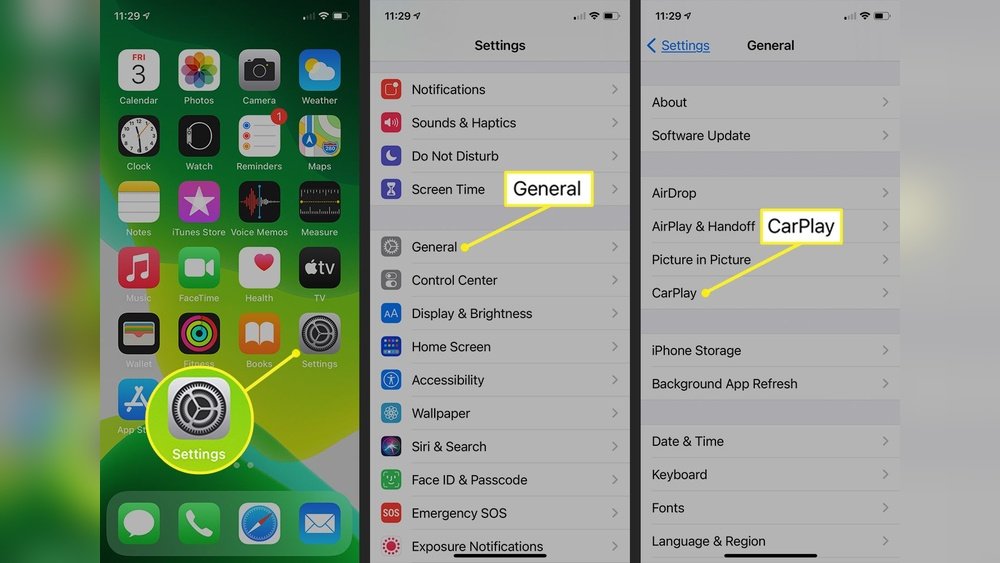
Start by unlocking your iPhone and opening the Settings app. Scroll down and tap on “General.” Find and select “CarPlay” from the list. Your connected car should appear here. Tap your car’s name to open its CarPlay settings.
Selecting Available Apps
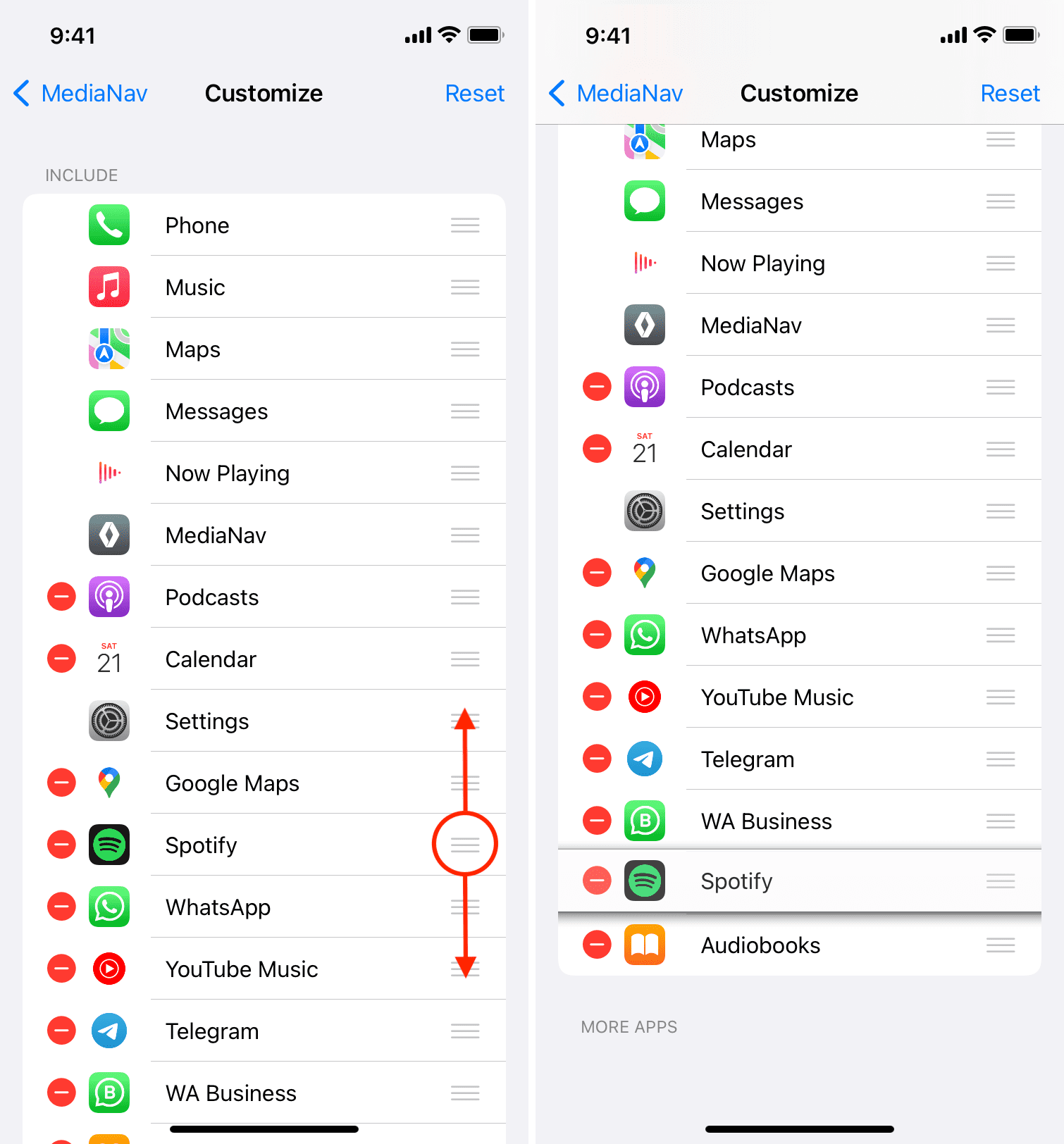
Inside the CarPlay settings, you see the apps that you can use. Tap “Customize” to view the full list. Add apps by tapping the green plus icon next to each app. Remove apps by tapping the red minus icon. Only apps that support CarPlay will show here.
Rearranging App Order
In the Customize menu, arrange apps by dragging the three lines next to each app. Move important apps to the top for easy access. The order here matches the order on your car’s screen. Tap “Done” when finished to save your layout.
Managing App Permissions
Managing app permissions on Apple CarPlay keeps your driving safe and your data private. You control what apps can access on your iPhone while using CarPlay. Proper permissions ensure apps work smoothly without distractions.
Allowing App Access
Open your iPhone Settings and tap “Privacy.” Here, you can see all app permissions. Tap an app to change its access. Enable or disable permissions like location, microphone, or contacts. Only allow what the app needs to work in CarPlay.
Apps with proper permissions load faster on CarPlay. They also provide better features. Avoid giving access to things unrelated to driving. This keeps your data safe and your focus on the road.
Controlling Notifications
Notifications can be distracting during driving. Apple CarPlay lets you control which app alerts show up. Go to Settings, then Notifications. Select the app and choose if notifications appear on CarPlay.
Turn off notifications for apps not important while driving. This reduces interruptions. Important alerts, like navigation or calls, should stay active. This balance keeps you informed without distraction.
Troubleshooting Common Issues
Adding apps to Apple CarPlay should be simple. Sometimes, issues may stop apps from showing or cause connection troubles. This section helps fix common problems fast. Follow these steps to get your apps working again.
Apps Not Showing
Check if the app supports Apple CarPlay. Not all apps work with CarPlay. Make sure the app is installed on your iPhone. Restart your iPhone to refresh the connection. Go to Settings > Screen Time > Content & Privacy Restrictions. Confirm CarPlay is allowed under Allowed Apps.
Connection Problems
Use an Apple-approved Lightning cable for wired connection. Try a different cable if the first does not work. For wireless CarPlay, ensure Bluetooth and Wi-Fi are on. Restart your car’s infotainment system. Turn off Airplane mode on your iPhone. Keep iOS updated for best performance.
Resetting Carplay Settings
Open Settings on your iPhone. Tap General > CarPlay. Select your car from the list. Tap Forget This Car to remove the connection. Reconnect your iPhone to your car. This clears old settings and fixes many issues.
Tips For Best Experience
Getting the best experience with Apple CarPlay means more than just adding apps. It involves using the system smartly. Small tips can make your drive safer and more fun. Here are simple ways to improve your CarPlay use.
Using Voice Commands
Voice commands help keep your hands on the wheel. Speak to Siri to open apps, send messages, or play music. This reduces distractions while driving. Practice simple commands like “Call John” or “Play jazz playlist.” It saves time and keeps you focused on the road.
Keeping Apps Updated
Apps work better when they are up to date. Updates fix bugs and add new features. Check your iPhone regularly to update CarPlay apps. This keeps everything running smoothly. Updated apps use less battery and connect faster too.
Customizing Carplay Interface
You can arrange apps on the CarPlay screen. Put your favorite apps where you see them first. Remove apps you don’t use often. This makes the interface clean and easy to use. A simple setup helps find what you need quickly while driving.
Frequently Asked Questions
How Do I Add Apps To Apple Carplay?
To add apps, connect your iPhone to CarPlay via USB or Bluetooth. Open Settings > General > CarPlay, select your car, then customize the app layout to add or remove apps.
Which Apps Are Compatible With Apple Carplay?
Apple CarPlay supports navigation, messaging, audio, and podcast apps. Popular apps include Apple Maps, Spotify, WhatsApp, Audible, and Google Maps, all optimized for safe driving use.
Can I Rearrange Apps On Apple Carplay?
Yes, you can rearrange apps. Go to Settings > General > CarPlay, select your car, then drag apps to reorder them as you prefer.
Why Won’t Some Apps Show On Apple Carplay?
Apps might not appear if they’re not CarPlay-compatible or not installed on your iPhone. Also, check if CarPlay restrictions are enabled in Screen Time settings.
Conclusion
Adding apps to Apple CarPlay makes your drive safer and more fun. Start by checking app compatibility on your iPhone. Connect your phone to your car using a cable or Bluetooth. Open the CarPlay settings to manage your apps easily.
Keep your apps updated for the best experience. Enjoy hands-free access to music, maps, and messages while driving. This simple process helps you stay focused on the road. Drive smarter with your favorite apps just a tap away.




