Are you finding it tricky to customize your Apple CarPlay experience? Changing your Apple CarPlay settings can make your drives safer, smoother, and more enjoyable.
Whether you want to rearrange apps, adjust notifications, or tweak display preferences, knowing how to do it puts you in control. In this guide, you’ll discover simple steps to personalize your Apple CarPlay just the way you like it. Keep reading, and unlock the full potential of your car’s smart system.
Accessing Carplay Settings
Accessing Apple CarPlay settings allows you to customize your in-car experience. You can adjust features and controls for safer, easier use. There are two main ways to find these settings. One is through your iPhone. The other is directly on your car’s infotainment system. Each method offers different options and ease of use.
Using Iphone Settings
Start by unlocking your iPhone and opening the Settings app. Scroll down and tap on “General.” Find and select “CarPlay” from the list. You will see a list of connected cars. Tap the car name to access specific settings. Here, you can customize app layout, enable or disable features, and manage connections. Changes save automatically and sync with your car.
Via Car’s Infotainment System
Turn on your car and access the main menu on the infotainment screen. Look for the CarPlay or smartphone integration section. Select “Settings” or “Options” within the CarPlay menu. You can adjust sound, display, and app preferences here. Some cars allow rearranging app icons or changing voice controls. Use the touchscreen or physical controls to navigate settings easily.
Customizing App Layout
Customizing the app layout on Apple CarPlay makes your driving experience smoother. It helps you find your favorite apps quickly. You can arrange the apps just the way you like. The process is simple and does not take much time.
Changing the app layout also keeps your dashboard neat. It lets you focus on driving while using the apps you need most. Here’s how to customize the app layout on Apple CarPlay.
Rearranging Icons
Start by opening the Settings app on your iPhone. Tap on “General” and then select “CarPlay.” Choose your car from the list. You will see the app icons used in CarPlay.
Hold and drag an app icon to move it to a new spot. Put your most used apps in the front row. This makes them easy to find while driving. After arranging, your CarPlay screen will show the new order.
Adding And Removing Apps
In the same CarPlay settings, tap “Customize.” You will see two lists: apps on CarPlay and apps not on CarPlay. To add an app, tap the green plus button next to it. It will move to the CarPlay list.
To remove an app, tap the red minus button. This hides the app from your CarPlay screen. You can add or remove apps any time to keep the layout tidy and useful.
Adjusting Siri Preferences
Adjusting Siri preferences in Apple CarPlay helps you control how Siri interacts with you. You can make Siri more useful and less distracting. This section explains how to activate or deactivate Siri and change voice feedback settings.
Activating Or Deactivating Siri
To activate Siri, press and hold the voice command button on your steering wheel or CarPlay screen. You can also say, “Hey Siri” if voice activation is enabled. To turn off Siri, go to your iPhone’s Settings, tap Siri & Search, and switch off the options for “Listen for ‘Hey Siri’” and “Press Side Button for Siri.” This stops Siri from responding while you drive. Adjusting this lets you decide when to use Siri for hands-free control.
Changing Voice Feedback
Voice feedback controls how often Siri speaks during CarPlay use. Open Settings on your iPhone, then tap Siri & Search, followed by Voice Feedback. Choose from options like “Always On,” “Control with Ring Switch,” or “Hands-Free Only.” “Always On” means Siri will speak every time. “Control with Ring Switch” mutes Siri when your phone is on silent. “Hands-Free Only” makes Siri talk only when using voice commands. This setting helps you manage distractions and stay focused on driving.
Managing Notifications
Managing notifications on Apple CarPlay helps keep your drive safe and focused. You can control what alerts you get and when. This makes sure you only see important messages or calls without distractions.
Enabling Do Not Disturb
Do Not Disturb mode stops notifications from showing on the CarPlay screen. This feature keeps your attention on the road. To enable it, go to your iPhone’s settings. Find the “Do Not Disturb While Driving” option and turn it on. You can also set it to activate automatically when your phone connects to your car.
Controlling Notification Alerts
You can choose which apps send notifications to CarPlay. Open the Settings app on your iPhone. Tap “Notifications” and scroll to the apps list. Select an app and decide if you want its alerts on CarPlay. You can allow sounds, banners, or none at all. This helps avoid unwanted interruptions while driving.
Modifying Audio And Sound Settings
Modifying audio and sound settings in Apple CarPlay helps create a better driving experience. You can easily control the sound to suit your preferences. Adjusting these settings improves clarity and comfort while driving. This section explains how to change volume levels and choose audio sources.
Adjusting Volume Levels
Control the volume directly from your car’s dashboard or steering wheel. Use the volume buttons to raise or lower the sound quickly. Apple CarPlay also allows fine-tuning through the settings menu. Navigate to the sound settings and adjust the audio balance. Make sure the volume fits your environment for safe driving.
Choosing Audio Sources
Select the audio source that matches your mood or need. Apple CarPlay supports music apps, podcasts, and radio stations. Tap the audio icon on the CarPlay screen to view available sources. Switch between apps like Apple Music, Spotify, or your phone’s library easily. This flexibility lets you enjoy different sounds without distraction.
Setting Up Driving Focus Modes
Setting up Driving Focus Modes helps you stay safe while using Apple CarPlay. It limits distractions by controlling notifications and app access. This feature keeps your attention on the road.
You can adjust Driving Focus to fit your needs. Choose which apps and contacts can reach you. This way, you stay connected without feeling overwhelmed.
Configuring Focus For Carplay
Open the Settings app on your iPhone. Tap “Focus” and select “Driving.” Turn on Driving Focus to start setup. You can choose to activate it automatically when CarPlay connects. This saves time and avoids manual steps.
Adjust settings like who can send notifications. Allow calls from favorites or specific groups. Customize options to match your driving style.
Customizing Allowed Apps
In Driving Focus settings, find “Allowed Apps.” Tap to add or remove apps you want to use. Only essential apps should stay active to reduce distractions. For example, maps and music apps are useful during drives.
Removing social media apps helps you focus. Change the list anytime to suit your needs. This keeps CarPlay safe and simple.
Troubleshooting Common Issues
Troubleshooting common issues with Apple CarPlay can help you enjoy a smooth driving experience. Problems may include connection errors, unresponsive apps, or settings that do not save properly. Simple fixes often resolve these problems quickly.
Resetting Carplay Settings
Resetting CarPlay settings can clear glitches and restore normal function. Go to your iPhone’s Settings, then tap General. Select CarPlay and find your car. Choose Forget This Car to remove the connection. Restart your iPhone and reconnect CarPlay to set it up fresh.
This reset helps clear cached data and fixes minor bugs. It does not delete any personal information from your phone.
Fixing Connectivity Problems
Connectivity problems often cause CarPlay to stop working. Check your USB cable for damage and use an original or certified cable. Try a different cable if problems continue.
Make sure your iPhone is unlocked and on the home screen during connection. Bluetooth and Wi-Fi should be turned on for wireless CarPlay.
Restart your car’s infotainment system and your iPhone. This simple step can fix many connection issues. Also, check your iPhone’s software is up to date by going to Settings > General > Software Update.

Frequently Asked Questions
How Do I Access Apple Carplay Settings?
To access Apple CarPlay settings, go to your iPhone’s Settings app. Tap “General,” then “CarPlay. ” Select your car from the list. Here, you can customize apps, rearrange icons, and adjust other CarPlay preferences quickly and easily.
Can I Customize The Apple Carplay Home Screen?
Yes, you can customize the CarPlay home screen. In your iPhone’s CarPlay settings, drag app icons to rearrange them. You can hide apps you don’t use. This lets you create a personalized and efficient CarPlay interface.
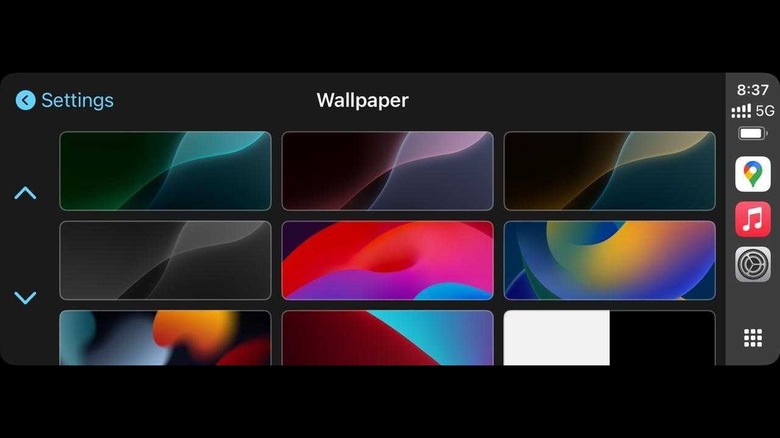
How To Change Apple Carplay Wallpaper?
Currently, Apple CarPlay does not support custom wallpapers. The interface uses a default background. Apple may add this feature in future updates, but for now, wallpaper customization is unavailable.
How Do I Enable Or Disable Carplay Notifications?
To manage CarPlay notifications, go to iPhone Settings > Notifications. Choose apps you want to allow or block notifications from while using CarPlay. This keeps your driving experience safe and distraction-free.
Conclusion
Changing Apple CarPlay settings is simple and quick. You can adjust sound, display, and app preferences anytime. This helps you drive more safely and comfortably. Try different settings to find what fits you best. Keep your device updated for smooth use.
Enjoy a better driving experience with easy customization. Now, you have control over your Apple CarPlay setup. Give it a try on your next drive.




