Struggling to get online when there’s no WiFi around? Connecting to a WiFi hotspot can be your quick ticket to the internet, whether you’re at a café, airport, or even a friend’s house.
But if you’re not sure how to do it, don’t worry—this guide will walk you through every step. By the end, you’ll be able to connect your device easily and securely, so you never miss out on what matters most.
Keep reading to unlock simple tips that make staying connected a breeze.

What Is A Wifi Hotspot
A WiFi hotspot is a place that offers internet access using wireless technology. It allows devices like phones, tablets, and laptops to connect to the internet without cables. Hotspots are common in public places such as cafes, airports, and hotels.
These hotspots work by sharing an internet connection through a wireless signal. Users nearby can find and connect to this signal using their device’s WiFi settings. Hotspots can be free or require a password or payment to access.
There are two main types of WiFi hotspots: public and private. Public hotspots are open to anyone and often found in public spaces. Private hotspots are usually created by a device, like a smartphone, to share its internet connection with others.
How Wifi Hotspots Work
A WiFi hotspot uses a router or a mobile device to broadcast a wireless signal. Devices in the area detect this signal and can connect to it. Once connected, the device uses the internet through the hotspot’s connection.
Benefits Of Using A Wifi Hotspot
WiFi hotspots provide internet access on the go. They make it easy to stay connected without using mobile data. Hotspots also allow multiple devices to share one internet connection at the same time.
Types Of Wifi Hotspots
Wifi hotspots provide internet access through wireless connections. Different types of hotspots serve various needs and settings. Knowing these types helps you connect quickly and safely.
Public Hotspots
Public hotspots are available in places like cafes, airports, and libraries. Many businesses offer free wifi to attract customers. These hotspots are easy to find but may have security risks. Avoid accessing sensitive information on public wifi networks.
Personal Hotspots
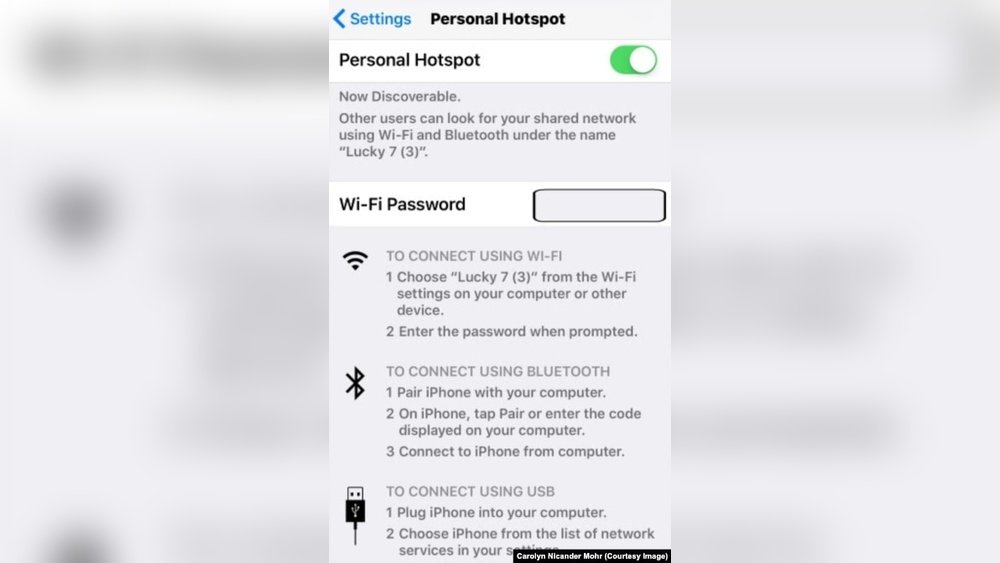
Personal hotspots use your smartphone or tablet to share mobile data. You can connect laptops or other devices to your phone’s internet. This option is handy for quick access on the go. It uses your mobile data plan, so watch your usage.
Mobile Hotspots
Mobile hotspots are small devices that create wifi networks using cellular signals. They work independently from phones and often have better battery life. These devices support multiple connections at once. Ideal for travel or remote locations without fixed internet.
Preparing Your Device
Preparing your device is the first step to connect to a WiFi hotspot. It helps ensure a smooth and fast connection. Taking time to prepare your device saves frustration and connection problems later.
Start by checking if your device can connect to WiFi. Then, turn on the right settings. These simple steps make connecting easier and quicker.
Check Wifi Capability
Not all devices have WiFi capability. Check your device’s specifications or manual. Most smartphones, tablets, and laptops have built-in WiFi. Some older devices may not support it. Knowing this helps avoid wasted time.
Look for the WiFi symbol or network icon on your device. If you see it, your device can connect to WiFi hotspots. If you don’t, you might need a WiFi adapter or a different device.
Enable Wifi Settings
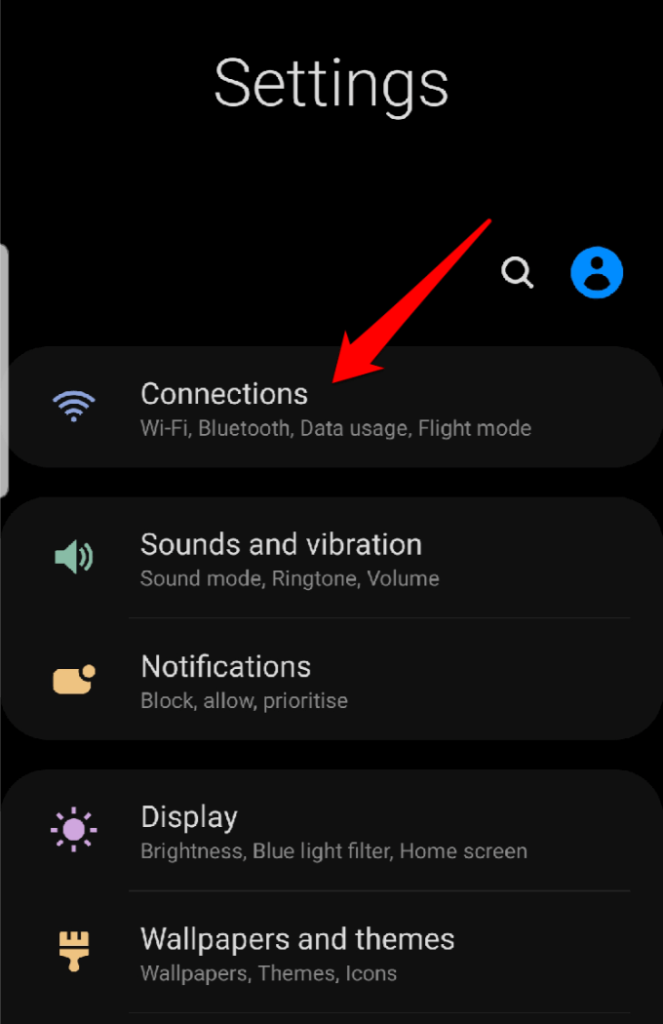
After confirming WiFi capability, turn on the WiFi settings. On smartphones or tablets, go to Settings and find WiFi or Wireless section. Switch the WiFi toggle to ON. On laptops, look for a WiFi button or use the system settings.
Once enabled, your device will scan for available networks nearby. Stay close to the hotspot for a stronger signal. Make sure your device is not in airplane mode. This can block WiFi connections.
Finding Available Hotspots
Finding available WiFi hotspots is the first step to connect your device to the internet. Many devices can scan and show nearby networks quickly. This makes it easy to pick a network and get online fast.
Using Device Wifi Scanner
Most smartphones, tablets, and laptops have a built-in WiFi scanner. It searches for all wireless networks within range. You can open the WiFi settings to see a list of these networks. The scanner updates the list every few seconds. This helps you find the best signal nearby.
Pick a network with a strong signal for better speed. Devices usually show signal strength with bars or dots. More bars mean a stronger connection. This step saves time and avoids weak connections.
Spotting Secure Networks
Not all WiFi hotspots are safe to use. Some are open and do not require a password. These open networks can put your data at risk. Look for networks that show a lock icon. This means they are password protected.
Secure networks keep your information safer. They ask for a password before you connect. Avoid joining networks with strange or unknown names. These might be fake and created to steal data.
Connecting To A Wifi Hotspot
Connecting to a WiFi hotspot allows you to access the internet on the go. It is a simple process that anyone can follow. Understanding the steps helps avoid common connection issues. This guide breaks down the key steps to connect smoothly.
Selecting The Network
First, open your device’s WiFi settings. Look for the list of available networks. Find the name of the hotspot you want to join. It usually matches the location or the service provider. Tap or click on the network name to select it.
Entering Passwords
Many WiFi hotspots require a password to connect. After selecting the network, you will see a prompt to enter the password. Type the password carefully. Use the exact letters, numbers, and symbols. Double-check to avoid connection errors. Then, press connect or join.
Handling Captive Portals
Some hotspots use captive portals for extra security. After connecting, a browser window may open automatically. It asks you to agree to terms or enter login details. Follow the instructions on the page. Complete any required steps to start using the internet. If the page does not open, try opening a browser and visiting any website.

Troubleshooting Connection Issues
Connecting to a WiFi hotspot should be simple. Sometimes, connection problems occur. These issues can stop your device from accessing the internet. Troubleshooting helps find and fix the problem quickly. Follow these easy steps to get back online fast.
Resetting Network Settings
Resetting network settings clears old data that may block connections. This step removes saved WiFi passwords and network info. After the reset, your device will start fresh. To reset, go to your device’s settings menu. Look for “Network” or “Reset” options. Choose “Reset Network Settings” and confirm. Your device will restart. Then, reconnect to the hotspot with the correct password.
Checking Signal Strength
Signal strength affects how well your device connects. Weak signals cause slow speeds or dropouts. Move closer to the hotspot for a better signal. Avoid walls or objects that block WiFi signals. Check your device’s signal bars for strength. More bars mean a stronger connection. Sometimes, switching to a less crowded WiFi channel helps. This reduces interference from other devices nearby.
Avoiding Common Errors
Common errors can stop your connection. Double-check the hotspot name and password. Make sure you enter them exactly as shown. Forget the network and reconnect if issues persist. Check if your device’s WiFi is turned on. Restart your phone or laptop to clear glitches. Confirm the hotspot has an active internet plan. These simple fixes solve many connection problems fast.
Tips For Secure Hotspot Use
Using a WiFi hotspot is easy and handy. Yet, it can expose your device to risks. Follow simple tips to keep your connection safe. Protect your data and privacy while online.
These tips help you avoid common threats. Stay secure on any public or private hotspot. Small steps make a big difference in security.
Using Vpns
A VPN creates a secure tunnel for your internet traffic. It hides your IP address and encrypts data. This stops hackers from spying on your activity. Always turn on a VPN before connecting to any hotspot. Choose a trusted VPN service with strong privacy rules.
Avoiding Public Network Risks
Public hotspots often lack strong security. Avoid accessing sensitive accounts or making payments on them. Do not share personal details over public WiFi. Turn off file sharing and Bluetooth to block unwanted access. Use hotspot networks that require a password.
Keeping Software Updated
Updates fix security holes and bugs in your device. Keep your phone, laptop, and apps current. Enable automatic updates for better protection. Outdated software makes it easier for hackers to attack. Regular updates reduce your risk on hotspots.
Boosting Hotspot Performance
Improving your WiFi hotspot’s performance makes your internet faster and more stable. Small changes can have a big impact on speed and connection quality. Focus on easy steps to get the best signal and reduce interruptions.
Optimizing Device Placement
Place your hotspot in a central, open area. Avoid walls, metal objects, and electronics that block signals. Higher spots work better than low ones. Move your device to find the strongest signal. Keep it away from microwaves and cordless phones. These can cause interference and slow down your connection.
Managing Connected Devices
Limit the number of devices connected at one time. More devices use more bandwidth and slow down speeds. Disconnect devices not in use. Prioritize important devices for better performance. Regularly check your hotspot’s connected device list. Remove unknown or inactive devices to keep your network secure and fast.
Frequently Asked Questions
How Do I Enable A Wifi Hotspot On My Phone?
To enable a WiFi hotspot, go to your phone’s settings. Select “Network & Internet,” then “Hotspot & tethering. ” Turn on “WiFi hotspot. ” Customize your hotspot name and password for secure sharing. This allows other devices to connect using your mobile data.
Can I Connect Multiple Devices To One Wifi Hotspot?
Yes, most hotspots support multiple device connections. Usually, you can connect up to 5-10 devices at once. Keep in mind that more devices may slow down your internet speed. Always monitor your data usage when sharing your hotspot connection.
Why Won’t My Device Connect To The Wifi Hotspot?
Common issues include incorrect password, weak signal, or device compatibility. Restart both devices and re-enter the password carefully. Ensure the hotspot is active and your device’s WiFi is turned on. Updating device software may also resolve connection problems.
Is It Safe To Use A Public Wifi Hotspot?
Public WiFi hotspots can be risky due to security threats. Avoid accessing sensitive information on public networks. Use a VPN for added security. Always connect to trusted hotspots and keep your device’s firewall enabled to protect your data.
Conclusion
Connecting to a WiFi hotspot is quick and simple. Just find the network name and enter the password. Remember to stay near the hotspot for a stronger signal. Avoid public hotspots for sensitive tasks to keep your data safe. Regularly check your device settings to ensure proper connection.
With these easy steps, you can enjoy internet access anywhere. Practice a few times to get comfortable. Now, you are ready to connect your devices confidently and stay online wherever you go.