Are you tired of CarPlay taking over your car’s screen every time you connect your iPhone? Maybe you want more control over your dashboard or just prefer using your phone the old-fashioned way.
Whatever your reason, disabling CarPlay can be simpler than you think. In this guide, you’ll discover easy steps to turn off CarPlay and regain control of your car’s display. Keep reading—you’ll be surprised how quickly you can make this change and enjoy a distraction-free drive.
Why Disable Carplay
CarPlay is a useful feature for many drivers. It connects your iPhone to your car’s display. This helps you use apps, maps, and music safely. Still, some people want to turn it off. Understanding why helps you decide if disabling CarPlay is right for you.
Common Reasons To Turn Off
Some drivers find CarPlay distracting. It can show too many notifications on the screen. Others prefer to use the car’s built-in system. This keeps things simple and familiar. Some cars share the system with multiple drivers. Turning off CarPlay avoids confusion and privacy issues. Also, some phones have trouble connecting, causing frustration.
Benefits Of Disabling
Turning off CarPlay reduces distractions while driving. It helps you focus more on the road. Your car’s original system may be easier to use. Disabling CarPlay can save battery on your phone. It also stops apps from automatically opening. This makes the driving experience smoother and less stressful. Privacy improves because less data is shared with the car. Overall, it gives you more control over your car’s tech.
Turn Off Carplay On Iphone
Turning off CarPlay on your iPhone is simple. It helps you control when and how CarPlay works. You can disable it completely or just stop it for certain cars. This section shows easy steps to turn off CarPlay on your iPhone.
Accessing Carplay Settings
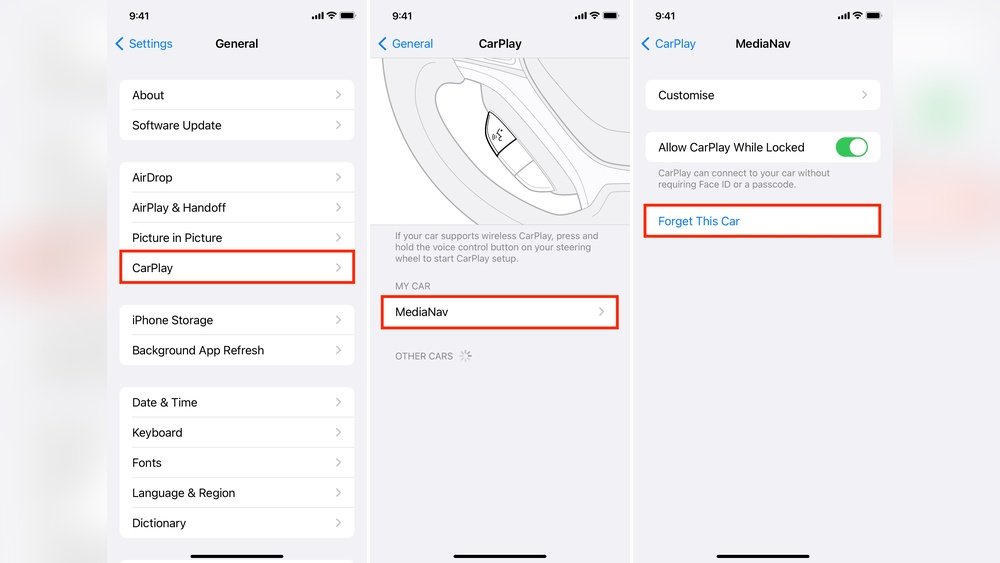
Open the Settings app on your iPhone. Scroll down and tap on “General.” Next, select “CarPlay.” Here, you see all connected cars. This menu lets you manage your CarPlay connections.
Removing A Car From Carplay
In the CarPlay menu, tap the car you want to remove. Tap “Forget This Car.” This action removes the car from your list. Your iPhone will no longer connect automatically to that car.
Disabling Carplay While Driving
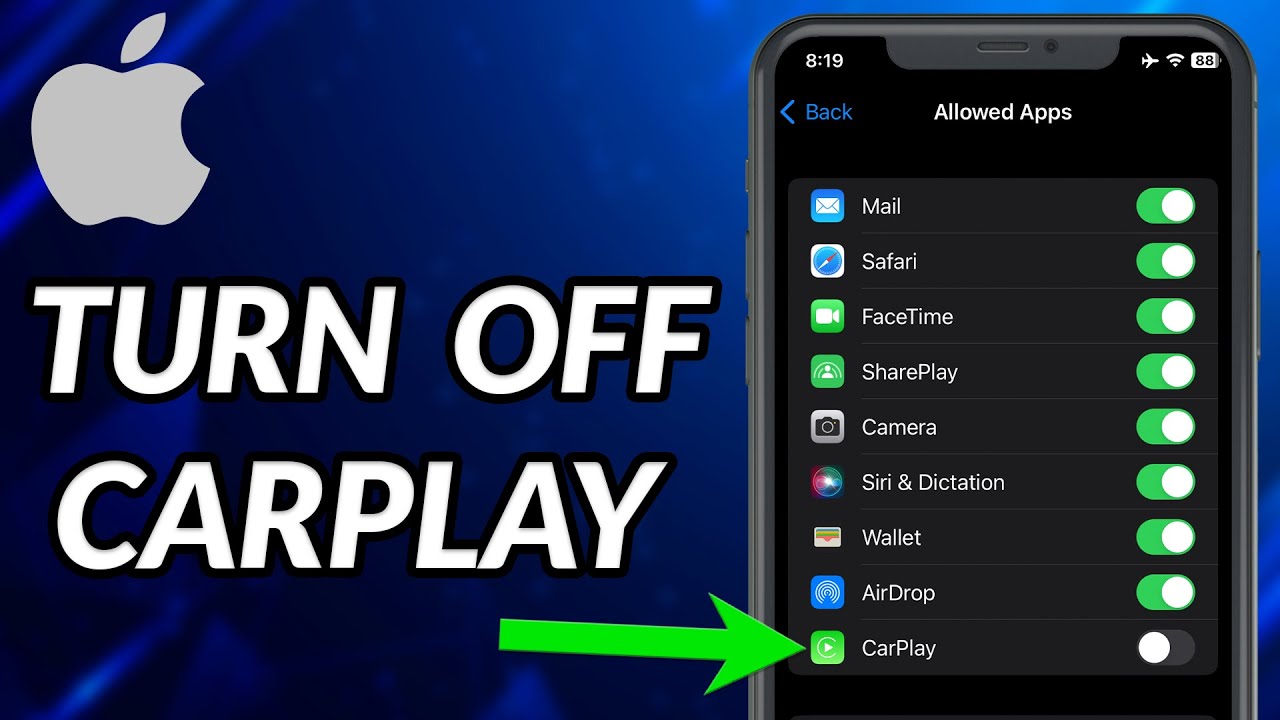
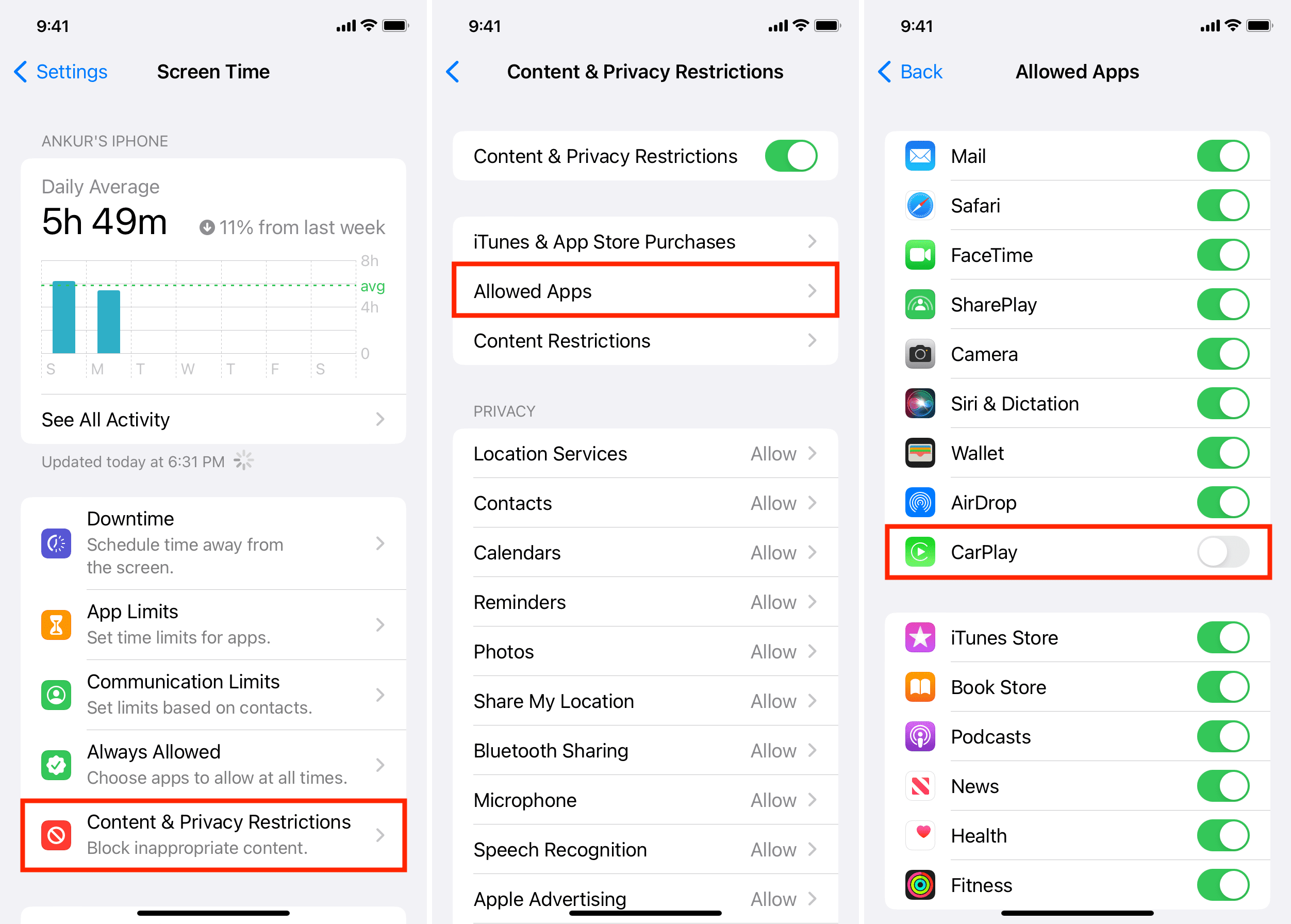
Go to Settings, then “Screen Time.” Tap “Content & Privacy Restrictions.” Turn on the restrictions. Scroll to “Allowed Apps” and turn off CarPlay. This stops CarPlay from working while you drive.
Disable Carplay On Your Car’s System
Disabling CarPlay directly on your car’s system can stop the connection without removing settings from your phone. This method is quick and keeps your device ready for future use. You can control CarPlay access through your car’s built-in menus. This way, you decide when to use it or not.
Navigating In-car Settings
Start by turning on your car’s infotainment system. Look for the settings or setup menu on the screen. Find the option related to smartphone connectivity or Apple CarPlay. This section shows all connected devices and CarPlay status. Use the touchscreen or control knob to enter these menus. It helps to check your car’s manual if you cannot find the settings.
Turning Off Carplay Connectivity
Inside the CarPlay menu, locate the option to disable or turn off CarPlay. This option stops the system from connecting to your iPhone automatically. Some cars may ask you to confirm this choice. Select “off” or “disable” to prevent CarPlay from launching. This action keeps your phone connected for calls or music but hides the CarPlay interface.
Adjusting Usb And Bluetooth Options
CarPlay uses USB or Bluetooth to connect. You can disable these connections to stop CarPlay. Unplug your phone’s USB cable or turn off Bluetooth on the car system. Some cars allow disabling CarPlay only on USB or Bluetooth separately. Adjust these settings to control CarPlay access more finely. This method helps if you want to use Bluetooth audio but not CarPlay.
Troubleshooting Carplay Issues
CarPlay can sometimes stop working correctly. Troubleshooting these issues helps get it back to normal. Simple steps often fix common problems quickly. Knowing what to try first saves time and frustration. Below are key tips to troubleshoot CarPlay problems effectively.
Resetting Carplay Settings
Resetting CarPlay can clear errors and glitches. Go to your iPhone settings and find CarPlay options. Remove your car from the list of connected vehicles. Then reconnect it like a new device. This step often fixes connection troubles and unresponsive features.
Updating Software For Compatibility
Outdated software can cause CarPlay problems. Check for updates on your iPhone and car system. Installing the latest software improves compatibility and performance. Regular updates fix bugs that affect CarPlay usability. Keep your devices current to avoid many issues.
When To Contact Support
Some CarPlay problems need expert help. If resetting and updates do not work, contact Apple or your car maker. They can offer detailed advice or repairs. Don’t delay contacting support if CarPlay remains unresponsive. Professional help ensures safe and proper fixes.
Alternatives To Disabling Carplay
Disabling CarPlay is not the only way to control how it works in your car. There are simple alternatives that keep CarPlay active but reduce distractions. These options let you use your phone safely without turning off CarPlay completely.
Using Do Not Disturb While Driving
Do Not Disturb While Driving stops notifications from popping up. It helps you stay focused on the road. Calls and messages are silenced or sent a reply saying you are driving. This keeps distractions low without turning off CarPlay.
Limiting App Access
You can control which apps work with CarPlay. Only allow apps you need for navigation or music. Blocking social media or messaging apps lowers distractions. This keeps your screen simple and safer to use while driving.
Switching To Manual Controls
Use your car’s manual controls instead of the touchscreen. Buttons and knobs are easier to use without looking away. This helps you keep your eyes on the road. It is a good way to reduce use of CarPlay features without disabling it.
Frequently Asked Questions
How Do I Disable Carplay On My Iphone?
To disable CarPlay, go to Settings > General > CarPlay. Select your car, then tap “Forget This Car. ” This removes the connection and disables CarPlay for that vehicle.
Can I Disable Carplay Without Unplugging My Iphone?
Yes, you can disable CarPlay via your iPhone settings without unplugging. Simply forget the car in CarPlay settings or turn off Siri to limit CarPlay functionality.
How To Stop Carplay From Auto-connecting In The Car?
Disable auto-connect by forgetting the car in iPhone CarPlay settings. Alternatively, turn off Bluetooth or USB connection on your phone before entering the vehicle.
Is It Possible To Disable Carplay On The Car’s System?
Yes, many cars allow disabling CarPlay through the infotainment settings. Check your car’s manual for specific instructions to turn off CarPlay integration.
Conclusion
Disabling CarPlay is simple and quick. You just follow a few easy steps. This helps you control your car’s settings better. It also stops CarPlay from starting automatically. Keep your focus on driving without distractions. Remember, you can turn CarPlay back on anytime.
Try these tips and enjoy a safer drive. Feel confident managing your car’s technology. Your comfort and safety matter the most.




