
Do you want to make your driving experience safer and more enjoyable? Enabling Apple CarPlay on your iPhone is the easiest way to do just that.
With CarPlay, you can access your favorite apps, make calls, send messages, and get directions—all without taking your eyes off the road. If you’re wondering how to get started, you’re in the right place. Keep reading, and you’ll learn simple steps to set up Apple CarPlay quickly and effortlessly.
By the end, you’ll be ready to drive smarter and stay connected like never before.
:max_bytes(150000):strip_icc()/001-customize-carplay-4159194-4e054675152a445ab8e76c65cddceb1e.jpg)
Requirements For Apple Carplay
Apple CarPlay lets you use your iPhone safely while driving. It shows apps like Maps, Music, and Messages on your car’s screen. To use CarPlay, your iPhone and car must meet certain requirements. This guide explains what you need to get started.
Compatible Iphone Models
CarPlay works with iPhone 5 and newer models. Your iPhone must run iOS 7.1 or later. Most iPhones from the last several years support CarPlay features. Check your iPhone’s model and iOS version before setting up.
Supported Vehicles
Many car brands support Apple CarPlay. CarPlay is available in newer car models, usually 2016 or later. Some older models might have CarPlay through updates. Check your car’s manual or manufacturer website for compatibility.
Necessary Cables And Accessories
Most cars require a Lightning to USB cable to connect your iPhone. Use an Apple-certified cable for best results. Some vehicles support wireless CarPlay, which needs Bluetooth and Wi-Fi. Confirm your car’s CarPlay connection type before starting.

Preparing Your Iphone
Preparing your iPhone before using Apple CarPlay is important for a smooth experience. This step ensures your device works well with your car’s system. You need to check a few settings on your phone first. These settings help CarPlay run without problems.
Updating Ios To The Latest Version
First, update your iPhone to the latest iOS version. Apple often improves CarPlay with new updates. Go to Settings, tap General, then Software Update. If an update is available, download and install it. This keeps your phone compatible with CarPlay features.
Checking Siri Settings
Siri must be active for CarPlay to work properly. Open Settings and select Siri & Search. Turn on Listen for “Hey Siri” and Press Side Button for Siri. This lets you control CarPlay using your voice. Siri helps you stay focused on driving.
Enabling Location Services
Location Services must be on for Apple Maps and other apps. Go to Settings, tap Privacy, then Location Services. Make sure Location Services is switched on. This helps CarPlay give accurate directions and location info. It improves your driving experience.
Connecting Apple Carplay
Connecting Apple CarPlay to your iPhone lets you use apps safely while driving. You can connect in several ways. Each method works well depending on your car and iPhone model. Follow simple steps to start using CarPlay quickly.
Using A Usb Cable
Plug your iPhone into the car’s USB port using a Lightning cable. The USB port often has a CarPlay or smartphone icon. Your car screen will show the CarPlay interface. If it doesn’t appear, check your car settings or try another USB port. Using a cable gives a stable and fast connection.
Connecting Wirelessly
Some cars support wireless CarPlay. To connect, enable Wi-Fi and Bluetooth on your iPhone. Then, press the voice control button on your steering wheel. Select your car’s name on your iPhone screen. After a few moments, CarPlay will appear on the car display. Wireless connection frees you from cables for a cleaner setup.
Pairing Via Bluetooth
Bluetooth pairing works with some car models. Start by turning on Bluetooth on your iPhone. Search for your car’s Bluetooth name and select it. Follow the prompts to enter a code if needed. Once paired, CarPlay will launch automatically. Bluetooth is useful when USB or wireless options are unavailable.
Configuring Carplay Settings
Configuring CarPlay settings on your iPhone helps improve your driving experience. It lets you control how apps show up and how notifications work. Adjusting these settings makes CarPlay safer and easier to use while on the road.
Customizing App Layout
Open the Settings app on your iPhone and tap General. Then select CarPlay and choose your car. You can drag app icons to change their order. Put your favorite apps first for quick access. Removing unused apps from the layout keeps the screen clean.
Allowing Carplay While Locked
Allow CarPlay to work even if your iPhone is locked. This keeps your apps accessible without unlocking the phone every time. Go to Settings, tap General, then CarPlay. Select your car and enable Allow CarPlay While Locked. This setting helps keep you focused on driving.
Managing Notifications
Notifications can distract you while driving. Control which alerts show up on CarPlay. In Settings, open Notifications and find the apps you use with CarPlay. Turn off alerts you don’t need. This reduces interruptions and keeps your attention on the road.
Troubleshooting Common Issues
Troubleshooting common issues helps keep Apple CarPlay running smoothly. Many users face simple problems that stop CarPlay from working right. Fixing these quickly saves time and frustration. Below are common issues and easy solutions to try.
Carplay Not Connecting
Check your iPhone’s Bluetooth and Wi-Fi settings. Both must be on for CarPlay to connect. Use a certified Lightning cable if connecting via USB. Restart your car’s infotainment system and your iPhone. Make sure your car supports CarPlay and that it is enabled in settings.
Audio Problems
Ensure the volume is up on both your iPhone and car stereo. Check if mute is turned off. Try disconnecting and reconnecting CarPlay. Restart your car and phone if sound still fails. Sometimes, update your iPhone’s iOS to fix bugs affecting audio.
App Compatibility
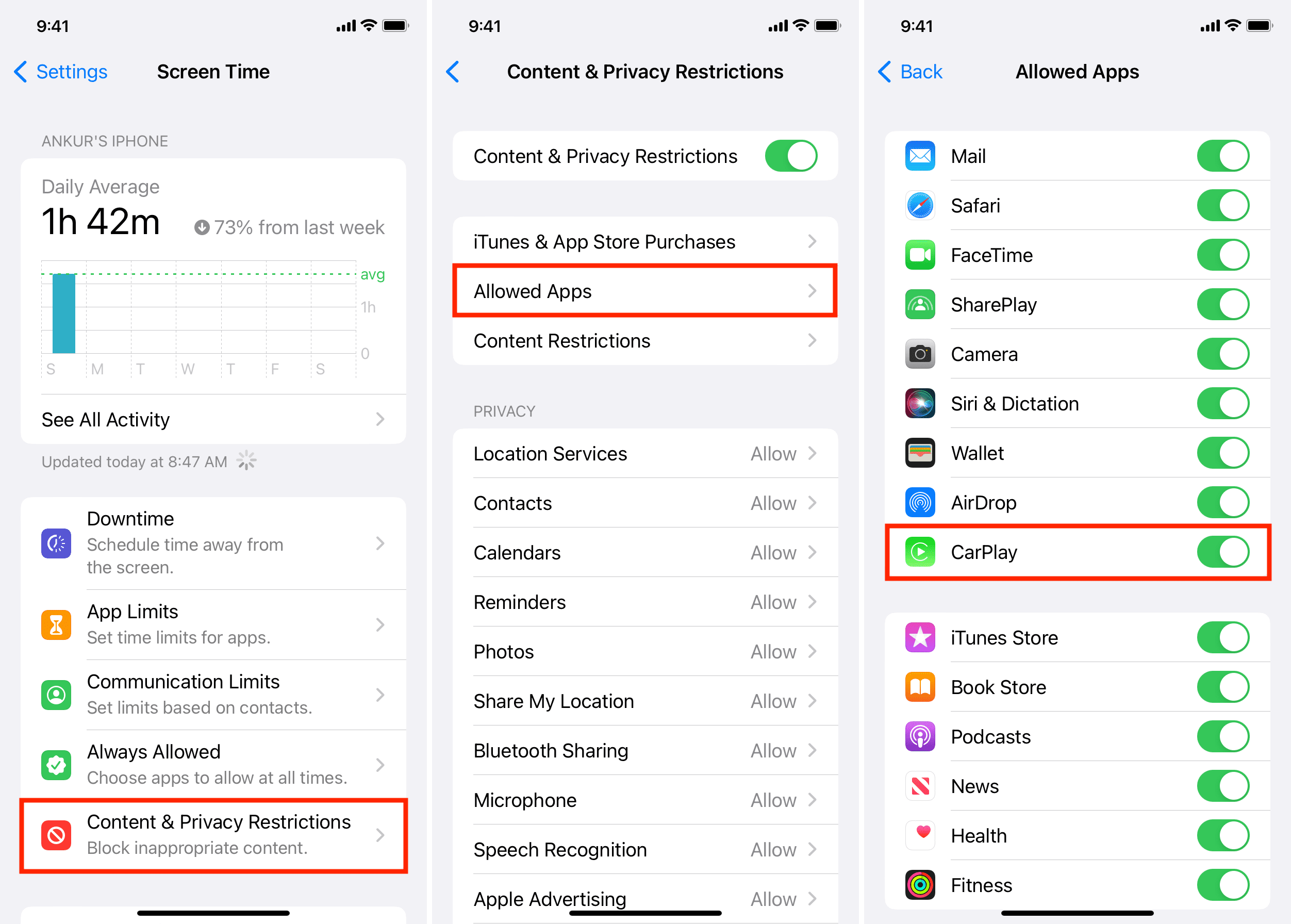
Only certain apps work with CarPlay. Check if your app supports CarPlay in the App Store. Update apps regularly for best performance. Some apps may not show if restrictions are on your iPhone. Adjust settings under Screen Time to allow CarPlay apps.
Tips For Safe Use
Using Apple CarPlay can make driving easier and safer. It lets you control your iPhone with your car’s screen. Follow these tips to keep your focus on the road while using CarPlay.
Safety is the key. Simple habits help avoid distractions and keep you alert. Use voice commands, reduce screen time, and keep your apps up to date.
Using Voice Commands
Voice commands let you control your phone hands-free. Speak to Siri to make calls, send texts, or play music. This keeps your hands on the wheel and eyes on the road. Avoid typing or touching the screen while driving.
Minimizing Distractions
Keep your focus on driving, not on your phone. Only use CarPlay features needed for driving. Close apps that are not essential. Set up your music or navigation before you start driving. Avoid looking at messages or notifications.
Updating Apps Regularly
Keep your CarPlay apps updated for smooth operation. Updates fix bugs and improve performance. Check for app updates often on your iPhone. Updated apps reduce crashes and distractions on the road.
Frequently Asked Questions
How Do I Activate Apple Carplay On Iphone?
To activate Apple CarPlay, connect your iPhone to your car via USB or Bluetooth. Unlock your iPhone, then allow CarPlay access if prompted. Ensure your car supports CarPlay and that Siri is enabled on your iPhone settings.
Which Iphones Support Apple Carplay?
Apple CarPlay is compatible with iPhone 5 and later models running iOS 7. 1 or newer. Make sure your device is updated to the latest iOS version for optimal performance and compatibility.
Can I Use Apple Carplay Wirelessly?
Yes, wireless Apple CarPlay works with supported cars and iPhones. Connect your iPhone via Bluetooth and Wi-Fi, then follow your car’s prompts to enable wireless CarPlay.
Why Is Apple Carplay Not Working On My Iphone?
Check your iPhone’s software update, cable connection, and CarPlay settings. Restart your iPhone and car system. Also, ensure Siri is enabled and your car supports CarPlay.
Conclusion
Enabling Apple CarPlay on your iPhone is simple and quick. Follow the steps carefully to connect your device. This feature helps you use apps safely while driving. It makes navigation, calls, and music easier to manage. Enjoy a smoother and safer driving experience every time.
Keep your iPhone updated for the best performance. Try it out today and see the difference yourself.




