Imagine driving without having to take your eyes off the road or your hands off the wheel. Sounds safer and easier, right?
That’s exactly what Siri for CarPlay offers you. But maybe you haven’t set it up yet, or you’re not sure how to get it working smoothly. Don’t worry—this guide will show you step-by-step how to enable Siri for CarPlay, so you can enjoy hands-free control and stay focused on your drive.
Ready to make your car smarter and your trips safer? Keep reading.
Check Carplay Compatibility
Start by checking if your car supports CarPlay. Then, enable Siri in your iPhone settings to use voice commands while driving. This makes hands-free control easy and safe.
What Devices Support Carplay?
CarPlay works with iPhones running iOS 7.1 or later. Most iPhones from iPhone 5 onwards support it. Check your iPhone model to be sure. Older iPhones cannot use CarPlay.
Which Cars Are Compatible?
Many car makers include CarPlay in their newer models. Usually, cars from 2016 or later support it. Check your car’s manual or the maker’s website. Some aftermarket head units also support CarPlay.
How To Verify Your Car’s Carplay Feature
Look for the CarPlay logo on your car’s display. This logo usually appears during startup or in the settings. You can also test by connecting your iPhone with a Lightning cable. If CarPlay starts, your car supports it.
What To Do If Your Car Is Not Compatible
Consider buying a compatible aftermarket stereo system. These can add CarPlay to older cars. Installation may require professional help. Check prices and features before choosing.
Connect Iphone To Carplay
Connecting your iPhone to CarPlay is the first step to use Siri in your car. It lets you control your phone hands-free. This helps keep your focus on the road. There are two ways to connect: wired and wireless. Both are simple and quick to set up.
Wired Connection Setup
Use a Lightning cable to connect your iPhone to the car’s USB port. The port usually has a CarPlay or smartphone icon. Plug one end of the cable into your iPhone. Plug the other end into the car’s USB port. Your car screen will show the CarPlay interface. Siri will activate automatically once connected.
Wireless Connection Setup
Make sure your car supports wireless CarPlay. Turn on Bluetooth and Wi-Fi on your iPhone. Press the voice command button on your steering wheel. Select your car from the iPhone’s Bluetooth settings. Follow the prompts on the car screen and your iPhone. Siri will be ready to assist without cables.
Enable Siri On Iphone
Enabling Siri on your iPhone is the first step to using Siri with CarPlay. Siri helps you control your phone hands-free while driving. It makes calling, messaging, and navigation easier and safer. Follow these simple steps to activate Siri on your iPhone.
Activate Siri In Settings
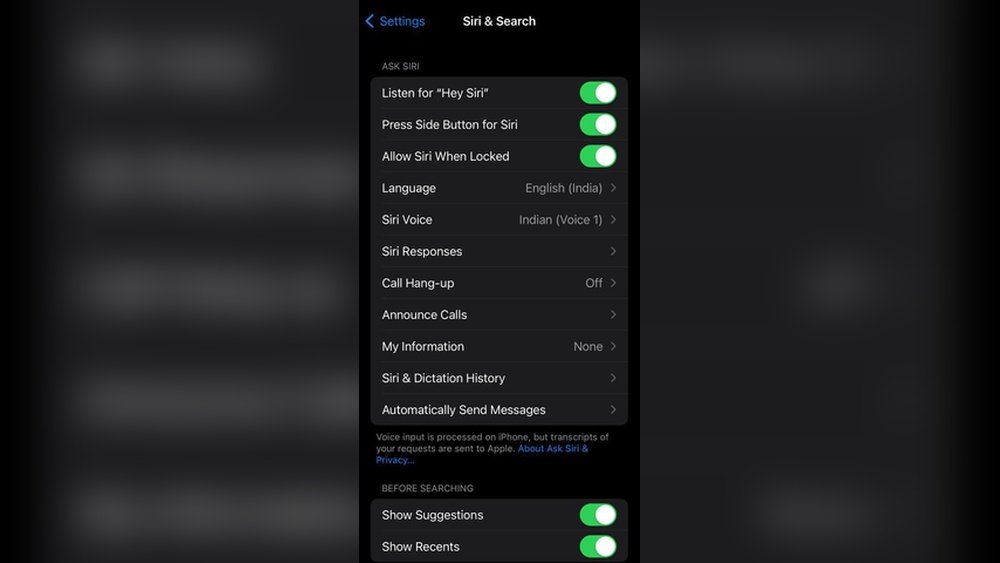
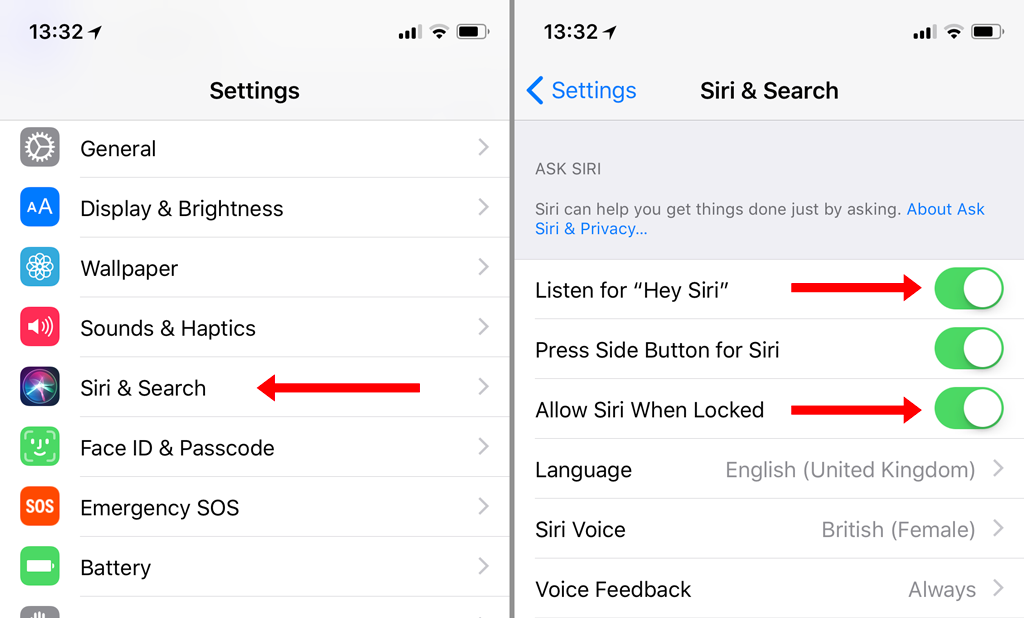
Start by opening the Settings app on your iPhone. Scroll down and tap on “Siri & Search.” Here, turn on the options for “Listen for ‘Hey Siri’” and “Press Side Button for Siri.” Enabling these settings lets you use Siri by voice or by pressing the side button. Make sure to confirm your choice when prompted. This activation allows Siri to respond to your commands quickly.
Set Up Hey Siri Voice Command
After enabling “Hey Siri,” you need to set it up. Follow the on-screen instructions to teach Siri your voice. You will say a few phrases aloud. This helps Siri recognize your voice and respond only to you. The setup takes just a minute but improves Siri’s accuracy. Once done, you can say “Hey Siri” anytime to start a command, even in your car.
Allow Siri Access For Carplay
Allowing Siri access for CarPlay is essential for hands-free control. It lets you use Siri to send messages, get directions, and play music safely while driving. Enabling Siri access is simple and takes just a few steps.
Without Siri access, CarPlay features stay limited. Your phone needs permission to activate Siri through the car’s system. Granting this permission ensures a smooth and safe driving experience.
Enable Siri In Iphone Settings
First, open the Settings app on your iPhone. Scroll down and tap “Siri & Search.” Turn on the options for “Listen for ‘Hey Siri’,” “Press Side Button for Siri,” and “Allow Siri When Locked.” These settings allow Siri to work anytime.
Allow Siri Access In Screen Time Settings
Open Settings and tap “Screen Time.” Select “Content & Privacy Restrictions.” Choose “Allowed Apps” and make sure Siri is allowed. This step ensures no restrictions block Siri from working with CarPlay.
Use a Lightning cable or wireless connection to link your iPhone to CarPlay. Once connected, Siri should be available. Press the voice command button on your steering wheel or say “Hey Siri” to test it.
Customize Siri Settings For Carplay
Customizing Siri settings for CarPlay helps make your driving experience safer and smoother. You can change how Siri talks and what apps it can use. These options let you control Siri without distractions. Adjusting these settings is quick and easy. It improves how Siri works with your car’s system.
Adjust Voice Feedback
Voice feedback controls how Siri talks back to you. You can choose if Siri speaks all the time or only with headphones. This setting helps you hear directions clearly while driving. To adjust, open your iPhone’s Settings app. Tap “Siri & Search” and then “Voice Feedback.” Choose from “Always On,” “Control with Ring Switch,” or “Hands-Free Only.” Pick the one that fits your driving style.
Manage App Permissions
Siri uses apps like Maps, Messages, and Music during CarPlay. You can decide which apps Siri can access. This keeps your information private and limits distractions. Go to Settings, select “Siri & Search,” then scroll to apps list. Turn on or off apps Siri can use while driving. Only allow apps you trust and use often. This makes Siri more helpful and secure for your trips.
Troubleshoot Siri Issues
Siri may not work well with CarPlay sometimes. Troubleshooting helps fix common problems fast. Follow simple steps to get Siri working again in your car.
Restart Devices
Turn off your iPhone and your car’s system. Wait a few seconds. Turn both on again. This refreshes connections and often solves Siri issues.
Check Software Updates
Outdated software can cause problems with Siri. Go to your iPhone’s Settings, then tap General and Software Update. Install any available updates. Also, check your car’s system for updates.
Reset Carplay Settings
Resetting CarPlay can clear errors. On your iPhone, go to Settings, tap General, then CarPlay. Select your car and choose Forget This Car. Reconnect CarPlay and test Siri again.
Tips For Using Siri Safely While Driving
Using Siri with CarPlay helps keep your hands on the wheel and eyes on the road. It allows you to control your phone using voice commands. This keeps distractions low and driving safer. Follow these tips to use Siri safely while driving.
Use Simple Commands
Speak short and clear commands for Siri. Complex phrases can confuse the assistant. Simple commands save time and reduce distraction.
Set Up Before Driving
Configure Siri settings before starting your trip. Choose your favorite voice and language. Add important contacts and playlists for quick access.
Keep Your Eyes On The Road
Always watch the road, not the screen. Siri listens to your voice and replies back. Avoid looking at your phone or CarPlay display too long.
Avoid Conversations That Take Time
Do not start long talks with Siri. Stick to quick requests like calling, texting, or navigation. Save longer interactions for when parked.
Use Siri’s Hands-free Activation
Activate Siri by voice, not by touch. Say “Hey Siri” to start commands. This keeps your hands free and focus on driving.

Frequently Asked Questions
How Do I Activate Siri For Carplay?
To activate Siri for CarPlay, connect your iPhone to your car. Then, enable Siri in your iPhone’s Settings under Siri & Search. Ensure CarPlay is allowed, and press the voice command button on your steering wheel to start using Siri hands-free.
Why Isn’t Siri Working With Carplay?
Siri may not work with CarPlay if it’s disabled in Settings or your iPhone isn’t connected properly. Check your Siri settings, ensure CarPlay is enabled, and verify your iPhone’s Bluetooth or USB connection to the car.
Can I Customize Siri Commands For Carplay?
You cannot customize Siri commands specifically for CarPlay. Siri uses standard voice commands across all Apple devices. However, you can personalize Siri’s voice and language in your iPhone’s Settings to enhance your experience.
Is Siri Safe To Use While Driving With Carplay?
Yes, Siri is designed for safe use with CarPlay. It allows hands-free control of calls, messages, navigation, and music, minimizing distractions. Always keep your focus on the road while using Siri to ensure safety.
Conclusion
Enabling Siri for CarPlay makes driving safer and easier. You can control your phone with voice commands. This helps keep your hands on the wheel. Setting up Siri takes just a few steps. Once ready, you can make calls, send messages, and play music without distraction.
Siri listens and responds quickly. Enjoy a smoother driving experience with this helpful feature. Try it today and see the difference it brings. Simple, smart, and useful.




