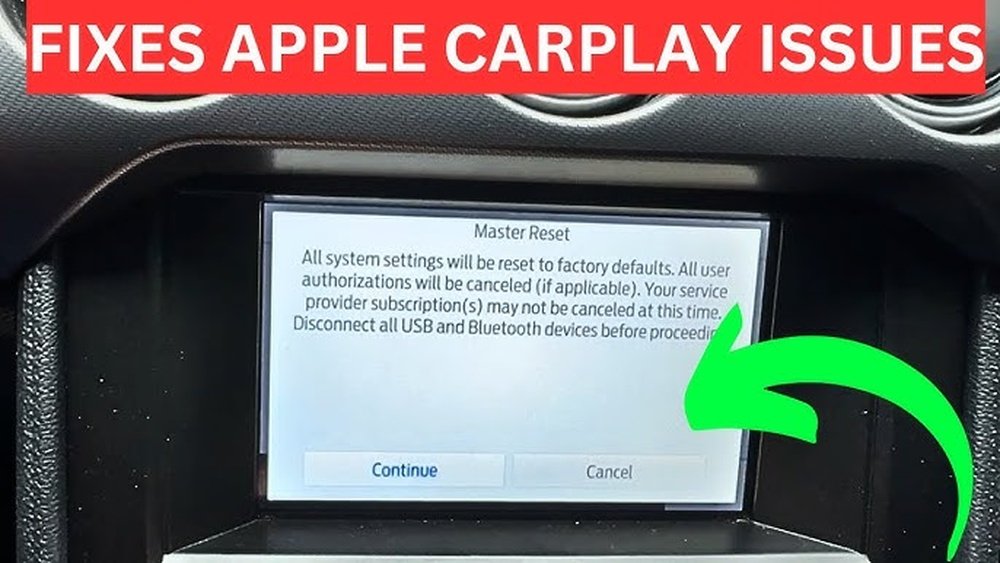
Losing your Apple CarPlay connection right after a factory reset can be frustrating. You rely on it for safe, hands-free access to your apps while driving.
But don’t worry—fixing it doesn’t have to be complicated. In this guide, you’ll discover simple, step-by-step solutions to get your CarPlay working smoothly again. By the end, you’ll be back to enjoying seamless navigation, music, and calls without missing a beat.
Keep reading to find out how to quickly restore your Apple CarPlay and make your drive easier.

Check Carplay Compatibility
After a factory reset, Apple CarPlay may not work as expected. One key step is to check CarPlay compatibility. This step ensures your iPhone and vehicle support the feature. Without compatibility, CarPlay cannot connect or function properly.
Checking compatibility helps avoid frustration and saves time. It also guides you in troubleshooting the problem effectively. Begin by confirming the devices you own support Apple CarPlay.
Verify Iphone And Vehicle Support
Not all iPhones and cars support Apple CarPlay. Your iPhone must run iOS 7.1 or later. Models from iPhone 5 and newer usually work fine.
Your vehicle must also support CarPlay. Most cars built after 2016 include this feature. Check your car’s manual or manufacturer website. This confirms if CarPlay is available for your model.
Some vehicles require a wired connection. Others support wireless CarPlay. Knowing this helps you connect your iPhone correctly.
Update Ios And Car Firmware
Outdated software often causes CarPlay issues. Make sure your iPhone has the latest iOS version. Go to Settings > General > Software Update to check.
Car firmware also needs to be up to date. Visit your car manufacturer’s website for firmware updates. Updated firmware improves compatibility and fixes bugs.
Regular updates keep CarPlay running smoothly. They also add new features and improve security. Always install updates as soon as they are available.

Reconnect Iphone To Carplay
After a factory reset, your Apple CarPlay may not connect automatically. Reconnecting your iPhone to CarPlay is a key step to get things working again. This process is simple and involves checking your cable, settings, and permissions on your iPhone. Follow these steps to restore the connection fast and easy.
Use A Certified Lightning Cable
Always use an Apple-certified Lightning cable. Non-certified cables might not transfer data properly. Using the right cable ensures a stable connection between your iPhone and car system. Check the cable for damage or loose ends. Replace it if needed to avoid connection problems.
Enable Carplay In Iphone Settings
Open your iPhone settings and go to “General.” Tap on “CarPlay” and find your car’s name. If your car is not listed, add it by tapping “Available Cars.” This step allows your phone to connect with your vehicle’s CarPlay system. Make sure CarPlay is turned on for your car.
Allow Carplay While Locked
Go to “Settings” and then “Face ID & Passcode” or “Touch ID & Passcode.” Scroll down to find “Allow CarPlay While Locked.” Turn this option on. It lets CarPlay work even when your phone is locked. This setting keeps the connection active during drives without interruptions.
Reset Car Settings
Resetting your car settings can help fix Apple CarPlay after a factory reset. It clears old data that might cause problems. This step refreshes your system and allows CarPlay to connect properly again.
Follow these simple steps to reset your car settings and get CarPlay working smoothly.
Restart Infotainment System
Turn off your car’s infotainment system completely. Wait for about 30 seconds. Then, turn it back on. This restart helps clear temporary glitches. It gives the system a fresh start.
Clear Carplay Data
Go to the settings menu in your car’s system. Find the section for Apple CarPlay or smartphone connections. Choose the option to clear or delete CarPlay data. This removes old connection files that may block new pairing.
Re-pair Bluetooth Connections
Delete your phone’s old Bluetooth connection with the car. On your phone, forget the car’s Bluetooth device. Then, pair the phone and car again from scratch. Re-pairing often fixes communication issues between devices.
Adjust Iphone Settings
Adjusting your iPhone settings is key to fixing Apple CarPlay after a factory reset. Settings can affect how CarPlay connects and works with your car. Checking and changing a few settings often solves the problem fast.
Reset Network Settings
Resetting network settings clears old connections and errors. This step refreshes Wi-Fi, Bluetooth, and cellular settings. Go to Settings > General > Reset > Reset Network Settings. Enter your passcode and confirm. Your phone will restart. Reconnect to Wi-Fi and Bluetooth afterward.
Check Restrictions And Screen Time
Restrictions can block CarPlay from working properly. Screen Time settings may limit app usage. Open Settings > Screen Time > Content & Privacy Restrictions. Make sure CarPlay is allowed. Turn off restrictions if needed. This ensures CarPlay can access all necessary features.
Enable Siri And Location Services
Siri and Location Services help CarPlay run smoothly. Siri controls voice commands for CarPlay. Location Services assist with maps and navigation. Enable Siri in Settings > Siri & Search. Turn on Location Services in Settings > Privacy > Location Services. Select ‘While Using the App’ for Maps.
Troubleshoot Common Issues
After a factory reset, Apple CarPlay may face some common problems. These issues can stop it from working properly. Troubleshooting helps fix these problems quickly. It saves time and avoids frustration. Below are simple steps to solve frequent CarPlay issues.
Fix Connection Drops
Connection drops often happen due to loose cables or bad ports. Check the USB cable for damage. Use an original Apple cable if possible. Clean the USB port on your car and phone. Restart both devices to refresh the connection. Avoid using wireless CarPlay if the connection is unstable.
Resolve Audio Problems
Audio issues can ruin your driving experience. Check the volume on both your phone and car. Make sure the mute option is off. Restart the car’s audio system and your phone. Try disconnecting and reconnecting CarPlay. Update your phone and car software for better compatibility.
Handle App Compatibility
Not all apps work well with CarPlay after a reset. Some apps may not show or crash. Update your apps to the latest version. Delete and reinstall apps causing trouble. Use only CarPlay-supported apps to avoid errors. Keep your phone’s iOS updated to improve app support.
Seek Professional Help
Sometimes, fixing Apple CarPlay after a factory reset requires expert help. Professionals have the tools and knowledge to diagnose complex problems. They can guide you through steps that may not be obvious. Seeking help saves time and prevents further issues.
Contact Apple Support
Apple Support offers reliable assistance for CarPlay issues. You can reach them by phone, chat, or email. They provide clear instructions tailored to your device and car model. Apple experts can check for software updates or known bugs. This service is free and often solves the problem quickly.
Visit Authorized Service Center
Authorized service centers have trained technicians for Apple products. They use official parts and tools to fix hardware or software faults. Visiting a center is a good option if the problem persists. Technicians can test your car’s system and CarPlay connection. This helps ensure your device works smoothly again.
Frequently Asked Questions
How Do I Reconnect Apple Carplay After A Factory Reset?
To reconnect Apple CarPlay, ensure your iPhone is unlocked and connected via USB or Bluetooth. Then, select CarPlay on your car’s infotainment screen and follow on-screen prompts to re-enable the connection.
Why Isn’t Apple Carplay Working Post Factory Reset?
Apple CarPlay may not work after reset due to disabled settings, outdated iOS, or connection issues. Check CarPlay settings, update your iPhone, and verify the cable or Bluetooth connection.
How Can I Reset Apple Carplay Settings On My Iphone?
Go to Settings > General > CarPlay on your iPhone. Select your car, then tap “Forget This Car” to reset CarPlay settings. Reconnect to set up CarPlay fresh.
What Are Common Fixes For Apple Carplay Connection Problems?
Common fixes include restarting your iPhone and car system, checking cable integrity, updating iOS, and toggling CarPlay settings. These steps often resolve connection issues quickly.
Conclusion
Fixing Apple CarPlay after a factory reset is simple with these steps. Check your iPhone and car settings carefully. Restart devices to clear temporary glitches. Make sure your cables and connections work well. Keep your iPhone’s software updated for best results.
Patience helps as you follow each step. Enjoy smooth CarPlay use once fixed. Stay calm and try again if needed. This guide makes the process easy and clear. Your CarPlay should work like new soon.




