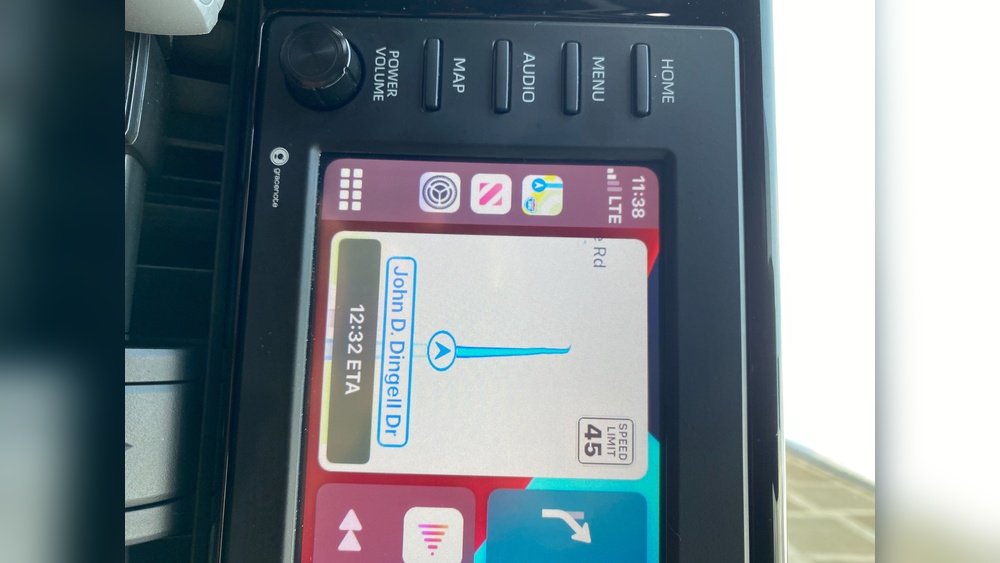
Are you struggling with your Apple CarPlay screen being too dim or too bright while driving? It can be frustrating when your display doesn’t adjust properly, making it hard to see directions or control your apps safely.
The good news is, you don’t have to live with this problem. You’ll discover simple and effective ways to fix Apple CarPlay brightness issues quickly. Keep reading, and you’ll learn how to make your screen clear and comfortable, no matter the time of day.
Common Causes Of Brightness Issues
Brightness problems on Apple CarPlay can frustrate drivers. These issues often make the screen hard to see, especially in sunlight or at night. Understanding the common causes can help fix the problem faster. The causes range from software bugs to hardware limits. Sometimes, settings or vehicle compatibility also affect brightness.
Software Glitches
Software glitches can cause brightness to stay low or flicker. CarPlay runs on your iPhone and vehicle system. Bugs in either system may disrupt brightness control. Updates may fix these glitches. Restarting the devices can also help clear temporary errors.
Hardware Limitations
Some vehicles have screens that limit brightness. Older or budget models may not support full brightness range. Damaged or dirty screens can reduce brightness too. Hardware problems need professional checks or screen replacement.
Settings Conflicts
Brightness settings on your iPhone or car may conflict. Auto-brightness might turn off or adjust incorrectly. Manual brightness settings can override automatic control. Checking both devices’ brightness settings is important. Sometimes resetting settings fixes conflicts.
Vehicle Compatibility
Not all vehicles fully support Apple CarPlay features. Some cars may limit screen functions, including brightness. Compatibility depends on the car’s software and hardware. Checking your vehicle’s manual or manufacturer website can clarify limitations.

Adjusting Brightness Settings
Adjusting brightness settings can solve many Apple CarPlay screen issues. Brightness affects visibility and comfort while driving. Proper settings help you see the display clearly in any light. Follow simple steps to make your screen brighter or dimmer.
Using Carplay Display Controls
CarPlay has built-in controls for screen brightness. You can adjust brightness directly from the CarPlay interface. Tap the settings icon on the CarPlay home screen. Look for the display or brightness option. Slide the brightness bar to increase or decrease light. This quick change helps match screen brightness to your environment.
Changing Iphone Brightness
The iPhone controls some CarPlay display settings. Adjust your phone’s brightness to affect CarPlay brightness. Swipe down from the top-right corner of your iPhone screen. Find the brightness slider and move it up or down. A higher brightness on your iPhone can improve CarPlay visibility. Keep the phone screen bright enough for clear CarPlay display.
Modifying Vehicle Screen Settings
Your car’s own screen settings affect CarPlay brightness too. Check your vehicle’s infotainment system menu. Find screen or display settings in the main menu. Adjust brightness, contrast, or night mode options. Some cars have automatic brightness that changes with outside light. Try turning off auto brightness to set it manually. Proper vehicle settings help CarPlay look its best.
Resetting Connections
Resetting connections can often fix brightness issues with Apple CarPlay. This step helps clear minor glitches between your iPhone and car system. It refreshes the connection and can restore normal brightness levels quickly.
Restarting Iphone And Vehicle System
Turn off your iPhone completely. Wait for a few seconds before turning it back on. Do the same with your car’s infotainment system. Restarting both devices clears temporary bugs. This simple step can fix brightness problems fast.
Reconnecting Carplay
Disconnect your iPhone from the car’s USB or Bluetooth. Wait a moment, then reconnect the device. This resets the CarPlay connection. Your screen brightness settings may return to normal after this process.
Updating Firmware And Software
Check for updates on your iPhone and car system. Software updates often fix bugs and improve performance. Keep both devices updated to avoid brightness issues. Updated firmware can solve compatibility problems easily.
Troubleshooting Advanced Issues
Troubleshooting advanced issues with Apple CarPlay brightness requires a deeper look. Basic fixes might not solve all problems. Sometimes the cause lies beyond simple settings.
Check apps and hardware carefully. Some problems come from conflicts or damaged parts. Knowing where to check helps save time and frustration.
Checking For App Conflicts
Some apps can interfere with CarPlay brightness. Try closing all apps on your iPhone except CarPlay. Restart the phone and see if brightness improves. If issues stop, one app may cause trouble.
Update all apps regularly. Outdated apps often cause conflicts. You can also try deleting apps one by one to find the culprit.
Inspecting Cable And Hardware
Apple CarPlay relies on a good cable and hardware. Check the Lightning cable for damage or fraying. Use an Apple-certified cable to ensure proper function.
Inspect the car’s USB port for dust or debris. Clean it gently with a soft brush. Faulty ports or cables often cause brightness problems.
Consulting Vehicle Manufacturer
Some brightness issues relate to your car’s system. Contact your vehicle manufacturer for advice. They may have specific updates or fixes for CarPlay problems.
Visit a dealership or authorized service center for help. They can check the car’s software and hardware for issues affecting brightness.
Preventing Future Brightness Problems
Preventing future brightness problems with Apple CarPlay helps keep your screen clear and easy to see. Brightness issues can cause frustration and distraction while driving. Taking simple steps can stop these problems before they start. Regular care and adjustments keep your CarPlay working well and safe.
Regular Software Updates
Software updates fix bugs and improve CarPlay performance. Apple releases updates to solve brightness and display issues. Check for updates on your iPhone and car system often. Install updates as soon as they are available. Updated software keeps your CarPlay screen bright and stable.
Proper Cable Maintenance
Use good quality cables for CarPlay connections. Damaged or dirty cables can cause screen flickering and brightness problems. Inspect cables regularly for bends or cracks. Clean cable ends gently to remove dirt or dust. Replace cables if they show signs of wear to ensure a steady connection.
Optimizing Display Preferences
Adjust your CarPlay display settings to suit your environment. Use automatic brightness if your car supports it. Set brightness levels manually in bright or dark conditions. Avoid extreme brightness to protect your eyes and screen. Proper settings prevent strain and keep the display clear.
Frequently Asked Questions
How To Adjust Apple Carplay Brightness Manually?
You can adjust brightness via your car’s display settings. Access the settings menu, find display or brightness options, and increase or decrease the brightness slider to your preference. This manual adjustment helps fix dim or overly bright CarPlay screens.
Why Is Apple Carplay Screen Too Dim Sometimes?
Dimness often occurs due to automatic brightness settings or ambient light sensors. If your car is in a bright environment, CarPlay may reduce brightness. Disabling auto-brightness or recalibrating sensors usually resolves this issue.
Can Software Updates Fix Carplay Brightness Problems?
Yes, updating your iPhone and car infotainment system can fix brightness glitches. Updates often include bug fixes that improve screen performance and brightness controls. Always keep your devices updated for the best CarPlay experience.
Does Resetting Carplay Settings Improve Brightness Issues?
Resetting CarPlay settings can clear corrupted data causing brightness problems. Disconnect CarPlay, forget the device on your iPhone, then reconnect. This often restores default brightness functions and resolves display issues.
Conclusion
Fixing Apple CarPlay brightness issues can improve your driving experience. Check your settings and update your software regularly. Adjust the brightness manually if automatic settings don’t work. Restart your device or car system to clear glitches. Small steps make a big difference on the road.
Stay patient and try different fixes as needed. Bright and clear displays keep you safe and focused. Keep these tips in mind for smooth CarPlay use every day.




