Are you tired of your Apple CarPlay not connecting when you need it most? It’s frustrating when your phone won’t sync with your car’s system, leaving you without your favorite apps, maps, or music on the road.
But don’t worry—fixing Apple CarPlay connection issues is easier than you think. You’ll discover simple, effective steps to get your CarPlay working smoothly again. Keep reading, and soon you’ll be back to enjoying a seamless driving experience.
Common Carplay Connection Problems
Apple CarPlay makes driving safer and more fun by connecting your iPhone to your car’s display. Still, many users face connection problems that stop CarPlay from working well. These issues can be frustrating and disrupt your driving experience.
Understanding common CarPlay connection problems helps you fix them faster. Here are the frequent problems and what causes them.
No Carplay Display
Sometimes, your car screen stays blank after connecting iPhone. This problem may happen due to a faulty USB cable or a dirty port. It can also occur if CarPlay is not enabled on your car’s system. Restarting your iPhone or car system often helps. Checking settings to ensure CarPlay is allowed is also important.
Carplay Disconnects Frequently
CarPlay may drop connection during your drive. Loose or damaged cables often cause this. Interference from other Bluetooth devices can also interrupt the connection. Keeping your software updated reduces bugs that cause disconnections. Make sure cables fit snugly and check for any damage.
Usb Cable Not Recognized
Your iPhone might not connect if the USB cable is faulty or not certified by Apple. Some third-party cables don’t support CarPlay properly. Using an original or MFi-certified cable improves connection reliability. Cleaning the USB port and cable ends removes dirt that blocks signals.
Bluetooth Connection Issues
CarPlay uses Bluetooth for initial pairing but relies mostly on USB or wireless Wi-Fi. Bluetooth problems can stop CarPlay from starting. Clearing old Bluetooth connections from your iPhone and car can fix conflicts. Restarting devices and re-pairing often solves Bluetooth issues quickly.
Basic Troubleshooting Steps
Basic troubleshooting steps help fix common Apple CarPlay connection issues. These steps are easy and fast. They solve most problems without needing expert help.
Start with simple checks. These quick fixes often restore your CarPlay connection. Follow each step carefully for the best results.
Restart Your Iphone And Car System
Turn off your iPhone. Wait a few seconds. Turn it back on. Do the same for your car’s system. Restarting clears temporary glitches. It refreshes the connection between devices.
Check Usb Cable And Ports
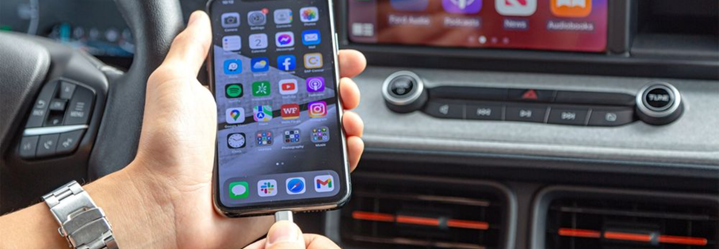
Use an original or certified USB cable. Inspect the cable for damage. Try a different cable if needed. Check USB ports for dirt or debris. Clean ports gently to improve connection.
Enable Carplay On Iphone
Open your iPhone’s Settings. Tap “General” then “CarPlay.” Check if your car is listed. If not, add your car manually. Make sure CarPlay is allowed while locked.
Update Ios And Car Software
Go to iPhone Settings and tap “General.” Select “Software Update” and install updates. Check your car’s system for updates too. Updated software fixes bugs and improves compatibility.
Adjust Iphone Settings For Carplay
Adjusting your iPhone settings can solve many Apple CarPlay connection problems. These settings control how your phone interacts with your car. A few simple changes might help CarPlay work smoothly again. Follow these steps to check and fix your iPhone settings for CarPlay.
Allow Carplay While Locked
CarPlay needs permission to work when your iPhone is locked. Go to Settings > General > CarPlay. Select your car’s name. Turn on Allow CarPlay While Locked. This lets CarPlay stay connected even if your phone is locked. Without this, your phone may not connect properly.
Reset Network Settings
Network settings affect Bluetooth and Wi-Fi connections for CarPlay. Resetting them can fix hidden problems. Open Settings > General > Reset. Tap Reset Network Settings. This removes saved Wi-Fi passwords and Bluetooth devices. Your phone restarts. Reconnect to your car after the reset. This step often clears connection issues.
Disable Restrictions
Restrictions can block CarPlay from working. Check if they are enabled on your iPhone. Go to Settings > Screen Time > Content & Privacy Restrictions. If restrictions are on, tap Allowed Apps. Make sure CarPlay is allowed. Turning off restrictions may restore CarPlay access. This ensures no limits stop the connection.
Check Siri Settings
Siri must be active for CarPlay to function. Open Settings > Siri & Search. Enable Listen for “Hey Siri” and Press Side Button for Siri. CarPlay relies on Siri for voice commands and navigation. If Siri is off, CarPlay may not respond well. Turn Siri on to improve the CarPlay experience.

Optimize Your Car’s Infotainment System
Optimizing your car’s infotainment system can fix many Apple CarPlay connection problems. The system needs to work well to connect smoothly with your iPhone. Simple adjustments can improve connection speed and stability. Follow these steps to keep your system ready for CarPlay.
Reset Infotainment System
Resetting the infotainment system clears temporary glitches. It gives the system a fresh start. Find the reset option in the settings menu. Press and hold the reset button if available. This step often solves connection delays and freezes.
Clear Bluetooth And Usb Pairings
Old Bluetooth and USB pairings can cause conflicts. Remove unused devices from the system list. Delete your iPhone from Bluetooth settings. Reconnect your iPhone to create a clean link. This clears confusion and helps CarPlay connect faster.
Use Wireless Carplay Setup
Wireless CarPlay avoids cable problems. Check if your car supports wireless connections. Turn on Bluetooth and Wi-Fi on your phone. Follow the car’s instructions to pair wirelessly. This setup reduces cable wear and improves convenience.
Consult Car Manufacturer Support
Manufacturers know their systems best. Visit their support website for specific tips. Contact customer service for help with updates or fixes. Some issues need professional guidance or software updates. Use their resources to keep your system up to date.
Advanced Fixes For Persistent Issues
Advanced fixes help solve stubborn Apple CarPlay connection problems. These steps target deeper issues that basic troubleshooting misses. Follow these methods carefully to restore your CarPlay connection.
Try A Different Usb Cable
Faulty cables often cause connection troubles. Swap your USB cable with a new or known good one. Use an Apple-certified cable to ensure compatibility. A fresh cable might fix the problem quickly.
Test With Another Iphone
Testing with another iPhone helps identify device-specific problems. Connect a different iPhone to your car’s system. If CarPlay works, the issue lies with your original iPhone. This helps narrow down the cause.
Factory Reset Iphone
Resetting your iPhone can clear software glitches. Back up your data before starting the reset. Go to Settings > General > Reset > Erase All Content and Settings. After the reset, set up CarPlay again.
Visit Apple Or Dealer Service
Persistent issues may need professional help. Visit an Apple Store or your car dealer’s service center. Technicians can diagnose hardware or software faults. This step ensures expert assistance for complex problems.
Tips To Prevent Future Connection Problems
Preventing connection problems with Apple CarPlay saves time and frustration. Small habits keep your system running smoothly and your drives enjoyable. Follow these simple tips to avoid common issues and maintain a strong CarPlay connection.
Regular Software Updates
Always update your iPhone and car system software. Updates fix bugs and improve compatibility. Check for updates often to keep everything current. Updated software helps CarPlay run without interruption.
Use Certified Accessories
Choose only Apple-certified cables and chargers. Poor quality accessories cause connection drops and charging issues. Certified products ensure reliable data transfer and power supply. Avoid cheap cables that may damage your device.
Keep Charging Ports Clean
Clean your iPhone and car charging ports regularly. Dust and dirt block connections and cause failures. Use a soft brush or compressed air for cleaning. Clear ports improve the signal and power flow.
Avoid Interference From Other Devices
Keep other electronic devices away from your CarPlay system. Wireless signals from gadgets can interrupt the connection. Turn off unused Bluetooth devices in your car. A clear signal path helps maintain stable CarPlay use.
Frequently Asked Questions
Why Is My Apple Carplay Not Connecting?
Apple CarPlay may not connect due to faulty cables, outdated iOS, or USB port issues. Restart your iPhone and car system. Check cable and update iOS to fix connection problems quickly.
How Do I Reset Apple Carplay Connection?
To reset Apple CarPlay, disconnect your iPhone and turn off Bluetooth and Wi-Fi. Restart your iPhone and car system. Reconnect your device using a certified cable for a fresh connection.
Can A Software Update Fix Carplay Issues?
Yes, software updates often fix CarPlay bugs. Update your iPhone to the latest iOS version. Also, check your car’s infotainment system for available updates to improve compatibility.
What Cable Is Best For Apple Carplay Connection?
Use an Apple-certified Lightning to USB cable for the best CarPlay connection. Non-certified or damaged cables can cause connection drops and poor performance. Always use high-quality cables for reliability.
Conclusion
Fixing Apple CarPlay connection issues can be simple. Check your cables and make sure they are not damaged. Restart your phone and car system to refresh the connection. Keep your phone’s software updated for best performance. Try reconnecting or using a different USB port if needed.
Small steps often solve the problem quickly. Stay patient and follow these tips to enjoy smooth CarPlay use. Your drive can be safer and more fun with a steady connection.




