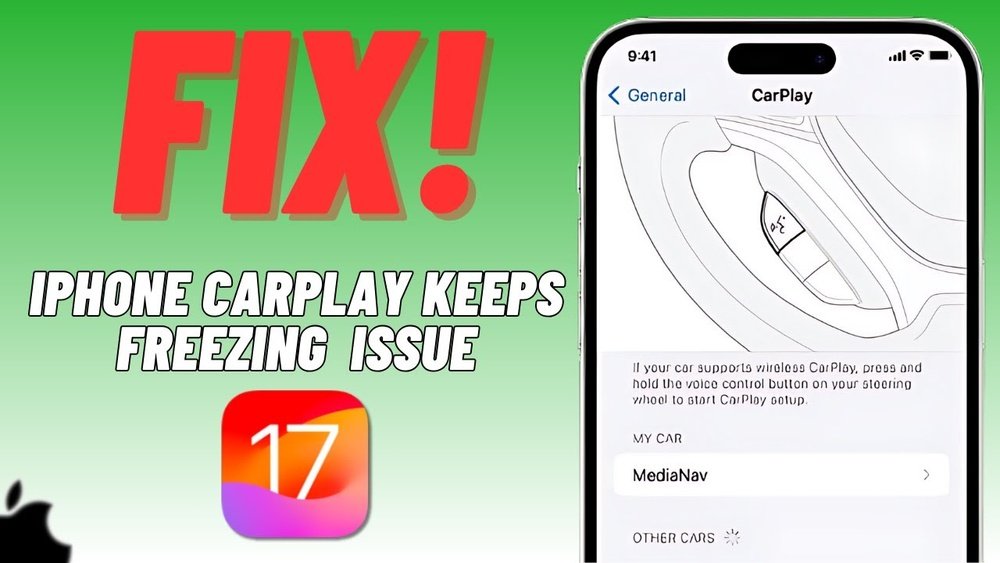
Is your Apple CarPlay freezing just when you need it most? It’s frustrating when your screen locks up, leaving you stuck and distracted.
But don’t worry—you’re not alone, and there are simple fixes you can try right now. You’ll discover easy steps to get your CarPlay working smoothly again. Keep reading to take back control of your drive and enjoy a seamless, safe connection every time.

Common Causes Of Carplay Freezing
Apple CarPlay freezing can be frustrating during a drive. Understanding why it happens helps fix the problem fast. Several common causes can lead to CarPlay freezing. These issues affect the connection and performance of the system.
Software Glitches
CarPlay relies on smooth software to work well. Sometimes, small bugs or glitches in the system cause it to freeze. These can come from both your iPhone and the car’s head unit software. Restarting the phone or the car system often clears these glitches.
Connection Issues
CarPlay depends on a stable connection. Wireless CarPlay may freeze if the Wi-Fi or Bluetooth signal is weak. For wired connections, loose or poor USB ports can disrupt data transfer. A shaky connection interrupts the communication between the phone and car.
Outdated Ios Or Car Firmware
Old software versions may lack fixes for known bugs. Running outdated iOS or car firmware can cause CarPlay to freeze. Keeping both your iPhone and car system updated ensures better stability and fewer errors.
Faulty Usb Cables
Damaged or low-quality USB cables often cause CarPlay to stop responding. Worn-out cables may fail to send data properly. Using original or certified cables helps maintain a steady connection and prevents freezing.
Basic Troubleshooting Steps
Apple CarPlay freezing can disrupt your drive and cause frustration. Basic troubleshooting steps often fix these common issues. Start with simple actions before moving to complex solutions. These steps help your devices reconnect smoothly.
Restart Your Iphone
Turn off your iPhone completely. Wait for a few seconds. Turn it back on. This clears temporary glitches that cause freezing. Restarting refreshes the system and improves performance.
Restart Your Car’s Infotainment System
Switch off your car’s infotainment system. Leave it off for about 30 seconds. Turn it on again. This resets the system. It removes minor bugs that cause CarPlay to freeze.
Reboot Both Devices
Turn off your iPhone and your car’s system. Wait for one minute. Turn on the car system first, then the iPhone. This ensures a clean connection. Rebooting both devices often resolves freezing problems.
Check And Update Software
One common reason for Apple CarPlay freezing is outdated software. Keeping your iPhone and car’s system updated helps avoid glitches. Software updates often fix bugs that cause freezing. Checking and updating both devices is a simple step to improve performance.
Update Ios On Your Iphone
Go to Settings on your iPhone. Tap General, then Software Update. If an update is available, download and install it. Updates improve stability and add new features. A current iOS version reduces the chance of CarPlay freezing.
Update Car’s Firmware
Check your car’s manual for update instructions. Some cars update automatically; others need manual installation. Visit the car manufacturer’s website for firmware downloads. Keeping firmware current ensures better compatibility with your iPhone.
Ensure Compatible Versions
Make sure your iPhone’s iOS and car firmware versions work well together. Some updates may cause conflicts if one device is old. Verify compatibility on the manufacturer’s website or support page. Using compatible versions prevents CarPlay from freezing during use.
Inspect And Replace Usb Cables
Apple CarPlay may freeze due to USB cable problems. Checking and replacing cables often solves this issue. Faulty or low-quality cables can disrupt the connection between your iPhone and car.
Inspect your USB cable for damage or wear. Even small tears or bends affect performance. Replacing old cables improves CarPlay stability and responsiveness.
Use Certified Lightning Cables
Always choose Apple-certified Lightning cables for CarPlay. Certified cables meet Apple’s standards for quality and compatibility. They ensure a stable data transfer and power supply. Non-certified cables often cause connection drops and freezing.
Try Different Usb Ports
Some cars have multiple USB ports. Test CarPlay with each port to find the best one. Ports vary in power output and data speed. Using the right port can prevent freezing and disconnects.
Avoid Wireless Interference
Wireless devices near the USB connection cause interference. Bluetooth, Wi-Fi, or other signals disrupt CarPlay’s link. Keep your phone and cable away from these devices. This reduces freezing and improves connection quality.
Reset Carplay Settings
Resetting CarPlay settings can fix freezing problems quickly. It clears small errors and refreshes connections. This step often solves issues without much hassle. Follow these simple methods to reset your CarPlay settings and get smooth performance again.
Forget And Reconnect Carplay
Start by forgetting your CarPlay connection on your iPhone. Open Settings and tap “General.” Select “CarPlay” and find your car’s name. Tap it and choose “Forget This Car.”
Next, reconnect your iPhone to the car using a USB cable or Bluetooth. This resets the link and may stop freezing. Try using CarPlay again to check if it works fine now.
Reset Network Settings On Iphone
Resetting network settings can fix connection problems causing freezing. Go to Settings, then tap “General.” Scroll down and tap “Transfer or Reset iPhone.” Select “Reset” and then “Reset Network Settings.”
This clears Wi-Fi, Bluetooth, and cellular settings. Your saved networks and passwords will be deleted. After the reset, reconnect to your car and test CarPlay again.
Reset All Settings As Last Resort
If other resets fail, try resetting all settings on your iPhone. This resets system settings without deleting your data. Go to Settings, tap “General,” then “Transfer or Reset iPhone.” Choose “Reset” and tap “Reset All Settings.”
The phone will restart. You must re-enter Wi-Fi passwords and adjust preferences. This reset can fix deep software glitches causing CarPlay to freeze.

Advanced Solutions
Advanced solutions help fix Apple CarPlay freezing when basic fixes fail. These steps dig deeper into your iPhone and car system. They require more time and care but often solve tough issues.
Start with your iPhone. Sometimes, software glitches cause CarPlay to freeze. Restoring your iPhone can clear these problems.
Restore Iphone Using Itunes
Connect your iPhone to a computer with iTunes installed. Backup your data first to save important files. Choose the Restore option in iTunes. This erases your iPhone and installs the latest iOS version. After restoring, set up your iPhone as new. Test CarPlay to see if freezing stops.
If restoring your iPhone does not fix the problem, the issue may be with your car system. Car manufacturers often have updates or advice for CarPlay issues.
Consult Your Car Manufacturer
Check your car’s manual or website for CarPlay updates. Some cars need software updates to work well with Apple devices. Contact customer support for help with CarPlay. They may guide you through special resets or fixes. Follow their instructions carefully to avoid new problems.
Apple also provides support for CarPlay issues. Their experts can help if the problem is complex or rare.
Visit Apple Support
Go to Apple’s support website or visit an Apple Store. Explain the freezing problem clearly. They can run diagnostics on your iPhone and CarPlay connection. Apple may offer repairs or replacements if hardware issues exist. Use Apple’s resources for reliable and safe help.
Preventing Future Freezes
Preventing Apple CarPlay from freezing in the future helps keep your drives smooth and safe. Small habits make a big difference. Regular care and smart choices reduce the chance of problems. Follow these simple tips to keep CarPlay working well every time you use it.
Regular Software Updates
Keep your iPhone and car system updated. Updates fix bugs that cause freezes. They also improve connection and performance. Check for updates often. Install them as soon as they are available. Updated software keeps CarPlay stable and faster.
Use Quality Accessories
Choose certified cables and chargers. Cheap or damaged accessories may cause connection issues. A poor connection can freeze CarPlay. Use original Apple or trusted brand cables. This ensures steady power and data flow. Good accessories help CarPlay run without interruptions.
Maintain Clean Connections
Clean your phone’s charging port and car’s USB ports regularly. Dust and dirt block signals and power. Use a soft brush or cloth to remove debris. Avoid liquids and sharp objects. Clean connections help CarPlay stay connected and stop freezing problems.

Frequently Asked Questions
Why Does Apple Carplay Keep Freezing?
Apple CarPlay can freeze due to software glitches, outdated iOS, or faulty USB cables. Overloaded apps or poor connection may also cause freezing. Regular updates and cable checks help maintain smooth CarPlay performance.
How Can I Fix Apple Carplay Freezing Issue?
Restart your iPhone and car system first. Update iOS and car firmware. Use certified USB cables and disconnect other devices. Reset CarPlay settings if the problem persists.
Does Updating Ios Improve Carplay Performance?
Yes, updating iOS fixes bugs and improves CarPlay stability. Apple regularly releases updates to enhance compatibility and performance. Always keep your iPhone’s iOS up to date for best CarPlay experience.
Can Faulty Cables Cause Carplay To Freeze?
Absolutely. Damaged or uncertified USB cables often cause connection issues and freezing. Use Apple-certified or high-quality cables to ensure stable CarPlay connections and prevent freezing.
Conclusion
Fixing Apple CarPlay freezing can make your drive smoother. Start by checking your cables and connections. Keep your iPhone and car system updated for best results. Restart devices to clear temporary glitches. Try resetting CarPlay settings if problems persist. These simple steps often solve freezing issues quickly.
A stable connection helps CarPlay work without interruptions. Stay patient and follow each tip carefully. Enjoy safer and easier access to apps on the road.




