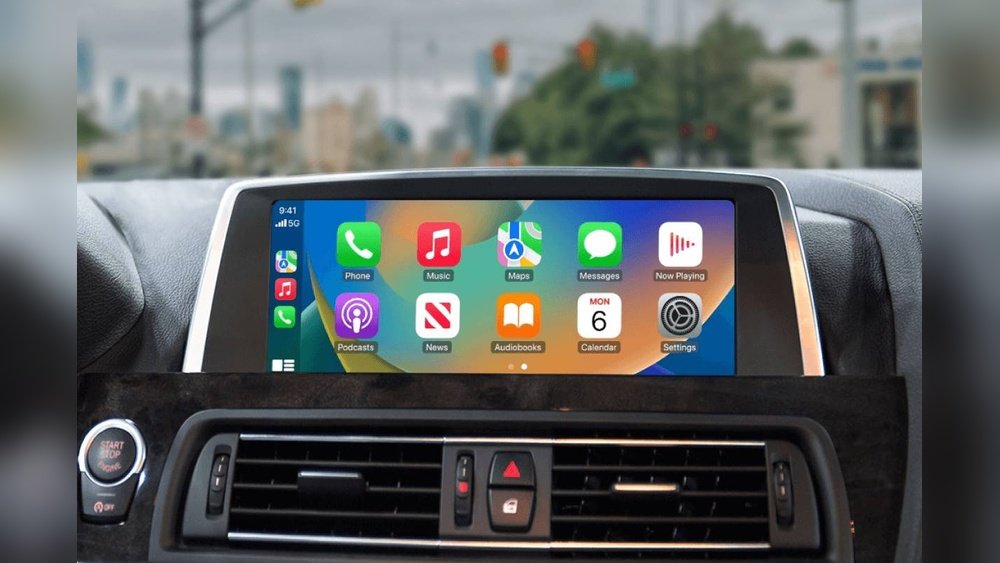
Are you tired of your Apple CarPlay music cutting out or not playing at all? It’s frustrating when your favorite tunes suddenly stop working just as you’re hitting the road.
But don’t worry—fixing these common music issues is easier than you think. You’ll discover simple, step-by-step solutions that will have your CarPlay music running smoothly again. Keep reading, and get ready to enjoy your drive with perfect sound every time.
Common Carplay Music Problems
Apple CarPlay makes driving safer by letting you use your iPhone through your car’s display. Music is one of the most popular features. Still, users face issues that stop music from playing smoothly. Understanding common problems helps you find quick fixes.
Music Not Playing
Sometimes, music fails to start on CarPlay. The screen may show the song, but no sound comes out. This issue often happens due to weak Bluetooth or USB connection. Restarting your iPhone or car system can help. Check volume levels and audio output settings too.
Audio Lag Or Delay
Audio lag creates a delay between the screen and sound. It makes music feel out of sync. This problem usually occurs with wireless connections. Turning off Bluetooth and reconnecting can reduce lag. Using a wired connection often improves timing.
Connection Drops
CarPlay connection may drop suddenly. Music stops playing and the screen goes blank. Loose cables or outdated software can cause this. Make sure your iPhone and car system have the latest updates. Check all cables and ports for damage or dirt.
App Crashes Or Freezes
Music apps may crash or freeze while using CarPlay. This interrupts your listening experience. Closing and reopening the app often fixes it. Deleting and reinstalling the app helps if crashes continue. Restarting your iPhone also clears temporary errors.
Basic Troubleshooting Steps
Basic troubleshooting steps fix most Apple CarPlay music problems. Start with simple actions to save time and avoid frustration. These steps help find and solve common issues fast.
Restart Your Iphone And Car System
Turn off your iPhone. Wait a few seconds. Turn it back on. Restart your car’s infotainment system too. This resets connections and clears minor bugs. Many issues disappear after a quick restart.
Check Cable And Wireless Connections
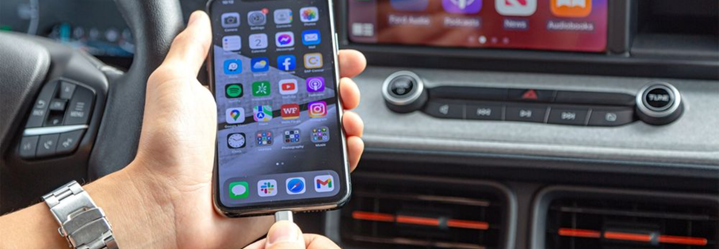
Use an original or certified Apple cable for wired CarPlay. Check the cable for damage or dirt. For wireless CarPlay, confirm Bluetooth and Wi-Fi are on. Make sure your phone and car are close to each other. Loose or faulty connections cause music problems.
Update Ios And Car Firmware
Open iPhone settings. Go to Software Update. Install any available updates. Check your car’s manual or website for firmware updates. Updates fix bugs and improve compatibility. Running the latest software keeps CarPlay smooth and stable.
Adjusting Audio Settings
Audio settings play a key role in fixing Apple CarPlay music issues. Incorrect settings can cause sound problems. Adjusting these settings often clears up the issue quickly. This section shows simple steps to reset and manage your audio preferences for better music playback.
Reset Audio Preferences
Resetting audio preferences can fix unexpected sound problems. Start by disconnecting your iPhone from CarPlay. Then, go to your iPhone’s Settings app. Tap on “General” and choose “CarPlay.” Select your car and tap “Forget This Car.” Reconnect your iPhone to CarPlay. This process resets audio settings and clears errors.
Resetting may remove custom equalizer settings. You can set them again later. This step often restores normal sound performance. Try playing music after the reset to check improvement.
Manage Volume And Output Settings
Volume and output settings affect how music sounds through CarPlay. Use your car’s audio controls to adjust volume levels. Make sure the volume is not too low or muted. Check the audio output source on your iPhone. Go to Control Center and tap the audio output icon. Select your car’s system as the output device.
Sometimes, audio routes to Bluetooth devices or headphones by mistake. Confirm the correct output device to avoid this. Also, explore your car’s sound settings. Adjust bass, treble, and balance for clearer audio. Small tweaks here improve your listening experience.

Fixing App-specific Issues
Music app problems can cause Apple CarPlay to stop working properly. Fixing these app-specific issues helps restore smooth music playback. Focus on the apps you use most for music. Common issues include app glitches, outdated versions, or corrupted data. Simple steps can clear these problems fast.
Update Or Reinstall Music Apps
Outdated apps often cause music playback errors on CarPlay. Check for updates in the App Store. Installing the latest version fixes bugs and improves compatibility. If the app still misbehaves, uninstall it. Then, reinstall a fresh copy. This removes corrupted files and resets app settings.
Clear App Cache And Data
Cached data may slow down or break music apps on CarPlay. Clearing cache deletes temporary files and frees up space. On your iPhone, go to Settings, find the problematic app, and clear cache if the option exists. For apps without this option, uninstalling and reinstalling clears data too.
Advanced Solutions
Advanced solutions help fix stubborn Apple CarPlay music problems. These steps reset key settings that affect connection and playback. Use these methods only if basic fixes do not work. They can clear hidden errors and improve system stability.
Reset Network Settings
Resetting network settings refreshes your iPhone’s connections. It clears saved Wi-Fi, Bluetooth, and VPN data. This often solves CarPlay issues related to pairing and streaming music.
To reset, open Settings on your iPhone. Tap General, then Reset. Choose Reset Network Settings and confirm. Your phone will restart. After that, reconnect your iPhone to your car.
Factory Reset Car Infotainment System
Factory resetting your car’s infotainment system deletes all saved data. This step removes corrupt files causing CarPlay music problems. It returns the system to original factory settings.
Locate the reset option in your car’s settings menu. Follow on-screen instructions to complete the reset. Afterward, set up CarPlay again from scratch. This often resolves persistent playback or connection errors.

Preventing Future Music Issues
Preventing music issues with Apple CarPlay helps keep your driving experience smooth and enjoyable. Small steps can stop problems before they start. These easy habits protect your connection and sound quality over time.
Regular Software Updates
Keep your iPhone and car system updated. Updates fix bugs that cause music problems. They also add new features for better performance. Check for updates often and install them promptly.
Use Certified Accessories
Choose Apple-certified cables and chargers only. Non-certified accessories may cause connection drops or poor sound. Certified products ensure reliable data transfer. This keeps your music playing without interruption.
Maintain Stable Connections
Secure the cable firmly in your phone and car port. Loose connections lead to music pauses or stops. Avoid moving the cable while driving. Clean the ports regularly to remove dust or debris.
Frequently Asked Questions
Why Is Apple Carplay Music Not Playing?
Apple CarPlay music may not play due to faulty connections or outdated software. Check your USB or Bluetooth connection. Also, update your iPhone and car system to the latest version for compatibility and smooth performance.
How Do I Fix Apple Carplay Audio Issues?
Restart your iPhone and car’s infotainment system to resolve audio glitches. Ensure volume is up and mute is off. Also, try disconnecting and reconnecting your device for a quick fix.
Can Resetting Network Settings Fix Carplay Music Problems?
Yes, resetting network settings can solve connectivity issues affecting CarPlay music. This action clears Bluetooth and Wi-Fi data, allowing fresh connections between your iPhone and car system.
Why Does Apple Carplay Music Cut Out Randomly?
Music cutting out can stem from loose cables, poor Bluetooth signals, or software bugs. Inspect your connection cables and update your devices to prevent interruptions during playback.
Conclusion
Fixing Apple CarPlay music issues can improve your driving experience. Start with simple checks like cable connections and software updates. Restart your phone and car system for quick resets. Try different music apps to find the problem. Clear cache or reset settings if needed.
These steps usually fix common errors fast. Stay patient and follow instructions carefully. Enjoy smooth music playback on every drive. Keep your system updated to avoid future issues. Troubleshooting becomes easier with practice and attention. Your music should sound great again soon.




