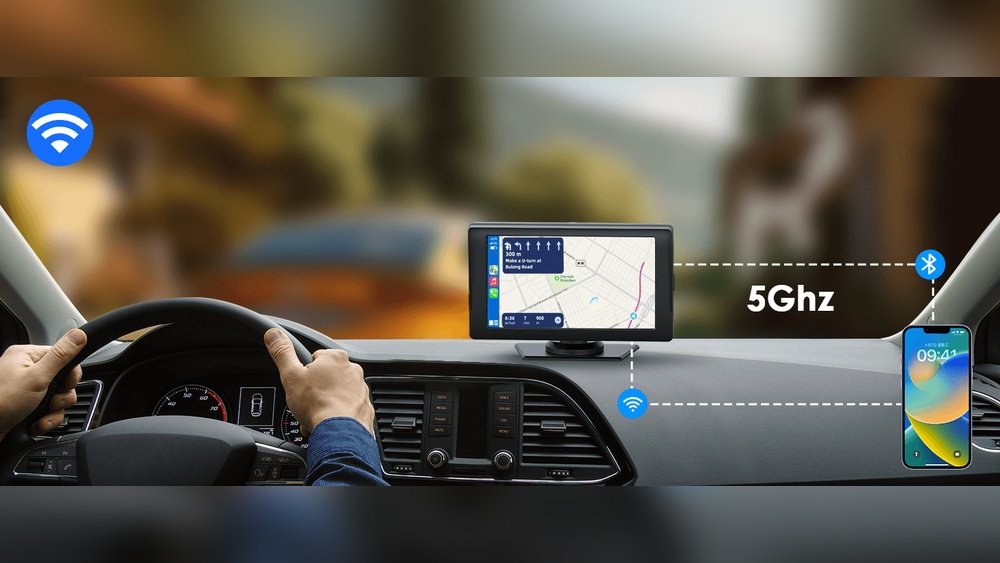
Are you tired of your Apple CarPlay navigation lagging just when you need it most? That frustrating delay can throw off your entire drive and make finding your way harder than it should be.
But don’t worry—fixing this problem is easier than you think. You’ll discover simple, effective steps to eliminate navigation delays and get your CarPlay working smoothly again. Keep reading, and soon your drives will feel seamless and stress-free.
Common Causes Of Carplay Navigation Delay
CarPlay navigation delay can disrupt your driving experience. Understanding common causes helps find quick fixes. Delays may come from simple issues or deeper problems. Identifying the root cause saves time and stress.
Software Glitches
Software glitches often cause navigation delays. Temporary bugs in iOS or CarPlay can slow down responses. These glitches may appear after updates or long use. Restarting the device can clear minor software issues fast.
Connection Issues
Poor connection between your iPhone and car causes delays. Wireless CarPlay may suffer from weak Bluetooth or Wi-Fi signals. Wired connections can face loose or damaged cables. Check cables and signal strength for smoother navigation.
Outdated Apps And Ios
Using old apps or iOS versions slows navigation updates. App developers fix bugs in new releases. iOS updates improve compatibility and speed. Keeping apps and iOS current reduces lag and errors.
Hardware Limitations
Older car systems or iPhones may struggle with CarPlay speed. Limited processing power can cause slow map loading. Hardware age affects data handling and display. Upgrading devices may improve navigation performance.
Basic Troubleshooting Steps
Basic troubleshooting helps solve common Apple CarPlay navigation delays. These steps clear minor glitches fast. Try them before seeking advanced fixes.
Restart Your Iphone And Car System
Turn off your iPhone and car system completely. Wait for 30 seconds. Turn them back on. Restarting refreshes connections and clears temporary bugs.
Check Usb And Bluetooth Connections
Inspect your USB cable for damage or dirt. Use an original or certified cable. For wireless CarPlay, ensure Bluetooth is on and paired correctly. A bad connection causes delays.
Close Background Apps
Open your iPhone’s app switcher. Swipe away unused apps running in the background. Closing apps frees memory and processing power. This helps CarPlay run smoothly.
Update Software And Apps
Updating software and apps is a key step to fix Apple CarPlay navigation delay. Outdated software can cause slow responses and errors. Keeping your iPhone, navigation apps, and car system updated helps improve performance and speed.
Update Ios On Your Iphone
Check your iPhone for the latest iOS version. Go to Settings, then General, and tap Software Update. Download and install any available updates. New iOS versions often fix bugs and improve CarPlay compatibility.
Update Navigation Apps
Open the App Store and tap your profile icon. Scroll to find navigation apps like Apple Maps or Google Maps. Tap Update next to each app if available. Updated apps run smoother and offer better navigation accuracy.
Update Car Infotainment System
Consult your car manual or visit the manufacturer’s website. Many cars allow software updates via USB or Wi-Fi. Follow instructions to download and install the latest system update. This helps fix bugs and enhances CarPlay functions.
Optimize Carplay Settings
Optimizing your Apple CarPlay settings can improve navigation speed and reduce delays. Small tweaks can make a big difference in how smoothly your system works. Focus on settings that control notifications, location, and overall CarPlay preferences.
Disable Unnecessary Notifications
Notifications can slow down CarPlay’s response time. Turn off alerts that are not important while driving. This keeps the screen clear and reduces distractions. Go to your iPhone’s settings, select Notifications, and choose which apps can send alerts to CarPlay. Fewer notifications mean faster navigation updates.
Adjust Location Services
Accurate location data is key for fast navigation. Check your iPhone’s Location Services settings to ensure CarPlay has permission to access your location. Set location access to “While Using the App” for navigation apps. This helps CarPlay get precise data without wasting power or causing delays.
Reset Carplay Settings
Resetting CarPlay can fix bugs causing slow navigation. On your iPhone, go to Settings, then General, and find CarPlay. Remove your car from the list and reconnect it. This clears old data and refreshes the connection. A clean reset often speeds up navigation response times.
Improve Connection Stability
Improving connection stability is key to fixing Apple CarPlay navigation delays. A stable connection ensures smooth navigation and faster response times. Small changes can make a big difference in your CarPlay experience.
Use High-quality Usb Cables
Low-quality cables often cause connection problems. Choose cables that are Apple-certified. High-quality cables deliver consistent power and data transfer. This reduces lag and keeps navigation running smoothly.
Switch Between Wired And Wireless Carplay
Wired CarPlay usually offers a stronger connection than wireless. Try switching between wired and wireless modes. This helps identify if the issue comes from one connection type. Choose the mode that works best for your car and phone.
Reduce Interference From Other Devices
Other wireless devices can disrupt CarPlay signals. Keep Bluetooth devices and Wi-Fi routers away from your car’s system. Turning off unused devices can improve signal strength. A clear signal means faster and more reliable navigation.

Advanced Fixes
Advanced fixes can help solve Apple CarPlay navigation delays. These steps go beyond basic checks and require more effort. Use them when simple solutions do not work. They can improve your CarPlay’s performance and make navigation smoother.
Reset Network Settings
Resetting network settings can clear errors causing delays. It deletes saved Wi-Fi passwords and Bluetooth connections. Go to Settings > General > Reset > Reset Network Settings. Your iPhone will restart. Reconnect CarPlay and check if navigation is faster.
Restore Iphone To Factory Settings
Restoring your iPhone erases all data and settings. This step removes possible software glitches causing slow navigation. Backup your data before restoring. Go to Settings > General > Reset > Erase All Content and Settings. After the reset, set up your iPhone again and test CarPlay.
Consult Apple Support
Apple Support can provide expert help if issues persist. They can diagnose hardware or software problems. Contact them through the Apple Support app or website. Explain your CarPlay delay problem clearly. Follow their advice for a reliable fix.
Tips To Prevent Future Delays
Delays in Apple CarPlay navigation can be frustrating and disrupt your drive. Preventing these delays helps keep your trips smooth and stress-free. Simple habits can improve your CarPlay experience and reduce navigation lag. Follow the tips below to avoid future problems with your system.
Regularly Update Software
Keep your iPhone and car system updated. Software updates fix bugs and improve performance. Check for updates often to stay current. Updated systems run faster and more reliably. Skipping updates can cause delays and errors.
Keep Connections Clean And Secure
Make sure cables and ports are clean and free from dust. Loose or dirty connections slow down data transfer. Use quality cables that fit well. Secure connections help CarPlay work without interruption. Avoid using worn or damaged cables.
Limit Background App Usage
Close apps running in the background on your iPhone. Background apps can use resources and slow down navigation. Keep only necessary apps open during your drive. This frees up memory and improves CarPlay speed. A focused phone means smoother navigation.


Frequently Asked Questions
Why Is My Apple Carplay Navigation Delayed?
Navigation delay in Apple CarPlay often occurs due to poor GPS signal or outdated software. Interference or slow phone processing can also cause lag. Ensuring a strong GPS connection and updating iOS and CarPlay can reduce delays effectively.
How Can I Speed Up Apple Carplay Navigation?
To speed up Apple CarPlay navigation, close unused apps and restart your iPhone. Keep your iOS and CarPlay updated. Also, check your car’s infotainment system for firmware updates to improve overall performance and reduce navigation lag.
Does Bluetooth Affect Apple Carplay Navigation Delay?
Yes, Bluetooth interference can cause navigation delays in Apple CarPlay. Using a wired connection instead of Bluetooth usually improves responsiveness. Ensure your cables are high-quality and undamaged for the best performance.
Can Resetting Network Settings Fix Carplay Navigation Delay?
Resetting network settings can help fix CarPlay navigation delays. This clears cached data and refreshes GPS and Wi-Fi connections. Remember, this will remove saved Wi-Fi passwords, so have them handy before resetting.
Conclusion
Fixing Apple CarPlay navigation delay improves your driving experience. Try simple steps like restarting devices or checking connections first. Keep your apps and iOS updated for better performance. Avoid distractions by ensuring smooth navigation. Small fixes often solve the delay quickly.
Stay patient and test after each step. Clear, timely directions make driving safer and easier. Follow these tips to enjoy seamless Apple CarPlay navigation every time.




