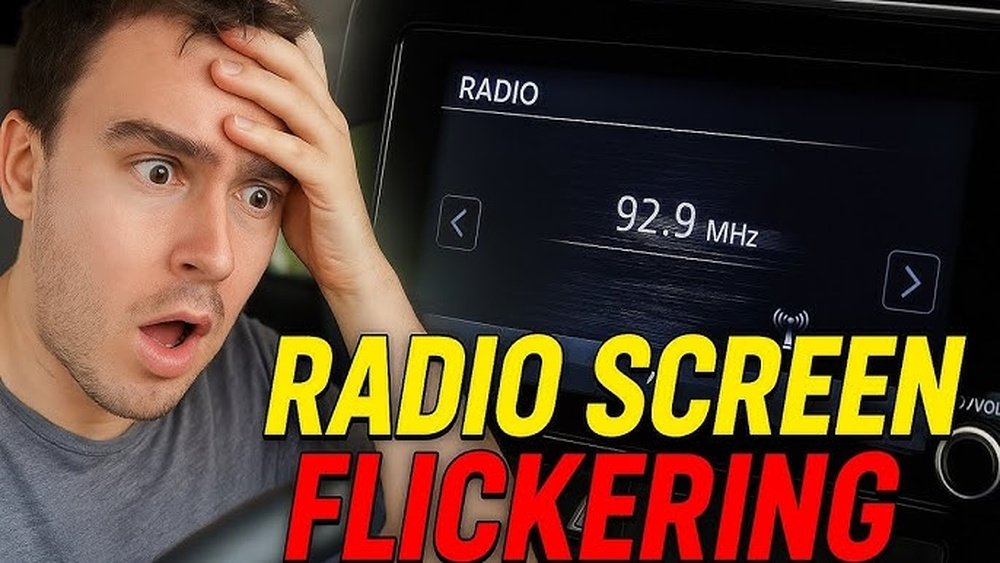
Is your Apple CarPlay screen flickering and making it hard to focus while driving? You’re not alone, and the good news is that you don’t have to live with this annoying problem.
Imagine having a smooth, clear display every time you connect—no distractions, no frustration. You’ll discover simple, effective steps to fix your Apple CarPlay screen flickering quickly. Keep reading, and get ready to enjoy a seamless driving experience again.

Common Causes Of Carplay Flickering
Screen flickering on Apple CarPlay can disrupt your driving experience. It often signals an underlying problem with your device or car system. Identifying the common causes helps fix the issue quickly and safely.
Loose Or Damaged Cables
CarPlay depends on strong cable connections. Loose or worn cables cause flickering. Check the USB cable that links your iPhone to the car. Replace any damaged cables with genuine Apple-approved ones. Secure the connection firmly to stop screen flickering.
Software Glitches
Software bugs can cause CarPlay to flicker. Your iPhone or car system might need updates. Regularly update iOS and your car’s firmware. Restarting both devices can clear temporary glitches. These steps often solve flickering caused by software errors.
Incompatible Apps
Some apps do not work well with CarPlay. Using incompatible apps may lead to flickering or freezing. Limit your use to apps that support CarPlay. Check app updates regularly. Remove apps that cause screen issues during CarPlay sessions.
Hardware Issues
Hardware problems in your car’s infotainment system can trigger flickering. Faulty displays or internal components need professional repair. If flickering persists after checking cables and software, consult your car dealer or technician. Early diagnosis prevents further damage.

Basic Troubleshooting Steps
Screen flickering on Apple CarPlay can disrupt your driving experience. Basic troubleshooting helps fix many common issues fast. These steps do not need special tools or skills. Follow them carefully to bring back a steady display.
Restart Your Iphone And Car System
Turn off your iPhone completely. Wait a few seconds, then turn it back on. This can clear temporary glitches causing flickering. Next, restart your car’s infotainment system. This refreshes its settings and connections.
Check And Reconnect Cables
Inspect the USB cable connecting your iPhone to the car. Look for any damage or loose ends. Unplug the cable, then plug it back in firmly. Use an original or certified cable to avoid compatibility problems.
Update Ios And Car Firmware
Check your iPhone for the latest iOS update. Apple often fixes bugs affecting CarPlay in new versions. Also, see if your car’s system needs a firmware update. Updated software improves stability and fixes screen flickering.
Adjust Display Settings
Adjusting the display settings on your Apple CarPlay can often stop the screen flickering. These settings control how the screen looks and behaves. Small tweaks here can make a big difference to your user experience.
Start with simple changes. This can help reduce flicker and make the screen easier to see. Let’s explore the key display settings you should check.
Disable Dark Mode
Dark Mode changes the screen to darker colors to save battery. Sometimes, this mode can cause flickering on CarPlay screens. Turning it off might stop the flicker.
Go to your iPhone’s Settings, tap Display & Brightness, and select Light Mode. This switch can stabilize the screen display.
Modify Screen Brightness
Screen brightness affects how clear the display looks. Very high or very low brightness can cause flickering. Adjusting brightness to a moderate level helps reduce this issue.
Open Settings, find Display & Brightness, and use the slider to change brightness. Set it to a comfortable level that does not flicker.
Reset Display Preferences
Resetting display preferences returns settings to their default values. This fixes any incorrect settings causing flicker.
On your iPhone, go to Settings, then General, tap Reset, and choose Reset All Settings. This action will not delete your data but fixes display problems.
Manage Apps For Stability
Managing apps on your Apple CarPlay can help stop screen flickering. Apps use system resources. Too many apps or unsupported ones may cause instability. Keeping apps in check improves performance and screen stability.
Close Background Apps
Apps running in the background use memory and power. Close apps not in use to free up resources. This reduces the load on CarPlay and stops flickering. Double-click the Home button or swipe up to see open apps. Swipe up on each app to close it.
Avoid Unsupported Apps
Some apps are not designed for CarPlay. Using these can cause screen flickers and glitches. Stick to apps approved by Apple for CarPlay. Check the list of supported apps in your CarPlay settings. Remove apps that cause trouble or do not display correctly.
Clear App Cache
Cached data can build up and cause issues. Clearing cache helps apps run smoothly. On your iPhone, go to Settings and find the app. Tap on the app and select Clear Cache or Offload App. This removes temporary files and can fix flickering problems.
Advanced Fixes
Advanced fixes for Apple CarPlay screen flickering require deeper troubleshooting steps. These methods address more complex software or system problems. They may take more time but often solve persistent issues. Follow each step carefully for best results.
Reset Network Settings
Resetting network settings can clear connection errors. Go to your iPhone’s Settings, then General, and tap Reset. Choose Reset Network Settings. This will erase saved Wi-Fi passwords and Bluetooth connections. After the reset, reconnect your iPhone to your car’s system. This step often fixes communication glitches causing the flicker.
Factory Reset Car System
A factory reset restores the car’s infotainment system to original settings. Check your car’s manual for exact instructions. This action deletes all stored data and preferences. It can fix software bugs affecting CarPlay. Be sure to back up important data before resetting. After reset, set up CarPlay again from scratch.
Consult Professional Support
If problems persist, seek help from experts. Visit an authorized car dealership or Apple service center. Professionals can run detailed diagnostics on your car and device. They may find hardware issues causing the flicker. Getting expert advice ensures safe and correct repairs. Avoid trying advanced repairs yourself to prevent damage.
Preventive Tips
Preventing the Apple CarPlay screen from flickering saves time and stress. Simple habits keep your system stable and smooth. These tips help avoid common issues before they start.
Use Certified Accessories
Always choose certified cables and chargers. Non-certified accessories may cause connection problems. Certified ones match Apple’s standards. They reduce the risk of screen flickering and other errors.
Regular Software Updates
Keep your iPhone and car system updated. Updates fix bugs and improve compatibility. Check for updates often and install them quickly. This keeps CarPlay running without glitches.
Keep System Clean And Cool
Make sure your car’s dashboard and screen stay clean. Dust and dirt can cause screen issues. Avoid direct sunlight on the screen for long times. Overheating can cause flickering and slow response.

Frequently Asked Questions
Why Is My Apple Carplay Screen Flickering?
Screen flickering often results from a loose connection, faulty cable, or software glitches. Check your cable first. Restart your iPhone and car system to fix minor bugs. Updating iOS and car firmware also helps prevent flickering issues.
How Can I Fix Apple Carplay Screen Flickering?
Start by unplugging and reconnecting your iPhone. Use an Apple-certified USB cable to avoid connection problems. Restart both your iPhone and car system. Update your iPhone’s iOS and car infotainment system to the latest version for better compatibility.
Does Updating Ios Fix Carplay Screen Flickering?
Yes, updating iOS can fix bugs causing flickering. Apple frequently releases updates to improve CarPlay stability. Always keep your iPhone’s software up to date to ensure optimal performance and reduce screen flickering issues.
Can A Faulty Usb Cable Cause Flickering On Carplay?
Absolutely. A damaged or non-certified USB cable can cause intermittent connections. This leads to screen flickering or disconnection. Using a genuine Apple or MFi-certified cable often resolves this issue quickly.
Conclusion
Fixing Apple CarPlay screen flickering can be simple and quick. Start by checking your cables and connections carefully. Restart your iPhone and car system to refresh settings. Updating software often solves many glitches. Try these easy steps before visiting a technician.
A clear, stable screen makes driving safer and more enjoyable. Keep your devices updated and connections tight for best results. Small fixes can improve your CarPlay experience greatly. Don’t let flickering screens distract you on the road.




