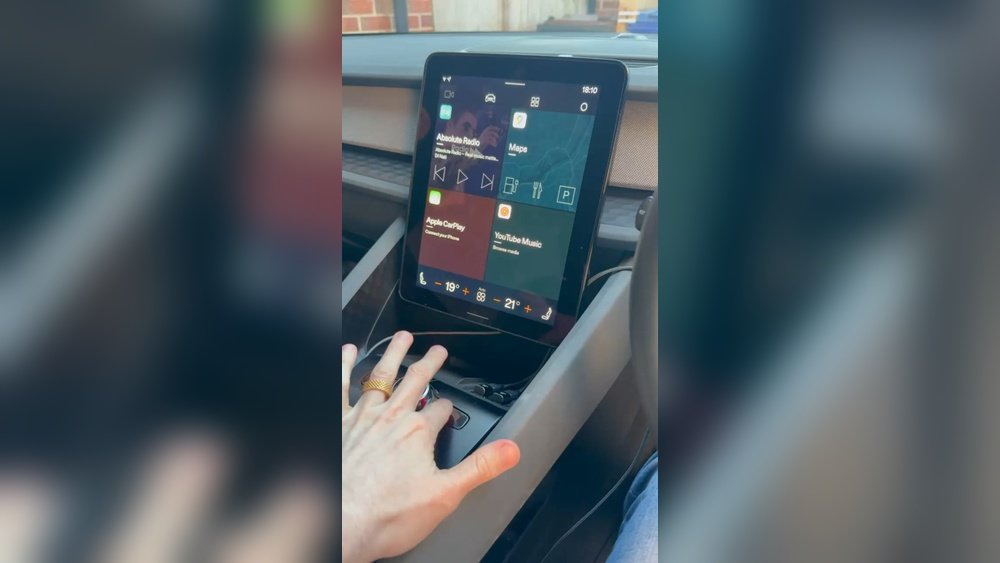
Are you tired of that annoying static noise ruining your Apple CarPlay experience? You’re not alone.
Static sounds can turn your favorite road trips into frustrating moments, making it hard to enjoy music, calls, or navigation. But don’t worry—fixing this issue is easier than you think. You’ll discover simple, effective steps to eliminate that static noise and get your Apple CarPlay working perfectly again.
Keep reading to bring back the clear sound you deserve every time you hit the road.

Common Causes Of Static Noise
Static noise on Apple CarPlay can be annoying and disrupt your driving experience. Several common issues cause this problem. Understanding these causes helps fix the noise quickly and prevent it from returning.
Loose Or Damaged Cables
Cables connect your iPhone to the car system. If these cables are loose or damaged, static noise can occur. Check the cable for breaks, bends, or loose connections. Use a different cable to test if the problem persists.
Interference From Other Devices
Other devices near your car or phone can cause interference. Bluetooth gadgets, chargers, or even radios may create static noise. Keep your phone and cables away from other electronic devices while using CarPlay.
Software Glitches
Software bugs in your iPhone or car system can cause audio issues. These glitches create static or crackling sounds. Restart your phone and car system. Update your iPhone and car software to the latest versions to fix bugs.
Faulty Car Audio System
The car audio system may have hardware problems. Faulty speakers or amplifiers can produce static noise. Test the audio system with other devices. Visit a car technician to inspect and repair audio hardware if needed.
Basic Troubleshooting Steps
Static noise in Apple CarPlay can disrupt your driving experience. Basic troubleshooting often solves the issue quickly. Start with simple checks to find the cause.
Restart Your Iphone And Car System
Turn off your iPhone and the car’s system. Wait for a few seconds. Turn both devices back on. This can clear temporary glitches causing static noise.
Check Cable Connections
Look at the cable connecting your iPhone and the car. Make sure it is plugged in tightly. Loose connections often cause static or poor sound quality.
Try A Different Lightning Cable
Use another Apple-certified lightning cable. Faulty cables can cause static noise. A new cable may solve the problem quickly and cheaply.
Adjust Volume And Audio Settings
Lower the volume on your iPhone and car stereo. Raise it slowly to find a clear sound level. Check audio settings for any equalizer or sound effects that might cause noise.
Advanced Fixes
Advanced fixes help solve stubborn static noise issues in Apple CarPlay. These steps go beyond basic checks. They target deeper software and connection problems. Follow each method carefully for the best results.
These solutions often require patience but improve your CarPlay experience. Clear sound makes driving safer and more enjoyable.
Update Ios And Car Firmware
Outdated software can cause audio problems. Check your iPhone for iOS updates. Go to Settings > General > Software Update. Download and install any available updates.
Next, update your car’s firmware. Visit the car manufacturer’s website or dealership. Follow their instructions to update the system. New firmware can fix bugs causing static noise.
Reset Network Settings
Network glitches may cause sound issues. Resetting network settings clears old data. On your iPhone, open Settings > General > Reset > Reset Network Settings.
This removes saved Wi-Fi and Bluetooth connections. You must reconnect to networks afterward. This reset can solve hidden connection errors affecting CarPlay audio.
Disable Bluetooth And Reconnect
Bluetooth interference sometimes causes static noise. Turn off Bluetooth on your iPhone. Wait a few seconds, then turn it back on.
Reconnect to your car’s system through Bluetooth settings. This refresh can fix connection glitches. It helps clear audio interference during CarPlay use.
Reset Carplay Settings
Resetting CarPlay settings removes saved preferences. It can fix corrupted configurations causing noise. Go to Settings > General > CarPlay on your iPhone.
Select your car, then tap Forget This Car. Reconnect CarPlay and set it up again. This process often clears stubborn sound issues.
Preventing Future Static Noise
Static noise in Apple CarPlay can spoil your driving experience. Taking steps to prevent it keeps your audio clear and your drives pleasant. Small habits and simple checks help avoid future sound issues.
Use Certified Cables
Certified cables meet Apple’s standards for quality and performance. They ensure stable connections and reduce the chance of noise. Using cheap or damaged cables can cause static and interruptions. Always choose cables with MFi certification for best results.
Keep Software Updated
Apple often releases updates to fix bugs and improve audio quality. Updating your iPhone and car system keeps them working smoothly together. Check for updates regularly to avoid glitches that cause static noise. Updated software supports new features and better sound control.
Minimize Electronic Interference
Electronic devices nearby can cause interference and static noise. Keep your phone away from other gadgets while using CarPlay. Avoid charging cables that create electrical noise. Turn off or move devices that might disrupt the audio signal.
Regularly Inspect Equipment
Check your cables, connectors, and car system often for wear or damage. Loose or broken parts can lead to static noise. Clean connectors to remove dirt or dust that blocks signals. Regular inspections catch problems before they affect sound quality.
Frequently Asked Questions
Why Does My Apple Carplay Make Static Noise?
Static noise in Apple CarPlay often results from poor cable connections or interference. Check the USB cable and port for damage or dirt. Updating your iPhone and car firmware can also fix compatibility issues causing the noise.
How Can I Reduce Static Noise In Apple Carplay?
Use a high-quality, certified Lightning cable and ensure a secure connection. Avoid placing your phone near electronic devices that cause interference. Regularly update your iPhone and car software to maintain optimal performance.
Can Software Updates Fix Apple Carplay Static Noise?
Yes, software updates often include bug fixes improving audio quality. Update your iPhone iOS and your car’s infotainment system regularly. These updates can resolve glitches causing static noise and enhance overall CarPlay functionality.
Does A Faulty Usb Port Cause Carplay Static Noise?
A damaged or dirty USB port can cause static noise in CarPlay. Inspect and clean the port gently. If damage persists, try using a different USB port or cable to see if the noise stops.
Conclusion
Static noise in Apple CarPlay can be fixed with simple steps. Check your cables and connections first. Restart your phone and car system next. Keep your software updated for smooth performance. Clean your charging port to avoid interference. Try using another cable if noise continues.
These tips help improve your listening experience. Enjoy clear sound on every drive. Stay patient and follow these easy fixes. Your CarPlay should work better soon.




