
Are you struggling with Apple CarPlay voice navigation not working right? It can be frustrating when your directions go silent or confuse you on the road.
But don’t worry—fixing this issue is easier than you think. You’ll discover simple, step-by-step solutions to get your voice navigation back on track quickly. Keep reading, and soon you’ll enjoy clear, reliable directions every time you drive.
Common Voice Navigation Issues
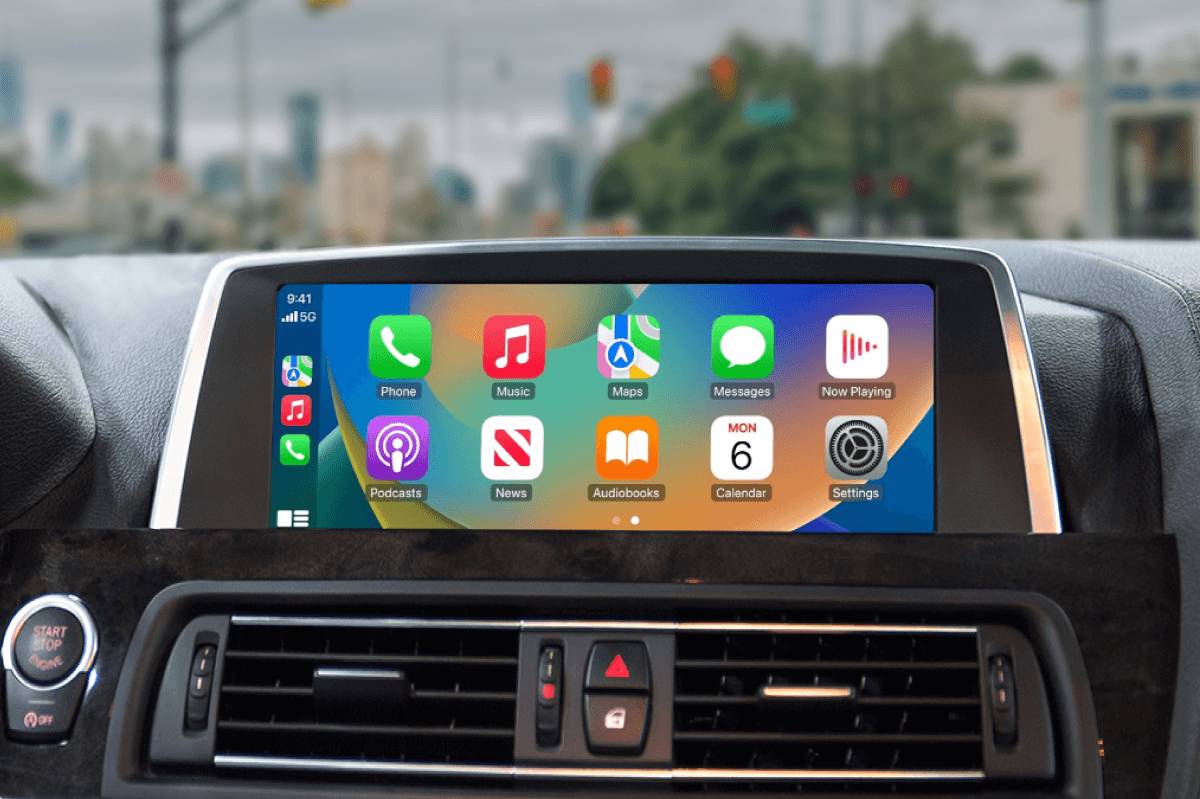
Apple CarPlay voice navigation helps drivers reach destinations safely. Sometimes, it does not work as expected. Common issues affect voice directions and commands. Understanding these problems is the first step to fixing them.
No Voice Directions
No voice directions means the app shows the route but stays silent. This problem can happen if the volume is too low or muted. Another cause is a faulty Bluetooth or cable connection. Check the car’s audio settings and device connection first.
Delayed Voice Prompts
Delayed voice prompts make navigation confusing. The voice may speak late or repeat instructions. This delay often happens because of slow Bluetooth syncing or software bugs. Restarting the phone and car system can help. Keeping software updated reduces such delays.
Incorrect Voice Commands
Incorrect voice commands cause wrong navigation results. The system may not understand the driver’s speech clearly. Background noise or unclear pronunciation causes errors. Speak slowly and clearly. Use a quiet environment for better command recognition.
Check Basic Settings
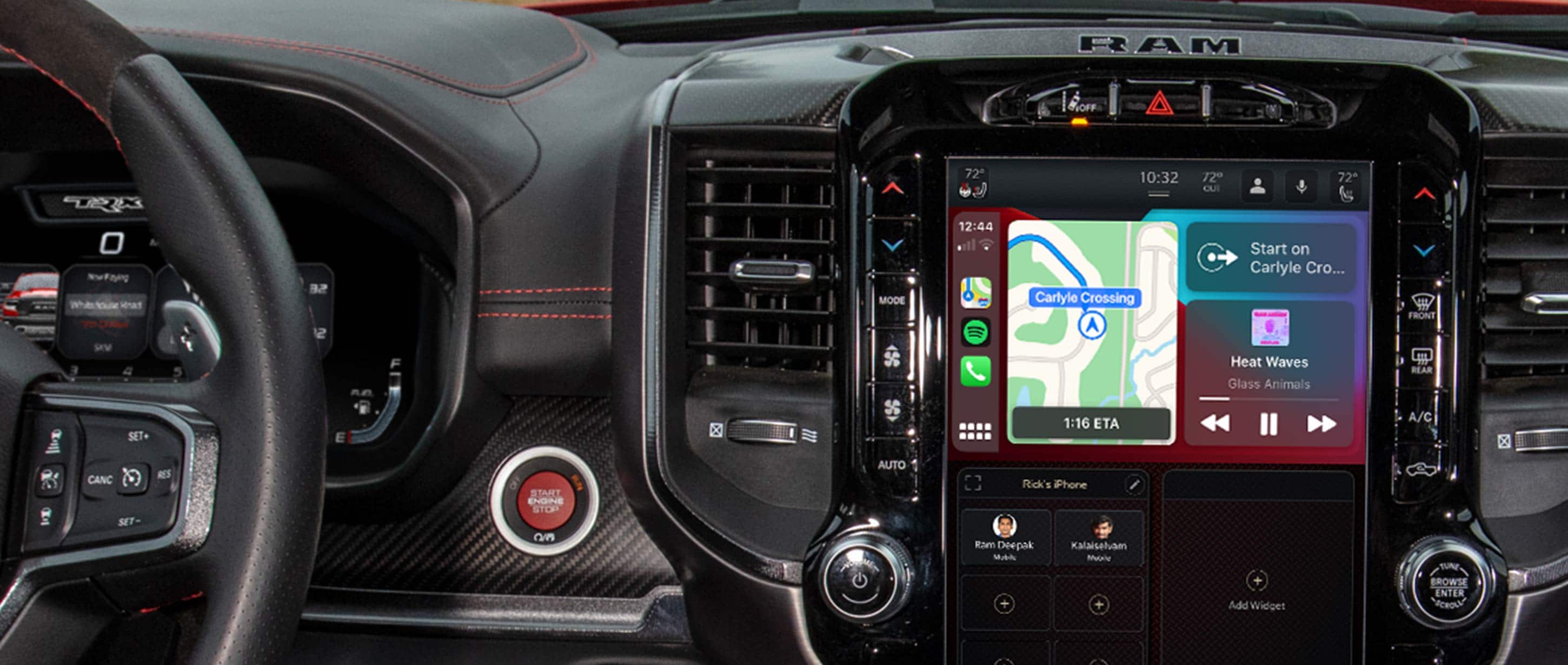
Checking basic settings is the first step to fix Apple CarPlay voice navigation. Small settings can cause big problems with sound and voice guidance. Make sure these settings are correct before moving to advanced fixes.
Volume And Mute Controls
Check the car’s volume and mute buttons. Sometimes, the sound is off or very low. Press the volume up button while using CarPlay. Make sure the system is not muted. Even if music plays, navigation voice can be muted separately.
Carplay Sound Settings
Go to the CarPlay settings on your iPhone. Tap “Settings” then “General” and select “CarPlay.” Choose your car and check sound options. Ensure navigation voice volume is set to a good level. Turn off any “Do Not Disturb” modes that silence voice commands.
Phone Volume Settings
Increase the volume on your iPhone. Use the side buttons during navigation. Low phone volume can mute CarPlay voice. Also, check the sound output is set to the car, not headphones or Bluetooth speakers. This helps the voice navigation play through the car speakers.
Restart Devices
Restarting devices is a simple way to fix many Apple CarPlay voice navigation issues. This step refreshes the connection between your iPhone and car system. It clears temporary glitches that may block voice commands. Try restarting both your iPhone and the car’s infotainment system. This process often restores normal function quickly.
Restart Iphone
Press and hold the side button and either volume button. Slide to power off when the option appears. Wait about 30 seconds before turning the iPhone back on. This reboot can fix software bugs affecting CarPlay voice navigation. After restarting, reconnect to your car and check if voice commands work.
Restart Car Infotainment System
Turn off your car and open the door to ensure the system fully shuts down. Wait for 30 seconds to 1 minute before restarting the car. This reset refreshes the infotainment system’s software. It helps fix errors that stop voice navigation from working. After the restart, reconnect your iPhone and test the voice feature.
Update Software
Updating software often solves many Apple CarPlay voice navigation issues. Both your iPhone and car system need the latest updates. These updates fix bugs and improve compatibility. Keeping software current helps voice commands work smoothly. Follow the steps below to update your devices.
Update Ios
Start by updating your iPhone’s iOS. Open the Settings app and tap “General.” Select “Software Update” to check for new versions. If an update is available, tap “Download and Install.” Make sure your phone is connected to Wi-Fi and has enough battery. This update often includes fixes for CarPlay and voice navigation.
Update Car Firmware
Car manufacturers release firmware updates to improve CarPlay functions. Check your car’s user manual for update instructions. Usually, updates happen via USB or Bluetooth connection. Some cars allow updates through the infotainment system menu. Keeping the car firmware updated ensures better voice recognition and navigation accuracy.
Reset Carplay Connection
Resetting the CarPlay connection often fixes voice navigation problems. It clears old data and errors. This step can restore smooth communication between your iPhone and car system. Follow simple actions to reset and refresh the connection for better performance.
Forget And Reconnect Device
Start by forgetting your car on the iPhone. Open Settings and tap on Bluetooth. Find your car’s name on the list. Tap the “i” icon next to it. Choose “Forget This Device.”
Next, reconnect your iPhone to the car. Turn on Bluetooth and CarPlay in your car. Your phone will detect the car again. Follow the on-screen prompts to pair the devices. This process clears any old settings that might cause voice navigation issues.
Reset Network Settings
Resetting network settings can fix deeper connection problems. Go to Settings on your iPhone. Tap General, then scroll to Reset. Choose “Reset Network Settings.”
This deletes saved Wi-Fi, Bluetooth, and VPN settings. Your phone restarts after this. Reconnect to your car and Wi-Fi networks again. This step helps if voice commands are not heard or if CarPlay disconnects unexpectedly.
Check App Permissions
Checking app permissions is a key step to fix Apple CarPlay voice navigation. If the app lacks the right permissions, voice commands may not work properly. Ensuring the app can access your microphone and location is essential for smooth voice navigation.
Enable Microphone Access
The microphone lets Apple CarPlay hear your voice commands. Without access, it cannot respond to your requests. Open your iPhone settings, find the navigation app, and check microphone permission. Turn it on if it is off. This simple step can restore voice navigation quickly.
Allow Location Services
Location services help the app track your position for accurate directions. Without this, the voice navigation might fail or give wrong routes. Go to your iPhone settings, tap Privacy, then Location Services. Make sure the navigation app has permission set to “While Using the App” or “Always.” This ensures the app can guide you correctly.
Use Alternative Navigation Apps
Using alternative navigation apps can solve voice navigation issues with Apple CarPlay. These apps often offer better voice command support. They work smoothly with your car’s system. Switching apps can improve your driving experience.
Google Maps Voice Navigation
Google Maps is a trusted navigation app. It provides clear voice directions. The app updates routes in real-time. It warns about traffic and roadblocks. Google Maps understands simple voice commands well. Say your destination, and it guides you step-by-step. The app also adjusts routes if you miss a turn. It works well with Apple CarPlay’s display.
Waze Voice Commands
Waze is popular for live traffic updates. It uses community data for accurate info. The app offers voice commands for hands-free use. You can report hazards or police locations by voice. Waze reroutes quickly around traffic jams. Voice navigation stays clear and easy to hear. It integrates smoothly with Apple CarPlay. Waze helps you avoid delays with its alerts.

Contact Support
Contacting support can help fix Apple CarPlay voice navigation issues. Professionals offer clear guidance and solutions. They can check your device and system for problems. This step saves time and avoids guesswork.
Apple Support Options
Apple offers several ways to get help. You can visit the Apple Support website for articles and tips. Chat support allows quick answers from experts. Calling Apple Support connects you with a specialist. Booking a Genius Bar appointment gets hands-on help at an Apple Store.
Car Manufacturer Assistance
Your car maker can also help with CarPlay issues. Many brands have dedicated customer service for tech problems. They provide software updates and fixes specific to your car model. Some offer in-car support through their apps or websites. Contacting your dealer may solve problems faster.
Frequently Asked Questions
Why Is Apple Carplay Voice Navigation Not Working?
Voice navigation may fail due to software glitches, outdated iOS, or Bluetooth issues. Restart your iPhone and car system. Ensure Siri is enabled and CarPlay settings allow voice commands. Updating iOS often resolves bugs causing navigation problems.
How To Enable Voice Navigation On Apple Carplay?
Voice navigation activates automatically when using Maps in CarPlay. Ensure Siri is turned on in iPhone settings. Press and hold the voice command button on your steering wheel or CarPlay screen to start voice navigation.
What To Do If Carplay Voice Commands Are Unresponsive?
Check your iPhone’s microphone and Siri settings. Restart your iPhone and car’s infotainment system. Disconnect and reconnect CarPlay via USB or Bluetooth. Updating iOS can fix command recognition issues.
Can A Software Update Fix Carplay Voice Navigation Issues?
Yes, Apple frequently releases updates that improve CarPlay stability. Updating your iPhone to the latest iOS version can resolve voice navigation problems and enhance performance.
Conclusion
Fixing Apple CarPlay voice navigation can improve your driving experience. Try simple steps like checking settings, restarting devices, or updating software. Clear connections and permissions help the system work well. Small fixes often solve common problems quickly. Keep your device and car software up to date.
Stay patient and follow these tips for better navigation. Enjoy safer and easier trips with clear voice directions every time.




