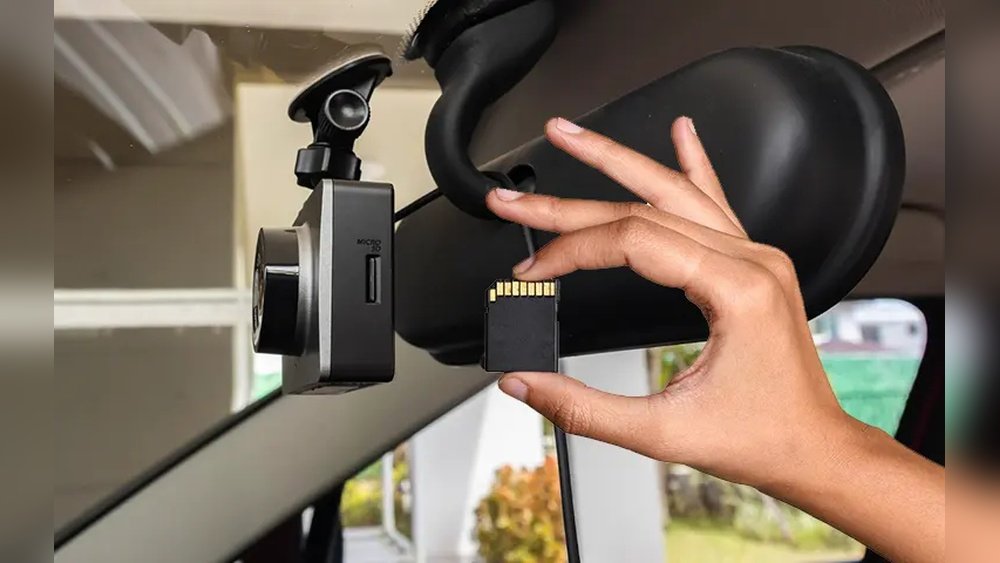
If you use a dash cam, you know how important it is to keep your footage safe and clear. But did you know that formatting your SD card regularly can make a huge difference?
Proper formatting helps your dash cam run smoothly and prevents lost or corrupted videos. You’ll learn exactly how to format your SD card the right way—step by step. By the end, you’ll feel confident that your dash cam is ready to capture every moment on the road without a hitch.
Keep reading to protect your recordings and get the most out of your device.
Choosing The Right Sd Card
Choosing the right SD card is key for your dash cam’s performance. The correct card stores videos clearly and avoids errors. Not every card works well with dash cams. Some cards fail quickly or slow down the recording. Understanding card types, capacity, and speed helps you pick the best one. Avoiding fake cards also protects your data and device.
Recommended Card Types
Dash cams work best with microSD cards. Look for cards labeled as Class 10 or UHS-I. These cards support fast writing speeds. High endurance cards are ideal for dash cams. They handle constant video recording without wearing out fast. Brands like SanDisk and Samsung often offer reliable dash cam cards.
Capacity And Speed Considerations
Choose a card with enough space for several hours of footage. Common sizes are 32GB, 64GB, or 128GB. Bigger cards store more video but cost more. Speed matters for smooth recording. A card with 30MB/s write speed or higher is good. Low-speed cards cause video lag or file corruption.
Avoiding Counterfeit Cards
Fake cards look real but fail fast. Buy from trusted sellers only. Check reviews and seller ratings before purchase. Test new cards with your dash cam before use. Use apps to verify card speed and capacity. Real cards last longer and protect your recordings better.
Preparing Your Dash Cam
Preparing your dash cam before formatting the SD card is important. It helps avoid problems and keeps your files safe. Take some simple steps to get ready. This makes the formatting process smooth and quick.
Checking Compatibility
Not all SD cards work with every dash cam. Check your dash cam manual or website. Find the right SD card type and size. Using the correct card prevents errors during recording. Confirm the speed class too. Faster cards handle video better.
Backing Up Existing Files
Your SD card may have important videos or data. Save these files before formatting. Connect the SD card to a computer. Copy the files to a safe folder. This keeps your recordings safe. Formatting deletes everything on the card.
Formatting Methods
Formatting an SD card for a dash cam is necessary to keep it working well. It erases old files and fixes errors. There are several ways to format your SD card. Each method works in a different way. Choose the one that fits your needs best.
Using The Dash Cam Menu
Most dash cams let you format the SD card directly. Use the dash cam’s menu to find the format option. This method is quick and easy. It makes sure the card works well with your device. Just follow the on-screen instructions to finish the process.
Formatting Via Computer
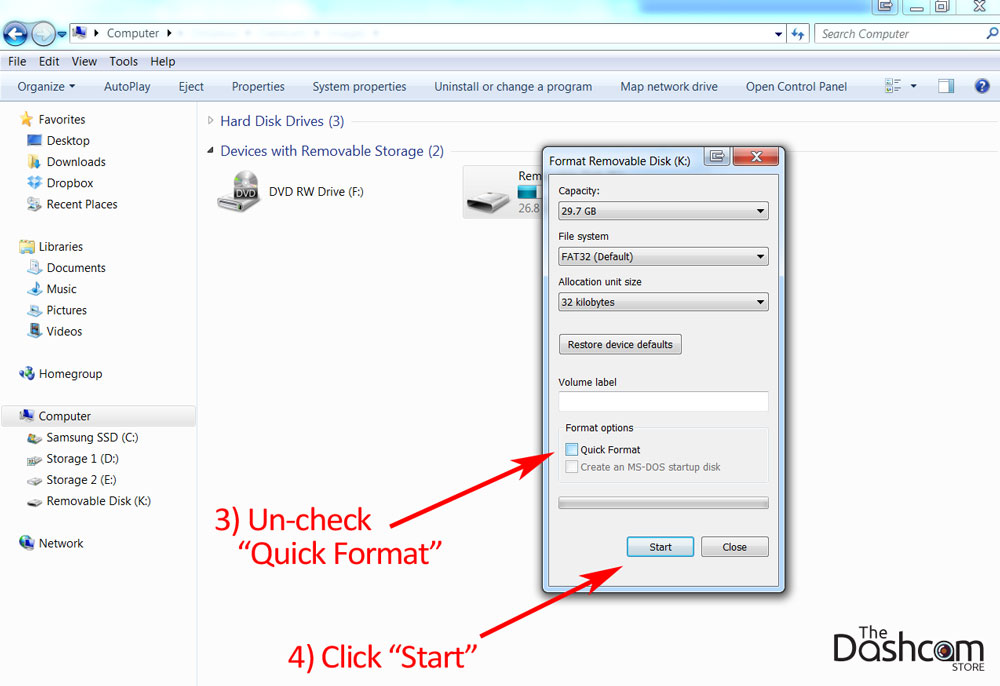
You can also format the SD card using a computer. Insert the card into the card reader slot. Open the file explorer and right-click on the SD card drive. Select the “Format” option. Choose the file system type and start the formatting. This method works well for basic formatting needs.
Using Sd Card Formatter Software
Special software can format SD cards deeply and safely. These tools fix more errors than basic formatting. Download and install trusted SD card formatter software. Run the program and select your SD card. Click the format button and wait for it to finish. This method is best for thorough cleaning of the card.

Step-by-step Formatting Guide
Formatting your SD card keeps your dash cam running smoothly. It clears old files and errors. This process helps your dash cam save videos without issues. Follow these simple steps to format your SD card correctly.
Formatting On Dash Cam
Turn on your dash cam. Open the settings menu. Find the option for storage or SD card. Select “Format” or “Format SD card.” Confirm your choice. Wait a few seconds. The dash cam erases the card and resets it. Always format the SD card in your dash cam, not just on a computer.
Formatting On Windows Pc
Insert the SD card into your PC’s card reader. Open “This PC” or “My Computer.” Right-click the SD card drive. Choose “Format” from the menu. Pick “FAT32” as the file system. Set the allocation unit size to default. Click “Start” to begin formatting. Wait for the process to finish. Eject the card safely before removing it.
Formatting On Mac
Insert the SD card into your Mac. Open “Disk Utility” from Applications. Select the SD card in the left panel. Click “Erase” at the top. Choose “MS-DOS (FAT)” or “ExFAT” as the format. Name the card if you want. Click “Erase” to start formatting. Wait until the process ends. Eject the card before removing it.
Optimizing Sd Card Performance
Optimizing your SD card performance keeps your dash cam running smoothly. A well-maintained card records clear videos without interruptions. It reduces the chance of data loss or corruption. Simple habits can extend your SD card’s life and protect your footage.
Regular Formatting Schedule
Format the SD card every few weeks. This clears old files and refreshes memory. Use the dash cam’s built-in format option. Avoid formatting on a computer unless necessary. Regular formatting stops errors and keeps recordings stable.
Proper Ejecting Procedures
Always turn off the dash cam before removing the SD card. Sudden removal can cause file damage. Use safe eject options if using a computer. Proper removal protects your data and the card’s health. It prevents corruption and lost videos.
Avoiding Overuse And Corruption
Do not fill the SD card to its full capacity. Leave some free space for new files. Avoid using the card for other devices. Use only high-quality cards made for dash cams. Overuse and poor quality increase the risk of errors.

Troubleshooting Formatting Issues
Formatting an SD card for your dash cam usually goes smoothly. Sometimes, issues can stop the process. Troubleshooting formatting problems helps keep your dash cam working well. Knowing how to handle these issues saves time and frustration.
Dealing With Unrecognized Cards
Your dash cam may not see the SD card. The card might not be fully inserted. Try removing and reinserting it carefully. Check if the card is compatible with your dash cam. Use a card recommended by the manufacturer. Test the card on a computer to confirm it works. If the computer does not recognize it, the card may be faulty.
Recovering From Formatting Errors
Formatting errors can happen during the process. Use the dash cam’s built-in format option first. If that fails, try formatting the card on a computer. Use the FAT32 or exFAT file system, as dash cams usually require these. Avoid quick format options. Run a disk check tool to fix errors. Back up any important files before formatting again.
When To Replace Your Sd Card
SD cards do not last forever. Signs of failure include slow recording or frequent errors. If errors persist after reformatting, it may be time for a new card. Choose a high-quality card with a good speed rating. Replace the card regularly to keep your dash cam reliable. A fresh card reduces the risk of losing important footage.
Frequently Asked Questions
How Do I Format An Sd Card For A Dash Cam?
To format an SD card for a dash cam, insert it into the camera or computer. Use the dash cam’s format option or computer’s formatting tool. Choose FAT32 or exFAT file system for compatibility. This ensures smooth recording and prevents errors.
Which File System Is Best For Dash Cam Sd Cards?
FAT32 and exFAT are the best file systems for dash cam SD cards. FAT32 works for cards up to 32GB, while exFAT supports larger sizes. Both systems ensure compatibility and reliable recording on most dash cams.
How Often Should I Format My Dash Cam Sd Card?
It’s recommended to format your dash cam SD card every 1-3 months. Regular formatting removes corrupted files and maintains optimal performance. Avoid using computer formatting methods not specified by your dash cam manufacturer.
Can Formatting Fix Sd Card Errors In Dash Cams?
Yes, formatting can fix many SD card errors in dash cams. It clears corrupted files and resets the file system. If errors persist, the card may be damaged and need replacement.
Conclusion
Formatting your SD card keeps your dash cam working well. It clears old files and avoids errors. Use the right format type your dash cam needs. Always back up important videos before formatting. Regular formatting helps your dash cam save new recordings smoothly.
Follow simple steps to format safely and quickly. This small task protects your device and keeps your drives clear. Ready to keep your dash cam running without trouble? Just format the SD card and drive with peace of mind.