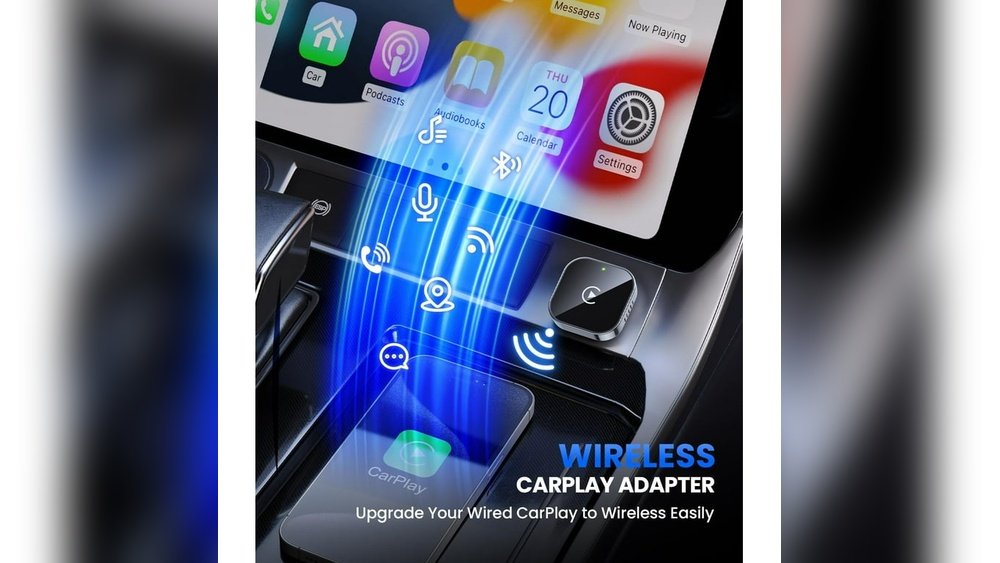
Are you tired of your Wireless Apple CarPlay cutting out or lagging just when you need it most? You’re not alone.
A stable connection can make all the difference in keeping your drive smooth, safe, and enjoyable. Imagine having your favorite apps, maps, and music respond instantly without any frustrating interruptions. You’ll discover simple, effective ways to boost your Wireless Apple CarPlay’s stability.
Keep reading to take control of your in-car experience and enjoy seamless connectivity every time you hit the road.
Common Causes Of Wireless Carplay Instability
Wireless Apple CarPlay may face connection problems. These issues can disrupt your driving experience. Understanding the common causes helps fix them quickly.
Interference From Other Devices
Many devices use Wi-Fi and Bluetooth signals. These signals can overlap and cause interference. This interference disrupts wireless CarPlay’s connection. Keeping other devices away can reduce signal problems.
Weak Wi-fi Or Bluetooth Signals
Wireless CarPlay needs strong Wi-Fi and Bluetooth signals. Weak signals lead to frequent disconnections. Distance from the car’s system affects signal strength. Obstacles like walls or metal objects also weaken signals.
Outdated Firmware And Software
Old firmware and software may cause bugs. These bugs affect CarPlay’s stability and speed. Regular updates improve connection and fix issues. Check for updates on your iPhone and car system.
Compatibility Issues With Vehicles
Not all cars fully support wireless CarPlay. Some models have limited compatibility. This causes lag or connection drops. Confirm your vehicle supports wireless CarPlay for smoother use.

Optimizing Your Iphone Settings
Optimizing your iPhone settings helps keep Apple CarPlay stable and smooth. Small changes can improve connection quality and reduce interruptions. Focus on network and software settings to get the best experience.
Enabling Airplane Mode With Wi-fi On
Turn on Airplane Mode to stop all wireless signals. Then, switch Wi-Fi back on. This clears minor network issues without disconnecting your Wi-Fi. Your iPhone connects cleanly to the car’s system, reducing lag and drops.
Resetting Network Settings
Resetting network settings wipes old Wi-Fi and Bluetooth data. This removes errors that cause CarPlay disconnections. Go to Settings, tap General, then Reset, and choose Reset Network Settings. Your saved passwords erase, so have them ready.
Updating Ios Regularly
Keep your iPhone’s iOS updated. Updates fix bugs and improve compatibility with CarPlay. Check Settings, tap General, then Software Update. Install updates as soon as they appear. An updated system runs CarPlay with fewer problems.
Enhancing Vehicle System Performance
Improving the performance of your vehicle’s system can help make Wireless Apple CarPlay more stable. A smooth connection depends on how well your car’s infotainment system runs. Simple steps can fix many common problems. These actions keep the system updated, clean, and running fresh.
Better vehicle system performance leads to fewer connection drops. It also helps with faster response times. Keeping the system in good shape is key for a reliable CarPlay experience.
Updating Infotainment System Firmware
Firmware is the software inside your car’s infotainment system. Updates fix bugs and add new features. Check your car manufacturer’s website or settings menu for updates. Install the latest firmware to improve CarPlay stability. Updated software can reduce glitches and improve connection speed.
Clearing Cached Data
Cached data stores temporary files. Over time, these files can slow down your system. Clearing the cache removes old files and frees up space. This can fix lag and connection problems. Find the option to clear cache in your car’s settings. Doing this regularly helps keep the system fast and stable.
Restarting The Vehicle’s System
Restarting your car’s system can clear minor errors. Turn off the engine and wait a few minutes. Turn it back on to refresh the system. This simple step often resolves connectivity issues. Restarting resets the system and can restore a smooth CarPlay connection.
Improving Wireless Connection Quality
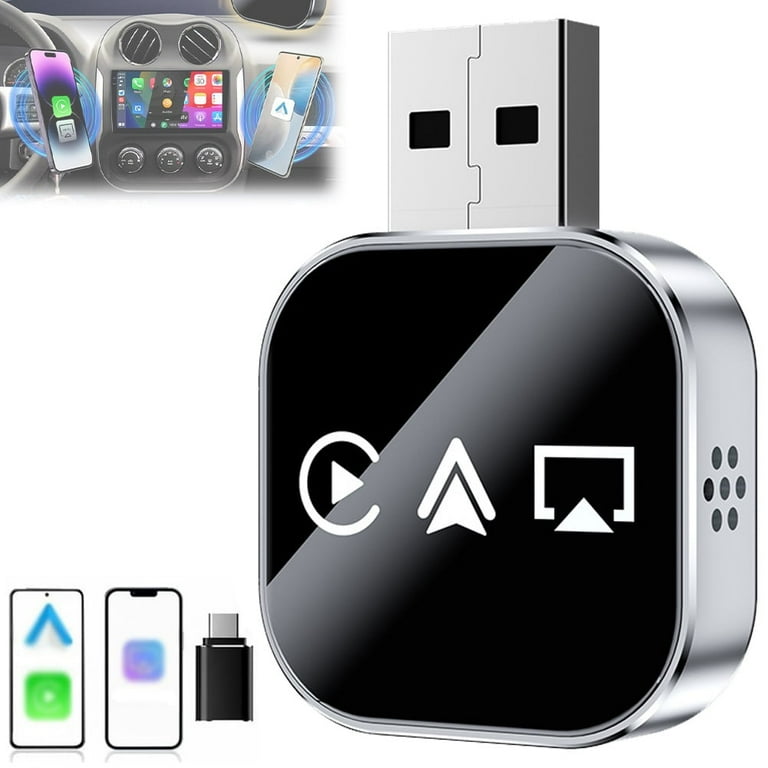
Improving wireless connection quality is key to a smooth Apple CarPlay experience. A strong, stable connection reduces interruptions and lag. It helps apps load faster and keeps navigation clear. Simple steps can enhance the signal between your phone and car.
Reducing Device Interference
Other electronic devices can block your wireless signal. Turn off Bluetooth or Wi-Fi on gadgets not in use. Keep your phone away from metal objects or thick cases. Avoid placing it near charging cables or other wireless devices. Less interference means a cleaner, stronger connection.
Positioning Your Phone For Better Signal
Place your phone where the signal is strongest. Avoid hiding it in pockets or bags. Keep it in direct sight of your car’s receiver. Mounting the phone on a dashboard holder works well. A clear line of sight boosts connection stability and speed.
Using External Wi-fi Boosters
Wi-Fi boosters can extend your wireless signal inside the car. These devices amplify the signal between your phone and vehicle. Choose boosters compatible with Apple CarPlay systems. Place the booster near the car’s receiver for best results. This helps reduce dropouts and improves response time.
Troubleshooting Common Wireless Carplay Issues
Wireless Apple CarPlay offers great convenience, but it can face some common issues. Troubleshooting these problems helps keep your connection smooth and reliable. This section covers simple fixes for frequent wireless CarPlay troubles. Try these tips to improve your experience.
Fixing Connection Drops
Connection drops occur when the wireless link breaks unexpectedly. Restart your iPhone and car’s infotainment system first. Check for software updates on both devices. Remove old Bluetooth devices to reduce interference. Keep your phone close to the car’s receiver. Avoid metal or thick phone cases that block signals.
Resolving Audio Lag And Delays
Audio lag makes calls and music sound delayed or out of sync. Lower the volume on your phone and car system. Close apps running in the background on your iPhone. Turn off Wi-Fi on your phone if not needed. Use a fresh Bluetooth pairing by forgetting and reconnecting the device. Restarting your phone may also clear audio delays.
Addressing Screen Freezes
Screen freezes stop CarPlay from responding or updating. Force close CarPlay on your iPhone and restart it. Disconnect and reconnect the wireless connection. Clear cache or reset settings in your car’s infotainment system. Ensure your iPhone screen is unlocked during use. Update the car’s software if a new version is available.
Advanced Tips From Experts
Wireless Apple CarPlay offers freedom from cables but can sometimes face connection issues. Experts suggest some advanced tips to improve its stability. These tips help reduce interruptions and keep your CarPlay working smoothly.
Following expert advice can make your wireless CarPlay experience more reliable. Small changes in setup and phone management have a big impact on performance.
Using Lightning Cable For Initial Setup
Start by connecting your iPhone with a lightning cable to your car’s USB port. This initial setup creates a strong and stable link. It helps your car and phone recognize each other properly.
After the first setup, disconnect the cable and switch to wireless mode. This method reduces errors in pairing and improves connection stability.
Disabling Unnecessary Background Apps
Many apps running in the background can drain your phone’s resources. This can cause CarPlay to lag or disconnect. Close apps you don’t need while using CarPlay.
Focus on keeping only essential apps active. This frees up memory and processing power for a smoother CarPlay connection.
Factory Reset As A Last Resort
If CarPlay still has issues, consider a factory reset of your iPhone. This erases all settings and data, fixing deep software problems. Make sure to back up your data first.
Resetting should be the last step after trying other tips. It often resolves persistent bugs that affect wireless CarPlay performance.
Frequently Asked Questions
How Can I Boost Wireless Apple Carplay Connection?
To boost connection, keep your iPhone close to the car’s receiver. Remove obstacles and update iOS regularly. Also, disable Bluetooth on nearby devices to avoid interference.
Why Does Wireless Apple Carplay Keep Disconnecting?
Disconnections often happen due to weak Wi-Fi or Bluetooth signals. Ensure your iPhone and car system firmware are updated. Restart both devices to refresh connections.
Does Updating Ios Improve Apple Carplay Stability?
Yes, iOS updates fix bugs and improve wireless connectivity. Regular updates ensure compatibility and enhance CarPlay’s overall stability and performance.
How To Reduce Interference For Wireless Apple Carplay?
Minimize interference by turning off unused Bluetooth devices. Avoid areas with strong Wi-Fi signals that can disrupt CarPlay. Use a direct line of sight between phone and receiver.
Conclusion
Improving wireless Apple CarPlay stability takes small, steady steps. Keep your devices updated and close to each other. Avoid interference from other gadgets or thick obstacles. Regularly check your car’s system and reset connections if needed. Simple habits can make your driving experience smooth and safe.
Enjoy hands-free calls, music, and navigation without constant drops. Stay patient and consistent with these easy tips. Your CarPlay will work better and more reliably over time.




