Have you ever wished you could see your phone’s screen right on your car’s stereo? Imagine having easy access to your maps, music, and messages without taking your eyes off the road.
Mirroring your phone on your car stereo makes this possible—and it’s simpler than you might think. In this guide, you’ll discover step-by-step how to connect your phone to your car’s display, so you can stay safe, entertained, and in control while driving.
Ready to unlock this powerful feature? Let’s get started.
Benefits Of Phone Mirroring
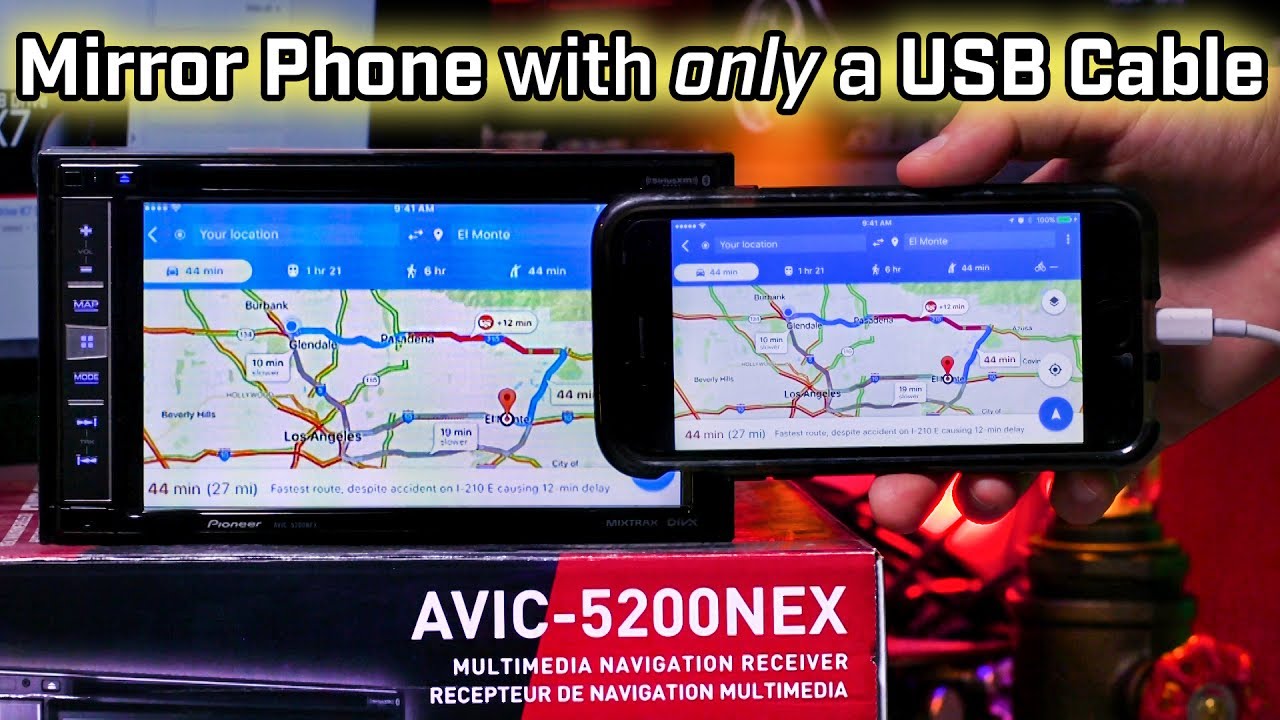
Phone mirroring lets you display your phone’s screen on your car stereo. This feature brings many useful benefits. It improves your driving experience and keeps you connected safely.
Enhanced Driving Safety
Phone mirroring helps you keep your eyes on the road. You can use navigation apps directly on the car screen. This reduces the need to look at your phone. It lowers the risk of accidents. Safe driving becomes easier and more natural.
Access To Apps And Media
You can enjoy music, podcasts, and videos through the car stereo. Apps like Spotify or YouTube work on the big screen. It makes entertainment more accessible during long trips. You get better sound quality and control.
Hands-free Communication
Phone mirroring supports hands-free calls and messages. Voice commands allow you to talk without touching your phone. It keeps your hands on the wheel and eyes on the road. Staying connected without distraction is simple and safe.
Requirements For Mirroring
Mirroring your phone on a car stereo lets you see your apps and media on a bigger screen. To do this, your setup must meet some key requirements. These make sure the connection is smooth and reliable. Knowing these needs helps avoid frustration and saves time.
Compatible Car Stereo Systems
Not all car stereos support phone mirroring. You need a system with screen mirroring features. Many modern infotainment systems include this, like Apple CarPlay and Android Auto. Some aftermarket units also offer mirroring through apps. Check your stereo’s manual or website to confirm compatibility.
Supported Phone Models
Your phone must support mirroring technology. Most newer iPhones and Android phones do. iPhones use AirPlay or CarPlay for mirroring. Android phones often use Android Auto or Miracast. Older phones may not work or need extra steps. Always verify your phone model supports the method your stereo uses.
Necessary Cables And Adapters
Some mirroring methods require cables. USB cables are common for Apple CarPlay and Android Auto. HDMI cables may work for other mirroring types. Adapters might be necessary if your phone and stereo use different ports. Keep your cables in good condition for a stable connection.
Wireless Vs Wired Mirroring
Choosing between wireless and wired mirroring depends on your needs and car setup. Both methods send your phone’s screen to the car stereo. Each has clear benefits and some limits. Understanding these can help you pick the best option for your drive.
Advantages Of Wireless Connections
Wireless mirroring frees you from cables. You can connect your phone without plugging anything in. This lets you move more easily inside the car. It also looks cleaner with no wires on the dashboard. Wireless connections allow quick access to apps and media. Many modern cars support wireless mirroring. It works well for streaming music or navigation apps. Wireless setups reduce wear and tear on ports and cables.
When To Use Wired Connections
Wired mirroring offers a stable and fast connection. It is less likely to drop or lag during use. Use wired when you need constant, reliable screen sharing. Older car stereos may only support wired mirroring. Charging your phone while mirroring is easy with a cable. Wired connections often provide better image quality and sound. They work best for long trips or heavy app use.
Common Wireless Technologies
Wi-Fi Direct is a popular method for wireless mirroring. It creates a direct link between your phone and car stereo. Bluetooth can also connect devices but is slower and limited. Apple CarPlay and Android Auto offer wireless options on many cars. Miracast is another wireless standard used by some devices. Knowing these helps you understand which technology your car supports.
Step-by-step Mirroring Guide
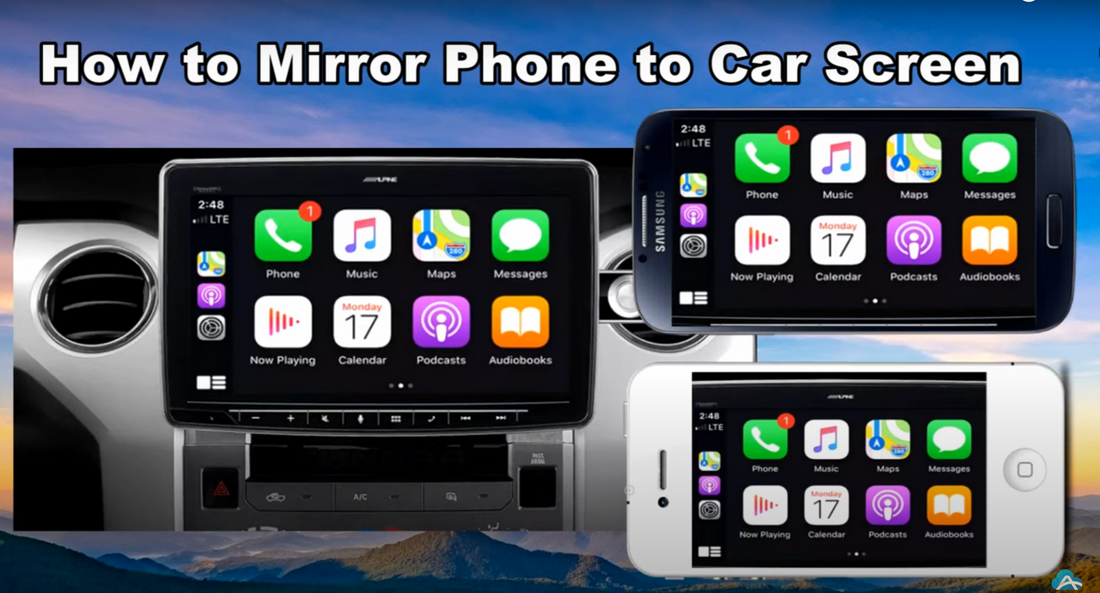
Mirroring your phone on a car stereo allows you to enjoy apps, maps, and media on a larger screen. This guide shows clear steps to connect your phone to your car stereo. Follow each part carefully for a smooth experience.
Preparing Your Phone And Car Stereo
Start by checking your phone and car stereo compatibility. Make sure your car stereo supports mirroring. Update your phone’s software to the latest version. Turn on Bluetooth and Wi-Fi on your phone. Also, set your car stereo to the correct input mode for mirroring.
Connecting Via Usb Cable
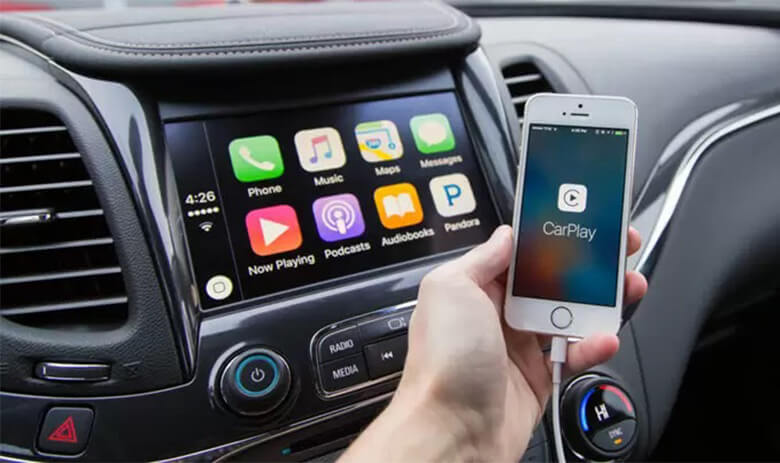
Use a good quality USB cable for connection. Plug one end into your phone and the other into the car stereo. Your phone may ask for permission to share data. Grant this permission. The car stereo should detect your phone and start mirroring. If it does not, try unplugging and reconnecting the cable.
Setting Up Wireless Mirroring
Enable screen mirroring or casting on your phone. Open your car stereo’s wireless mirroring feature. Search for available devices on your phone. Select your car stereo from the list. Confirm the connection on your car stereo if prompted. Wait a few seconds for the connection to establish.
Troubleshooting Connection Issues
Check that your phone and car stereo are close to each other. Restart both devices to fix minor bugs. Ensure your USB cable or wireless network is working properly. Clear any app cache that might block mirroring. Consult your car stereo manual for specific error codes or messages.
Popular Mirroring Apps
Mirroring your phone on a car stereo makes driving safer and more fun. It lets you see apps, maps, and music on a bigger screen. Many apps help connect your phone to your car’s display. These apps work with different phones and car systems. Here are some popular mirroring apps you can use.
Android Auto
Android Auto is a common choice for Android users. It shows apps like Google Maps, Spotify, and messages on your car screen. The app uses voice commands to keep your hands free. It works with many new cars and aftermarket stereos. Setup is simple and fast with a USB cable or wireless connection.
Apple Carplay
Apple CarPlay is designed for iPhone users. It mirrors apps such as Apple Maps, Phone, and Music on your car’s display. Siri voice control lets you talk to your phone safely. CarPlay supports both wired and wireless connections. It works with many car brands and is easy to use.
Third-party Apps
Third-party apps offer extra options for phone mirroring. Apps like MirrorLink, ApowerMirror, and AirPlay let you connect phones to different car stereos. These apps may support both Android and iPhone. Some require a Wi-Fi or Bluetooth connection. They help you share videos, photos, and apps on your car screen.
Maximizing Your Mirroring Experience
Mirroring your phone on a car stereo makes driving safer and more fun. It lets you see apps, maps, and music on a bigger screen. To get the best experience, you need to adjust a few things. Small changes can make a big difference in how clear and smooth the display looks. You also want to control your phone without taking your eyes off the road. Keeping your connection strong helps stop interruptions that can be distracting. Follow these tips to enjoy your phone’s features easily and safely while driving.
Optimizing Display Settings
Adjust brightness and contrast for clear images in sunlight or darkness. Set the screen resolution to match your car stereo for sharp pictures. Use simple backgrounds to avoid clutter on the screen. Turn off unnecessary animations to save battery and reduce lag. Keep your phone’s screen orientation fixed to avoid sudden changes while driving.
Using Voice Commands
Activate voice assistants like Siri or Google Assistant for hands-free control. Use simple commands to play music, make calls, or get directions. Speak clearly and pause briefly between commands for better recognition. Avoid complex phrases to reduce errors. Voice control helps keep your focus on driving and the road ahead.
Maintaining Connection Stability
Use high-quality cables or strong wireless signals for steady mirroring. Avoid moving your phone too much while connected. Close apps running in the background to free up resources. Update both your phone and car stereo software regularly. Check connections before driving to prevent sudden dropouts.
Frequently Asked Questions
How Do I Mirror My Phone Screen To Car Stereo?
To mirror your phone to a car stereo, use a compatible app or device. Connect via Bluetooth, USB, or Wi-Fi. Enable screen mirroring on both devices, then follow prompts to pair and display your phone’s screen on the car stereo.
Which Phones Support Car Stereo Mirroring?
Most modern Android and iPhone models support car stereo mirroring. Ensure your phone has screen mirroring or casting features like Apple CarPlay or Android Auto. Check compatibility with your car stereo before attempting to mirror.
What Cables Are Needed For Phone-to-car Mirroring?
Typically, a USB cable is required for wired mirroring. Some systems also support HDMI or MHL cables. Wireless mirroring uses Bluetooth or Wi-Fi without cables. Always check your car stereo’s manual for supported connection types.
Can I Use Apps While Mirroring Phone To Car Stereo?
Yes, you can use compatible apps like navigation, music, and messaging apps. However, some apps may restrict mirroring for safety reasons. Always prioritize safe driving and use voice commands when possible.
Conclusion
Mirroring your phone on a car stereo makes driving safer and more fun. You can see apps, maps, and music right on the screen. Connecting is usually quick with the right cable or wireless setup. Always follow your car and phone instructions for best results.
Enjoy hands-free control and easy access to your favorite features. This simple step improves your driving experience every time you hit the road. Give it a try and see how it helps you stay focused and entertained.