Imagine stepping into your car and instantly connecting your phone to the stereo without any hassle. No fumbling with cords or confusing menus—just clear calls, your favorite music, and easy navigation.
If you’ve ever struggled with pairing your phone to your car stereo, you’re not alone. But don’t worry, this guide will walk you through simple, step-by-step instructions that anyone can follow. By the end, you’ll enjoy a seamless, hands-free experience every time you drive.
Ready to make your car smarter and your drives more enjoyable? Let’s get started.
Prepare Your Devices
Preparing your devices is the first step to pair your phone with your car stereo. This step makes the connection smooth and fast. You need to check a few settings on both your phone and car stereo.
Getting these ready ensures your devices find each other quickly. It saves time and avoids common pairing problems.
Check Compatibility
Not all phones work with every car stereo. Check if your car stereo supports Bluetooth. Look in your car manual or the stereo display. Also, make sure your phone’s Bluetooth version is compatible.
Older phones might not connect with newer car systems. This step avoids frustration later.
Enable Bluetooth On Phone
Turn on Bluetooth on your phone before pairing. Open the settings menu and find Bluetooth. Switch it on to make your phone visible to your car stereo.
Your phone will start searching for nearby devices. Keep the screen active to avoid disconnection.
Turn On Car Stereo Bluetooth
Activate Bluetooth on your car stereo next. Usually, there is a button or menu option for this. Some cars turn Bluetooth on automatically when the engine starts.
Make sure your stereo is discoverable. This lets your phone find the car’s Bluetooth signal.
Start Pairing Process
Starting the pairing process between your phone and car stereo is simple. It lets you play music and make calls hands-free. Follow these easy steps to connect your devices quickly and safely.
Access Car Stereo Bluetooth Menu
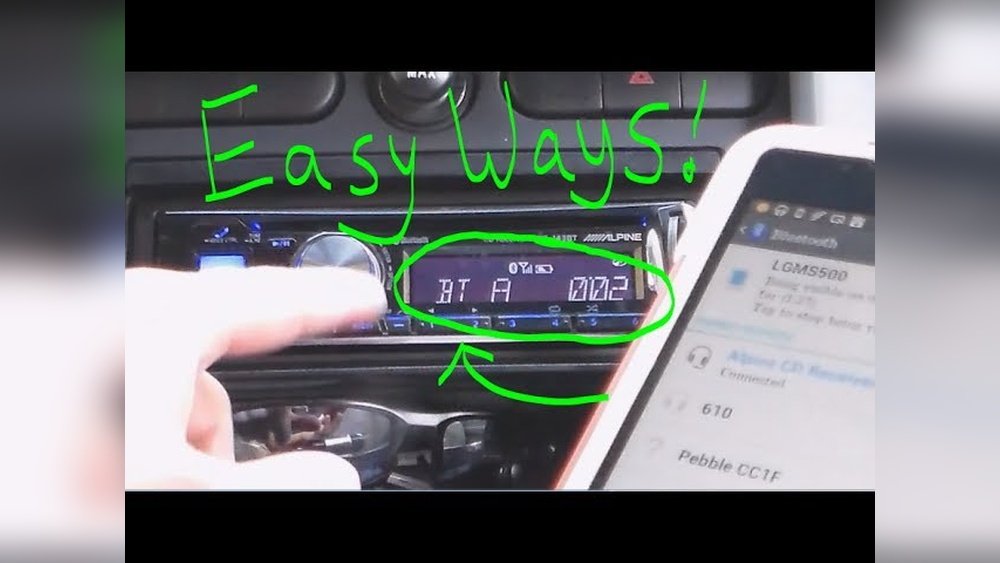
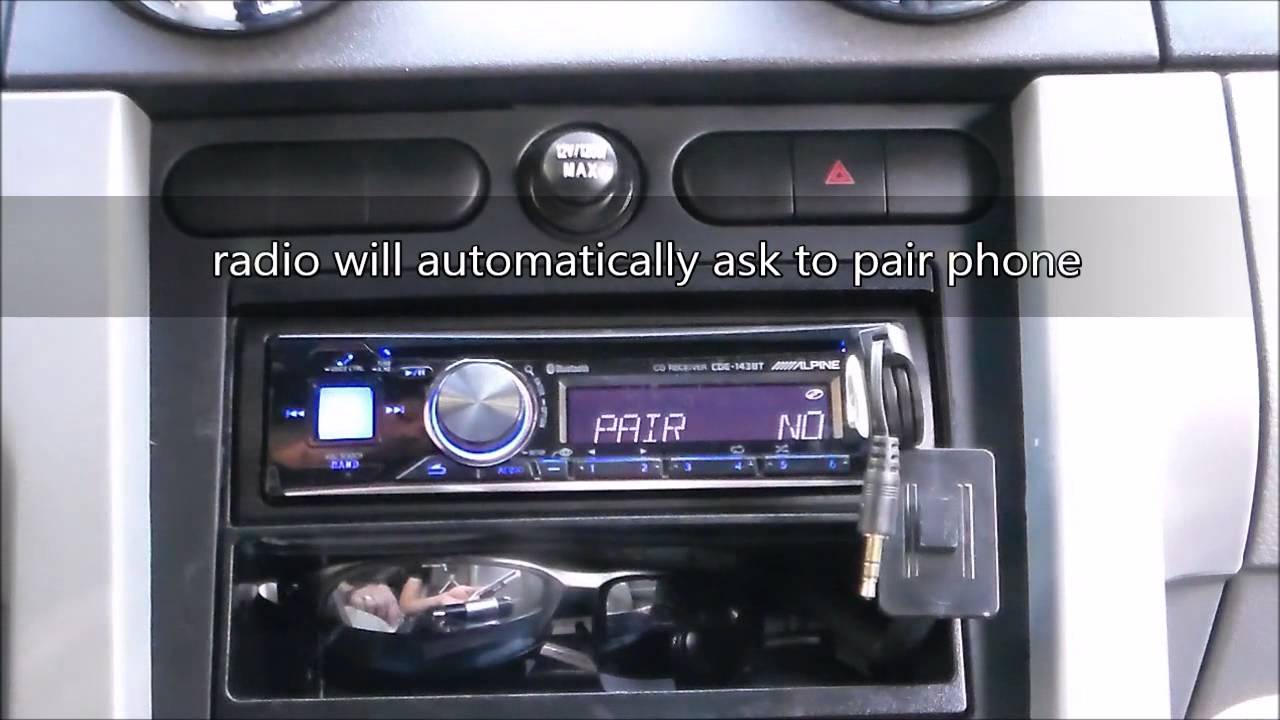
Turn on your car stereo system. Look for the settings or setup button. Select the Bluetooth option from the menu. This puts your car stereo in pairing mode. You might see a message like “Ready to Pair” or “Searching for Devices.”
Search For Devices On Phone
Open the Bluetooth settings on your phone. Make sure Bluetooth is switched on. Tap on “Search for Devices” or “Scan.” Your phone will look for nearby Bluetooth devices. Wait a moment until your car stereo name appears on the list.
Select Car Stereo From Phone List
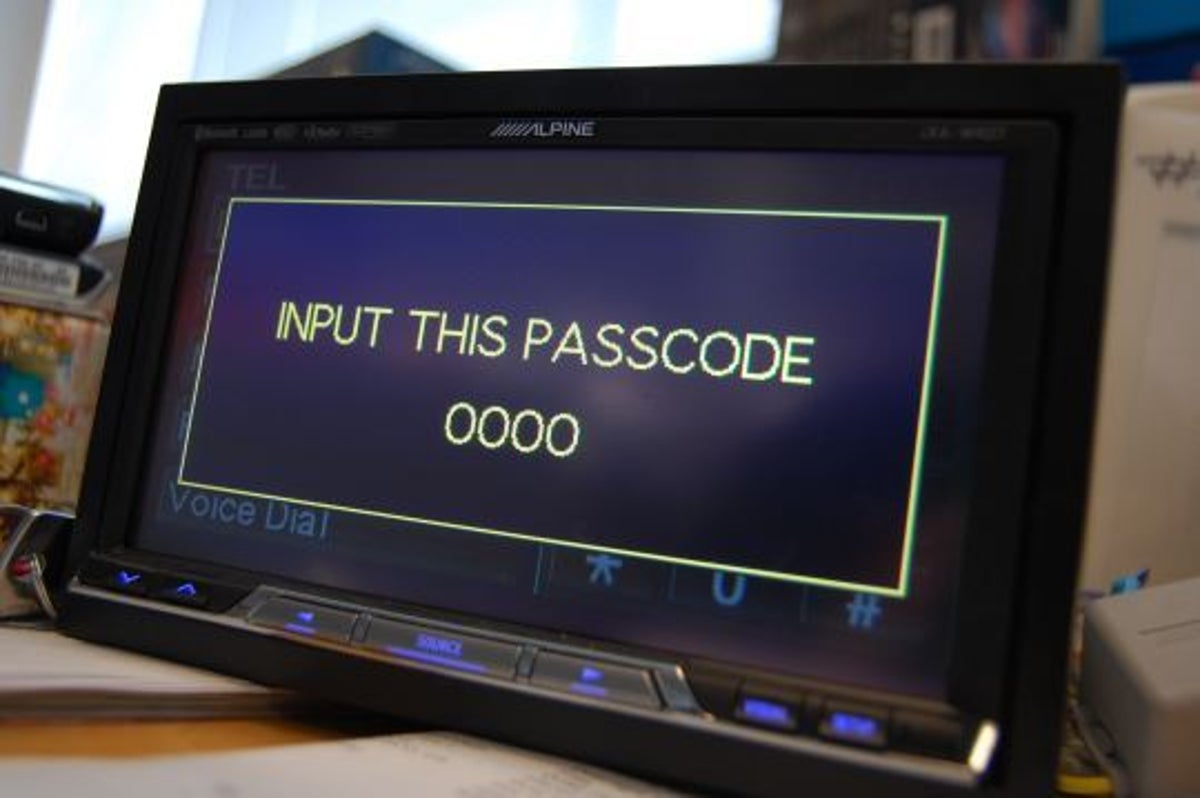
Find your car stereo’s name in the list of devices. Tap on it to start pairing. Your phone and car stereo will connect. You may need to enter a PIN code. Usually, it is “0000” or “1234.” Once connected, your phone shows “Paired” or “Connected.”
Confirm Connection
Confirming the connection between your phone and car stereo is a key step. It ensures both devices communicate properly. This step prevents any future issues during driving. Let’s explore how to confirm the connection in simple steps.
Verify Passkey Or Pin
Check the passkey or PIN displayed on both devices. The numbers must match exactly. This code helps secure the connection. If they differ, the devices won’t pair. Confirming this code is quick and important.
Accept Pairing Request
Your phone will show a pairing request notification. Tap “Accept” or “Pair” on your phone screen. This grants permission to connect with the car stereo. Without acceptance, the connection will fail. Always respond promptly to the request.
Test Audio Playback
Play music or a voice call to test the connection. Sound should come clearly through the car speakers. Adjust the volume to check audio quality. If no sound plays, try reconnecting or restarting devices. Testing confirms the pair works well.
Troubleshoot Common Issues
Pairing your phone with a car stereo can sometimes cause issues. These problems stop the connection or affect sound quality. Troubleshooting common issues helps fix these problems fast. Try simple steps before calling for help. These tips work for most phones and car systems.
Reset Bluetooth Settings
Resetting Bluetooth settings can solve many pairing problems. It clears old connections and errors. On your phone, go to settings and find Bluetooth options. Choose “Reset” or “Forget All Devices.” This wipes the list of paired devices. After that, restart your phone and car stereo. Try pairing again from the start.
Clear Paired Devices List
Car stereos store many paired devices. Too many connections slow down or block new pairings. Find your stereo’s Bluetooth menu. Look for a list of paired devices. Delete old or unused phones from the list. This frees space for new devices. After clearing, turn off both devices. Turn them on and try to pair again.
Update Phone And Stereo Firmware
Outdated software can cause Bluetooth issues. Check for updates on your phone. Go to settings, then system or software update. Install any available updates. Also, check your car stereo’s manual. Find instructions to update its firmware. Keeping both devices updated improves connection and sound. Updates fix bugs and add new features.
Enhance Your Connection Experience
Connecting your phone to the car stereo is just the start. Enhancing the connection makes your drive smoother and safer. A better connection means less hassle and more focus on the road. It helps you enjoy music, calls, and navigation without interruptions.
Enable Automatic Reconnection
Set your phone and stereo to reconnect automatically. This saves time and avoids manual pairing every trip. Once paired, the devices link as soon as you start the car. It keeps your connection active without extra steps.
Manage Multiple Devices
Many car stereos allow several phones to connect. Organize which devices have priority for calls and music. Clear unused or old devices from the list to avoid confusion. This keeps the connection smooth and fast.
Use Voice Commands
Voice commands let you control the stereo hands-free. Play songs, make calls, or get directions by speaking. It reduces distractions and keeps your hands on the wheel. Make sure your phone’s voice assistant is enabled for this.

Frequently Asked Questions
How Do I Connect My Phone To Car Stereo Bluetooth?
To connect, enable Bluetooth on both devices. Select your car stereo name on your phone’s Bluetooth menu. Confirm the pairing code if prompted. Once connected, you can stream music and make calls hands-free.
Why Won’t My Phone Pair With Car Stereo?
Check if Bluetooth is enabled on both devices. Ensure the car stereo is in pairing mode. Restart your phone and car stereo. Remove old Bluetooth connections if needed. Update your phone or car stereo software if issues persist.
Can I Pair Multiple Phones With One Car Stereo?
Yes, many car stereos support multiple phone pairings. However, only one phone can be actively connected at a time for calls and media playback.
How To Troubleshoot Car Stereo Bluetooth Pairing Issues?
Restart your phone and car stereo. Clear Bluetooth cache on your phone. Delete previous pairings from both devices. Check for software updates. Refer to your car stereo manual for specific reset instructions.
Conclusion
Pairing your phone with a car stereo makes driving safer and more fun. You can easily play music, make calls, and use navigation hands-free. Just follow the simple steps to connect your devices quickly. Remember to keep your phone’s Bluetooth on and your car stereo in pairing mode.
Once paired, your devices will connect automatically next time. Enjoy a smoother, more connected drive every day.