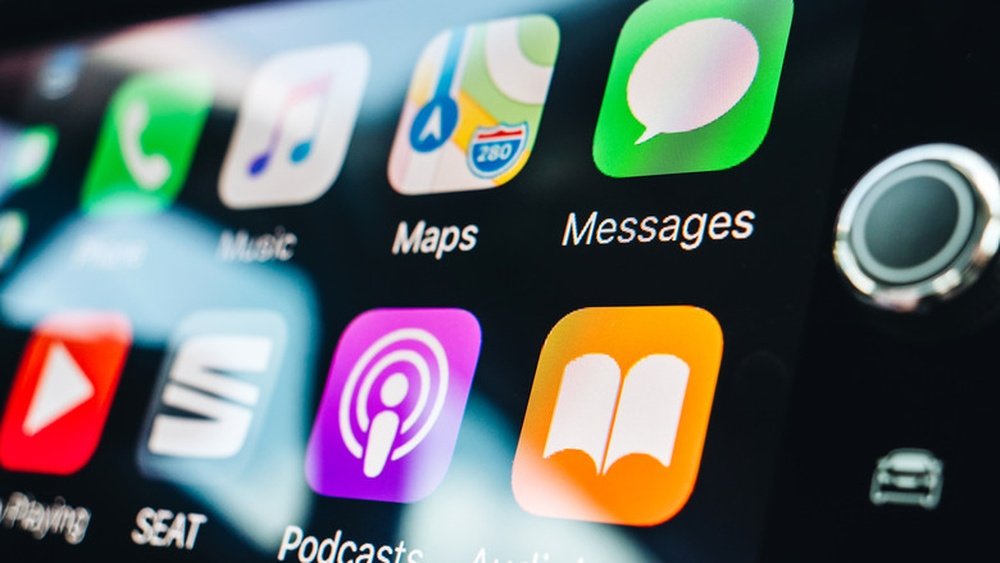
Are you tired of cluttered screens on your Apple CarPlay? Removing apps you don’t use can make your driving experience smoother and safer.
But how exactly do you remove apps from Apple CarPlay? If you’ve been wondering about this, you’re in the right place. You’ll discover simple, step-by-step methods to clean up your CarPlay screen quickly. By the end, you’ll have full control over which apps appear, helping you stay focused on the road.
Keep reading to learn how to make your Apple CarPlay work just the way you want.
Check Connected Apps
Checking the apps connected to Apple CarPlay is the first step to managing your screen. This lets you see all the apps that appear while driving. It helps you decide which apps to keep and which to remove.
Knowing the connected apps also improves your driving experience. It keeps your CarPlay screen clear and easy to use. You can remove apps that are not useful during your drive.
View Apps On Carplay Screen
Look at your car’s display to see the active apps. These apps are the ones available through CarPlay. They show icons on the screen for quick access. You can scroll through to view all the apps installed.
Each app icon represents a service or function. Some common apps include Maps, Music, and Messages. You might also see third-party apps like Spotify or Audible if installed.
Identify Removable Apps
Not all apps on CarPlay can be removed. Some apps are built into the system and stay there. Others you installed through your iPhone can be removed or hidden.
Check which apps you do not use while driving. These are good candidates for removal. Removing unused apps keeps your CarPlay screen tidy and less distracting.
Remove Apps Via Iphone Settings
Removing apps from Apple CarPlay through your iPhone settings is simple. This method lets you control which apps appear on your CarPlay screen. You can hide apps you do not use or delete those you want to remove completely.
Open Carplay Settings
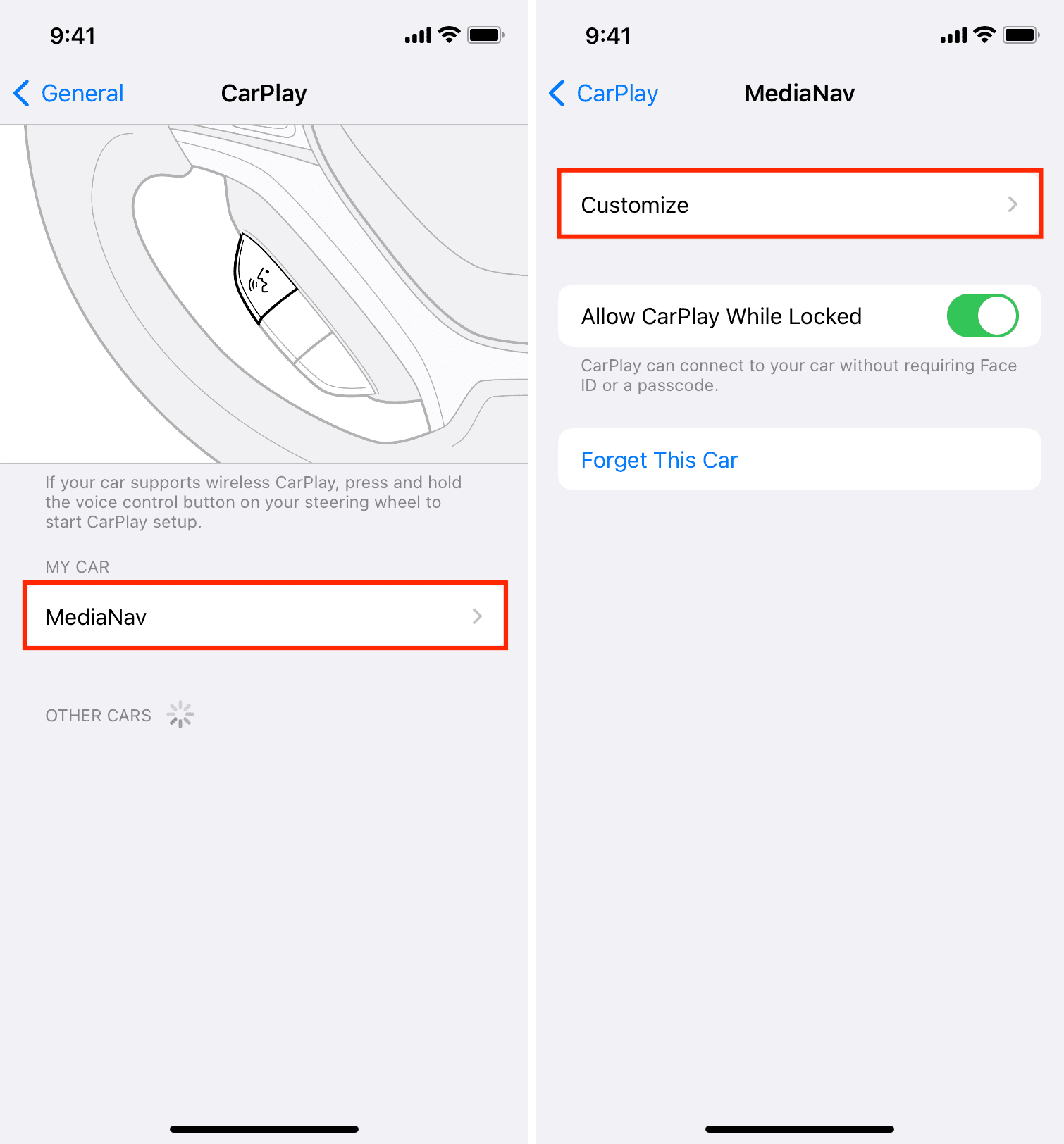
Start by unlocking your iPhone. Open the Settings app, then tap on “General.” Find and select “CarPlay” from the list. Choose your car from the available devices. This screen shows all the apps currently on your CarPlay interface.
Customize Home Screen
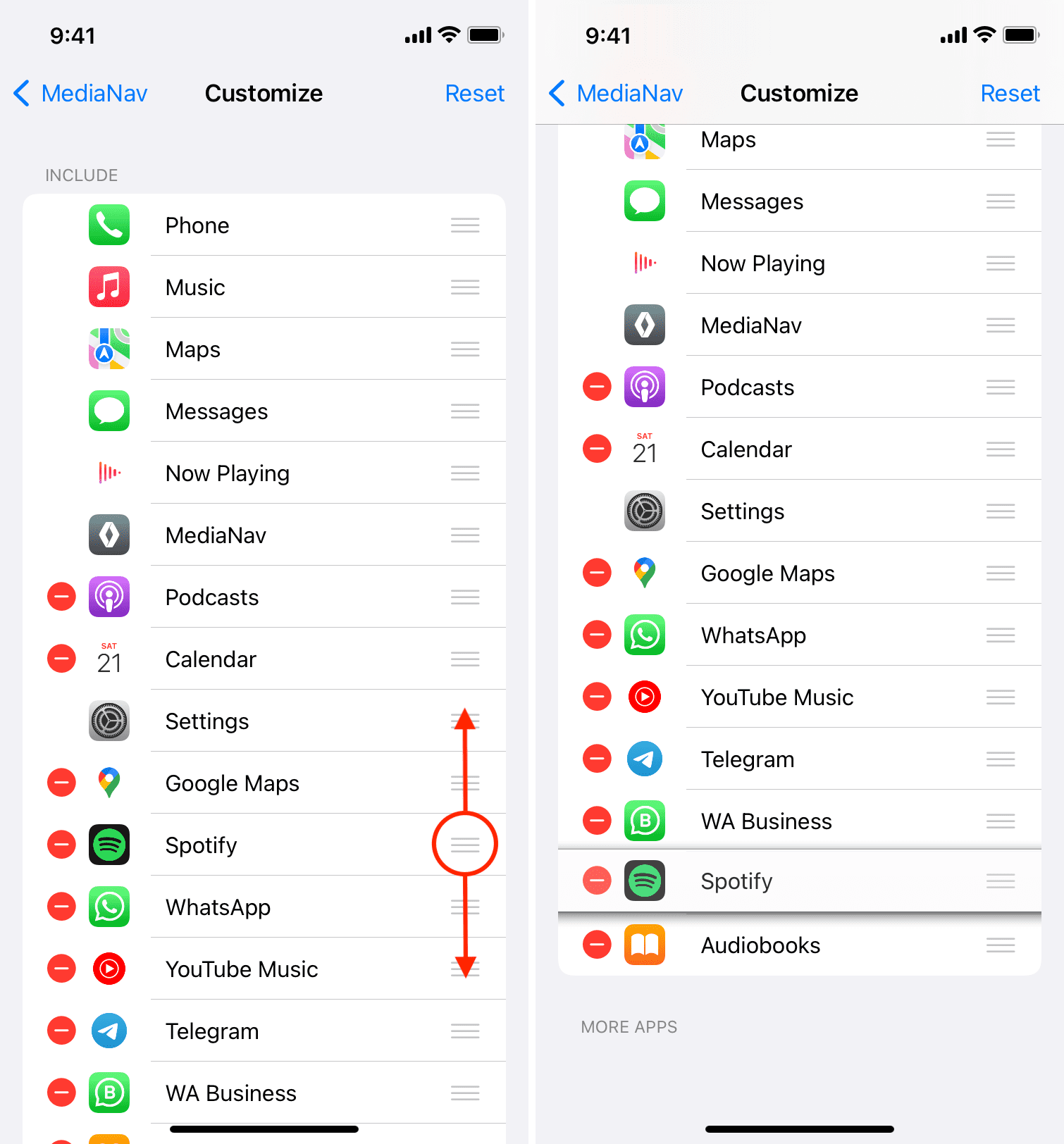
Tap “Customize” to change your CarPlay home screen. You will see a list of apps arranged as they appear in your car. You can drag apps to rearrange their order. This helps prioritize the apps you use most while driving.
Delete Or Hide Apps
To remove an app, tap the red minus icon next to it. This hides the app from your CarPlay screen. Some apps cannot be deleted but can be hidden. If you want to add hidden apps back, tap the green plus icon beside them.
Remove Apps Directly From Carplay
Removing apps directly from Apple CarPlay is simple and quick. You can manage your apps right on the CarPlay screen. This helps keep your interface clean and easy to use. Follow these steps to remove apps without using your iPhone.
Access App Edit Mode
Start by pressing and holding any app icon on the CarPlay screen. Wait for the icons to start shaking. This means you are in edit mode. Now you can move or delete apps. It works like editing apps on your iPhone.
Delete Apps From Interface
In edit mode, look for a small “X” on the app icon. Tap the “X” to delete the app from CarPlay. Confirm the deletion if prompted. The app will disappear from the CarPlay screen. Repeat for any other apps you want to remove.

Manage Apps With Screen Time
Managing apps on Apple CarPlay is simple with Screen Time. This feature helps control which apps appear and function while driving. It keeps your CarPlay interface clean and safe. You can limit distractions and choose what apps you want to use.
Screen Time lets you set rules for app usage. It can block apps or allow only certain ones. This control helps keep your focus on the road. It also helps parents manage what kids access while driving.
Set App Restrictions
Go to your iPhone’s Settings and tap Screen Time. Select App Limits to add new restrictions. Choose the app categories or individual apps to limit. Set a time limit or block them completely on CarPlay. This stops apps from showing up or working after the limit.
Use Downtime in Screen Time to block all apps except allowed ones. Set it for your driving hours to reduce distractions. It makes sure only essential apps are available on CarPlay.
Control App Access In Carplay
Head to Settings, then tap General and CarPlay. Select your car from the list. Here, you can customize which apps appear on CarPlay. Remove apps by tapping the minus sign next to them. Add apps back by tapping the plus sign.
Combining this with Screen Time gives full control. You can hide apps and restrict usage at the same time. This creates a safer and more focused driving experience.
Troubleshoot App Removal Issues
Removing apps from Apple CarPlay should be simple. Sometimes, apps do not disappear as expected. Troubleshooting helps fix these problems quickly. Follow these steps to resolve app removal issues.
Restart Devices
Turn off your iPhone and your car’s infotainment system. Wait for a few seconds. Then, turn both back on. Restarting clears temporary glitches. It often fixes app removal problems.
Update Ios And Apps
Open the Settings on your iPhone. Check for iOS updates and install them if available. Also, update your apps in the App Store. Updates fix bugs that block app removal.
Reset Carplay Settings
Go to Settings on your iPhone. Tap General, then CarPlay. Select your car and choose “Forget This Car.” Reconnect CarPlay to reset settings. This step can clear stuck apps.
Frequently Asked Questions
How Do I Delete Apps From Apple Carplay?
To delete apps from Apple CarPlay, you need to remove them from your iPhone. Go to your iPhone’s home screen, tap and hold the app, then select “Remove App. ” This action will also remove the app from your CarPlay interface.
Can I Hide Apps Without Deleting Them On Carplay?
Yes, you can hide apps on CarPlay without deleting them. On your iPhone, go to Settings > General > CarPlay, select your car, then customize the apps by removing those you want to hide. This keeps apps on your phone but off your CarPlay screen.
Why Aren’t My Deleted Apps Removed From Carplay?
Deleted apps may still appear due to CarPlay cache or syncing delays. Try restarting your iPhone and car system. Also, ensure your iPhone’s iOS is updated for smooth app removal and accurate CarPlay display.
How To Manage App Layout On Apple Carplay?
You can manage app layout via your iPhone settings. Navigate to Settings > General > CarPlay, select your vehicle, and drag apps to rearrange or remove them. This customizes your CarPlay interface for easier access to favorite apps.
Conclusion
Removing apps from Apple CarPlay is simple and quick. You can control which apps show up on your screen. This helps keep your driving focus clear and safe. Just follow the steps carefully, and you will manage your apps easily.
A clean CarPlay screen makes your drive less distracting. Take a few minutes to customize your setup today. It makes your driving experience smoother and more enjoyable.




