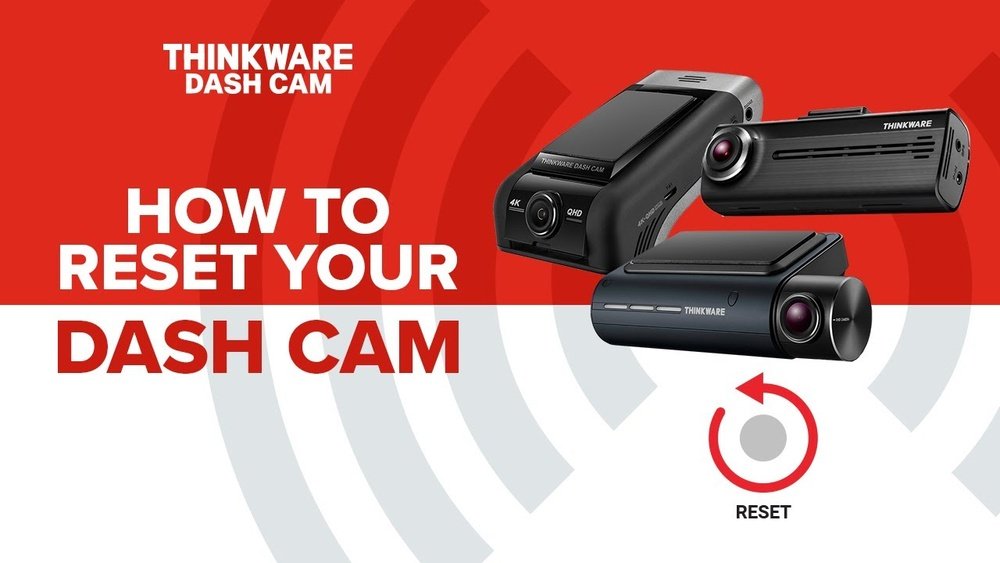
Is your dash cam acting up or freezing at the worst moments? Knowing how to reset a dash cam can save you time, frustration, and even missed footage when you need it most.
Whether your device is running slow, not recording properly, or just acting strange, a quick reset might be all it takes to get things back on track. Keep reading, and you’ll learn simple, step-by-step methods to reset your dash cam easily—no tech skills required.
By the end, you’ll feel confident handling any glitch your dash cam throws at you.
Signs Your Dash Cam Needs A Reset
Knowing when your dash cam needs a reset helps keep it working well. A reset can fix many small problems. It often restores smooth operation quickly. Watch for clear signs that show your device needs this step. Acting fast can prevent bigger issues later.
Common Performance Issues
Dash cams may freeze during recording or playback. They might stop saving videos or take too long to start. Sometimes, the screen goes blank or shows error messages. Sudden restarts without cause also indicate trouble. These problems often mean the software needs a fresh start.
When To Consider Resetting
Reset your dash cam if it fails to record properly. Try it when settings do not save after changes. Use reset if the device does not respond to button presses. If the camera has strange noises or poor video quality, resetting helps. Resetting can clear memory bugs and restore default settings.
Different Types Of Dash Cam Resets
Dash cams sometimes need a reset to fix issues or improve performance. Different types of resets help solve different problems. Choosing the right reset depends on what your dash cam needs.
This guide explains three common reset types. Each reset type has a different impact on your dash cam settings and data. Understanding these can save time and protect your files.
Soft Reset
A soft reset is the simplest form of reset. It restarts the dash cam without deleting any files or settings. This reset clears temporary bugs and glitches. Press the power button or a small reset hole to perform it. It is safe and quick.
Hard Reset
A hard reset forces the dash cam to restart by cutting its power. This reset is useful if the device freezes or stops responding. Hold down the power button for several seconds until it switches off. After that, turn it on again. No data is lost with a hard reset.
Factory Reset
A factory reset erases all user settings and files. It returns the dash cam to its original state. Use this reset if software problems continue or you want to clear all data. This reset deletes recorded videos, settings, and saved preferences. Back up important files before starting a factory reset.
Preparing For A Dash Cam Reset
Preparing for a dash cam reset helps avoid data loss and device issues. It sets a clear path to start fresh without surprises. Taking a few simple steps makes the reset process smooth and safe.
Backing Up Important Footage
Save all important videos before resetting your dash cam. Use a computer or a memory card reader to copy files. Check the saved files to confirm they open correctly. This step protects your valuable footage from being erased.
Checking Power Source
Ensure the dash cam has enough power before the reset. Use a fully charged battery or keep the device plugged in. A sudden power loss during reset can cause errors. Confirming power stability helps the reset finish properly.
Step-by-step Reset Process
Resetting a dash cam helps fix many common problems. It can improve performance and clear minor bugs. There are three main reset methods: soft, hard, and factory reset. Each serves a different purpose.
Follow the steps below to reset your dash cam correctly. Choose the method that fits your needs. Always handle your device with care during the reset process.
Soft Reset Instructions
A soft reset restarts the dash cam without deleting files. It fixes small glitches and freezes. To perform a soft reset, press and hold the power button for 10 seconds. Wait for the device to turn off and then turn it back on. Your dash cam should start fresh but keep all saved data.
Hard Reset Instructions
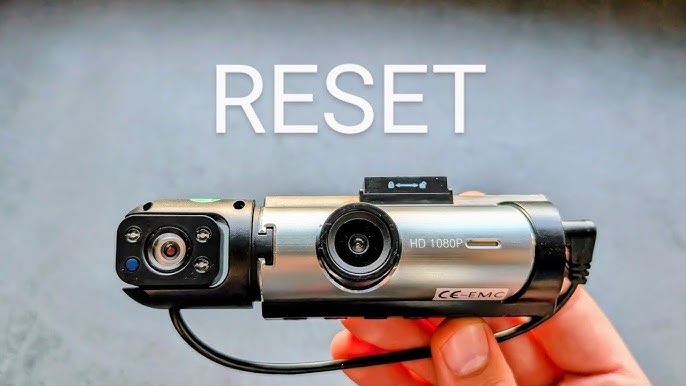
A hard reset clears temporary data and settings without deleting files. Locate the reset button, usually a small hole on the device. Use a paperclip or pin to press and hold the reset button for 15 seconds. Release the button and wait for the dash cam to reboot. This process solves deeper software issues.
Factory Reset Instructions
A factory reset erases all data and returns the dash cam to original settings. Use this only if other resets fail. Go to the dash cam menu and find the “Settings” or “System” section. Select “Factory Reset” and confirm your choice. The device will restart and clear all personal data. Backup your videos before this step to avoid losing important files.
Troubleshooting After Reset
Resetting a dash cam can fix many problems. Yet, some issues may appear after the reset. These problems often relate to settings, software, or hardware. Knowing how to troubleshoot after a reset helps you use your dash cam smoothly again. Follow these simple steps to solve common post-reset problems.
Reconfiguring Settings
Resetting erases all your saved settings. The dash cam returns to its default state. You need to set the date and time first. This step ensures correct video timestamps. Next, adjust video resolution and loop recording time. Choose settings that fit your needs.
Check motion detection and parking mode options. Turn them on or off as you prefer. Don’t forget to format the memory card inside the camera. This helps avoid recording errors. Save all new settings before exiting the menu.
Updating Firmware
Firmware controls how your dash cam works. Old firmware may cause bugs or poor performance. Visit the dash cam manufacturer’s website. Download the latest firmware version for your model. Follow the instructions carefully to update the device.
Keep the camera powered during the update process. Avoid interrupting the update to prevent damage. After updating, restart the dash cam. Check if the problems you faced before are gone now.
When To Seek Professional Help
Some problems do not fix with reset or update. Camera not turning on or no video recording are signs. Hardware faults like broken lens or sensor need expert repair. Contact the dash cam support center or a trusted technician.
Trying to fix hardware issues yourself may cause more damage. Professionals have the right tools and knowledge. They ensure your dash cam works correctly and safely again.
Tips To Prevent Future Dash Cam Issues
Preventing dash cam issues saves time and keeps your device reliable. Simple care steps improve performance and extend the dash cam’s life. Follow these tips to avoid common problems and enjoy smooth operation.
Regular Maintenance
Clean the lens often with a soft cloth. Dust and dirt reduce video quality. Check the dash cam’s firmware updates regularly. Updates fix bugs and add new features. Restart the device occasionally to clear memory and errors.
Proper Storage And Handling
Keep the dash cam away from extreme heat or cold. Avoid dropping or shaking the device. Mount it securely to reduce vibrations. Remove the dash cam during long periods without use. Store it in a dry place to prevent moisture damage.
Using Compatible Memory Cards
Use memory cards recommended by the dash cam maker. Cheap or wrong cards cause errors and slow recording. Format the card in the dash cam before use. Replace cards after heavy use to prevent file corruption.

Frequently Asked Questions
How Do I Reset My Dash Cam To Factory Settings?
To reset your dash cam, locate the reset button, usually a small hole. Use a pin to press and hold it for 10-15 seconds. This restores factory settings and clears all data and custom configurations.
What Should I Do If My Dash Cam Freezes?
If your dash cam freezes, try a soft reset by pressing the power button for 10 seconds. If it doesn’t respond, perform a factory reset using the reset button. This often resolves freezing and software glitches.
Will Resetting My Dash Cam Erase Saved Videos?
Yes, resetting your dash cam deletes all saved videos and settings. Always back up important footage to a computer or cloud storage before resetting to avoid data loss.
How Often Should I Reset My Dash Cam?
Resetting is recommended only when experiencing issues like freezing or errors. Regular resets aren’t necessary and may cause loss of saved data and settings.
Conclusion
Resetting a dash cam is simple and helps fix many issues. Just follow the steps carefully to avoid problems. A quick reset can clear errors and improve performance. Keep your dash cam updated and clean for best results. Regular resets keep your device working smoothly and reliably.
Now, you can handle dash cam troubles without stress. Feel confident to reset your dash cam anytime it acts up. Easy, fast, and effective.