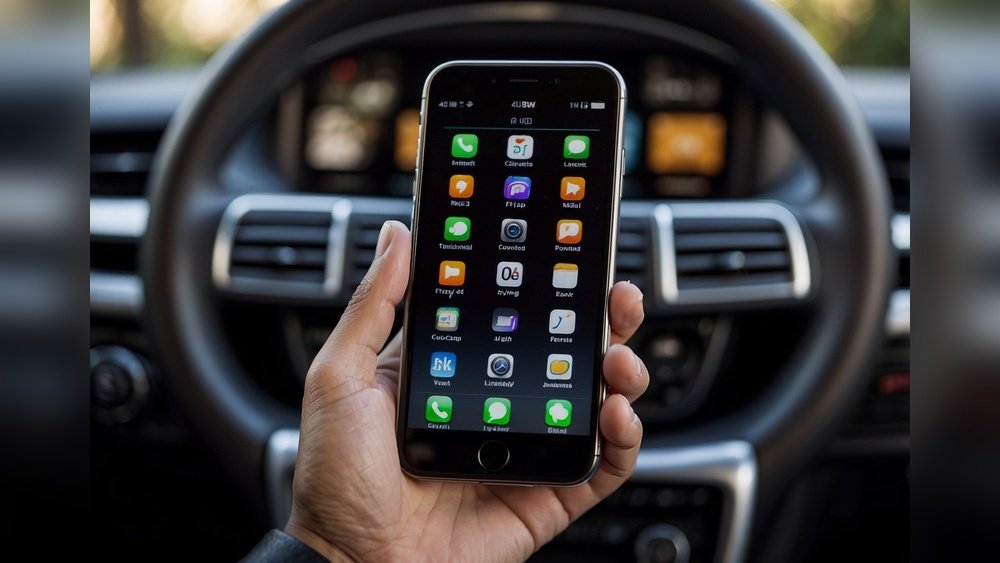
Is your iPhone CarPlay connection acting up? Maybe it’s not responding, or your apps won’t load properly.
You rely on CarPlay every day to keep you connected and safe while driving, so when it stops working, it can be frustrating. But don’t worry—you can fix this yourself. You’ll learn simple, step-by-step ways to reset your iPhone CarPlay connection quickly.
Keep reading, and you’ll be back on the road with a smooth, hassle-free connection in no time.
Check Carplay Compatibility
Before resetting your iPhone CarPlay connection, check its compatibility with your car. CarPlay only works with certain iPhone models and car systems. Knowing this saves time and avoids confusion.
Compatibility depends on your iPhone model and the car’s infotainment system. Older cars may not support CarPlay. Also, your iPhone must run iOS 7.1 or newer.
Which Iphones Support Carplay?
CarPlay works on iPhone 5 and newer models. The iPhone must have iOS 7.1 or later. If your iPhone is older, CarPlay will not work.
Car Models Compatible With Carplay
Most cars made after 2016 support CarPlay. Check your car’s manual or manufacturer website for details. Some brands require a software update to enable CarPlay.
Types Of Carplay Connection
CarPlay connects via USB or wirelessly. Not all cars support wireless CarPlay. Use a certified Lightning cable for wired connections.
Check Your Car’s Infotainment System
Make sure your car’s infotainment system supports CarPlay. Some older systems need an update or a new head unit. Contact your dealer for help.
Restart Your Iphone And Car System
Restarting your iPhone and car system is a simple way to fix CarPlay connection problems. It refreshes the devices and clears minor glitches. This step often solves connection issues fast without technical help.
Turning off both devices and turning them back on resets the communication link. It helps your iPhone and car system start fresh and find each other again. This process is quick and easy to try before other fixes.
How To Restart Your Iphone
Press and hold the side button and either volume button. Wait for the power off slider to appear. Drag the slider to turn off your iPhone completely. After it shuts down, press the side button again to power it back on.
How To Restart Your Car System
Turn off your car’s engine and remove the key. Wait for about 30 seconds to one minute. This pause allows the system to shut down fully. Restart the engine and turn on the car system again.
Check Carplay Connection After Restart
Connect your iPhone to the car using a USB cable or Bluetooth. Watch the car display to see if CarPlay appears. If CarPlay loads properly, the restart fixed the issue. If not, try other troubleshooting steps.
Forget And Reconnect Carplay
Forgetting and reconnecting CarPlay often fixes connection problems. It clears old settings and makes a fresh link between your iPhone and car. This process is simple and quick. It helps your CarPlay work smoothly again.
How To Forget Carplay On Your Iphone
Open the Settings app on your iPhone. Tap on “General,” then select “CarPlay.” Find your car’s name in the list. Tap on it, then choose “Forget This Car.” Confirm your choice. This removes the saved connection from your phone.
How To Forget Carplay On Your Car’s System
Go to your car’s infotainment system menu. Find the section for connected devices or Bluetooth. Select your iPhone or CarPlay option. Choose to delete or forget the device. This clears the car’s memory of your phone.
Steps To Reconnect Carplay
Plug your iPhone into the car using a USB cable or connect wirelessly if supported. Follow the prompts on your iPhone and car screen. Select your car from the list of available devices. Allow the connection and grant any permissions needed. Your CarPlay should now work fresh and clear.
Reset Network Settings On Iphone
Resetting network settings on your iPhone often fixes CarPlay connection issues. This process clears all saved network data, including Wi-Fi passwords and Bluetooth connections. It helps to remove any corrupted or conflicting settings that stop CarPlay from working properly.
After resetting, your iPhone starts fresh with network settings. You must reconnect to Wi-Fi and Bluetooth devices again. This step can resolve many common connection problems.
How To Access Reset Network Settings
Open the Settings app on your iPhone. Scroll down and tap on “General.” Find and select “Transfer or Reset iPhone.” Then tap on “Reset” at the bottom of the screen. Choose “Reset Network Settings” from the list. Enter your passcode if asked. Confirm your choice to start the reset process.
What Happens After Resetting Network Settings
Your iPhone deletes all saved Wi-Fi networks and passwords. It removes Bluetooth pairings and VPN settings too. Cellular settings reset to their default state. Your personal data and apps stay safe. The phone restarts automatically after the reset.
Reconnecting To Carplay After Reset
Turn on your car and start your iPhone. Use a USB cable or Bluetooth to connect to CarPlay. Follow on-screen prompts to complete setup. Your iPhone should now connect to CarPlay without issues. This reset often fixes stubborn connection problems.
Update Ios And Car Firmware
Keeping your iPhone and car firmware updated is key to a smooth CarPlay experience. Updates fix bugs, improve performance, and add new features. Without the latest software, connection issues can occur.
Updating iOS and your car’s system ensures better compatibility. It helps reset CarPlay by clearing old glitches. Follow these steps to check and install updates easily.
Check For Ios Updates
Open the Settings app on your iPhone. Tap “General,” then “Software Update.” Your phone will search for available updates. If an update is ready, tap “Download and Install.” Make sure your iPhone is connected to Wi-Fi and has enough battery.
Update Car Firmware
Car manufacturers often release firmware updates for infotainment systems. Visit your car maker’s website or app for update instructions. Some cars update automatically when connected to Wi-Fi. Others need a USB drive or visit to the dealer.
Restart Devices After Updating
After installing updates, restart your iPhone and car system. This helps apply changes and resets connections. Try connecting CarPlay again to see if the issue is fixed.

Inspect Usb Cable And Ports
Checking the USB cable and ports is a key step to fix iPhone CarPlay connection issues. A damaged cable or dirty port can stop the connection from working well. This part guides you through simple checks to find and fix these problems quickly.
Check The Usb Cable For Damage
Look closely at the USB cable you use for CarPlay. See if there are any cuts, bends, or frays. Even small damage can cause connection problems. Try using another cable that works well with your iPhone.
Clean The Usb Ports
Dust and dirt can block the USB ports on your car and iPhone. Use a soft brush or a toothpick to remove any debris gently. Do not push too hard to avoid damage. Clean ports help create a better connection.
Test With Different Usb Ports
Some cars have more than one USB port. Plug the cable into a different port to see if CarPlay connects. A faulty port may cause the problem. Testing different ports can help find the issue fast.
Disable And Enable Carplay Restrictions
Sometimes, CarPlay stops working because of restrictions set on your iPhone. These restrictions can block CarPlay from connecting to your car. Disabling and then enabling these restrictions can fix the problem. This process resets the settings without deleting any data.
Disabling and enabling CarPlay restrictions is easy. It takes only a few steps on your iPhone. This method helps your device to refresh the connection and can solve many CarPlay issues.
Open Screen Time Settings
First, unlock your iPhone and open the Settings app. Scroll down and tap on “Screen Time.” This section controls all restrictions and limits on your device.
Access Content & Privacy Restrictions
Inside Screen Time, find “Content & Privacy Restrictions.” Tap it to open. You may need to enter your Screen Time passcode if you set one.
Disable Carplay Restrictions
Look for the “Allowed Apps” option within Content & Privacy Restrictions. Find “CarPlay” on the list. Turn off the toggle next to CarPlay to disable restrictions.
Enable Carplay Restrictions Again
Wait a few seconds, then toggle CarPlay back on. This step re-enables the feature and refreshes its settings. Your iPhone now treats CarPlay as newly allowed.
Test The Carplay Connection
Connect your iPhone to your car using a cable or Bluetooth. Check if CarPlay starts working normally. This reset often fixes connection problems quickly.
Reset All Settings On Iphone
Resetting all settings on your iPhone can fix many CarPlay connection problems. This method restores settings to default without deleting your data. It resets Wi-Fi, Bluetooth, and network settings. It can solve issues caused by wrong or corrupted settings.
This process is safe and keeps your photos, apps, and files. Only system settings and preferences change. It is a useful step if CarPlay does not respond or connect properly.
How To Reset All Settings On Iphone
Open the Settings app on your iPhone. Scroll down and tap General. Scroll to the bottom and select Reset or Transfer or Reset iPhone. Tap on Reset All Settings. Enter your passcode if asked. Confirm the reset by tapping Reset All Settings again.
What Happens After Resetting All Settings
Your iPhone restarts automatically. All personal settings revert to factory defaults. Wi-Fi passwords, Bluetooth connections, and VPN settings clear out. Wallpaper and display preferences return to original. Notifications and privacy settings reset. You need to reconnect to Wi-Fi and Bluetooth devices, including your car.
Benefits For Iphone Carplay Connection
Clearing settings removes faulty configurations. It fixes common CarPlay connection errors. Your iPhone treats your car as a new device. This improves pairing and communication. It often resolves freezing, disconnecting, or unresponsive CarPlay issues.
Use Wireless Carplay Troubleshooting
Wireless CarPlay connects your iPhone to your car without any cables. Sometimes, the connection may stop working. Troubleshooting Wireless CarPlay helps fix these problems quickly. This section shows easy steps to reset and improve your Wireless CarPlay connection.
Turn Off And On Bluetooth And Wi-fi
Wireless CarPlay uses Bluetooth and Wi-Fi to connect. Turning both off and then on can refresh the connection. Open your iPhone’s Control Center. Tap the Bluetooth and Wi-Fi icons to turn them off. Wait a few seconds, then turn them back on. Try to connect to CarPlay again.
Forget And Re-pair Your Car’s Bluetooth
Sometimes, your iPhone remembers old connection settings. This can cause issues. Open Settings on your iPhone. Go to Bluetooth and find your car’s name. Tap the “i” icon, then tap “Forget This Device.” Now, re-pair your iPhone with your car’s Bluetooth. This clears old data and helps CarPlay connect fresh.
Restarting refreshes system processes. Turn off your iPhone completely. Also, turn off your car’s infotainment system. Wait for 30 seconds. Turn both back on. This simple step can fix minor bugs affecting Wireless CarPlay.
Resetting network settings can solve complex connection problems. Go to Settings > General > Reset > Reset Network Settings. This deletes all saved Wi-Fi and Bluetooth data. After resetting, connect to your car again. This step helps clear hidden issues in network settings.
Contact Apple Or Car Manufacturer Support
Contacting Apple or your car manufacturer support can help fix persistent CarPlay connection issues. They have tools and knowledge to diagnose problems beyond basic troubleshooting. Expert help ensures your devices work together smoothly again.
Support teams can guide you through advanced resets or updates. They may identify hardware or software faults causing connection drops. Getting professional advice saves time and avoids guesswork.
How To Reach Apple Support For Carplay Issues
Visit Apple’s official support website to start. Use chat, phone, or email options for help. Provide your iPhone model and iOS version for faster service. Mention the exact CarPlay problem you face. Apple can suggest specific solutions or schedule a repair if needed.
Contacting Your Car Manufacturer’s Support Team
Find contact details in your car’s manual or official website. Some brands have dedicated CarPlay help desks. Tell them your car model, year, and infotainment system version. They might offer firmware updates or reset instructions. They help fix problems unique to your vehicle.
Prepare Information Before Calling Support
Write down your iPhone and car model details. Note the iOS and car system software versions. Describe what you tried to fix the connection. Share error messages or unusual behavior noticed. Clear information helps support solve issues faster.
Frequently Asked Questions
How Do I Reset My Iphone Carplay Connection?
To reset CarPlay, disconnect your iPhone, restart both devices, and reconnect via USB or Bluetooth. This refreshes the connection and resolves most issues.
Why Is My Iphone Not Connecting To Carplay?
Connection issues often stem from faulty cables, Bluetooth problems, or software glitches. Check your cable, enable CarPlay on your iPhone, and restart devices to fix it.
How Can I Forget Carplay On My Iphone?
Go to Settings > General > CarPlay, select your car, and tap “Forget This Car. ” This removes saved CarPlay connections for a fresh start.
What Should I Do If Carplay Is Unresponsive?
Try disconnecting and reconnecting your iPhone, restart both devices, or reset network settings. These steps usually restore CarPlay functionality quickly.
Conclusion
Resetting your iPhone CarPlay connection can fix many issues fast. Just follow the simple steps carefully. This helps your phone and car talk to each other better. No need to call for help or visit a store. A smooth CarPlay connection makes driving safer and more fun.
Keep your devices updated for best results. Try these tips anytime your CarPlay acts up. Enjoy hands-free control and easy access on the road. Simple fixes often solve the problem quickly. Stay connected and drive with confidence.




