
Setting up Apple CarPlay can change the way you use your phone while driving. Imagine accessing your favorite apps, making calls, and getting directions—all without taking your eyes off the road.
If you want a safer, smarter driving experience, this guide will show you exactly how to connect your iPhone to your car’s display in just a few simple steps. Keep reading, and you’ll be ready to enjoy hands-free convenience every time you get behind the wheel.
Apple Carplay Requirements
Apple CarPlay makes driving safer and more fun by connecting your iPhone to your car. To use CarPlay, you need certain tools and setups. This guide explains the basic requirements for Apple CarPlay. Knowing these helps you prepare your vehicle and phone for a smooth experience.
Compatible Vehicles And Devices
Not every car supports Apple CarPlay. Most new cars from popular brands do. Check your car’s manual or website to see if it supports CarPlay. On the device side, CarPlay works with iPhones starting from iPhone 5 and newer models.
Necessary Software Versions
Your iPhone must have iOS 7.1 or later to use CarPlay. Newer versions improve performance and add features. Make sure your iPhone’s software is up to date. Also, your car’s system might need a software update for CarPlay to work properly.
Required Cables And Accessories
Most cars need a Lightning to USB cable to connect your iPhone. Use an Apple-certified cable for the best results. Some newer vehicles support wireless CarPlay, so you do not need a cable. Check your car’s manual to see which option works for you.
Preparing Your Iphone
Preparing your iPhone is the first step to use Apple CarPlay smoothly. Your phone needs some settings to work well with your car’s system. Making sure these settings are correct helps you enjoy CarPlay without problems.
Enabling Siri
Siri must be on for CarPlay to work. Siri helps you control CarPlay with your voice. To enable Siri, go to Settings and tap on Siri & Search. Turn on the options for “Listen for ‘Hey Siri'” and “Press Side Button for Siri.” This lets you talk to Siri hands-free.
Checking Software Updates
CarPlay works best with the latest iOS version. Check for updates by opening Settings and tapping General. Then select Software Update. If an update is available, tap Download and Install. Keeping your iPhone updated ensures CarPlay runs smoothly.
Adjusting Privacy Settings
Privacy settings control what CarPlay can access. Go to Settings and tap Privacy. Check that CarPlay can use Location Services and Microphone. Allowing these helps with navigation and voice commands. Adjust these settings to keep your data safe while using CarPlay.
Connecting Apple Carplay
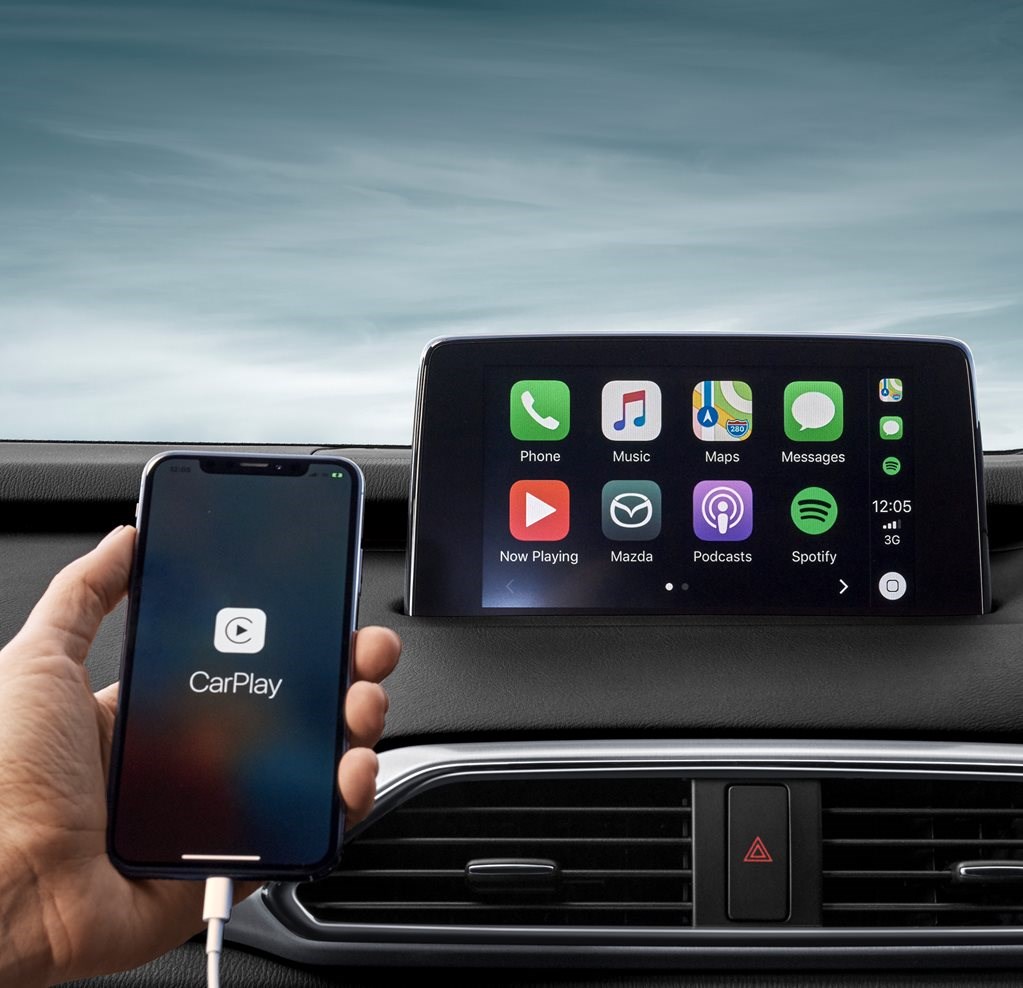
Connecting Apple CarPlay to your car is simple and quick. It lets you use your iPhone safely while driving. You can connect with a cable or wirelessly. Both ways give access to maps, music, and calls on your car’s screen.
Using A Usb Cable
Start by finding the USB port in your car. Use the iPhone’s Lightning cable to connect it to the port. Your car screen will show the Apple CarPlay icon. Tap the icon to start using CarPlay. Make sure your iPhone is unlocked during the connection. This method is fast and reliable for most cars.
Wireless Connection Setup
Many newer cars support wireless CarPlay. Turn on Bluetooth and Wi-Fi on your iPhone. On your car’s display, open the CarPlay setup menu. Select your iPhone from the list of devices. Follow the on-screen prompts to complete pairing. Wireless connection offers freedom from cables. Keep your phone close to the car for a stable link.
Troubleshooting Connection Issues
Check that your iPhone is compatible with CarPlay. Restart your iPhone and car system if connection fails. Make sure your cable is not damaged for wired use. Turn Bluetooth and Wi-Fi off and on again for wireless attempts. Remove old devices from your car’s Bluetooth list. Update your iPhone to the latest iOS version. These tips fix common connection problems quickly.

Customizing Carplay Interface
Customizing your Apple CarPlay interface makes driving easier and safer. You can change how apps appear on your screen. This lets you find and use your favorite apps faster. Adjusting settings also helps reduce distractions while driving.
Rearranging Apps
Move apps to the order you want. Press and hold an app icon on your iPhone’s CarPlay screen. Drag the icon to a new spot. This way, your most-used apps stay in reach. It helps save time during drives.
Adding Or Removing Apps
Choose which apps show on CarPlay. Open your iPhone’s Settings and tap “General.” Select “CarPlay” and pick your car. Tap “Customize” to add or remove apps. This keeps your screen clean and useful.
Adjusting Settings For Safety
Set CarPlay to reduce distractions. Turn on Do Not Disturb while driving. This blocks notifications and calls. You can also limit app usage to essentials. Safety comes first when you customize CarPlay settings.
Using Apple Carplay Features
Apple CarPlay brings many useful features to your car’s display. It helps you stay focused and safe while driving. Using CarPlay is simple and intuitive. You get access to maps, calls, messages, music, and more.
Explore key functions that make driving easier and more enjoyable.
Navigation With Maps
CarPlay uses Apple Maps to guide your route. You can enter your destination by voice or touch. The system shows clear directions on your screen. It also alerts you about traffic and road conditions. You get real-time updates to avoid delays. Navigation is smooth, keeping your hands on the wheel.
Making Calls And Sending Messages
Stay connected without distractions. Use Siri to make calls or send texts. Just say the contact name or message. CarPlay reads incoming texts aloud. You can reply using voice commands. This keeps your eyes on the road and hands free.
Playing Music And Podcasts
Enjoy your favorite songs and podcasts with ease. CarPlay works with Apple Music and other apps. Browse playlists or ask Siri to play music. Control playback without touching your phone. The sound quality stays clear, enhancing your drive.

Maintaining Seamless Connectivity
Maintaining seamless connectivity is key to enjoying Apple CarPlay without interruptions. A smooth connection keeps your apps, calls, and music working perfectly while driving. It also enhances safety by minimizing distractions. Follow these steps to keep your CarPlay connection strong and reliable.
Regular Software Updates
Keep your iPhone and car’s system updated. Software updates fix bugs and improve compatibility. Check for updates often. Install the latest iOS version on your iPhone. Also, update your car’s firmware if available. Updated software reduces connection problems and adds new features.
Managing Bluetooth And Wi-fi
Apple CarPlay uses Bluetooth and Wi-Fi to connect. Make sure both are turned on and working well. Remove old or unused devices from your Bluetooth list. This helps avoid interference. Connect your iPhone to the car’s Wi-Fi network if required. A stable wireless connection ensures faster data transfer and better performance.
Optimizing Battery Usage
CarPlay can drain your iPhone battery quickly. Use a car charger to keep your phone powered. Close apps running in the background to save battery. Lower screen brightness during use. Turn off unnecessary features like Bluetooth or Wi-Fi when not needed. A well-charged phone keeps CarPlay running smoothly on long drives.
Frequently Asked Questions
How Do I Connect My Iphone To Apple Carplay?
To connect, use a Lightning cable or Bluetooth if supported. Enable CarPlay on your iPhone and car display. Follow on-screen prompts to complete setup.
What Cars Support Apple Carplay Setup?
Most new car models from major brands support CarPlay. Check your car’s manual or manufacturer website for compatibility details before setup.
Can I Use Apple Carplay Wirelessly?
Yes, many newer cars support wireless CarPlay. Enable Bluetooth and Wi-Fi on your iPhone and car system to connect without cables.
Is Apple Carplay Free To Use?
Apple CarPlay itself is free with compatible devices. However, some apps used through CarPlay may require subscriptions or in-app purchases.
Conclusion
Setting up Apple CarPlay is simple and quick. Just follow the steps carefully. Connect your iPhone using a cable or Bluetooth. Your car screen will show your apps clearly. This makes driving safer and more fun. Enjoy hands-free calls and easy navigation.
Stay focused on the road while using your phone. Try it today and see how helpful it is. Driving with Apple CarPlay feels natural and smart. Keep your device updated for the best experience. Your car and phone work better together now.




