Imagine enjoying your favorite music or podcast without tangled wires or complicated setups. Setting up Bluetooth audio might sound tricky, but it’s actually simple and quick when you know the steps.
Whether you want to connect your phone to speakers, headphones, or your car stereo, this guide will walk you through everything you need to get crystal-clear sound in no time. Ready to cut the cords and boost your audio experience?
Let’s dive in and make your devices work seamlessly together.
Choosing The Right Bluetooth Device
Choosing the right Bluetooth device is important for a good audio experience. Different devices offer different features and qualities. Picking one that fits your needs makes listening easier and more enjoyable.
Types Of Bluetooth Audio Devices
Bluetooth audio devices come in many forms. Wireless headphones provide personal sound without cables. Bluetooth speakers offer louder sound for groups or rooms. Car kits let you play music and take calls hands-free. Some devices combine features, like earbuds with a charging case. Each type serves a different purpose and setting.
Key Features To Consider
Look at battery life to ensure long use without charging. Sound quality matters for clear music and calls. Check the range to know how far you can move from the source. Controls should be easy to use. Water resistance is useful for outdoor or gym use. Weight and comfort affect daily wear, especially for headphones.
Compatibility With Your Devices
Make sure the Bluetooth device works with your phone or computer. Some older devices may not support the latest Bluetooth versions. Check if your device supports the audio profiles needed for good sound. Compatibility affects connection stability and sound quality. Matching devices avoid connection problems and improve user experience.

Preparing Your Devices
Preparing your devices is the first step to enjoy Bluetooth audio. This step makes sure your devices are ready to connect. It avoids connection problems and helps the process go smoothly.
Before pairing, check your devices carefully. Make sure each device has enough power. Also, clear old connections that might cause interference. Follow these simple steps to prepare your devices properly.
Charging And Powering On
Charge both devices fully or at least 50%. Low battery can stop Bluetooth from working well. Power on your devices after charging. Keep them close to each other for better connection.
Enabling Bluetooth Settings
Turn on Bluetooth on both devices. Find the Bluetooth option in the settings menu. Slide the switch or tap to enable it. Your device is now ready to search for connections.
Clearing Previous Connections
Old Bluetooth connections can block new pairing. Open Bluetooth settings and find paired devices list. Remove any devices you no longer use. This step helps your device connect faster and easier.
Pairing Your Devices
Pairing your Bluetooth devices is the first step to enjoy wireless audio. It connects your phone or computer to speakers, headphones, or car audio systems. This connection allows sound to play without any cables. Follow the steps carefully to make the process smooth and fast.
Entering Pairing Mode
Start by turning on your Bluetooth device. Most devices have a button for pairing mode. Press and hold this button until a light flashes or you hear a sound. This flashing light means the device is ready to connect. Some devices enter pairing mode automatically when switched on.
Finding Devices On Your Phone Or Computer
Open Bluetooth settings on your phone or computer. Look for an option like “Add Device” or “Search for Devices.” Your device will scan for nearby Bluetooth gadgets. Wait a few seconds until your Bluetooth device appears on the list. Select the name of your device to start pairing.
Confirming The Connection
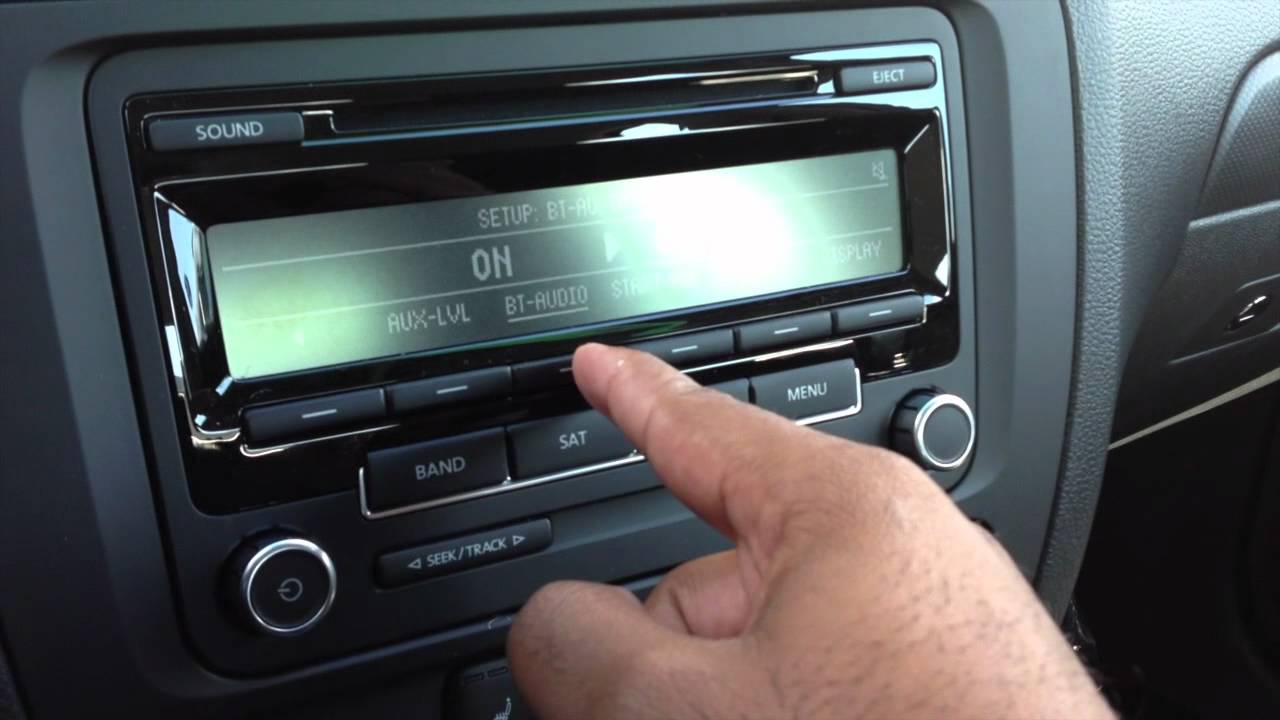
After selecting your device, a prompt may ask for a code. Enter the code if required, usually “0000” or “1234.” Once connected, your device will show a confirmation message. The flashing light on your Bluetooth device may become solid. Your devices are now paired and ready to use.
Optimizing Audio Quality
Optimizing audio quality is key for a great Bluetooth listening experience. Clear sound makes music and calls more enjoyable. Small changes can improve the audio a lot.
Focus on simple steps to get the best sound from your device. Adjust settings and placement carefully. Use tools that enhance sound without extra hassle.
Adjusting Volume Levels
Set the volume on both your Bluetooth device and your audio source. Keep volume balanced to avoid distortion. Too high volume can cause noise and reduce clarity. Start at a moderate level and increase slowly. This protects your ears and improves sound quality.
Positioning For Best Signal
Place your Bluetooth device close to the audio source. Avoid walls and metal objects that block signals. A clear line of sight helps maintain strong connection. Keep devices within recommended range, usually 30 feet. Moving devices closer reduces drops and improves sound stability.
Using Audio Enhancements
Use built-in audio settings like equalizers to adjust bass and treble. Many devices offer presets for music, voice, or movies. Experiment with these to find what sounds best. Avoid too much boosting, which can cause distortion. Simple enhancements can make sound richer and clearer.
Troubleshooting Common Issues
Troubleshooting common Bluetooth audio issues helps keep your devices working well. Small problems often stop the music or cause interruptions. Fixing these issues quickly improves your listening experience.
Many problems come from simple mistakes. Checking settings and connections solves most troubles fast. This section covers three common issues and easy fixes for each.
Connection Drops
Connection drops happen when devices lose signal. Move closer to your audio device to improve signal strength. Remove obstacles like walls or metal objects between devices.
Turn Bluetooth off and on again on both devices. Restarting clears temporary glitches causing drops. Make sure no other Bluetooth devices interfere with your connection.
No Sound Or Low Volume
No sound or low volume can ruin your listening. Check the volume level on both devices. Sometimes the phone or computer volume is too low or muted.
Ensure the Bluetooth device is set as the audio output. Some devices need to switch audio output manually. Try disconnecting and reconnecting the Bluetooth device.
Device Not Found
Devices not found means your gadget cannot see the Bluetooth audio device. Make sure the audio device is in pairing mode. Check the device manual for steps to enter pairing mode.
Turn Bluetooth off and on again on your gadget. Restart your phone or computer if the device still does not appear. Remove old or unused paired devices to free connection slots.

Maintaining Your Bluetooth Setup
Maintaining your Bluetooth setup keeps your devices working smoothly. It helps avoid connection problems and improves sound quality. Simple care steps extend the life of your Bluetooth audio devices.
Regular Firmware Updates
Check for firmware updates often. Manufacturers fix bugs and improve performance with updates. Update your devices using their app or settings menu. This keeps your Bluetooth working well with new gadgets.
Battery Care Tips
Charge your Bluetooth devices regularly but avoid overcharging. Use the original charger for best results. Turn off devices when not in use to save battery. Replace old batteries if they drain too fast.
Storing Devices Properly
Store your Bluetooth devices in a dry, cool place. Avoid extreme heat or cold to protect battery life. Use a case or pouch to prevent scratches and damage. Keep devices away from strong magnetic fields.
Frequently Asked Questions
How Do I Connect Bluetooth Audio To My Device?
Turn on Bluetooth on your device and audio device. Search for available devices. Select the audio device name. Confirm pairing if prompted. Once connected, audio will play through the Bluetooth device automatically.
Why Is My Bluetooth Audio Not Connecting?
Check if Bluetooth is enabled on both devices. Ensure devices are within range (usually 30 feet). Restart devices if needed. Remove old paired devices if the list is full. Update device software for compatibility.
Can I Connect Multiple Bluetooth Audio Devices Simultaneously?
Most devices support one audio connection at a time. Some smartphones allow dual audio or multipoint Bluetooth for two devices. Check your device’s specifications for this feature. Use Bluetooth transmitters if you want to connect multiple speakers.
How To Improve Bluetooth Audio Quality?
Keep devices close to reduce interference. Avoid obstacles like walls. Use Bluetooth 5. 0 or higher for better quality. Update firmware on both devices. Use high-quality audio files for the best sound experience.
Conclusion
Setting up Bluetooth audio is simple and quick. Just follow the steps carefully. Pair your devices and enjoy wireless sound. No wires, no hassle. Enjoy music, calls, or podcasts with ease. Stay connected and move freely around your space. Bluetooth makes listening more convenient every day.
Keep your devices charged and updated for best results. Now, enjoy clear sound without any cords. Easy, fast, and user-friendly. Give it a try and hear the difference.