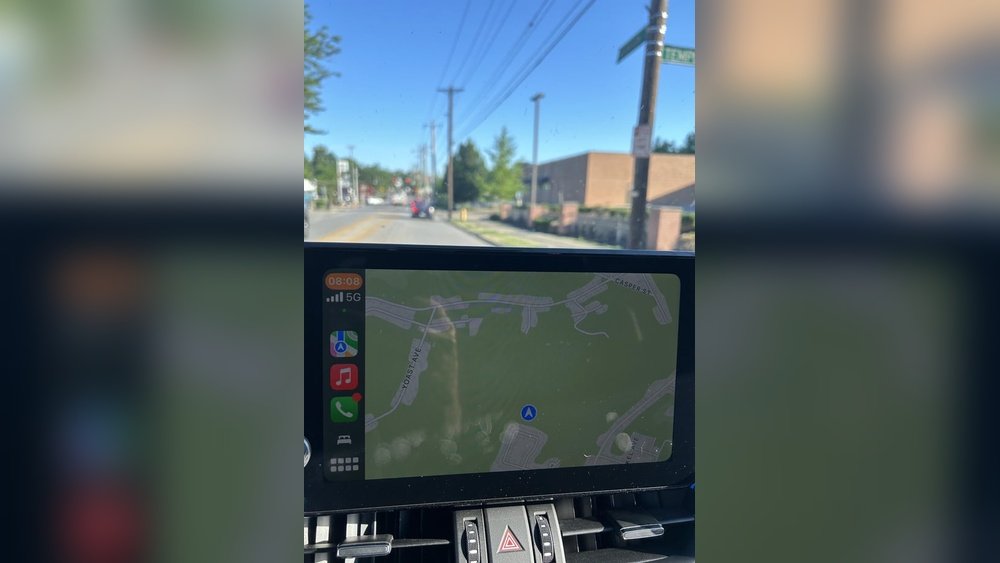
Are you frustrated because your Apple CarPlay GPS isn’t working properly? You rely on it to guide you safely and quickly, but when it glitches, it can throw off your entire drive.
Don’t worry—you’re not alone, and the good news is that most GPS issues with Apple CarPlay can be fixed easily. You’ll discover simple, step-by-step solutions to get your navigation back on track fast. Keep reading, and you’ll never have to stress about lost directions again.

Common Carplay Gps Problems
Apple CarPlay is a great tool for navigation. Yet, users often face GPS problems. These issues can interrupt your driving experience. Understanding common problems helps fix them fast. Here are frequent GPS problems with CarPlay.
Gps Signal Loss
GPS signal loss happens when CarPlay cannot connect to satellites. This issue often occurs in tunnels or tall buildings. Trees and weather can also block signals. Without a strong signal, navigation may stop working. Keep your car’s GPS antenna clean and unobstructed. Restarting your phone or CarPlay can restore the signal.
Incorrect Location Display
Sometimes, CarPlay shows the wrong location on the map. This error can be due to outdated maps or software bugs. Poor GPS signals also cause wrong positioning. Check for updates on your iPhone and CarPlay system. Calibrate your location settings for better accuracy. Always make sure your phone’s GPS is turned on.
Navigation Lag Or Freeze
Navigation lag means the map moves slowly or freezes. This can happen if your phone is running many apps. Low phone memory or slow internet can cause lag. Close background apps to free up resources. Rebooting your phone often clears the freeze. Use a strong internet connection for smooth navigation.
App Crashes During Navigation
App crashes stop navigation suddenly. This issue often results from outdated apps or software conflicts. Corrupted app data may also cause crashes. Update your navigation apps regularly. Reinstall the app if crashes continue. Keeping your phone and CarPlay system updated reduces crashes.
Check Basic Connections
Before diving into complex fixes, start by checking the basic connections. Many Apple CarPlay GPS issues stem from simple connection problems. Ensuring your devices connect properly can save time and frustration.
Focus on the physical and wireless links between your iPhone and car system. Small issues like a damaged cable or poor wireless pairing often cause GPS glitches. This section helps you spot and fix common connection errors fast.
Verify Usb Or Wireless Connection
Check if your iPhone is properly connected to the car system. For wired users, ensure the USB plug is fully inserted. Wireless users should confirm Bluetooth and Wi-Fi are enabled on both devices. A weak or dropped connection can disrupt GPS signals.
Inspect Lightning Cable Condition
Look closely at your Lightning cable for any damage. Frayed or bent cables can stop data from passing through. Use a different cable to test if the current one is faulty. A healthy cable is key to stable GPS performance.
Restart Iphone And Car System
Turn off your iPhone and car system completely. Wait a few seconds, then power them back on. Restarting clears temporary bugs and refreshes connections. This simple step often fixes many CarPlay GPS problems.
Update Software And Apps
Keeping your Apple CarPlay GPS working well requires regular updates. Software and apps must stay current. Updates fix bugs and improve features. This helps the GPS run smoothly and avoid problems.
Updating software and apps is a simple step. It can solve many GPS issues quickly. Focus on three key updates: your iPhone’s iOS, your navigation apps, and your car’s infotainment system. Each plays a role in CarPlay’s performance.
Update Ios To Latest Version
Check your iPhone for the newest iOS update. Go to Settings > General > Software Update. Download and install any available updates. The latest iOS includes important fixes for CarPlay. This can improve GPS accuracy and connection stability.
Update Navigation Apps
Open the App Store on your iPhone. Tap your profile icon and scroll to updates. Update all navigation apps like Apple Maps, Google Maps, or Waze. Updated apps have fresh maps and bug fixes. This keeps GPS routes reliable and up-to-date.
Update Car Infotainment System
Your car’s infotainment system also needs updates. Visit the car maker’s website or use their app to check. Some updates install via USB or wireless connection. New software improves CarPlay compatibility and GPS function. Staying updated reduces system crashes and delays.
Adjust Location Settings
Adjusting your location settings can fix many Apple CarPlay GPS problems. Location settings control how your iPhone shares your position with apps. Incorrect settings may cause navigation errors or delays.
Check and change these settings to improve GPS accuracy and reliability. Follow these simple steps to make sure your phone and CarPlay work well together on the road.
Enable Location Services
Go to your iPhone’s Settings app. Tap on “Privacy” and then select “Location Services.” Make sure the toggle is turned on. This lets your phone use GPS to find your location. Without this, navigation apps cannot work properly with CarPlay.
Set Navigation Apps To Always Access Location
Scroll down in Location Services to find your navigation app. Tap on the app name. Choose “Always” to allow the app to access your location at all times. This helps the app update your position even when running in the background. It improves GPS tracking while driving.
Reset Location And Privacy Settings
If GPS problems continue, try resetting your location settings. Open Settings, then tap “General.” Scroll to the bottom and select “Reset.” Tap “Reset Location & Privacy.” This returns all location permissions to default. You will need to allow apps again, but it can fix hidden bugs affecting CarPlay.
Clear Navigation App Data
Clearing navigation app data can fix many Apple CarPlay GPS problems. Apps store old data and cache that may cause errors or slow performance. Refreshing this data helps the app run smoothly again. It also removes any corrupted files that block proper function.
Below are simple steps to clear navigation app data. These methods often restore accurate GPS directions and reduce crashes.
Delete And Reinstall Navigation Apps
Deleting and reinstalling your navigation app refreshes its data completely. First, uninstall the app from your iPhone. Then, go to the App Store and download it again. This process removes all old settings and files. It ensures you have the latest version with fewer bugs.
Clear App Cache If Possible
Some navigation apps let you clear cache inside their settings. Cache stores temporary files that help apps load faster. Clearing cache removes junk files that may cause glitches. Check the app’s settings menu for a “Clear Cache” option. This step often improves app speed and accuracy.
Remove Old Route Data
Old saved routes can clutter navigation apps. These stored routes sometimes cause wrong directions. Open your navigation app and find the history or saved routes section. Delete any outdated or unused routes. This clears space and helps the app focus on current navigation.
Optimize Gps Performance
Optimizing GPS performance can greatly improve your Apple CarPlay experience. Good GPS signals help your maps update quickly. This makes navigation smoother and more reliable. Small changes can lead to big improvements in GPS accuracy. Follow these steps to get the best GPS results.
Calibrate Compass
Calibrating your compass helps GPS work better. Open your Maps app and move your car in a figure-eight pattern. This resets the compass sensor. The phone or car system can then find directions more accurately. Repeat calibration if the GPS seems slow or off track.
Avoid Obstructions To Gps Signal
GPS signals need a clear view of the sky. Tall buildings, tunnels, or thick trees can block signals. Keep your car windows clean and avoid parking under bridges. Metal objects or cases on your phone may weaken the signal. Remove anything that might block GPS in your car.
Use External Gps Booster If Needed
External GPS boosters can help in weak signal areas. These devices increase signal strength for your car system. Plug the booster into your car’s power source. Place the antenna where it can see the sky clearly. This tool can improve GPS accuracy on long trips or remote places.
Reset Carplay Settings
Resetting CarPlay settings can fix many GPS issues quickly. It clears old data and lets the system start fresh. This process often solves connection problems and GPS errors. Follow these simple steps to reset CarPlay settings and improve your experience.
Forget And Reconnect Iphone
First, forget your iPhone on the car’s system. Open the car’s Bluetooth or CarPlay menu. Find your iPhone and select “Forget” or “Remove.” Then, restart your iPhone. Reconnect it to the car using a USB cable or Bluetooth. This refresh helps clear connection glitches.
Reset Car’s Infotainment System
Next, reset the car’s infotainment system. Turn off the car and open the settings menu. Look for “System Reset” or “Factory Reset.” Confirm the reset to clear all system data. This step removes bugs that may block GPS signals or CarPlay functions.
Restore Carplay Defaults
Finally, restore CarPlay settings to default. On your iPhone, go to Settings > General > CarPlay. Select your car and tap “Forget This Car.” Then, pair your iPhone again with the car. Restoring defaults often fixes settings causing GPS errors.
Seek Professional Help
Sometimes, Apple CarPlay GPS problems need expert help. Trying to fix complex issues alone can waste time. Professionals have tools and knowledge to find solutions fast.
Seeking help ensures your device and car system work well together. Experts can spot problems you might miss. This saves frustration and keeps your drives safe.
Contact Apple Support
Apple Support offers guidance for CarPlay GPS troubles. They provide step-by-step advice over phone or chat. Support agents can check software updates and settings. They also help with account or app issues. Contacting Apple Support is a quick way to get help.
Visit Authorized Service Center
Authorized service centers have trained technicians for Apple products. They perform detailed diagnostics on CarPlay and GPS systems. These centers fix software glitches and hardware problems. Visiting them ensures your device stays under warranty. It also guarantees genuine parts and quality service.
Check For Hardware Issues
Hardware problems can cause GPS failures in CarPlay. Loose connections or damaged cables may interrupt signals. Faulty GPS antennas or car infotainment units also affect performance. Professionals can test and replace faulty parts. Checking hardware is vital when software fixes do not work.

Frequently Asked Questions
How Do I Reset Apple Carplay Gps Connection?
To reset the GPS connection, disconnect your iPhone from CarPlay. Restart both your iPhone and car’s infotainment system. Reconnect your device and check if the GPS works properly. This often resolves minor connection glitches affecting GPS accuracy.
Why Is Apple Carplay Gps Not Updating My Location?
GPS issues may occur due to poor cellular signal or outdated iOS. Ensure your iPhone has a strong signal and is updated to the latest iOS version. Also, check if location services are enabled for Maps and CarPlay apps.
Can Bluetooth Interference Cause Apple Carplay Gps Problems?
Yes, Bluetooth interference can disrupt GPS signals in CarPlay. Turn off other Bluetooth devices nearby or disconnect unnecessary connections. This can help improve the stability and accuracy of your Apple CarPlay GPS.
How To Fix Apple Carplay Gps Lagging Or Freezing?
GPS lag or freezing often results from software bugs or resource overload. Close unused apps on your iPhone, restart the device, and update iOS. Also, check your car’s infotainment system for available updates.
Conclusion
Fixing Apple CarPlay GPS issues is often simple and quick. Start by checking your phone’s connection and settings. Restart your devices to clear minor glitches. Make sure your apps and software are up to date. Clean your car’s USB port or wireless connection area.
Test GPS in different locations to spot signal problems. These steps help you enjoy smooth navigation again. Stay patient and try each tip carefully. Clear directions are just a few fixes away. Keep your drives stress-free and on track.




