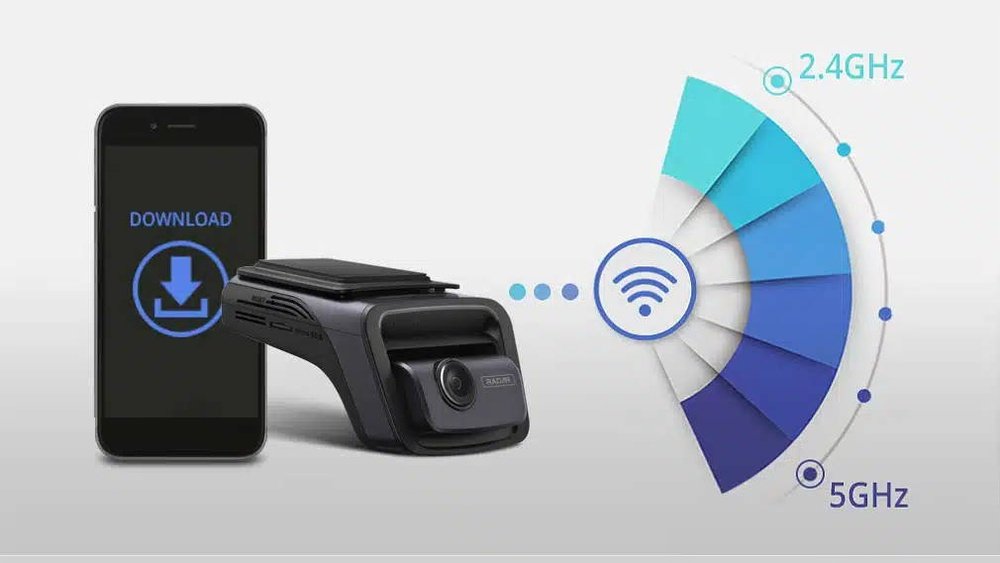
Are you struggling to connect your dash cam to WiFi? It can be frustrating when your dash cam won’t sync or upload footage as it should.
But don’t worry—fixing your dash cam’s WiFi issues might be simpler than you think. In this guide, you’ll learn easy, step-by-step ways to troubleshoot common problems. By the end, you’ll have your dash cam running smoothly and capturing every moment without interruption.
Keep reading to discover practical tips that save you time and hassle.
Common Wifi Issues
Dash cam WiFi is useful for easy video transfer and live viewing. Problems with WiFi can disrupt these functions. Common WiFi issues affect the connection stability and speed.
Understanding these problems helps fix them quickly. Here are the main WiFi issues faced by dash cam users.
Connection Drops
Connection drops happen when the WiFi link breaks suddenly. This can occur due to interference from other devices. Distance from the dash cam also affects signal strength. Walls or metal objects block the WiFi signal. Restarting the dash cam and phone often restores connection. Keeping devices close reduces drops.
Slow Wifi Speeds
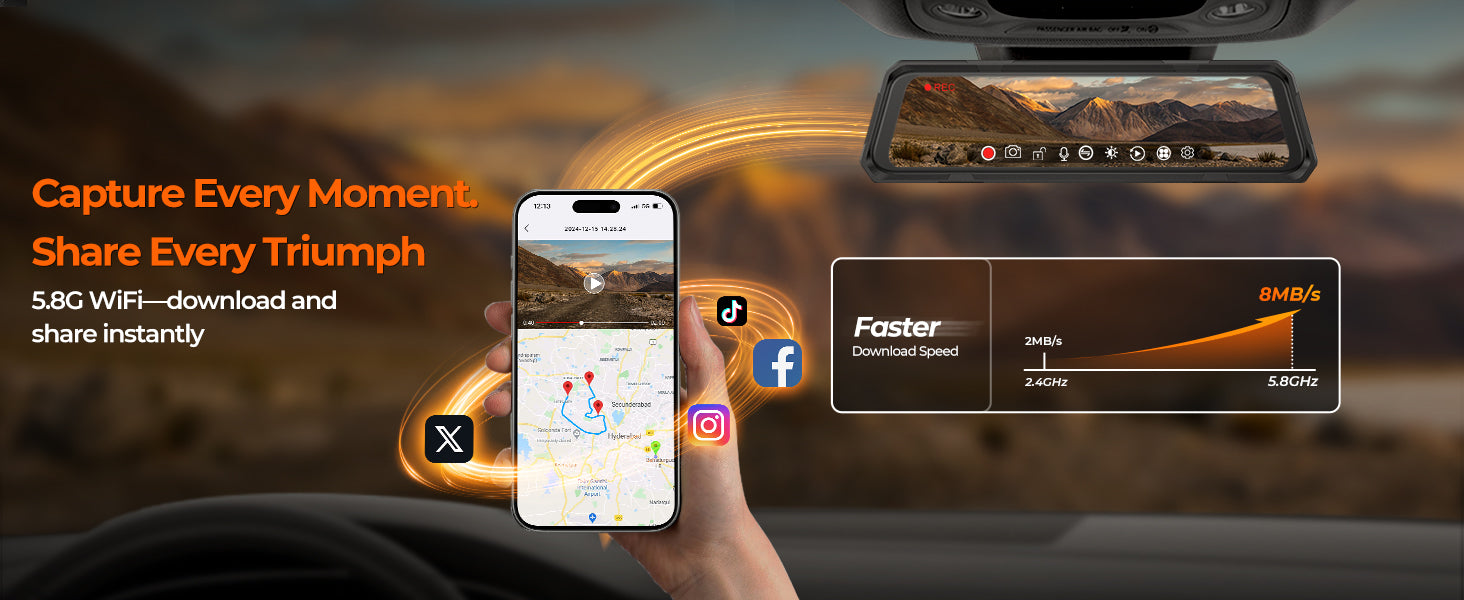
Slow WiFi speeds cause delays in video transfer. Too many devices on the same network slow down speed. Network congestion is a common cause. Using 5 GHz frequency can improve speed. Avoiding crowded WiFi channels helps as well. Updating dash cam firmware may fix speed issues.
Unable To Connect
Sometimes, the device won’t connect to the dash cam WiFi. Incorrect password entry is a frequent reason. Resetting the WiFi settings on the dash cam can help. Make sure the dash cam is in pairing mode. Check for software updates that improve connectivity. Restarting both devices often solves connection problems.
Check Device Settings
Checking your device settings is a key step in fixing dash cam WiFi problems. Small mistakes in settings often cause connection issues. Taking time to review these settings can save you from bigger troubles. Focus on three main areas: WiFi toggle and mode, firmware updates, and app permissions. Each part plays a role in how well your dash cam connects to WiFi.
Wifi Toggle And Mode
Start by making sure the WiFi is turned on in your dash cam. Many devices have a simple toggle switch in the settings menu. If WiFi is off, the connection will not work at all. Also, check the WiFi mode. Some dash cams offer different modes like “Access Point” or “Client.” Choose the right mode based on your device’s instructions. The wrong mode can stop your phone or tablet from connecting.
Firmware Updates
Firmware is the software inside your dash cam. Updates fix bugs and improve WiFi performance. Check for updates regularly through the device’s app or website. Install any available update carefully. Outdated firmware can cause WiFi to drop or fail to connect. Keep your dash cam’s firmware fresh for the best experience.
App Permissions
The app you use to connect to your dash cam needs proper permissions. These include access to WiFi, location, and storage. Without these permissions, the app might not work correctly. Open your phone’s settings and find the app permissions list. Enable all necessary permissions for smooth connection. Proper app permissions help maintain a stable WiFi link.
Network Troubleshooting
Network issues are common with dash cam WiFi. Fixing these problems often restores smooth connection. Simple steps can solve most network troubles quickly.
Start by checking your router and dash cam. Sometimes, a quick restart clears minor glitches. If that does not work, try resetting network settings. This step removes old data causing conflicts.
Changing WiFi channels can also help. Many devices use the same channels, causing interference. A different channel may improve signal strength and stability.
Restart Router And Dash Cam
Turn off your router and dash cam. Wait for about 30 seconds. Turn them back on. This process refreshes network connections. It fixes simple bugs and improves performance.
Reset Network Settings
Access your dash cam’s settings menu. Find the option to reset network settings. Confirm the reset. This clears saved WiFi data. Then, reconnect to your WiFi network fresh.
Change Wifi Channels
Open your router’s admin page. Look for WiFi channel settings. Choose a less crowded channel, like 1, 6, or 11. Save changes and restart your router. This reduces interference and boosts signal quality.
Improve Signal Strength
Improving the WiFi signal strength of your dash cam ensures clear video uploads and smooth live streaming. Strong signals reduce connection drops and boost overall performance. Simple changes can make a big difference in signal quality.
Optimal Placement
Place the dash cam where the WiFi signal is strongest. Avoid metal parts and thick glass near the camera. Keep the device away from the car’s roof or dashboard edges. Center placement often improves signal reception.
Avoid Interference
Other devices in your car may block the WiFi signal. Turn off or move away from gadgets like Bluetooth speakers or GPS units. Electronic noise from chargers or power inverters can also cause problems. Minimize these sources to keep the signal clear.
Use Wifi Extenders
WiFi extenders boost the range of your dash cam’s connection. Place extenders inside your car or near parking spots. They help maintain a strong link between your phone and the dash cam. Choose extenders compatible with your dash cam’s WiFi frequency.
Advanced Fixes
Advanced fixes can solve tricky WiFi problems with your dash cam. These steps go beyond basic checks. They help reset settings or connect the camera directly to your network. Follow these tips carefully to improve your dash cam’s WiFi performance.
Factory Reset
A factory reset restores the dash cam to its original settings. This step removes any changes that cause WiFi issues. Find the reset option in your dash cam’s menu. Press it and wait for the device to restart. After this, reconnect to your WiFi network. This often solves hidden software problems.
Manual Ip Configuration
Sometimes, automatic network settings cause connection problems. Setting a manual IP address can help. Access your dash cam’s network settings. Enter an IP address that fits your router’s range. Add the correct subnet mask and gateway details. This method can improve stability and speed.
Contact Support
If problems continue, contact the dash cam’s customer support. Provide details about your issue and steps tried. Support teams have tools to diagnose device-specific problems. They may offer firmware updates or advanced solutions. Getting expert help saves time and avoids damage.

Frequently Asked Questions
How Do I Connect My Dash Cam To Wifi?
To connect, turn on your dash cam’s WiFi mode. Then, find the dash cam’s network on your phone or device. Enter the password if prompted. Use the dash cam’s app to establish a stable connection and access settings or files easily.
Why Is My Dash Cam Wifi Not Working?
WiFi issues often stem from weak signals, outdated firmware, or incorrect passwords. Restart the dash cam and your device. Ensure both are updated and within range. Reset network settings if problems persist to restore proper connectivity.
How Can I Improve Dash Cam Wifi Signal?
Place the dash cam where the signal is strongest, avoiding metal obstructions. Keep your phone or device close to the dash cam. Updating firmware and using the official app also boosts connection stability and speed.
What To Do If Dash Cam App Won’t Connect?
Restart both your dash cam and smartphone. Verify that WiFi is enabled on the dash cam. Check for app updates or reinstall it. Clear cache and ensure your device is compatible with the dash cam app.
Conclusion
Troubleshooting your dash cam WiFi can save time and frustration. Start by checking the connection and settings carefully. Restart your dash cam and phone to refresh the network. Make sure your devices are close to each other. Update the dash cam firmware for better performance.
Keep your WiFi password simple and correct. If problems persist, reset the dash cam to factory settings. These steps help keep your dash cam connected and working well. Stay patient and try each solution step-by-step. You will get your dash cam WiFi running smoothly again.