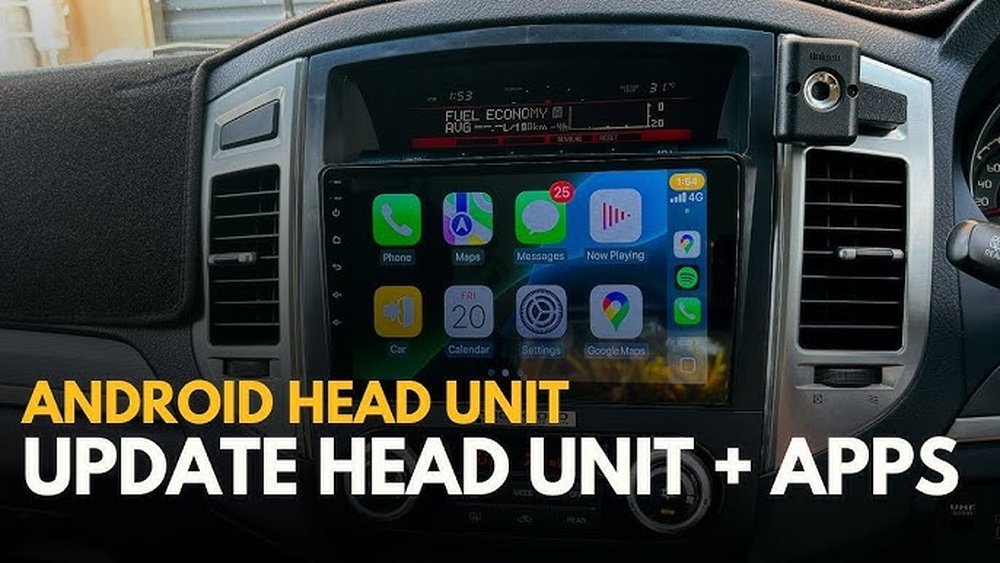
Is your Android car stereo acting slow or missing new features? Keeping your apps updated is the key to a smoother, safer, and more enjoyable driving experience.
You might not realize it, but outdated apps can cause glitches, reduce functionality, and even affect your car’s performance. In this guide, you’ll learn simple, step-by-step ways to update your Android car stereo apps quickly and easily. By the end, you’ll feel confident that your system is running at its best every time you hit the road.
Ready to unlock the full potential of your car stereo? Let’s dive in!
Check Compatibility
Checking compatibility is the first step before updating Android car stereo apps. This ensures the new app version works well with your device. Updating without checking may cause errors or app crashes. Confirm your stereo’s model and Android version first. This helps find the correct update that fits your system.
Identify Your Stereo Model
Find the exact model number of your car stereo. This is usually on the device’s front panel or in the settings menu. The model number helps locate the right app version. Using the wrong model can lead to failed updates or poor performance. Write down the model number for easy reference during the update process.
Verify Android Version
Check the Android version running on your car stereo. Go to the system settings and find the “About device” or “Software info” section. Note the Android version number, like 9.0 or 10.0. App updates require a minimum Android version to work properly. Knowing your version helps avoid installing incompatible apps that may cause issues.
Backup Your Data
Backing up your data is a smart step before updating your Android car stereo apps. It keeps your settings and app information safe. This way, you avoid losing important details during the update process.
Save Important Settings
Start by saving your key settings. This includes sound preferences, equalizer adjustments, and favorite stations. These settings make your car stereo work just the way you like it. Most car stereo apps let you save settings in their menu. Look for options like “Backup” or “Save Settings”. Save the file to your phone or cloud storage. This file helps restore your setup later if needed.
Export App Data
Exporting app data keeps your app information safe. This data may include playlists, login info, and custom controls. Go to the app’s settings and find export options. Choose a safe place to save the data file. You can use a USB drive or cloud storage. After updating, import this data back to keep your app working smoothly. Exporting data avoids starting from scratch after updates.
Prepare Your Device
Preparing your Android car stereo for app updates is important. This step ensures the process goes smoothly. Taking a few simple actions can prevent interruptions. It also protects your device from potential problems during updates.
Ensure Stable Internet Connection
A stable internet connection is key to updating apps. Use a strong Wi-Fi signal or a reliable mobile data network. Interruptions during download can cause errors. Check your connection speed before starting. A slow or unstable connection might delay updates. Avoid updating apps in places with poor signal strength.
Charge Your Stereo Fully
Make sure your car stereo is fully charged. Updates can take time and use more power. A low battery might stop the update mid-way. Connect your stereo to a power source if possible. This prevents the device from shutting down during updates. Keeping the stereo charged helps keep the process safe and smooth.
Update Via Google Play Store
Updating your Android car stereo apps through the Google Play Store is simple. It keeps your apps running smoothly and adds new features. Regular updates improve performance and fix bugs. Here’s how to do it step-by-step.
Access Play Store On Stereo
Turn on your car stereo and connect it to the internet. Open the Google Play Store app on the stereo. Use the touchscreen to navigate. You might need to log in with your Google account. This gives you access to all installed apps.
Locate Installed Apps
Inside the Play Store, find the menu icon. Tap it to open the side menu. Select “My apps & games” to see all installed apps. This section shows apps with available updates. It helps you check which apps need updating.
Initiate App Updates
Look for the “Update” button next to each app. Tap it to start updating the app. You can also tap “Update all” to update multiple apps at once. Wait for the updates to download and install. Your apps will be ready to use with new improvements.
Manual App Updates
Manual app updates for your Android car stereo give you control. You can update apps without waiting for automatic updates. It helps if the app store is unavailable or slow. Updating apps manually keeps your system smooth and secure.
Follow simple steps to update apps safely. Download the right files and install them correctly. This method works well for all Android car stereos.
Download Apk Files Safely
APK files are installation packages for Android apps. Only download APKs from trusted websites. Avoid unknown or suspicious sources. Check the file size and version before downloading. A safe APK prevents harm to your device.
Enable Unknown Sources
By default, Android blocks apps from unknown sources. You must enable this option to install APKs manually. Go to Settings, then Security or Apps. Find “Install unknown apps” and allow it for your browser or file manager. Turn it off after updating to stay safe.
Install Apk Updates
Open the downloaded APK file using a file manager. Tap “Install” to start the update process. Wait for the installation to finish without interruption. After updating, check the app works well on your car stereo. Restart the system if needed to apply changes.
Use Manufacturer Software
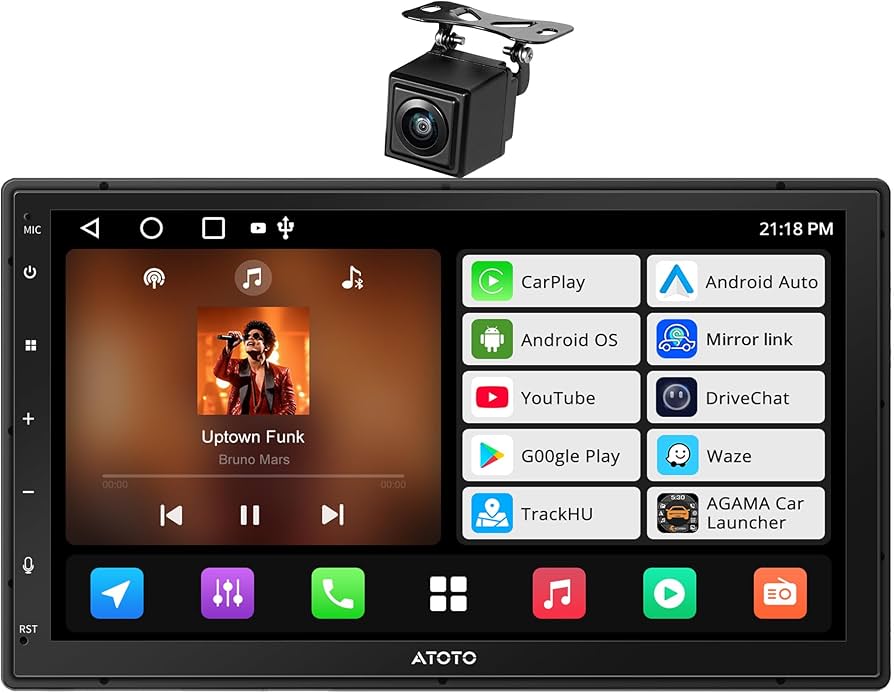
Using the manufacturer’s software is the safest way to update your Android car stereo apps. The car stereo makers design special tools for their devices. These tools help download and install the latest updates. Using these tools keeps your stereo running smoothly. It also avoids problems from wrong updates.
Download Official Update Tools
First, visit the official website of your stereo’s brand. Find the support or downloads section. Look for the update tool made for your stereo model. Download the tool to your computer. Always use the official site to avoid fake or harmful software.
Connect Stereo To Pc
Next, connect your car stereo to the PC. Use a USB cable or follow the instructions from the manufacturer. Make sure the connection is stable. Keep the stereo powered on during the update. A good connection prevents errors in the update process.
Run Update Process
Open the update tool on your computer. The software will detect your stereo model. Follow the on-screen instructions carefully. The tool will download and install the updates automatically. Do not turn off the stereo or computer until done. After the update, restart your stereo to apply changes.
Troubleshoot Update Issues
Updating your Android car stereo apps should be simple. Sometimes, updates do not install correctly. Problems like slow downloads or errors can happen. Troubleshooting these issues helps your apps work smoothly again.
Clear Cache And Data
Start by clearing the app cache. This removes old files that may block updates. Go to Settings, then Apps, and find the stereo app. Tap Storage, then Clear Cache. If problems persist, choose Clear Data to reset app files. This may erase settings but can fix update errors.
Reset Stereo To Factory Settings
A factory reset restores the stereo to its original state. This clears all apps and settings. Backup important data before you reset. Look for Reset or Factory Reset in the system menu. After reset, try updating apps again. This often solves deep software issues.
Contact Support
Contact the car stereo maker if problems continue. They offer expert help for update issues. Provide details about your stereo model and app versions. Support teams guide you through fixes or repairs. Using official help ensures safe and correct updates.
Maintain App Performance
Maintaining app performance on your Android car stereo ensures smooth and reliable use. Apps run better with regular care and simple habits. This keeps navigation, music, and other functions fast and responsive.
Neglecting app upkeep can cause slowdowns and crashes. Follow these steps to keep your car stereo apps working well.
Regularly Check For Updates
App developers release updates to fix bugs and improve features. Checking for updates often helps your apps run smoothly. Go to the app store on your car stereo and see if updates are available. Install them right away to avoid problems and enjoy new functions.
Manage Storage Space
Apps need enough free space to work well. Clear unused apps and files from your car stereo. This frees up storage and speeds up app performance. Deleting old downloads and cache files also helps keep storage clean.
Optimize App Permissions
Apps ask for permissions to access certain features. Only allow permissions needed for the app’s purpose. Limiting permissions reduces background activity and saves battery. Review app permissions regularly to keep your car stereo safe and efficient.
Frequently Asked Questions
How Do I Update Apps On My Android Car Stereo?
To update apps, connect your car stereo to Wi-Fi or mobile hotspot. Open the Google Play Store app, go to “My apps,” and tap “Update” next to the apps. Regular updates improve performance and add features.
Why Are My Android Car Stereo Apps Not Updating?
Apps may not update due to poor internet, insufficient storage, or outdated firmware. Check your connection, clear space, and update the stereo’s system software to fix this.
Can I Update Android Car Stereo Apps Manually?
Yes, you can manually update apps via the Google Play Store. Open the Play Store, select your app, and tap “Update. ” Manual updates ensure you have the latest app versions immediately.
Is It Safe To Update Apps On My Car Stereo?
Yes, updating apps is safe and recommended. Official updates fix bugs and enhance security. Always download updates from trusted sources like the Google Play Store.
Conclusion
Keeping your Android car stereo apps updated helps them run smoothly. Updates fix bugs and add new features. Regular updates improve your driving experience. It also keeps your system safe from security risks. Check for updates often and install them quickly.
This simple step saves time and avoids problems later. Stay connected and enjoy your favorite apps without trouble. Updating is easy and worth the effort. Your car stereo will work better and last longer. Don’t forget—small updates bring big benefits.