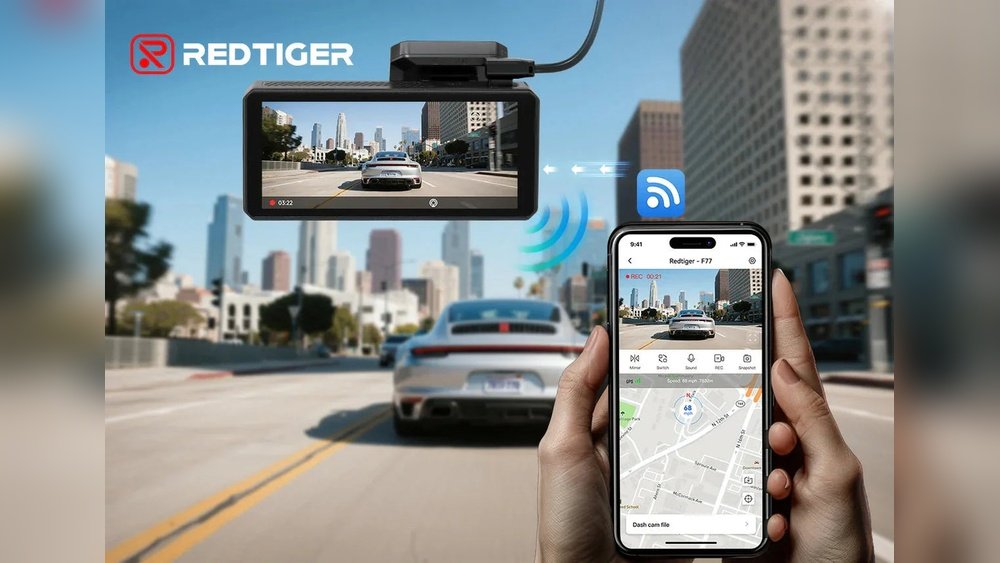
Is your dash cam app up to date? If not, you might be missing out on important features and security fixes that keep your device running smoothly.
Updating your dash cam app is easier than you think, and it can make a big difference in how well your camera works. In this guide, you’ll learn simple steps to update your dash cam app quickly and safely. Keep reading to make sure your dash cam is always ready to protect you on the road.
Why Update Your Dash Cam App
Updating your dash cam app is important. It keeps your device working well. Apps need updates to add new features and fix problems. Without updates, your app may not run smoothly. Your dash cam’s performance depends on having the latest software.
Benefits Of The Latest Features
New updates bring useful features to your dash cam app. These features can make your recordings clearer. Some updates improve video playback and editing tools. You get better control over your dash cam settings. Updates also add support for new dash cam models. This keeps your app current and useful.
Improved Security And Bug Fixes
Updates fix bugs that cause app crashes or errors. They also improve the app’s security. This protects your personal data from hackers. Security patches block new threats that appear online. Bug fixes make the app more stable and faster. Regular updates ensure your dash cam app runs safely.
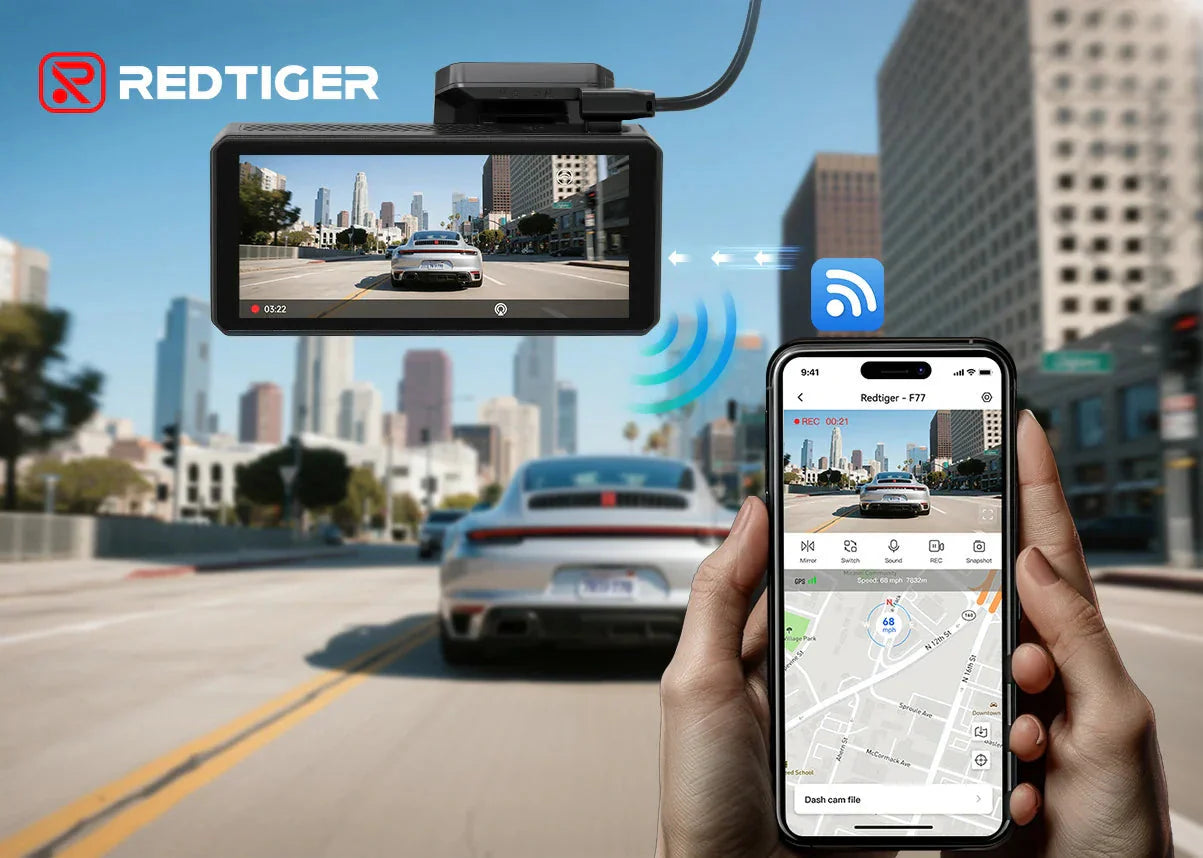
Preparing To Update
Preparing to update your dash cam app is important for a smooth process. It helps avoid errors and data loss. Taking a few steps before updating can save time and effort. Make sure your device is ready and your data is safe.
Check Device Compatibility
Start by checking if your device supports the new app version. Some updates need the latest operating system. Visit the app store or the dash cam manufacturer’s website. Look for device requirements and update notes. This step prevents installation problems and app crashes.
Backup Your Data
Backing up your dash cam data protects your videos and settings. Use cloud storage or transfer files to a computer. Save important footage before updating the app. This ensures you do not lose valuable recordings. A backup gives peace of mind during the update.
Updating On Android Devices
Updating your dash cam app on Android devices keeps it running smoothly. New updates fix bugs and add useful features. It is important to update the app regularly to ensure the best performance. You can update the app using two common methods. One is through the Google Play Store, the other is by manual APK installation.
Using Google Play Store
Open the Google Play Store app on your Android device. Tap the menu icon or your profile picture. Select “My apps & games” from the menu. Find your dash cam app in the list of installed apps. If an update is available, you will see an “Update” button. Tap the “Update” button to start downloading the latest version. Wait for the update to complete before opening the app again.
Manual Apk Installation
Manual APK installation is useful if the update is not on Google Play Store. First, download the latest APK file from the official dash cam website. Before installing, enable “Install unknown apps” in your device settings. Open the APK file using a file manager app. Follow the instructions to install the new version. After installation, open the app to check if it works properly.
Updating On Ios Devices
Updating your dash cam app on iOS devices keeps the app running smoothly. Updates fix bugs and add new features. Regular updates improve app security and performance.
iOS devices use the App Store to manage app updates. This process is quick and easy. Follow simple steps to keep your dash cam app current.
Using App Store
Open the App Store on your iPhone or iPad.
Tap your profile icon at the top right corner.
Scroll down to see pending updates.
Find your dash cam app in the list.
Tap the Update button next to the app.
The update will download and install automatically.
Restart the app after the update finishes.
Troubleshooting Update Issues
Check your internet connection if the update fails.
Make sure you have enough storage space on your device.
Restart your iPhone or iPad to refresh the system.
Sign out and back into the App Store if updates stall.
Update your iOS version if the app needs a newer system.
Delete and reinstall the dash cam app as a last resort.
Updating Via Dash Cam Manufacturer Software
Updating your dash cam app via the manufacturer’s software ensures the best performance. This method uses a desktop program designed specifically for your device. It helps you get the latest features and fixes safely.
Each manufacturer offers a different app, but the update process is similar. You need to download the software, connect your dash cam, and run the update. This way, your dash cam stays reliable on the road.
Downloading The Desktop Application
Start by visiting the official website of your dash cam maker. Find the support or download section. Look for the desktop app that matches your computer system.
Download the file and follow the installation steps. The program is usually free and easy to install. Keep it updated for the best experience.
Connecting Your Dash Cam
Use the USB cable that came with your dash cam. Plug one end into your device and the other into your computer. Some dash cams may need to be turned on.
Your computer should recognize the device quickly. If it does not, check the cable or try another USB port. The software will show your dash cam once connected.
Performing The Update
Open the desktop application after your dash cam connects. The software will check for available updates automatically. If an update is ready, you will see a prompt.
Click the update button to start. Do not disconnect your dash cam during this process. Wait until the update finishes and your device restarts if needed.
This simple process keeps your dash cam working well. Regular updates fix bugs and add useful features.
Common Update Problems
Updating your dash cam app can sometimes be tricky. Several common problems can stop the update from completing smoothly. Knowing these issues helps you fix them fast and keep your dash cam working well.
Insufficient Storage Space
Many update problems happen because there is not enough storage space on your device. Updates need free space to download and install properly. Check your device’s storage before starting the update. Delete unused apps or files to free up room. This simple step often solves the problem immediately.
Connectivity Issues
Stable internet connection is key for a successful update. Slow or unstable Wi-Fi can cause the update to fail. Try moving closer to your router or switch to a different network. Turning off mobile data and using Wi-Fi only can improve connection quality. Always check your internet before updating the app.
Update Failures And Fixes
Sometimes updates stop unexpectedly or show error messages. Restart your device and try the update again. Clearing the app cache helps remove any stuck files. If the problem continues, uninstall and reinstall the app. These fixes usually resolve most update failures quickly.
Tips For Smooth Updates
Updating your dash cam app keeps it running well and adds new features. Smooth updates avoid problems like crashes or data loss. Follow these tips to update your app easily and safely.
Stable Internet Connection
Use a strong Wi-Fi or mobile data connection. A weak connection can interrupt the update process. Interruptions may cause the update to fail or corrupt files. Check your signal strength before starting the update. Avoid updating in places with spotty internet.
Regular Update Checks
Check for updates often to keep the app current. Developers fix bugs and improve performance in new versions. Set a reminder to check weekly or monthly. Some apps allow automatic updates—turn this on if possible. Staying updated prevents security risks and improves features.
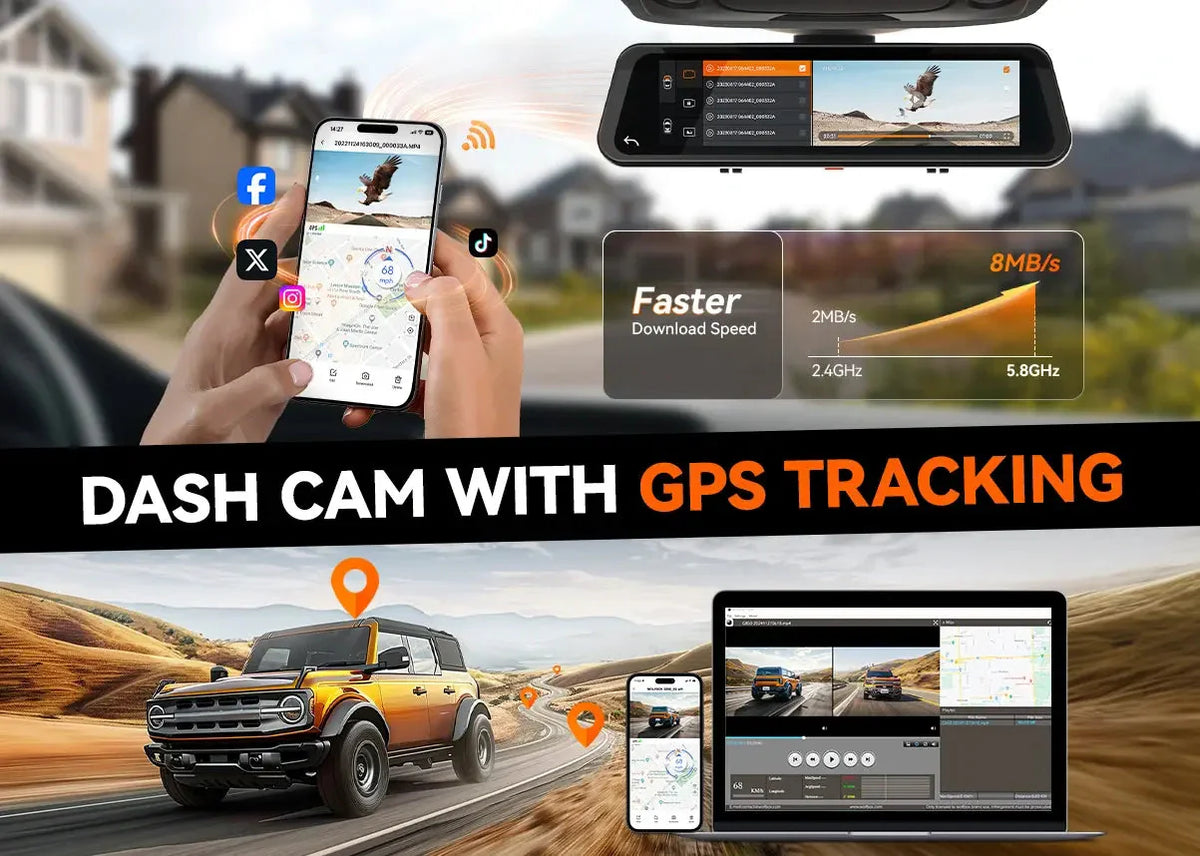

Frequently Asked Questions
How Do I Update My Dash Cam App?
To update your dash cam app, open the app store on your device. Search for your dash cam app and tap “Update” if available. Ensure you have a stable internet connection to download the latest version smoothly.
Why Is Updating The Dash Cam App Important?
Updating the dash cam app improves performance and adds new features. It fixes bugs and enhances security. Regular updates ensure your dash cam functions correctly and records accurately.
Can I Update The Dash Cam App Automatically?
Yes, many devices allow automatic app updates. Enable automatic updates in your device settings or app store preferences. This ensures your dash cam app is always up-to-date without manual effort.
What If The Dash Cam App Update Fails?
If the update fails, check your internet connection first. Restart your device and try updating again. Clear app cache or reinstall the app if problems persist.
Conclusion
Updating your dash cam app keeps your device working smoothly. It fixes bugs and adds new features. Regular updates help protect your videos and data. Always check for updates in the app store or settings. A simple update takes only a few minutes.
Stay safe on the road with the latest app version. Don’t ignore updates; they improve your dash cam’s performance. Keep your app fresh and reliable by updating it often. Easy steps lead to better driving security.