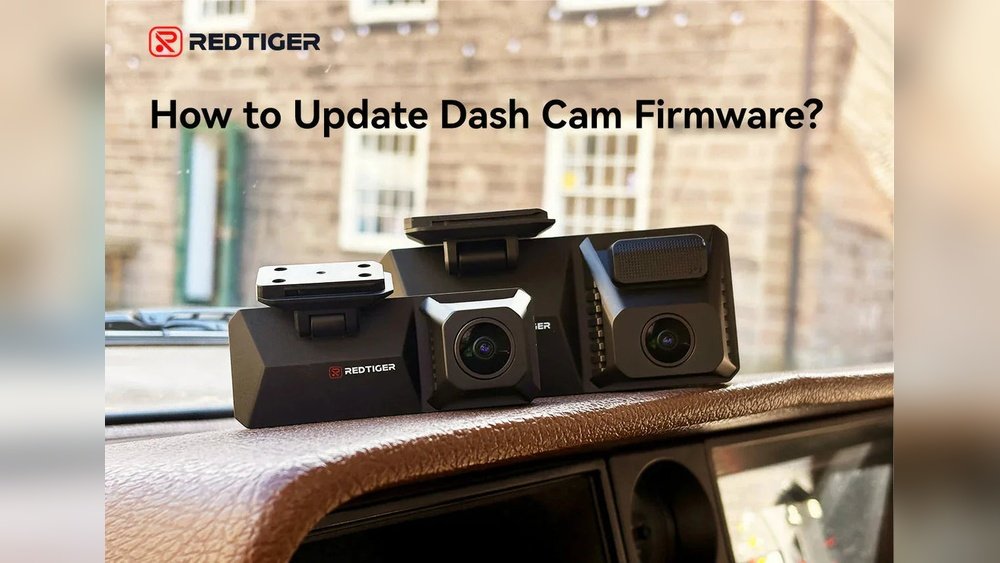
Your dash cam is more than just a gadget—it’s your silent witness on the road, protecting you when it matters most. But did you know that keeping its firmware up to date is key to ensuring it works flawlessly?
If you’ve ever wondered how to update your dash cam firmware without hassle, you’re in the right place. This guide will walk you through simple steps to boost your camera’s performance, fix bugs, and unlock new features. Don’t miss out on making your dash cam smarter and more reliable—let’s dive in!
Why Update Dash Cam Firmware
Updating your dash cam firmware keeps your device working well. Firmware is the software inside your dash cam. It controls how the device functions. Regular updates improve performance and fix problems. They also add new features. Skipping updates can cause your dash cam to miss important fixes. Staying updated helps your camera record clearly and reliably.
Benefits Of Firmware Updates
Firmware updates improve your dash cam’s speed and stability. They help the device run smoother without crashing. Updates can add new functions like better night vision or parking mode. They also improve compatibility with new memory cards and phones. Updates increase battery life and save storage space. These changes make your dash cam more useful and easier to use.
Common Issues Fixed By Updates
Firmware updates fix bugs that cause errors or freezes. They solve problems with video quality and sound. Updates correct issues with GPS or time stamps. They fix problems with files not saving correctly. Updates also solve connection issues with apps or Wi-Fi. Regularly updating stops small problems from becoming big ones.
Preparing For The Update
Preparing your dash cam for a firmware update is an important step. It helps avoid problems during the process. Taking the right actions before updating ensures a smooth experience and keeps your device safe.
Checking Current Firmware Version
First, find out which firmware version your dash cam has. This helps know if an update is needed. Usually, you can check this in the settings menu of your dash cam. Write down the version number or take a photo for reference.
Backing Up Important Data
Save all important videos and files before updating. Firmware updates can erase stored data. Transfer files to your computer or a USB drive. This step protects your memories and important recordings.
Gathering Necessary Tools
Get all tools ready for the update. This includes a computer, USB cable, or memory card reader. Also, make sure your dash cam’s battery is fully charged. Having everything prepared helps the update finish without interruptions.
Finding The Right Firmware
Finding the right firmware is a key step in updating your dash cam. The correct firmware ensures your device works smoothly and safely. Using the wrong version can cause problems or stop your dash cam from working.
Always get the firmware from a trusted source. This guarantees the update is safe and fits your dash cam model perfectly.
Visiting Official Manufacturer Sites
Start by visiting the official website of your dash cam’s maker. Official sites have the latest and safest firmware updates. Avoid third-party sites as they may offer incorrect or harmful files.
Look for the support or download section on the site. Here, you will find firmware updates sorted by model and version. Download only the files that match your dash cam’s brand and model number.
Verifying Firmware Compatibility
Check the firmware details carefully before downloading. Compare the version number with your dash cam’s current firmware. Confirm the update supports your exact model and hardware version.
Read any notes or instructions about the update. Some firmware may only work with certain regions or device versions. Installing incompatible firmware can damage your dash cam.
Step-by-step Update Process
Updating your dash cam firmware keeps the device working well. It fixes bugs and adds new features. Follow these simple steps to update your dash cam easily.
Downloading Firmware Files
Start by visiting the dash cam manufacturer’s website. Find the support or downloads section. Search for the latest firmware for your dash cam model. Download the file to your computer. Make sure the file is complete and not corrupted.
Transferring Files To Dash Cam
Connect your dash cam to the computer using a USB cable. Or remove the memory card and use a card reader. Copy the downloaded firmware file to the root folder of the dash cam’s storage. Avoid placing it inside any folder. Safely eject the device or card after transfer.
Initiating The Update
Turn on your dash cam. Access the settings menu. Look for the firmware update option. Select it to start the update process. Some models update automatically once they detect the new file. Follow any on-screen instructions carefully.
Monitoring The Update Progress
Watch the screen for progress indicators. Do not turn off the dash cam during the update. Interrupting the process can cause errors. The update may take a few minutes. Wait until the device confirms the update is complete. Restart your dash cam to apply changes.
Troubleshooting Common Issues
Updating dash cam firmware can sometimes cause problems. These issues may stop the update or make the device act strange. Knowing how to fix common problems helps keep your dash cam working well. This guide covers simple steps to solve update errors, reset your device, and know when to get help.
Update Failure Solutions
Update failures often happen due to poor internet or low battery. Check your Wi-Fi signal before starting an update. Make sure your dash cam has enough power or is plugged in. Try restarting the update process if it stops midway. Use a different SD card if the update file won’t install.
Resetting The Device
Resetting your dash cam fixes many software glitches. Find the reset button on your device or use the menu option. Hold the button for a few seconds until it restarts. After reset, try the firmware update again. Remember, resetting may erase your settings and recordings.
When To Contact Support
Contact support if updates keep failing or the device won’t start. Also, ask for help if the dash cam freezes or loses features after update. Provide your device model and firmware version for faster assistance. Support teams can guide you through advanced fixes or repairs.
Maintaining Firmware For Optimal Use
Maintaining your dash cam’s firmware is key to its smooth performance. Firmware updates fix bugs and improve features. Regular updates keep your device reliable and safe on the road.
Ignoring updates can cause errors or miss new features. Stay proactive to avoid common problems and enjoy the best dash cam experience.
Setting Update Reminders
Set reminders to check for firmware updates often. Use your phone calendar or a note app. Regular checks help keep your dash cam current. This habit prevents missing important improvements.
Keeping Software And Hardware Compatible
Ensure your dash cam’s firmware matches its hardware capabilities. Some updates need newer hardware to work well. Check the manufacturer’s website for compatibility details. Using the right software version avoids crashes and slowdowns.
Frequently Asked Questions
How Do I Check My Dash Cam Firmware Version?
You can check the firmware version in your dash cam’s settings menu. Navigate to “About” or “System Info” to find it. This helps ensure you download the correct update for your device.
Why Is Updating Dash Cam Firmware Important?
Firmware updates fix bugs, improve performance, and add new features. Keeping your dash cam updated ensures reliable recording and better device security.
Can I Update Dash Cam Firmware Via Wi-fi?
Many modern dash cams support Wi-Fi updates through their companion app. Connect your device to the app, then follow the on-screen instructions to update easily.
What If Firmware Update Fails During Installation?
If an update fails, restart your dash cam and try again. Use a fully charged battery or connect to power to avoid interruptions during the process.
Conclusion
Updating your dash cam firmware keeps your device working well. It fixes bugs and adds new features. Regular updates help protect your videos and improve recording quality. Follow the steps carefully and check for updates often. A well-maintained dash cam ensures better safety on the road.
Don’t skip updates—they keep your device reliable and efficient. Stay safe, stay prepared.