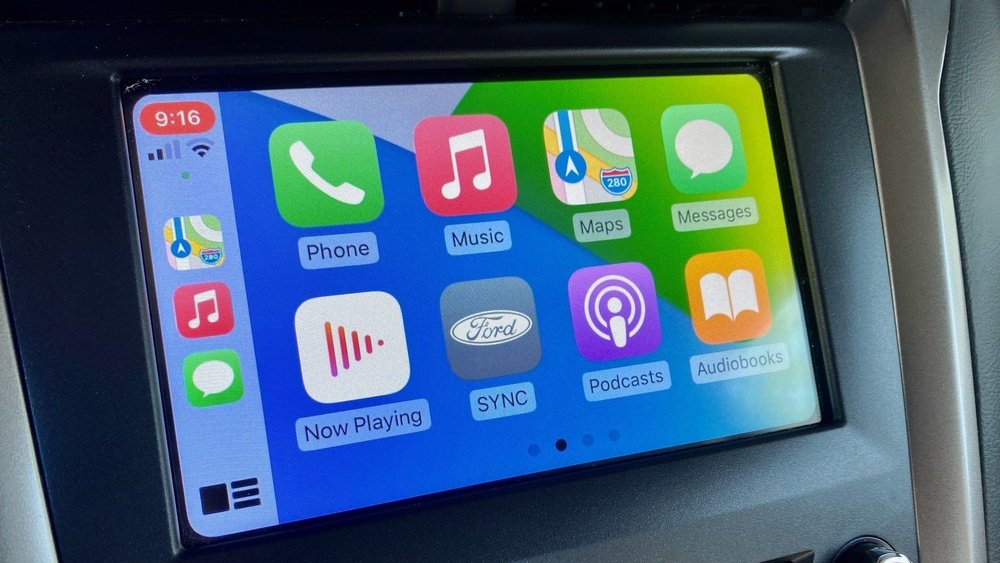
Are you ready to make your driving experience smoother and safer? Using Apple Maps on CarPlay can be a game-changer for your daily trips and long drives.
Imagine having clear directions right on your car’s screen, easy voice commands, and real-time traffic updates without taking your eyes off the road. You’ll discover simple steps to set up and use Apple Maps on CarPlay like a pro. Stick with me, and you’ll soon enjoy stress-free navigation every time you hit the road.

Setting Up Apple Maps On Carplay
Setting up Apple Maps on CarPlay allows you to navigate easily while driving. The process is simple and quick. This section guides you through the steps to connect your iPhone, enable Apple Maps, and customize settings.
Connecting Iphone To Carplay
First, connect your iPhone to the car using a USB cable or Bluetooth. Most cars support both methods. Your car screen will detect the iPhone automatically. Follow the on-screen prompts to complete the connection. Your iPhone must be unlocked during this step. Once connected, CarPlay will launch on the car’s display.
Enabling Apple Maps Access
Next, open the Settings app on your iPhone. Scroll to “Screen Time” and check if any restrictions block Apple Maps. Return to the main Settings menu and tap “Privacy.” Select “Location Services” and confirm that Apple Maps has permission to use your location. Open CarPlay settings and make sure Apple Maps is enabled as an app to show on the CarPlay screen.
Customizing Carplay Settings
Go to Settings on your iPhone and choose “General.” Tap “CarPlay” and select your car. Here, you can arrange app icons to place Apple Maps where you want. You can also choose to show or hide apps from the CarPlay screen. Adjust settings for notifications and voice control to improve your driving experience. These customizations help you use Apple Maps more comfortably.
Starting Navigation With Apple Maps
Starting navigation with Apple Maps on CarPlay is quick and simple. It helps drivers find the best route without distractions. The system offers clear directions and real-time updates. This section explains how to enter destinations, use voice commands, and select routes easily. Each step makes your drive safer and more efficient.
Entering Destinations
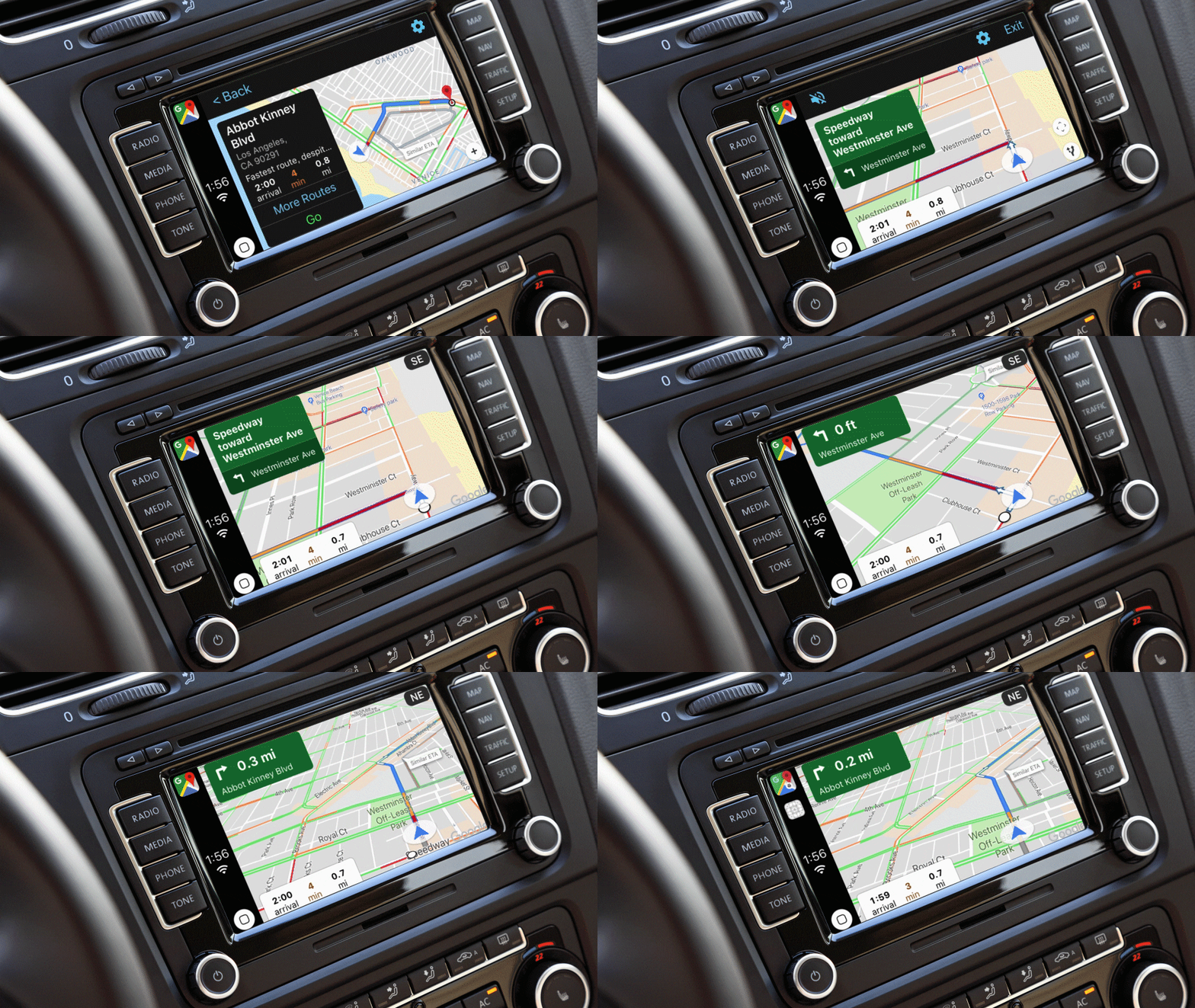
Tap the Apple Maps icon on your CarPlay screen. Use the search bar to type your destination. The keyboard appears on the screen for easy input. You can enter an address, place name, or business. Recent and favorite locations also show up for quick access. After entering, select the correct destination from the list. Then, tap “Go” to start navigation.
Using Voice Commands
Press and hold the voice control button on your steering wheel. Say “Navigate to” followed by your destination. For example, say “Navigate to Central Park.” Apple Maps will find the location and prepare the route. Voice commands keep your hands on the wheel. They also reduce distractions while driving. You can ask for directions, traffic updates, or nearby stops.
Selecting Routes
Apple Maps shows different routes after you enter a destination. Each route displays estimated travel time and distance. Tap on a route to choose it. The app highlights the selected route on the screen. It may suggest faster or traffic-free options. Choose the one that fits your needs best. The navigation will update immediately to follow your choice.
Features For Safe Driving
Apple Maps on CarPlay offers features designed to keep drivers safe. These features help you focus on the road. They provide important information clearly and quickly. This reduces distractions and helps you drive better.
Real-time Traffic Updates
Apple Maps shows live traffic data on your route. It alerts you to slowdowns and accidents ahead. This helps you avoid traffic jams. You can choose faster routes without taking your eyes off the road.
Lane Guidance
Lane guidance tells you which lane to use for turns and exits. It shows clear arrows on the screen. This prevents last-minute lane changes. Staying in the correct lane keeps driving smooth and safe.
Speed Limit Alerts
Apple Maps displays the current speed limit on your screen. It warns you if you drive too fast. These alerts help you stay within legal limits. Safe speeds reduce the risk of accidents and fines.
Optimizing Apple Maps Experience
Optimizing your Apple Maps experience on CarPlay makes driving easier and safer. You get quick access to important places and useful features. These tips help you use Apple Maps smarter and enjoy your trips more.
Saving Favorite Locations
Save places you visit often, like home or work. Tap the location on the map, then choose “Add to Favorites.” You can name each spot for quick access later. This saves time and helps avoid typing while driving. Your favorites appear at the top of the search list.
Using Look Around And Flyover
Explore cities with Look Around for street-level views. Swipe to see real photos of your destination. Flyover shows 3D views of landmarks and cities. Rotate and zoom to get a better sense of the area. These tools help you plan routes and know what to expect.
Integrating With Calendar And Contacts
Apple Maps works with your Calendar and Contacts. It shows directions to events saved in your calendar. Maps also finds addresses from your contacts. Tap a contact’s address to start navigation quickly. This integration reduces distractions and keeps your drive smooth.
Troubleshooting Common Issues
Troubleshooting Apple Maps on CarPlay can fix many common problems. Simple steps often solve connection and navigation issues fast. Keeping apps updated also helps keep everything running smoothly. Below are easy ways to handle typical errors.
Fixing Connection Problems
First, check your cable or wireless connection. A loose or damaged cable can cause issues. Try unplugging and reconnecting your iPhone to CarPlay. Restart your iPhone and car’s infotainment system. This refresh often restores the connection. Make sure CarPlay is enabled in your iPhone settings under “General” and “CarPlay.”
Resolving Navigation Errors
Navigation errors may come from GPS or map data problems. Make sure your iPhone has a clear view of the sky for GPS signals. Close and reopen Apple Maps to refresh your route. If directions are wrong, reset your route by entering your destination again. Avoid multitasking on your phone during navigation to prevent delays.
Updating Apple Maps And Carplay
Updates fix bugs and improve performance. Check for iOS updates on your iPhone in “Settings” > “General” > “Software Update.” Install any available updates. CarPlay updates come with iOS updates, so keeping your phone current is key. Also, update your car’s system software if the manufacturer offers updates. This keeps CarPlay compatible and stable.
Frequently Asked Questions
How Do I Connect Apple Maps To Carplay?
To use Apple Maps on CarPlay, connect your iPhone via USB or Bluetooth. Ensure CarPlay is enabled in your iPhone settings. Open the Maps app on your CarPlay screen to start navigation.
Can I Use Voice Commands With Apple Maps On Carplay?
Yes, you can use Siri voice commands to control Apple Maps on CarPlay. Say “Hey Siri” or press the voice button to set destinations, get directions, or check traffic hands-free.
Is Apple Maps Free To Use On Carplay?
Apple Maps is completely free to use on CarPlay. It offers real-time navigation, traffic updates, and route planning without any additional charges or subscriptions.
Does Apple Maps Provide Real-time Traffic Updates On Carplay?
Yes, Apple Maps on CarPlay shows real-time traffic conditions. It helps you avoid congestion by suggesting faster routes during your drive.
Conclusion
Using Apple Maps on CarPlay makes driving simpler and safer. The app gives clear directions right on your car screen. You can easily find places and avoid traffic. Voice commands help you keep your eyes on the road. Remember to update your system for the best experience.
Try it on your next trip and enjoy smooth navigation. Staying connected and informed has never been easier. Apple Maps on CarPlay fits well into daily driving needs. Give it a chance and see the difference yourself.




