Imagine getting all your favorite apps, maps, music, and calls right on your car’s screen—without any messy wires. Wireless CarPlay makes this possible, giving you a safer and smarter way to use your iPhone while driving.
But how exactly do you set it up and use it smoothly? In this guide, you’ll discover simple steps to connect and control Wireless CarPlay like a pro. Ready to unlock a hands-free driving experience that keeps your focus on the road?
Let’s dive in!

Setting Up Wireless Carplay
Setting up Wireless CarPlay is simple and quick. It lets you connect your iPhone to your car without cables. This setup improves your driving experience by giving easy access to apps, music, and maps.
Follow these steps carefully to start using Wireless CarPlay in your vehicle.
Checking Device Compatibility
First, check if your iPhone supports Wireless CarPlay. Most iPhones running iOS 9 or later work well. Also, confirm your car model supports Wireless CarPlay. You can find this in your car’s manual or on the manufacturer’s website.
Without compatibility, Wireless CarPlay will not function correctly.
Preparing Your Car’s System
Turn on your car’s infotainment system. Go to the settings menu and find the CarPlay option. Enable Wireless CarPlay if available. Some cars require you to activate Bluetooth and Wi-Fi for the connection.
Make sure the car system is ready to pair with your iPhone.
Pairing Your Iphone With The Car
On your iPhone, open the Settings app. Tap on General, then CarPlay. Select your car’s name from the list. Follow the prompts to establish a wireless connection.
Allow any permission requests on your iPhone and car screen. After pairing, Wireless CarPlay will start automatically when you enter your car.
Navigating Wireless Carplay Features
Wireless CarPlay makes driving easier and safer. It connects your iPhone to your car without cables. You get access to many features right on your car’s screen. This section explains how to use those features effectively. Learn how to open apps, use voice commands, and personalize your interface.
Accessing Apps And Functions
Wireless CarPlay shows your iPhone apps on the car screen. Tap icons to open maps, music, messages, and calls. Swipe to see more apps. Use touch or car controls to select what you want. Apps designed for driving appear clearly and simply. This helps you stay focused on the road.
Using Siri For Hands-free Control
Siri helps you control CarPlay without touching the screen. Press the voice button or say “Hey Siri” to start. Ask Siri to make calls, send texts, or play music. You can get directions or check the weather too. Siri listens carefully and answers quickly. This keeps your hands on the wheel and eyes on the road.
Customizing Your Carplay Interface
You can change how your CarPlay screen looks. Rearrange app icons by going to your iPhone settings. Drag apps to put your favorites first. Remove apps you don’t use to keep the screen clean. Choose dark or light mode for better visibility. Personalizing helps you find what you need fast.
Troubleshooting Common Issues
Wireless CarPlay makes driving safer and more fun. Sometimes, problems arise. These issues can stop your connection or cause delays. This guide helps solve common Wireless CarPlay problems quickly.
Connection Drops And Delays
Connection drops happen when your phone loses signal with the car. This can be due to distance or interference from other devices. Keep your phone close to the car’s display. Remove any objects between the phone and receiver. Restarting your phone and car system often fixes delays. Check if your car’s software is up to date.
Audio And Microphone Problems
Audio may cut out or sound unclear. Check the volume on both your phone and car. Make sure the microphone is not blocked or dirty. Try speaking closer to the mic. Disconnect and reconnect Wireless CarPlay. This resets the audio connection and clears minor glitches.
Re-establishing The Wireless Link
Sometimes, the wireless link breaks and won’t reconnect automatically. Turn off Bluetooth and Wi-Fi on your phone. Wait a few seconds, then turn them back on. Restart the car’s infotainment system. Remove the car from your phone’s Bluetooth list, then pair again. These steps help form a fresh, strong connection.
Maximizing Wireless Carplay Experience
Wireless CarPlay offers great convenience by connecting your iPhone to your car without cables. To enjoy this feature fully, a few simple steps help improve your experience. Small changes make your drive smoother and your device last longer.
Optimizing Battery Usage
Wireless CarPlay uses your phone’s battery power. Turn off unused apps to save energy. Lower screen brightness helps your phone last longer. Use a car charger to keep your phone powered. Avoid running many apps in the background.
Enhancing Signal Strength
Strong signals keep the connection steady. Keep your phone close to the car’s display. Remove phone cases that block signal. Avoid metal objects between your phone and car system. Restart your phone and car system if connection drops.
Keeping Software Updated
Updates fix bugs and improve performance. Check your iPhone for the latest iOS version. Update your car’s infotainment system regularly. Updated software helps CarPlay run smoothly. Set automatic updates to avoid missing new features.
Comparing Wireless And Wired Carplay
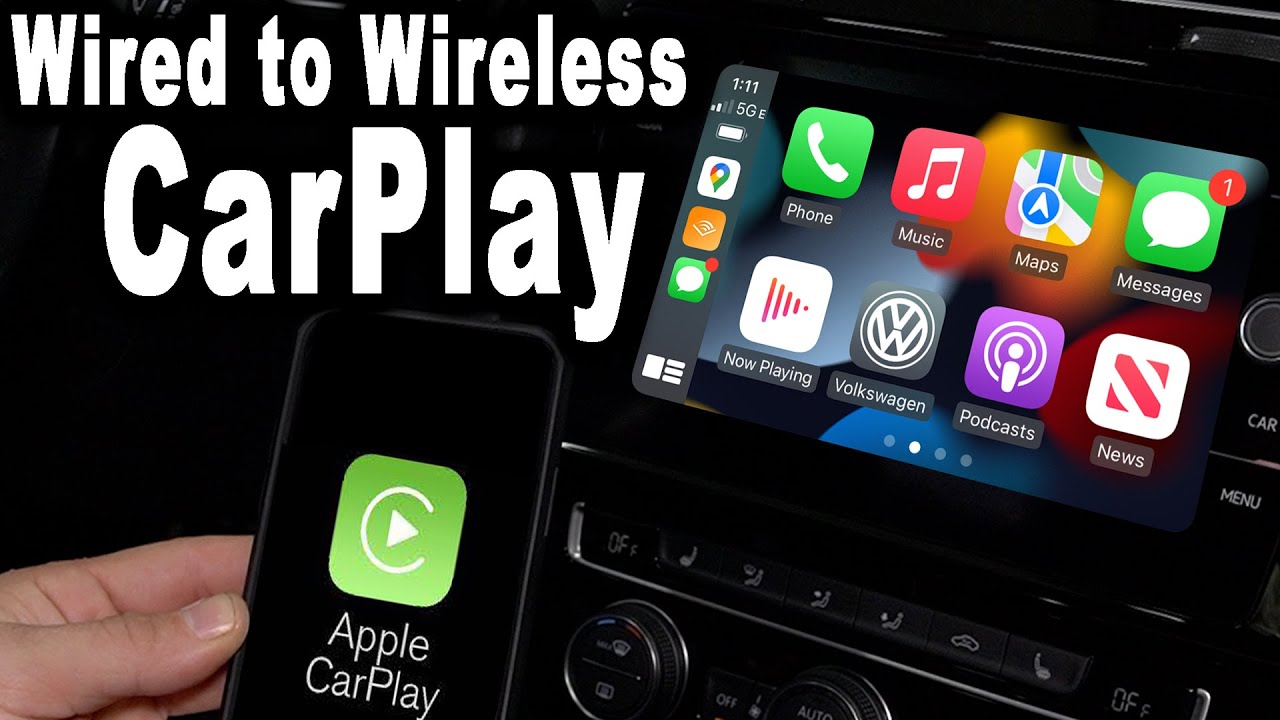
Wireless CarPlay and wired CarPlay both help you use your iPhone in the car. They offer ways to access apps, maps, music, and calls on your car’s display. Yet, they work differently. Wireless CarPlay connects through Bluetooth and Wi-Fi. Wired CarPlay uses a cable to link your phone to the car. Understanding their differences helps you pick the best option for your needs.
Pros And Cons
Wireless CarPlay frees you from cables. It lets you connect your phone quickly and move around easily. No wires mean less clutter. But wireless can drain your phone’s battery faster. Sometimes, the connection may drop or lag.
Wired CarPlay gives a stable and fast link. It charges your phone while connected. The connection rarely drops. Yet, cables can tangle or wear out. Plugging in every time can be less convenient.
Performance Differences
Wired CarPlay usually offers faster data transfer. This means smoother app use and quicker responses. Wireless CarPlay may have slight delays. Streaming music or navigation might take a moment longer. The speed depends on your car’s and phone’s wireless systems.
Sound quality is often better with wired CarPlay. Wireless can sometimes cause small interruptions in audio. Both provide good quality, but wired is more consistent.
When To Choose Each Option
Pick wireless CarPlay if you want easy, cable-free use. It suits short trips and quick access. It works well if you don’t mind charging your phone separately.
Choose wired CarPlay for long drives or heavy phone use. It keeps your phone charged and ensures stable performance. Ideal for those who want the best speed and sound quality.
Frequently Asked Questions
What Devices Support Wireless Carplay Connection?
Wireless CarPlay works with iPhones running iOS 9 or later. It also requires a compatible car or aftermarket receiver with wireless CarPlay support.
How Do I Connect My Iphone To Wireless Carplay?
Enable Bluetooth and Wi-Fi on your iPhone. Pair it with your car’s infotainment system, then select CarPlay from the car’s menu.
Is Wireless Carplay As Reliable As Wired Carplay?
Yes, Wireless CarPlay offers similar reliability but may experience slight delays or interruptions due to wireless interference or weak signals.
Can I Use Wireless Carplay Without An Internet Connection?
Yes, Wireless CarPlay works without internet since it uses Bluetooth and Wi-Fi for direct communication between your iPhone and car.
Conclusion
Wireless CarPlay makes driving safer and more fun. Connect your iPhone without any cables. Enjoy easy access to maps, music, and calls. Just pair your phone once, and it connects automatically. No need to touch your phone while driving. Stay focused on the road and enjoy convenience.
Wireless CarPlay fits many car models today. Try it out and see how simple it is. Drive smarter, not harder.