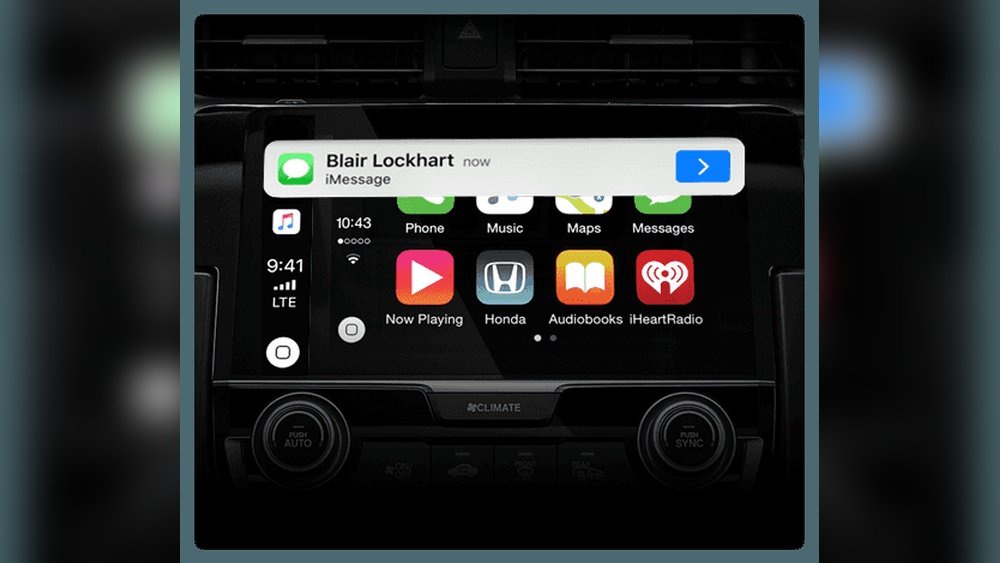
Are you tired of fumbling with your phone while driving? Knowing how to view messages on Apple CarPlay can change the way you stay connected on the road.
Imagine reading your texts safely without taking your eyes off the road or your hands off the wheel. In this guide, you’ll discover simple steps to access your messages easily and securely through Apple CarPlay. Stick with me, and you’ll learn how to make your driving experience smarter and safer—all without missing a single message.
Setting Up Apple Carplay
Setting up Apple CarPlay is the first step to enjoy hands-free messaging and other features. It makes your driving safer by showing messages on your car’s display. The setup process is simple and fast. Follow the steps to connect your iPhone and start using CarPlay.
Compatible Devices And Cars
Apple CarPlay works with iPhones running iOS 7.1 or later. Most iPhone models since iPhone 5 support CarPlay. Check your car’s manual to see if it supports CarPlay. Many car brands include CarPlay in newer models. Some older cars need a software update or adapter.
Connecting Your Iphone
Use a Lightning cable to connect your iPhone to the car’s USB port. Some cars allow wireless CarPlay, using Bluetooth and Wi-Fi. After connection, your iPhone screen will lock, and CarPlay will launch on the car display. Keep your phone unlocked the first time you connect.
Enabling Carplay In Settings
Open your iPhone’s Settings app. Tap “General,” then find “CarPlay.” Select your car from the list. Allow CarPlay to access your phone while locked. This lets you see messages and notifications safely. Customize CarPlay settings to show apps you use most.
Accessing Messages On Carplay
Accessing messages on Apple CarPlay lets you stay connected without distraction. It keeps your focus on driving while checking texts. CarPlay makes reading and replying to messages easy and safe. This section explains how to use the Messages app, Siri voice commands, and view notifications securely.
Using The Messages App
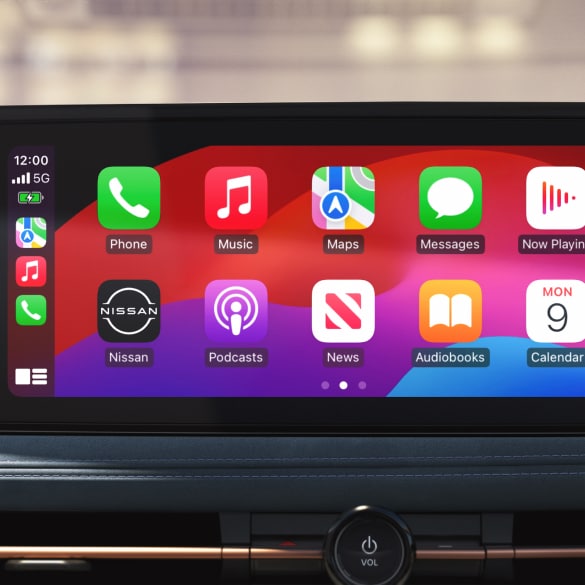
The Messages app on CarPlay shows your recent texts clearly. Tap the app icon on the CarPlay screen to open it. You can scroll through conversations and read messages aloud. Replies can be typed using the on-screen keyboard or dictated by voice. The interface is simple and designed for quick use while driving.
Voice Commands With Siri
Siri helps you send and read messages without touching the screen. Press the voice button on your steering wheel to activate Siri. Say “Read my messages” to hear new texts. To reply, say “Send a message to [contact]” then speak your reply. This hands-free method keeps your eyes on the road and hands on the wheel.
Viewing Notifications Safely
CarPlay shows message alerts clearly but without distraction. Notifications appear briefly on the screen with sound cues. You can choose to listen to messages through Siri instead of reading. This reduces the risk of looking away from the road. Settings let you control how and when message alerts appear during driving.
Responding To Messages
Responding to messages on Apple CarPlay keeps you connected without losing focus on the road. It lets you reply safely and quickly. Your options include speaking, tapping preset replies, or using the screen controls. Each way is easy and designed for driving.
Voice Replies
Speak your message aloud to reply hands-free. CarPlay uses Siri to convert speech to text. This method helps keep your eyes on the road. Simply say your response after the prompt. Siri will send the message for you.
Preset Responses
Choose from preset replies to answer fast. CarPlay offers common phrases like “I’m driving” or “Call you later.” These replies are simple and safe. Tap one to send without typing. You can also add your own custom responses in settings.
Using Touch Controls
Use the touchscreen to type or pick emojis. The keyboard appears when you tap the message box. Touch controls give more control over your reply. This method suits short messages while stopped. It’s a good option if voice or presets don’t fit.
Troubleshooting Message Issues
Sometimes messages do not show up on Apple CarPlay. This can be frustrating while driving. Troubleshooting message issues helps fix these problems quickly. Understanding common problems and simple fixes makes using CarPlay smoother. Keep your software up to date for best results.
Common Connectivity Problems
CarPlay needs a good connection to your iPhone. Check your USB cable for damage. Try another cable if messages do not appear. Wireless CarPlay users should check Bluetooth and Wi-Fi settings. Restart your iPhone and car system to refresh the connection. Sometimes, a weak signal causes message delays or failures.
Fixing Notification Errors
Messages may not show due to notification settings. Open your iPhone’s Settings app and select Notifications. Make sure Messages are allowed to show alerts. Turn on Show on Lock Screen and Banners. Check Do Not Disturb mode is off while driving. Restart the Messages app to clear glitches.
Updating Software For Better Performance
Old software can cause message problems on CarPlay. Check for updates on your iPhone under Settings > General > Software Update. Install the latest iOS version available. Also, update your car’s infotainment system if possible. New updates fix bugs and improve message display. Regular updates keep CarPlay running smoothly.
Maximizing Safety While Messaging
Using Apple CarPlay to view messages keeps you connected while driving. Staying safe during this process is very important. Distractions can cause accidents and harm. Follow these tips to protect yourself and others on the road.
Prioritize safety over quick replies. Use CarPlay features that help you stay focused. Keep your eyes on the road and hands on the wheel.
Hands-free Operation Tips
Use Siri to read and send messages aloud. Speak clearly and use simple commands. Avoid typing or touching the screen while driving. Activate voice control before starting your trip. This keeps your hands free and attention steady.
Avoiding Distractions
Do not try to read messages on the screen. Let Siri handle message reading. Keep conversations short and simple. Pull over safely if you need to respond more fully. Avoid checking messages at busy intersections or in heavy traffic.
Legal Considerations
Many places have strict laws about phone use while driving. Using hands-free options is often required by law. Check your local rules before using CarPlay messaging. Following laws helps avoid fines and keeps roads safer for all.
Frequently Asked Questions
How Do I Access Messages On Apple Carplay?
To view messages on Apple CarPlay, connect your iPhone via USB or Bluetooth. Use the CarPlay interface to open the Messages app. You can read, reply, or send new messages hands-free using Siri voice commands or the touchscreen.
Can I Read Messages Aloud On Apple Carplay?
Yes, Apple CarPlay reads messages aloud using Siri. When a new message arrives, Siri announces it automatically. You can reply by speaking your response, keeping your focus on the road while staying connected safely.
Is It Possible To Reply To Messages On Apple Carplay?
Absolutely. You can reply to messages on Apple CarPlay using voice commands or the touchscreen. Siri allows hands-free replies, ensuring safe communication while driving. Just say, “Reply” followed by your message to respond quickly.
Does Apple Carplay Support Third-party Messaging Apps?
Apple CarPlay supports select third-party messaging apps like WhatsApp and Messenger. These apps must be CarPlay-compatible. You can view and reply to messages from these apps using Siri or the CarPlay display.
Conclusion
Viewing messages on Apple CarPlay keeps you connected while driving. It helps you stay safe by reducing distractions. The steps are simple and easy to follow. Just use voice commands or touch controls to read and reply. This way, you keep your focus on the road ahead.
Try these tips on your next drive for a smoother experience. Stay informed and drive safely with Apple CarPlay messages.




