
Have you ever wished your phone could work seamlessly with your car’s dashboard? Apple CarPlay makes that possible.
It lets you use your iPhone safely while driving, giving you easy access to maps, music, calls, and messages—all without taking your eyes off the road. But what exactly is Apple CarPlay, and how does it work? Keep reading to discover how this smart feature can change the way you drive and keep you connected with just a simple touch or voice command.
Apple Carplay Basics
Apple CarPlay Basics explain how this system brings iPhone features to your car. It creates a simple, safe way to use apps and services while driving. CarPlay works by connecting your iPhone to the car’s display screen. This connection can be wired or wireless, depending on the car model. The interface is designed to be easy to use without distracting the driver.
CarPlay lets you control your phone using the car’s touchscreen, buttons, or voice commands. Siri voice control helps with hands-free operation. You can make calls, send messages, listen to music, and get directions. It focuses on giving you access to essential apps while keeping your eyes on the road.
Core Features
Apple CarPlay offers several main features. It supports phone calls, text messaging, and voice dictation. Navigation apps like Apple Maps provide real-time directions and traffic updates. You can play music from Apple Music or other compatible apps. Siri helps with tasks using voice commands. CarPlay also shows notifications in a minimal way to reduce distractions.
Compatible Devices
CarPlay works with iPhones running iOS 7.1 or later. Supported models include iPhone 5 and newer versions. The iPhone must connect via USB or Bluetooth, based on the car’s setup. Some features require the latest iOS updates. Apps must support CarPlay to appear on the screen. Many popular apps like Spotify, Audible, and WhatsApp are compatible.
Supported Vehicles
Many car brands support Apple CarPlay. These include Ford, BMW, Honda, Toyota, and more. Most new cars offer CarPlay as a standard or optional feature. Older cars may need an aftermarket receiver to add CarPlay. The car’s infotainment system must support the CarPlay interface. Check the car’s manual or website to confirm compatibility.
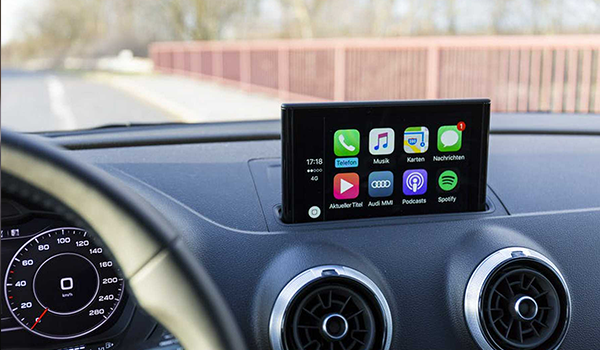
Setting Up Apple Carplay
Setting up Apple CarPlay is simple and quick. It lets you use your iPhone safely while driving. CarPlay shows your apps on your car’s screen. You can access maps, music, calls, and messages easily. Follow these steps to connect your phone to your car.
Wired Connection
Start by using a Lightning cable. Plug one end into your iPhone. Plug the other end into your car’s USB port. The port may have a CarPlay or smartphone icon. Once connected, your car screen shows the CarPlay interface. You may need to allow access on your iPhone. Tap “Allow” when a prompt appears. Your phone now links to the car system.
Wireless Connection
Some cars support wireless CarPlay. To use it, turn on Bluetooth and Wi-Fi on your iPhone. Press the voice command button on your steering wheel. Follow the prompts on your car screen to pair your phone. After pairing, CarPlay connects automatically when you enter the car. This method offers more freedom without cables.
Troubleshooting Setup Issues
If CarPlay doesn’t connect, try restarting your iPhone and car. Check the cable for damage or use another one. Make sure CarPlay is enabled in your iPhone’s settings. Go to Settings > General > CarPlay to check. Ensure your car’s software is up to date. Reset network settings on your iPhone if problems continue.
Using Apple Carplay
Using Apple CarPlay is simple and helps drivers stay connected while focusing on the road. It turns your car’s screen into a smart display for your iPhone. This setup lets you access maps, messages, music, and more safely. The system is designed to be easy and quick to use.
Navigating The Interface
The CarPlay interface looks like your iPhone screen but bigger. Icons are large and easy to tap. You swipe left or right to see more apps. The home button takes you back to the main screen. This helps you find what you need fast.
Voice Control With Siri
Siri helps you use CarPlay without touching the screen. Press the voice button or say “Hey Siri” to start. You can ask Siri to send messages, make calls, or get directions. Talking to Siri keeps your hands on the wheel and eyes on the road.
Accessing Apps
CarPlay supports many apps from your iPhone. You can listen to music, podcasts, or audiobooks. Use navigation apps like Apple Maps or Google Maps. Messaging apps let you send texts or hear messages aloud. All apps work in a way that keeps driving safe.
Customizing The Dashboard
You can change the order of apps on CarPlay. On your iPhone, go to Settings and find CarPlay. Select your car and drag apps to the order you want. This makes your most-used apps easy to reach. Customizing helps you have a better driving experience.
)
Popular Apps On Carplay
Apple CarPlay brings your iPhone’s features right to your car’s display. It lets you use many popular apps safely while driving. These apps help with navigation, music, communication, and more. Here are some common apps that work well on CarPlay.
Navigation Apps
Navigation apps guide you to your destination easily. Apple Maps is the default app, offering turn-by-turn directions. Google Maps and Waze are also popular choices. These apps show traffic updates and suggest faster routes. They help you avoid delays and reach places on time.
Music And Audio Apps
CarPlay lets you listen to your favorite music and podcasts. Apple Music and Spotify offer vast libraries of songs. Podcasts apps like Overcast and Audible provide spoken content. These apps make your drive more enjoyable and entertaining.
Communication Apps
Communication apps keep you connected while driving. Phone calls and messages can be controlled with voice commands. WhatsApp and Messages let you send and receive texts safely. Siri reads messages aloud and helps you reply hands-free.
Third-party App Support
CarPlay supports many third-party apps beyond Apple’s ecosystem. Apps for news, audiobooks, and radio are available. These include NPR, Audible, and TuneIn Radio. The growing app list keeps your options wide and varied.
Benefits Of Apple Carplay
Apple CarPlay offers many benefits for drivers. It makes using your phone in the car easier and safer. This system helps you stay focused on the road while still accessing important apps and features. Here are some key benefits of Apple CarPlay.
Enhanced Safety
Apple CarPlay reduces distractions while driving. It lets you use voice commands to control apps. You can make calls, send texts, and get directions without looking at your phone. This helps keep your eyes on the road and hands on the wheel. Safety improves with less need to touch your device.
Improved Convenience
CarPlay shows your phone apps on the car’s screen. You can easily access music, maps, and messages. The interface is simple and familiar to iPhone users. You save time by quickly finding what you need. It also supports popular apps like Spotify and Audible.
Seamless Integration
Apple CarPlay connects your iPhone to the car smoothly. The system works with many car models and infotainment systems. It automatically syncs your contacts, calendars, and playlists. This integration makes your driving experience more enjoyable. Switching between phone and car is effortless.
Limitations And Considerations
Apple CarPlay offers many benefits for drivers. It makes using your iPhone in the car safer and easier. Yet, it also has some limits and important points to think about. Understanding these helps you get the best from CarPlay.
App Restrictions
CarPlay works with a limited number of apps. It focuses on apps for calls, messages, music, and navigation. Some popular apps may not be available. This keeps driving safe by reducing distractions. You cannot use all iPhone apps on CarPlay.
Compatibility Issues
Not all cars support CarPlay. It depends on the car’s make, model, and year. Some older models may not have it. Also, your iPhone must be iPhone 5 or newer. Sometimes, software updates are needed to fix bugs. Check your car and phone before using CarPlay.
Data Privacy
CarPlay uses your iPhone’s data to function. It may share some info with your car’s system. Apple says it protects your privacy. Still, some users worry about data security. Always review privacy settings on your phone. Be careful about what data you share.
Future Of Apple Carplay
The future of Apple CarPlay looks promising with many improvements on the horizon. Apple aims to make CarPlay more helpful and easier to use. This will enhance the driving experience for many users. New features will keep CarPlay relevant in a fast-changing tech world.
Upcoming Features
Apple plans to add more customization options for CarPlay. Drivers may soon change the home screen layout to fit their needs. Improved voice control will allow easier access to apps. Expect better support for multiple screens inside cars. These changes will make CarPlay more flexible and user-friendly.
Integration With Autonomous Vehicles
Self-driving cars will change how we interact with technology. Apple CarPlay will likely connect with autonomous vehicle systems. It may offer controls to manage self-driving modes safely. CarPlay could provide real-time updates about road conditions and vehicle status. This integration will help drivers stay informed and relaxed during trips.
Expanding App Ecosystem
More apps will become available on CarPlay in the future. Apple is encouraging developers to create apps for the platform. This will include navigation, entertainment, and productivity tools. A wider app selection means users can do more while driving. The growing app ecosystem will make CarPlay a more valuable companion on the road.

Frequently Asked Questions
What Devices Support Apple Carplay?
Apple CarPlay works with iPhones running iOS 7. 1 or later. It’s compatible with iPhone 5 and newer models. Many car manufacturers include CarPlay support in their infotainment systems. You can also use aftermarket head units that support CarPlay for older cars.
How Does Apple Carplay Connect To My Car?
Apple CarPlay connects via a USB cable or wirelessly in supported vehicles. Once connected, your iPhone screen integrates with the car’s display. This allows easy access to apps, navigation, music, and calls safely while driving.
What Apps Are Compatible With Apple Carplay?
Apple CarPlay supports apps like Maps, Phone, Messages, Music, and Podcasts. Third-party apps such as Spotify, Audible, and WhatsApp also work. CarPlay prioritizes apps that help with navigation, communication, and entertainment while driving.
Is Apple Carplay Safe To Use While Driving?
Yes, Apple CarPlay is designed for safe driving. It minimizes distractions by enabling voice control through Siri. The interface is simplified and intuitive, allowing hands-free operation for calls, navigation, and messaging.
Conclusion
Apple CarPlay helps you use your iPhone safely while driving. It shows apps on your car’s screen for easy control. You can make calls, send messages, and listen to music hands-free. Voice commands keep your focus on the road. Setting up CarPlay is simple and fast.
It works with many car models and iPhone versions. This tool makes driving less distracting and more fun. Try it to see how it fits your daily drive. Safety and convenience come together with Apple CarPlay.




