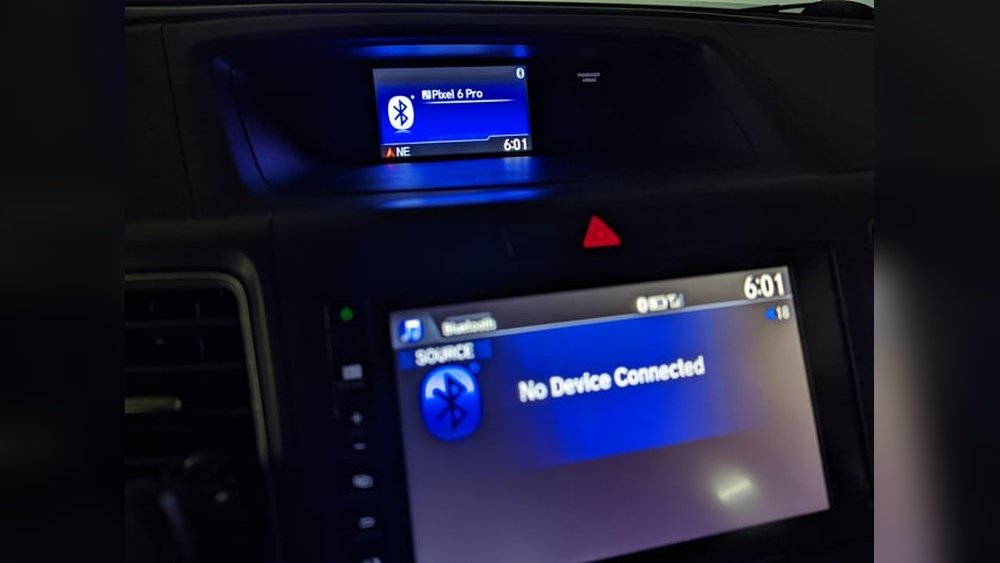
Have you ever tried to play music from your phone or USB on your car stereo, only to see the frustrating message: “No Device”? It’s confusing and can ruin your drive, especially when you just want to relax with your favorite tunes.
You’re not alone—many drivers face this issue. But why does your car stereo say “No Device,” and more importantly, how can you fix it quickly? Keep reading, and you’ll discover simple reasons behind this problem and easy steps to get your music playing again without stress.
Common Causes Of No Device Error
The “No Device” error on a car stereo can be frustrating. It stops music and blocks your connection to your favorite playlists. Understanding the common causes helps fix the problem faster. This section covers typical reasons why your car stereo might say “No Device.”
Connection Issues
Loose or damaged cables often cause connection problems. USB ports can get dirty or broken over time. Poor contact between devices and the stereo stops recognition. Sometimes, the device is not plugged in correctly. Checking cables and ports can solve these issues quickly.
Compatibility Problems
Not all devices work with every car stereo. Some older stereos do not support new phones or players. File formats that the stereo cannot read also cause errors. Using compatible devices and supported file types avoids this problem.
Firmware Glitches
Software bugs in the stereo’s system can cause errors. Outdated firmware may fail to detect devices properly. Updating the stereo’s firmware often clears these glitches. Resetting the stereo can also fix minor software issues.
Power Supply Interruptions
A weak or unstable power supply can disrupt device detection. Loose wiring or blown fuses reduce power to the stereo. Battery problems in the connected device also cause interruptions. Ensuring steady power helps maintain device connection.

Basic Troubleshooting Steps
Basic troubleshooting steps help fix the “No Device” message on car stereos. These steps check common problems first. They save time and often solve the issue without extra help. Start by examining cables and ports carefully. Then, try restarting the stereo. Finally, review device settings to ensure proper connection. These simple checks often restore normal function quickly.
Check Cable And Port Connections
Look at the cable connecting your device to the stereo. Make sure it is not damaged or loose. Unplug the cable and plug it back in firmly. Check the stereo’s port for dust or dirt. Clean it gently if needed. Use a different cable to test if the first one is faulty. Good connections are essential for the stereo to detect your device.
Restart The Car Stereo
Turn off the car stereo completely. Wait about 10 seconds before turning it back on. This refreshes the system and clears minor errors. Restarting often fixes simple glitches causing the “No Device” message. It is a quick and easy step that can restore connection.
Inspect Device Settings
Check your device’s USB or Bluetooth settings. Make sure it is set to share data with the stereo. Some devices need permission to connect. Disable any battery saver modes that limit connection. Restart your device if needed. Correct settings help the stereo recognize your device properly.
Advanced Fixes To Try
Advanced fixes help solve the “No Device” error on your car stereo. These steps go beyond basic checks. They target software and hardware issues that simple fixes miss. Try each method carefully to see which one works for you.
Update Stereo Firmware
Firmware controls how your stereo works. Outdated firmware can cause connection problems. Check your car stereo’s manual for update instructions. Visit the manufacturer’s website to download the latest firmware. Use a USB drive or Bluetooth to install updates. Updating firmware can fix bugs and improve device recognition.
Reset The Stereo System
Resetting clears errors and restores default settings. Find the reset button or option in the menu. Press and hold it for a few seconds. The stereo will restart and clear minor glitches. After reset, try connecting your device again. This often solves hidden software conflicts.
Test With Different Devices
Try connecting another phone or music player. This helps check if the problem is with your device or stereo. If other devices connect fine, your phone may have issues. If no device connects, the stereo likely has a fault. Testing multiple devices narrows down the cause quickly.
Preventive Tips For Smooth Playback
Preventive tips help avoid the “No Device” error on your car stereo. They keep your music playing smoothly. These simple steps protect your devices and the stereo system. Following them saves time and frustration on the road.
Use Compatible Devices And Cables
Choose devices that work well with your car stereo. Not all phones or USB drives fit every system. Use cables designed for your device and stereo. Cheap or damaged cables cause connection problems. Check your car manual for recommended devices and cables.
Keep Firmware Updated
Regularly update your car stereo’s firmware. Updates fix bugs and improve device support. Check the manufacturer’s website for the latest version. Install updates carefully to avoid errors. Updated firmware helps your stereo recognize devices better.
Avoid Sudden Power Loss
Turn off your stereo properly before removing devices. Sudden power loss can corrupt files or damage hardware. Avoid unplugging devices while playing music. Safe removal protects your devices and stereo system. Always follow the correct shutdown steps for smooth playback.

Frequently Asked Questions
Why Does My Car Stereo Say No Device Connected?
Your car stereo shows “No Device” when it cannot detect a USB or Bluetooth device. This happens if the device is not properly connected, powered off, or incompatible with the stereo system.
How To Fix Car Stereo No Device Error?
Check the USB cable and port for damage. Reconnect your device securely. Restart your stereo and device. Update firmware if available. Try a different USB or Bluetooth device to isolate the issue.
Can Unsupported File Formats Cause No Device Message?
Yes. Car stereos may not read unsupported file formats or corrupted files. Ensure your music files are in compatible formats like MP3 or WMA to avoid the “No Device” message.
Does A Faulty Usb Port Cause No Device Detection?
A damaged or dirty USB port can prevent device detection. Inspect and clean the port carefully. If damaged, get it repaired or use a different port to resolve the issue.
Conclusion
A car stereo showing “No Device” can be frustrating. Common problems include connection issues or unsupported devices. Checking cables and device compatibility often solves the issue. Restarting your stereo or phone can help too. Staying patient and trying simple fixes usually works best.
Keep these tips in mind to enjoy your music again. Don’t let this small problem stop your drive.