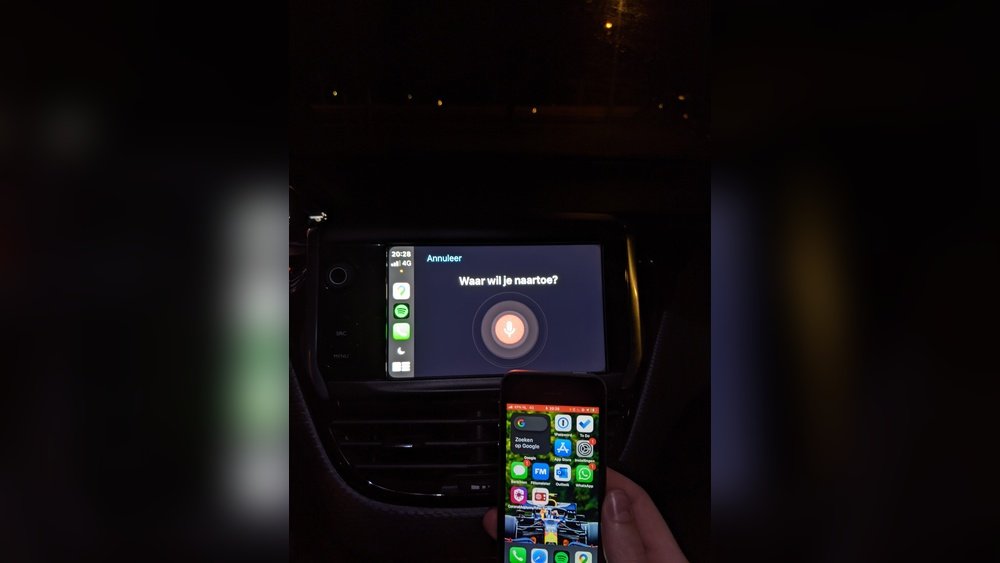
Is your Apple CarPlay microphone not working when you need it most? It’s frustrating when you try to make a call or use voice commands, and your voice just doesn’t come through.
You rely on CarPlay to keep your hands on the wheel and eyes on the road, so a malfunctioning microphone can throw off your entire driving experience. Don’t worry—you’re not alone, and there are simple fixes you can try right now.
Keep reading to discover why this happens and how you can get your CarPlay microphone back in action quickly.
Common Causes Of Microphone Issues
Microphone issues with Apple CarPlay can disrupt calls and voice commands. Many users face this problem without knowing the cause. Understanding common causes helps fix the issue faster. Problems may come from software, hardware, connections, or settings. Each area needs checking to find the root cause.
Software Glitches
Software glitches often stop the microphone from working. Bugs in the iOS or CarPlay system can cause this. Sometimes, apps conflict and block the microphone access. Restarting the phone or updating software can solve these glitches. Keeping software up to date reduces these problems.
Hardware Problems
Hardware issues can also block microphone use. The microphone might be damaged or dirty. Car’s microphone system could have faults from wear or accidents. Testing the microphone with other apps helps find hardware faults. Repair or replacement may be needed if hardware is broken.
Connection Errors
Connection errors happen when CarPlay does not link properly to the phone. Loose cables or bad Bluetooth signals cause these errors. A weak or unstable connection can stop the microphone from working. Checking and securing all connections often fixes this problem quickly.
Settings Misconfiguration
Wrong settings can block the microphone in CarPlay. Privacy or app permissions may be off. Microphone access needs to be allowed for CarPlay and related apps. Audio input settings might also be set incorrectly. Reviewing and adjusting these settings can restore microphone function.

Checking Microphone Permissions
Checking microphone permissions is a key step to fix Apple CarPlay microphone issues. Your iPhone needs permission to use the microphone during CarPlay sessions. Without this permission, CarPlay cannot hear your voice commands or calls. This section guides you through the process of allowing CarPlay access and adjusting privacy settings for the microphone.
Allowing Carplay Access
First, check if your iPhone allows CarPlay to use the microphone. Go to Settings, then tap on “Screen Time” or “Restrictions” if available. Ensure that CarPlay is not blocked from accessing the microphone. Without this permission, your voice will not transmit through the system.
Next, open the Settings app and select “Privacy.” Find “Microphone” in the list. Here, check if the toggle for CarPlay is switched on. Turning it on grants CarPlay the microphone access it needs to work properly. This simple step often solves the problem.
Adjusting Privacy Settings
Privacy settings control which apps and features can use your microphone. Sometimes, these settings can block CarPlay from using the microphone. Make sure your iPhone’s privacy settings are not too strict.
Go to Settings > Privacy > Microphone. Review the apps and system services listed here. Look for any restrictions that might affect CarPlay. Adjust the settings to allow microphone use during CarPlay sessions.
Restart your iPhone after changing privacy settings. This helps apply the new permissions correctly. Then, test CarPlay again to see if the microphone works.
Restarting Devices
Restarting devices is a simple but effective way to fix many tech problems. It clears minor glitches that stop the microphone from working with Apple CarPlay. This quick step often restores normal function without complex troubleshooting.
Both your iPhone and your car’s infotainment system can benefit from a restart. Each device handles data differently, and a reset refreshes their connection. This can solve microphone issues caused by temporary software bugs or frozen apps.
Restarting Your Iphone
Turn off your iPhone by holding the power button and sliding to power off. Wait about 30 seconds before turning it back on. This process closes all running apps and clears minor errors.
After restarting, reconnect your iPhone to Apple CarPlay. Test the microphone to see if it works. This step fixes many common software problems affecting sound input.
Restarting Your Car’s Infotainment System
Locate the power button on your car’s infotainment system. Press and hold it until the screen turns off. Wait for about 20 seconds before turning it back on.
This reset clears temporary bugs in the system’s software. It also refreshes the connection between the car and your iPhone. After restarting, check if the microphone issue is resolved.
Updating Software
Software updates fix bugs and improve device performance. This includes the microphone in Apple CarPlay. Keeping both your iPhone and car system up to date helps avoid many common issues.
Updates can improve how the microphone works with CarPlay. They also add new features and security patches. Skipping updates might cause the microphone to stop working properly.
Updating Ios
Check your iPhone for the latest iOS update. Go to Settings > General > Software Update. Install any available updates. These updates often fix bugs affecting CarPlay.
Restart your phone after updating. This helps the new software run smoothly. Test the microphone again once the update is complete.
Updating Car System Firmware
Your car’s system also needs updates for best performance. Visit the car manufacturer’s website or check your manual for update instructions. Some cars update automatically, others need manual installation.
Follow the steps carefully to avoid errors. Updating the firmware can fix compatibility problems with CarPlay. This may restore the microphone’s proper function.
Inspecting Physical Connections
Inspecting physical connections is a key step to fix Apple CarPlay microphone issues. Loose or damaged cables can cause the microphone to stop working. Checking these connections helps find simple problems fast.
Checking Usb Cables
Start by examining the USB cable that connects your iPhone to the car. Look for any visible damage like cuts or frays. A damaged cable can block data transfer and stop the microphone from working. Try using a different USB cable to see if the problem goes away. Make sure the cable fits tightly in both the phone and car ports. A loose connection can cause voice input errors.
Examining Bluetooth Connection
Bluetooth connects your phone wirelessly to the car. Check if Bluetooth is turned on both devices. Sometimes, a weak or interrupted Bluetooth signal affects the microphone. Turn Bluetooth off and on again to reset the connection. Remove your car from the phone’s Bluetooth list and pair it again. This refresh can fix hidden connection problems.
Resetting Carplay Settings
Resetting CarPlay settings can fix microphone problems quickly. Sometimes, small glitches stop the microphone from working. Resetting clears errors and restores normal function. The process involves resetting network and car system settings. These steps refresh connections and settings for better performance.
Resetting Network Settings
Network issues often cause microphone failures in CarPlay. Resetting network settings refreshes Bluetooth and Wi-Fi connections. Go to your iPhone’s Settings, then tap General. Select Reset, then choose Reset Network Settings. This deletes saved Wi-Fi passwords and Bluetooth devices. After reset, reconnect your iPhone to the car. This step can fix connection problems affecting the microphone.
Resetting Car System Settings
Resetting the car system settings can also help. This clears the car’s stored data and restores default settings. Find the reset option in your car’s infotainment menu. The exact steps vary by car model. Usually, it is under Settings or System. Select the reset option and confirm. After reset, pair your iPhone with CarPlay again. This can solve hidden software bugs that block the microphone.
Using Alternative Microphone Options
Sometimes, the Apple CarPlay microphone may stop working properly. Using another microphone option can help solve this problem. Alternative microphones can give you clear sound for calls and voice commands. This section explains two common options to try.
Built-in Car Microphone
Many cars have a built-in microphone for voice control. This microphone works with CarPlay without extra devices. Check if your car’s microphone is clean and not blocked. Dust or dirt can lower its sound quality. Also, confirm the car settings use the built-in microphone for CarPlay. This option is easy and needs no extra cost.
External Microphone Accessories
External microphones can improve sound quality if the built-in one fails. These devices connect to your phone or car system. They pick up your voice clearly, even in noisy environments. Choose a simple plug-and-play microphone for fast setup. Some models offer noise cancellation to reduce background sounds. External microphones can be a good backup for better voice recognition.
When To Seek Professional Help
Sometimes, fixing the Apple CarPlay microphone issue is not simple. Basic steps may not work. The problem could be technical or hardware-related. At this point, professional help is best. Experts can diagnose and fix the issue safely. Knowing when to seek help saves time and avoids more damage.
Contacting Apple Support
Apple Support has trained experts for CarPlay issues. They guide you through troubleshooting steps. They can check if your device has software bugs. Apple may offer updates or patches to fix bugs. Support can also confirm if your device needs repair.
Contacting Apple Support is easy by phone or chat. They provide clear instructions for your problem. You get help from people who know Apple products well. This option saves you from guessing solutions.
Visiting Car Service Centers
Car service centers handle vehicle electronics and systems. They know how to check the car’s microphone and wiring. Sometimes, the microphone issue comes from the car’s system, not the phone. Service centers can find and fix such problems.
Professionals at the center use tools to test and repair hardware. They ensure the microphone connects properly to CarPlay. Visiting a service center helps if the problem is inside your car. This step is important for complex or physical issues.
Frequently Asked Questions
Why Is My Apple Carplay Microphone Not Working?
Your Apple CarPlay microphone may not work due to connection issues, software glitches, or muted settings. Check the cable, Bluetooth, and microphone permissions. Restart your iPhone and car system to fix temporary bugs that affect the microphone’s function.
How To Fix Apple Carplay Microphone Issues Quickly?
To fix microphone issues, restart your iPhone and car system. Ensure the microphone is not muted or blocked. Update iOS and car firmware. Try reconnecting Apple CarPlay with a certified cable or Bluetooth. Check microphone access in your iPhone’s settings.
Can A Faulty Cable Cause Carplay Mic Problems?
Yes, a faulty or non-certified cable can cause Apple CarPlay microphone failure. Use an Apple-certified Lightning cable for a stable connection. Damaged cables often disrupt audio input, causing the microphone to stop working properly during CarPlay sessions.
Does Ios Update Affect Carplay Microphone Function?
Sometimes iOS updates can cause temporary CarPlay microphone issues. New bugs or compatibility problems may arise after updates. Always update to the latest iOS version and car firmware to fix known bugs and improve microphone performance.
Conclusion
Apple CarPlay microphone issues can be frustrating and disrupt your drive. Checking connections and settings often fixes the problem fast. Sometimes, a simple restart of your phone or car system helps. Keeping your software updated also improves performance. If problems continue, contacting support or visiting a service center is wise.
Clear voice commands make driving safer and easier. Taking quick action saves time and stress on the road. Don’t let a small glitch stop you from enjoying Apple CarPlay fully.




