
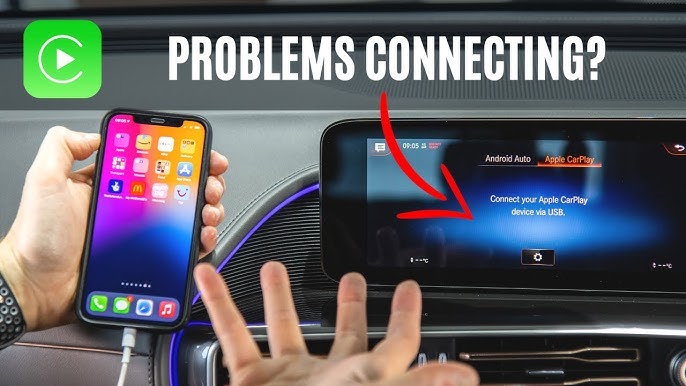
Are you frustrated because your Apple CarPlay won’t detect your iPhone? You’re not alone.
Many people face this problem, and it can feel confusing and annoying when your phone just won’t connect. But don’t worry—there are simple reasons why this happens, and even easier fixes you can try right now. Keep reading to discover what might be blocking your connection and how to get your CarPlay working smoothly again.
Your next drive could be a lot less stressful with the right solution.
Common Causes Of Detection Issues
Apple CarPlay may not detect your iPhone for several reasons. Understanding these common causes can help you fix the issue quickly. Problems usually fall into three main categories: connection problems, software compatibility, and hardware malfunctions. Each affects how your iPhone and CarPlay communicate.
Connection Problems
Connection issues are the most frequent cause of detection problems. A faulty or damaged USB cable can stop CarPlay from working. Wireless connections may fail due to weak Bluetooth or Wi-Fi signals. Ports on the car or phone might be dirty or damaged. Always check cables and ports first. A loose connection can block data transfer.
Software Compatibility
Your iPhone and car system need compatible software versions. Older iOS versions might not support CarPlay properly. The car’s infotainment system also requires updated software to work well. Sometimes, bugs or glitches in software cause detection failure. Updating both your iPhone and car software often solves these problems.
Hardware Malfunctions
Hardware issues can stop CarPlay from recognizing your phone. The iPhone’s Lightning port may have physical damage. The car’s USB ports or head unit might also have faults. Internal hardware failures in either device can block the connection. If connection and software are fine, hardware problems are likely the cause.

Checking Your Iphone Settings
Checking your iPhone settings is a key step to fix CarPlay connection issues. Some settings might block CarPlay from working right. Adjusting these can help your iPhone connect smoothly.
This guide will focus on two important settings you should check. These are enabling CarPlay access and resetting network settings. Both can solve common problems.
Enable Carplay Access
CarPlay access must be turned on for your iPhone. Go to Settings, then tap on General. Find CarPlay and tap it. Check if your car is listed under “My Cars.”
If your car is not listed, tap “Available Cars” to add it. Also, make sure “Allow CarPlay While Locked” is on. This lets CarPlay work even if your phone is locked.
Reset Network Settings
Network issues can stop CarPlay from detecting your iPhone. Resetting network settings can fix this problem. This removes saved Wi-Fi, Bluetooth, and VPN settings.
To reset, open Settings, then tap General. Scroll down and tap “Transfer or Reset iPhone.” Tap Reset, then choose “Reset Network Settings.”
Your iPhone will restart. After that, try connecting to CarPlay again. This often solves connection problems caused by network errors.
Inspecting The Cable And Ports
One of the main reasons Apple CarPlay does not detect your iPhone is a problem with the cable or ports. The connection between your phone and car relies on a good cable and clean, working ports. Faulty cables or dirty ports can stop CarPlay from working properly. Checking these parts is a simple step that can fix many connection issues.
Start by inspecting the cable and ports carefully. A damaged or uncertified cable may cause interruptions. Dirt, dust, or debris in the ports can block the connection. Fixing these small problems can help CarPlay recognize your iPhone quickly.
Use Certified Lightning Cables
Only use Apple-certified Lightning cables. These cables meet Apple’s quality and safety standards. Cheap or fake cables may not work well with CarPlay. They can cause connection drops or no connection at all. Certified cables provide a stable link between your iPhone and car system. Replace old or broken cables with official ones for best results.
Clean And Examine Ports
Check your iPhone’s charging port and the car’s USB port. Dust or lint can block the connection points. Use a soft brush or compressed air to clean the ports gently. Avoid using sharp objects that can damage the connectors. After cleaning, plug the cable back in and test CarPlay. Clean ports allow a smooth connection and help avoid detection problems.
Restarting Devices
Restarting devices often fixes connection problems. It clears small errors that block Apple CarPlay. This step is simple and works in many cases. Try restarting both your iPhone and your car’s system. This can help CarPlay detect your iPhone again.
Reboot Your Iphone
Turn off your iPhone by holding the power button. Slide to power off the screen shows up. Wait 10 seconds before turning it back on. This resets your iPhone’s temporary settings. It can fix issues stopping CarPlay from working.
Restart Your Car’s Infotainment System
Turn off your car’s infotainment system completely. Some cars need you to hold the power button. Others may require turning off the car engine. Wait about 10 seconds before turning it back on. This refreshes the system and clears errors. It helps your car find your iPhone again.
Updating Software
Updating software is a key step to fix Apple CarPlay connection issues. Outdated software can cause compatibility problems. Both your iPhone and car system need the latest updates. Updates include bug fixes and new features. These improve how devices work together.
Update Ios
Start by checking your iPhone’s iOS version. Open Settings and tap General. Select Software Update. If an update is available, tap Download and Install. Keep your iPhone connected to Wi-Fi and power. Installing the latest iOS improves CarPlay support. It also fixes bugs that block detection.
Update Car Firmware
Your car’s firmware controls its system functions. Outdated firmware can stop CarPlay from working well. Visit your car manufacturer’s website for updates. Some cars let you update firmware via USB or Wi-Fi. Follow the instructions carefully to install updates. Updated firmware enhances compatibility with iPhones. It reduces errors and connection problems.
Resetting Carplay Settings
Resetting CarPlay settings can fix many connection problems between your iPhone and car. It clears old data that might block the system. This step often solves detection issues quickly. Follow simple steps to reset and reconnect safely.
Forget Car In Iphone Settings
Open your iPhone and go to Settings. Tap on Bluetooth and find your car’s name. Tap the “i” icon next to the car. Choose “Forget This Device” to remove it. This clears past connection data.
After forgetting the car, restart your iPhone. This helps refresh the connection system. Your iPhone is now ready for a fresh CarPlay link.
Re-pair Device With Car
Turn on your car and enable Bluetooth or CarPlay mode. On your iPhone, open Settings and Bluetooth. Look for your car’s name under available devices. Tap to connect and follow on-screen instructions.
Wait for the devices to pair fully. You might need to enter a code shown on your car screen. Once paired, CarPlay should detect your iPhone without issues.
Troubleshooting Wireless Carplay
Troubleshooting Wireless CarPlay can fix common connection problems. Wireless CarPlay uses Bluetooth and Wi-Fi to link your iPhone and car. If your iPhone is not detected, check these settings first. Simple steps can restore the connection and make your CarPlay work again.
Check Bluetooth And Wi-fi
Wireless CarPlay needs Bluetooth and Wi-Fi to be on. Open your iPhone’s settings. Make sure Bluetooth is enabled. Also, check if Wi-Fi is turned on. Your car and phone must connect through both networks. If either is off, CarPlay won’t detect your iPhone.
Re-establish Wireless Connection
Turn off Bluetooth and Wi-Fi on your iPhone. Wait a few seconds. Turn them back on. This refreshes the connection. Next, restart your car’s infotainment system. Try to pair your iPhone again. This often solves detection problems. Try this step before more complex fixes.
When To Seek Professional Help
Sometimes, Apple CarPlay does not detect your iPhone despite basic troubleshooting. At this point, you might need expert help. Professionals can find issues that are not obvious. They use tools and knowledge to fix complex problems. Seeking help can save time and avoid frustration. It ensures your device and car system work well again.
Authorized Service Centers
Authorized service centers have trained technicians for Apple and car systems. They use genuine parts and follow official repair guidelines. These centers can diagnose hardware or software issues that block CarPlay connection. Visiting them ensures your device remains under warranty. They also provide reliable repairs to keep your iPhone and car safe.
Apple Support Options
Apple Support offers various ways to get help. You can contact them via phone, chat, or email. They provide step-by-step guidance for CarPlay problems. Apple experts can check for software updates or settings errors remotely. Sometimes, they suggest sending your iPhone for repair or replacement. This service ensures your device works correctly with CarPlay.
Frequently Asked Questions
Why Won’t Apple Carplay Detect My Iphone?
Apple CarPlay may not detect your iPhone due to faulty cables, outdated iOS, or disabled CarPlay settings. Check your cable connection, update your iPhone, and enable CarPlay in Settings to fix detection issues quickly.
How Do I Fix Apple Carplay Not Connecting?
Restart your iPhone and car infotainment system. Use an original Apple cable for wired connections. Ensure CarPlay is allowed while locked in your iPhone settings to resolve connection problems.
Can Software Updates Affect Carplay Detection?
Yes, outdated iOS or car firmware can cause CarPlay detection issues. Regularly update your iPhone and car system software to ensure smooth CarPlay functionality and avoid connectivity problems.
Does Bluetooth Impact Apple Carplay Detection?
Bluetooth is required for wireless CarPlay. If Bluetooth is off or malfunctioning, CarPlay might not detect your iPhone. Turn on Bluetooth and ensure your device is paired correctly to fix this issue.
Conclusion
Apple CarPlay might not detect your iPhone due to simple issues. Check your cable, connection, and settings first. Restarting both devices often helps solve the problem quickly. Make sure your iPhone’s software and your car’s system are up to date.
Sometimes, a small glitch causes the connection to fail. Patience and a few quick checks usually fix the issue. Keep trying, and your CarPlay will work smoothly again. Don’t give up—technology can be tricky but manageable.




