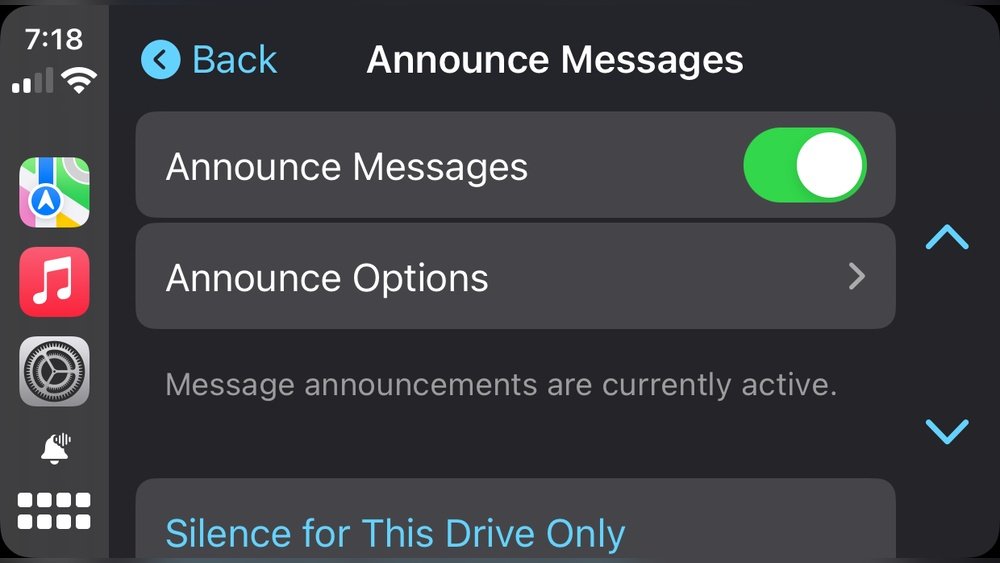
Are you frustrated because Apple CarPlay text messaging suddenly stopped working while you’re on the road? You’re not alone.
When this feature fails, it can disrupt your hands-free communication and make driving less safe and more annoying. But don’t worry—understanding why Apple CarPlay text messaging isn’t working can help you fix the problem quickly. You’ll discover the common reasons behind this issue and simple steps you can take to get your messages back on track without hassle.
Keep reading to regain control of your CarPlay experience and stay connected safely.
Common Reasons Carplay Text Messaging Fails
Apple CarPlay makes texting easy and safe while driving. Still, sometimes the text messaging feature stops working. Several common problems cause CarPlay text messaging to fail. Knowing these can help fix the issue quickly.
Compatibility Issues
Not all cars or iPhones support Apple CarPlay fully. Some older car models may lack full CarPlay features. Also, older iPhone versions might not support text messaging through CarPlay. Check if your car and phone support the latest CarPlay updates. Without compatibility, text messaging may not work at all.
Connectivity Problems
CarPlay needs a strong connection between your iPhone and car. Poor Bluetooth or USB connections cause text messaging to fail. Loose cables or weak wireless signals disrupt data flow. Restarting your phone and reconnecting the cable often helps. Always ensure your phone is properly paired with the car.
Software Glitches
Software bugs in iOS or the car’s system affect CarPlay functions. Glitches can block text messages or cause delays. Updating both the iPhone and car software often fixes these issues. Sometimes, a quick restart of your devices clears temporary bugs. Running the latest software version keeps CarPlay smooth.
Settings Misconfigurations
Wrong settings on your iPhone or car can stop text messaging. Notifications might be turned off, or Do Not Disturb mode may be active. Check that CarPlay is allowed to access messages. Make sure Siri is enabled for voice texting. Correct settings ensure messages send and read properly.

Checking Your Iphone And Carplay Setup
Checking your iPhone and CarPlay setup is the first step when Apple CarPlay text messaging is not working. Problems often come from simple setup issues. Understanding these basics can help fix the issue quickly. This section covers key points to check on your iPhone and in your car.
Verifying Iphone Ios Version
Check if your iPhone runs the latest iOS version. Older software may cause CarPlay problems. Go to Settings > General > Software Update. Install any available updates. Updated iOS improves compatibility and fixes bugs that affect text messaging.
Inspecting Carplay Compatibility
Make sure your car supports Apple CarPlay. Not all cars have this feature. Check your car’s manual or manufacturer website. Some models need a software update to support CarPlay. Confirming compatibility avoids wasted troubleshooting steps.
Confirming Usb Or Wireless Connection
Check the connection type between your iPhone and car. CarPlay works via USB cable or wirelessly. For USB, use an original or certified cable. Loose or damaged cables can cause connection issues. For wireless CarPlay, ensure Bluetooth and Wi-Fi are on. Both devices must be paired correctly.
Fixes For Carplay Text Messaging Issues
CarPlay text messaging problems can be frustrating during drives. Simple fixes often solve these issues quickly. Try these steps to restore smooth texting with CarPlay.
Restarting Devices
Turn off your iPhone and car’s infotainment system. Wait a few seconds. Turn both back on. Restarting clears temporary glitches. This step often resolves messaging failures.
Resetting Network Settings
Go to iPhone Settings, then General. Tap Reset, then Reset Network Settings. This removes saved Wi-Fi and Bluetooth connections. Reconnect to your car after reset. It helps fix connection problems affecting texts.
Updating Software
Check for iPhone and car system updates. Open Settings, tap General, then Software Update. Install any available updates. Updates fix bugs and improve CarPlay features. Keeping software current avoids many texting issues.
Reconnecting Carplay
Disconnect your iPhone from CarPlay. On your iPhone, go to Settings, then General, and CarPlay. Select your car and tap Forget This Car. Reconnect your iPhone using a USB cable or Bluetooth. This refreshes the link and often restores messaging function.

Adjusting Message And Notification Settings
Adjusting message and notification settings plays a key role in fixing Apple CarPlay text messaging issues. These settings control how your messages appear and alert you on the CarPlay screen. Proper configuration ensures smooth message delivery and notification alerts while driving.
Small changes in your iPhone’s message and notification settings often solve the problem. Making sure your phone and CarPlay communicate correctly is essential for safe and easy texting on the road.
Enabling Text Message Forwarding
Text message forwarding allows your iPhone to send and receive SMS messages on other devices. Check if this feature is turned on for your CarPlay device. Go to Settings, then Messages, and tap Text Message Forwarding. Enable your car’s system or the device connected to CarPlay. This lets messages sync properly and appear on your CarPlay screen.
Allowing Notifications Access
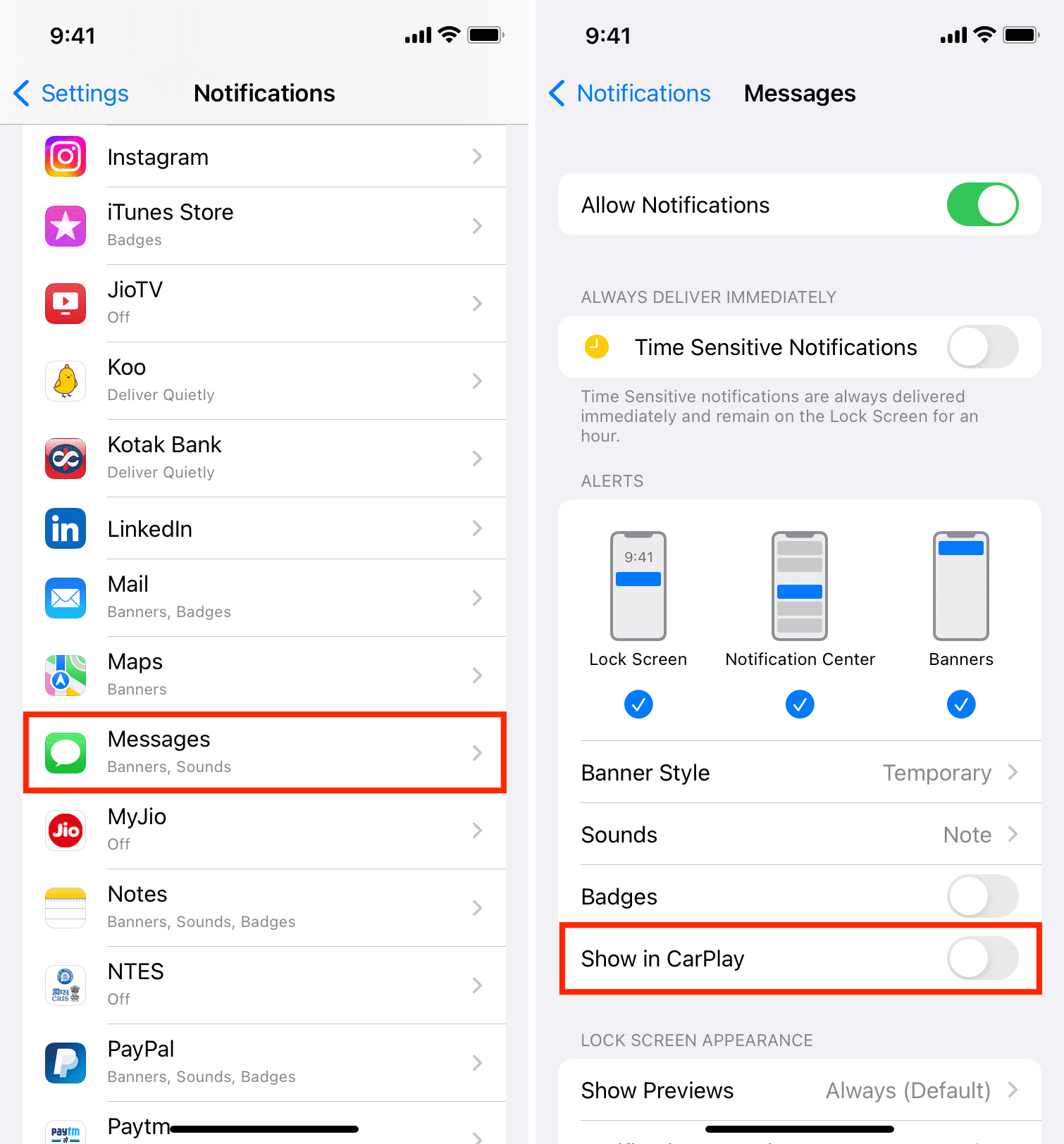
Notifications must be allowed for the Messages app to show alerts on CarPlay. Open Settings on your iPhone, select Notifications, and find Messages. Turn on Allow Notifications and choose your alert style. Enable sounds and banners to stay updated. Without notification access, message alerts won’t appear while driving, causing confusion or missed texts.
Configuring Do Not Disturb Modes
Do Not Disturb mode can block message notifications on CarPlay. Check if this mode is active on your iPhone or in your car’s system. Disable Do Not Disturb or adjust its settings to allow notifications from Messages. You can set exceptions for important contacts or apps. This helps you receive necessary alerts without distractions during your drive.
Troubleshooting Advanced Problems
Troubleshooting advanced problems with Apple CarPlay text messaging needs careful steps. Basic fixes might not work for deeper issues. This section guides you through detailed methods to fix the problem.
Follow these steps closely to improve your CarPlay messaging experience. These tips can help restore smooth texting functions.
Checking Bluetooth And Wi-fi
Apple CarPlay needs both Bluetooth and Wi-Fi to connect properly. Check that Bluetooth is turned on for your iPhone and car system. Make sure Wi-Fi is active and stable. If the connection drops, text messaging may fail. Try turning Bluetooth and Wi-Fi off and on again. This simple reset often solves hidden connection issues.
Clearing Cache And Temporary Files
Cache and temporary files can cause app glitches. Clear these files on your iPhone to improve performance. Navigate to settings and find the storage or app management section. Remove old cache files related to messaging apps. This clears space and removes corrupted data that blocks texting. Restart your phone after clearing cache to refresh the system.
Resetting Car’s Infotainment System
Sometimes, the car’s infotainment system needs a reset. This clears bugs that affect CarPlay functions. Locate the reset option in your car’s settings menu. Follow instructions to restart the system safely. If unsure, consult the car manual. A reset often restores full messaging capabilities and fixes software conflicts.
When To Seek Professional Help
Sometimes, fixing Apple CarPlay text messaging issues needs expert help. Basic checks may not solve the problem. At this point, turning to professionals saves time and stress. They have tools and knowledge to find the exact cause.
Contacting Apple Support
Apple Support offers direct help for CarPlay problems. They guide through troubleshooting steps clearly. Support agents understand common and rare issues. Contacting them can quickly clarify if it’s a software bug or setup error. They may suggest updates or resets to fix messaging glitches.
Visiting Authorized Service Centers
Authorized centers provide hands-on help with Apple CarPlay. Skilled technicians check your device and vehicle systems. They inspect hardware connections that might block text messaging. Service centers use official tools to diagnose problems. Visiting these centers ensures genuine repairs and parts.
Frequently Asked Questions
Why Is Apple Carplay Text Messaging Not Working?
Apple CarPlay text messaging may fail due to connectivity issues, outdated iOS, or app restrictions. Ensure your iPhone is connected via USB or Bluetooth. Update iOS and CarPlay apps. Also, check if Do Not Disturb mode or messaging permissions are enabled properly.
How To Fix Apple Carplay Text Messaging Issues?
To fix text messaging issues, restart your iPhone and car system. Check for iOS updates and reset network settings. Also, ensure that Siri and CarPlay permissions are enabled. Disconnect and reconnect your device to refresh the connection.
Can Bluetooth Affect Apple Carplay Text Messaging?
Yes, Bluetooth problems can disrupt CarPlay text messaging. A weak or unstable Bluetooth connection causes message delays or failures. Try turning Bluetooth off and on or reconnecting your iPhone to the car’s system to restore proper functionality.
Does Do Not Disturb Block Carplay Text Messages?
Yes, Do Not Disturb mode can block CarPlay text messages. When enabled, it silences notifications and messages to prevent distractions. Disable Do Not Disturb on your iPhone or car system to receive text messages via CarPlay.
Conclusion
Apple CarPlay text messaging issues can frustrate any driver. Checking your phone’s settings often solves the problem. Make sure your software is up to date. Restarting your devices can also help fix glitches. Sometimes, simple cable or Bluetooth issues cause trouble.
Staying patient and trying these steps works best. Your messages should work smoothly soon. Keep your devices connected properly for better use. Troubleshooting is easier than it seems. Don’t give up; clear communication matters while driving.




