
Are you struggling with CarPlay calling not working when you need it most? It’s frustrating when your phone and car just won’t connect the way they should, especially during important calls.
You rely on CarPlay to keep your hands on the wheel and eyes on the road, but when calling fails, it feels like the system has let you down. You’ll discover the common reasons behind this issue and simple fixes you can try right now.
Don’t let CarPlay calling problems slow you down—keep reading to get back on track quickly and safely.

Common Causes Of Carplay Calling Issues
CarPlay calling issues can be frustrating during drives. Understanding common causes helps solve problems faster. Several factors can disrupt the calling function on CarPlay. These range from simple connection troubles to hardware faults.
Connection Problems
Connection issues often stop CarPlay calls from working. Bluetooth or USB cables might not connect properly. Weak or unstable signals can cause call failures. Interruptions in the phone’s network also affect call quality. Ensuring a stable connection is crucial for smooth calling.
Software Glitches
Software bugs can block calling features on CarPlay. Outdated iOS or car system software may cause errors. Sometimes, apps crash or freeze unexpectedly. Restarting devices or updating software often fixes these glitches. Regular updates improve CarPlay’s performance and call reliability.
Compatibility Issues
Not all phones and cars fully support CarPlay calls. Older models might lack certain features. Some apps might not work with CarPlay’s calling function. Checking device compatibility can prevent confusion. Matching phone and car systems ensures smooth calls.
Hardware Malfunctions
Physical damage or wear can affect CarPlay calling. Faulty microphones or speakers may cause poor audio. USB ports or Bluetooth modules might fail. Inspecting and repairing hardware parts can restore call functions. Proper maintenance keeps CarPlay running well.

Troubleshooting Quick Fixes
CarPlay calling issues can be frustrating. Many problems have simple solutions. Quick fixes often solve connection or call problems fast. Below are easy steps to try before deeper troubleshooting.
Restart Your Devices
Turn off your iPhone and car system. Wait about 30 seconds. Turn them back on. Restarting clears minor glitches. This step often restores CarPlay calling functions.
Check Bluetooth And Wi-fi Settings
CarPlay needs Bluetooth and Wi-Fi to work. Ensure both are turned on your iPhone. Check your car’s settings too. Sometimes toggling them off and on helps reconnect devices.
Update Ios And Car Firmware
Outdated software can cause calling problems. Check for updates on your iPhone. Also, check your car’s system for firmware updates. Installing updates improves compatibility and fixes bugs.
Reset Network Settings
Resetting network settings clears connection errors. On your iPhone, go to Settings > General > Reset > Reset Network Settings. This deletes saved Wi-Fi passwords. You will need to reconnect to networks afterward.
Advanced Solutions
Advanced solutions help fix CarPlay calling problems that basic fixes can’t solve. These steps dig deeper into the issue. They check software, hardware, and compatibility. Follow each method carefully for best results.
Reinstall Carplay
Deleting and reinstalling CarPlay resets the connection. Start by removing your iPhone from the CarPlay settings. Restart both your phone and car system. Then, reconnect your iPhone to CarPlay. This process clears temporary bugs. It often restores calling functions.
Inspect Usb Cable And Ports
Faulty cables or dirty ports cause connection issues. Check your USB cable for any damage or wear. Try a different certified Apple cable if possible. Look inside the car’s USB port for dust or debris. Clean the port gently with a soft brush or air blower. Good connections help CarPlay work smoothly.
Test With Another Iphone
Testing with another iPhone helps spot device-specific problems. Connect a different iPhone to CarPlay. If calling works, your first iPhone needs further checks. If not, the issue may be with your car’s system. This step narrows down the cause quickly.
Consult Car Manufacturer Support
Car makers provide support for CarPlay issues. Contact your car’s customer service for help. They can offer updates or fixes for your vehicle’s system. Some cars need software updates to improve CarPlay. Manufacturer advice is useful for complex problems.
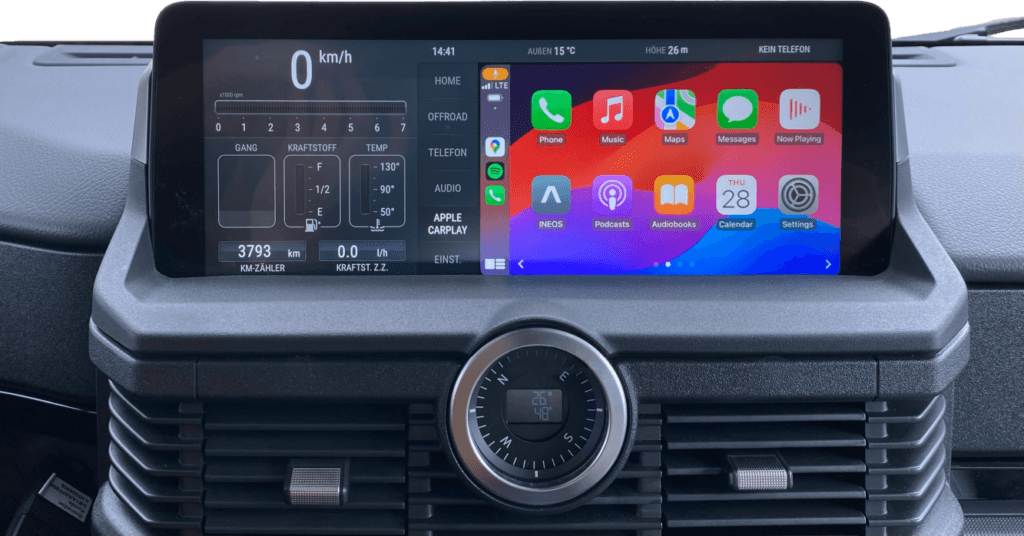
Preventing Future Carplay Call Issues
Preventing future CarPlay call issues helps keep your driving safe and stress-free. Simple steps protect your connection and improve call quality. Small habits can stop problems before they start. Follow these tips to enjoy smooth CarPlay calls every time.
Regular Software Updates
Keep your iPhone and car system updated. Updates fix bugs that affect calls. They add new features and improve stability. Check for updates often and install them quickly. Updated software means fewer call problems.
Proper Device Pairing
Pair your iPhone with your car correctly. Follow the car’s instructions carefully. Remove old or unused devices from the list. Clear pairing errors by restarting devices. Proper pairing ensures clear and reliable calls.
Maintaining Hardware Condition
Keep your iPhone and car’s USB ports clean. Check cables for damage and replace if needed. Avoid using cheap or broken accessories. Hardware issues can block CarPlay calls. Well-maintained devices work smoothly together.
Safe Usage Practices
Don’t use your phone while driving. Let CarPlay handle calls hands-free. Avoid heavy multitasking that may cause glitches. Restart your phone or car system if calls fail. Safe habits protect both calls and your focus on the road.
Frequently Asked Questions
Why Is Carplay Calling Not Connecting?
CarPlay calling may fail due to Bluetooth issues or poor iPhone connection. Ensure your iPhone is updated and Bluetooth is enabled. Restart your devices and reconnect CarPlay to fix the issue quickly.
How To Fix Carplay Call Audio Problems?
Check your iPhone volume and speaker settings. Restart the iPhone and vehicle system. Update iOS and car firmware to improve call audio quality and resolve common glitches.
Can Carplay Calling Stop Working After Ios Update?
Yes, some iOS updates cause temporary CarPlay calling issues. Restart devices and check for patches. If problems persist, reset network settings or contact Apple support.
Is Bluetooth Interference Causing Carplay Call Failure?
Bluetooth interference can disrupt CarPlay calls. Move away from other Bluetooth devices or Wi-Fi routers. Re-pair your iPhone to the car’s system to eliminate interference and restore call function.
Conclusion
CarPlay calling issues can stem from simple problems. Check your phone’s Bluetooth and connection first. Restart your devices to clear temporary glitches. Make sure your iOS and CarPlay are updated. Sometimes, resetting network settings helps fix the problem. Keep cables and ports clean and undamaged.
These easy steps often restore calling functions quickly. Staying patient and trying these fixes works best. Don’t let small issues stop your hands-free calls. Keep your system running smoothly for safer driving.




