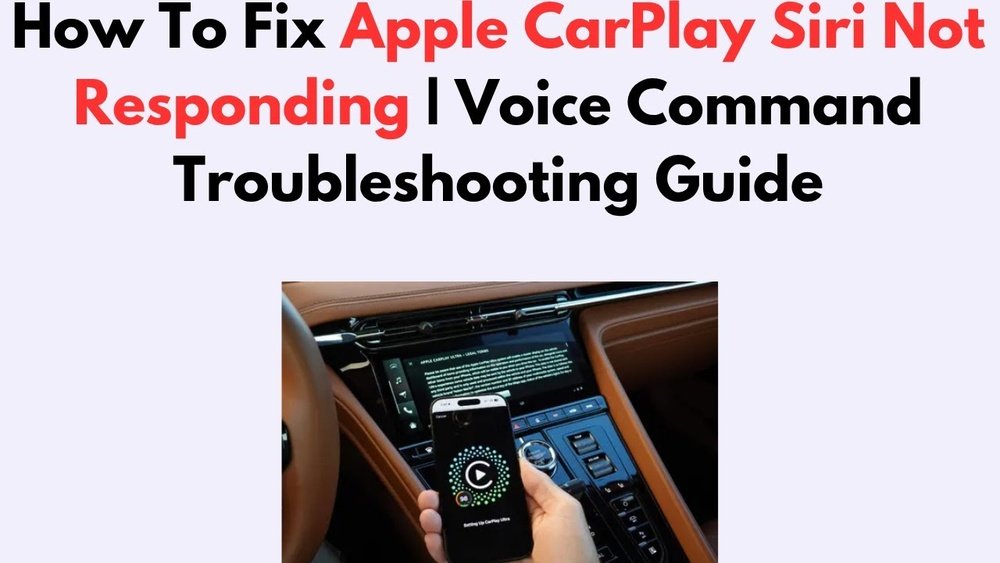
Are you frustrated because your CarPlay isn’t picking up your voice commands? You’re not alone.
When your voice assistant doesn’t respond, it can feel like your hands are tied—especially when you need to keep your focus on the road. Understanding why CarPlay struggles with voice recognition can save you time and stress. You’ll discover the common reasons behind this issue and simple fixes you can try right now.
Keep reading to get your voice commands working smoothly again and make your driving experience safer and easier.
Common Voice Command Issues
CarPlay voice commands may stop working due to common issues. These problems often affect how your device hears and processes your voice. Understanding these issues helps fix the problem faster. Below are the main causes of voice command failures in CarPlay.
Microphone Problems
The microphone might be blocked or damaged. Dirt or covers can stop it from picking up sound. Sometimes, the microphone setting is turned off by mistake. Test the mic by using voice commands in other apps. Replace or clean the microphone if it does not work well.
Software Glitches
Software bugs can cause voice commands to fail. An outdated system often leads to errors. Restarting your iPhone or car system can clear minor glitches. Keep the software updated to improve voice command performance. Resetting network settings also helps in some cases.
Connectivity Errors
CarPlay needs a strong connection to recognize commands. Loose cables or weak Bluetooth signals cause disruptions. Check all connections and try reconnecting your device. Using original cables reduces connection issues. Poor connectivity often results in delayed or missed commands.

Checking Device Compatibility
Checking device compatibility is the first step in fixing CarPlay voice command issues. CarPlay works only with certain iPhone models and system versions. Knowing if your device matches the requirements helps avoid frustration. It saves time by ruling out incompatibility as the cause.
Supported Iphone Models
CarPlay supports iPhone 5 and later models. Older iPhones do not work with CarPlay. Your iPhone must have a Lightning connector or wireless CarPlay capability. Devices like iPhone 4 or earlier cannot use CarPlay features.
Make sure your iPhone is updated to the latest iOS version. Updates often fix bugs and improve CarPlay functions. Having a supported iPhone model is essential for voice command recognition.
Carplay System Requirements
CarPlay needs iOS 7.1 or higher to run. Some voice commands require newer system versions for full support. Check the iOS version in your iPhone settings under General > About.
Your car’s infotainment system must support CarPlay too. Not all vehicles have this feature. Verify your car model and software version match CarPlay compatibility lists.
Troubleshooting Settings
Troubleshooting settings is the first step to fix CarPlay voice command issues. Many problems happen because of simple setting errors. Checking and adjusting these settings can help CarPlay hear you clearly. It also ensures the system understands your voice commands correctly. Follow these tips to make sure your CarPlay works smoothly.
Enable Siri And Voice Control
Siri must be turned on for CarPlay voice commands. Go to your iPhone settings and find Siri & Search. Make sure “Listen for ‘Hey Siri’” and “Press Side Button for Siri” are enabled. Also, check that Voice Control is on. This allows CarPlay to respond when you speak. Without these, CarPlay won’t recognize your commands.
Adjust Microphone Sensitivity
Microphone settings affect how well CarPlay hears you. Some cars have a mic sensitivity option in the settings menu. Increase the sensitivity if CarPlay misses your commands. A low setting makes the mic less responsive. Try speaking closer to the mic to see if it improves recognition. Clear any objects blocking the microphone too.
Check Language And Region
CarPlay uses language settings to understand your speech. Your iPhone and CarPlay must have matching language options. Go to Settings > General > Language & Region on your phone. Pick the language you speak clearly. Make sure your region matches your location. Wrong settings can confuse the system and stop voice commands from working.

Connection Fixes
Connection issues often cause CarPlay to miss voice commands. Fixing these connections can restore proper function quickly. Try simple steps to refresh your device links and clear any glitches. These fixes improve communication between your iPhone and your car’s system.
Restart Bluetooth And Wi-fi
Bluetooth and Wi-Fi connect your iPhone to CarPlay. Turning them off and on resets the signals. Open your iPhone’s settings. Switch off Bluetooth and Wi-Fi. Wait a few seconds, then switch them back on. This simple step can fix many connection problems.
Re-establish Usb Connection
A faulty USB cable or port can block voice commands. Unplug the USB cable from your car and phone. Check the cable for damage or dirt. Reconnect the cable firmly to both devices. Try a different USB port or cable if the problem stays. This helps clear any physical connection issues.
Reset Network Settings
Network settings include all Wi-Fi and Bluetooth connections. Resetting them clears errors that block CarPlay. Go to your iPhone’s settings and choose Reset. Select Reset Network Settings. This deletes saved connections but often solves stubborn problems. After resetting, reconnect your devices and test CarPlay voice commands again.
Software Updates
Software updates play a key role in keeping CarPlay voice commands working well. These updates fix bugs and improve system performance. Without the latest updates, voice commands may not work as expected.
Both your iPhone and car’s infotainment system need the latest software. Updates make sure the devices understand each other perfectly. Ignoring updates can cause communication problems between your phone and car.
Update Ios
Keep your iPhone’s iOS up to date. Apple releases updates regularly to improve CarPlay features. These updates fix bugs that may stop voice commands from working.
Check for updates by going to Settings > General > Software Update. Download and install any available updates. Restart your phone after updating to refresh the system.
Update Car Infotainment System
Your car’s infotainment system also needs updates. Car makers release updates to fix bugs and add new features. Outdated software can cause voice command errors in CarPlay.
Visit your car manufacturer’s website or contact the dealer to find update instructions. Many cars allow updates via USB or Wi-Fi. Follow the steps carefully to install the latest version.
Advanced Solutions
Advanced solutions help fix CarPlay not recognizing voice commands. Basic fixes may fail. These steps dig deeper into the system settings and software.
Resetting or restoring settings often clears hidden errors. Sometimes, professional help is necessary. Below are the key advanced methods.
Reset Carplay Settings
Resetting CarPlay settings can clear corrupted data. Go to your iPhone’s Settings, then General, and select CarPlay. Choose your car and tap “Forget This Car.”
After this, reconnect your iPhone to your vehicle. This resets the CarPlay connection and can solve voice command issues.
Factory Reset Vehicle System
Performing a factory reset on your car’s infotainment system erases all custom settings. This step removes software glitches causing voice command failures.
Check your vehicle’s manual for reset instructions. Make sure to back up important settings before starting the reset.
Contacting Support
Contact Apple Support or your car manufacturer’s help center. They provide guidance for complex CarPlay problems. Sometimes, a software update or repair is needed.
Explain your issue clearly and mention the steps you already tried. Support teams can offer tailored solutions to restore voice command functionality.
Frequently Asked Questions
Why Is Carplay Not Responding To Voice Commands?
Carplay may not respond due to microphone issues, software glitches, or connectivity problems. Check your mic and update iOS. Restarting both phone and car system often resolves this issue quickly.
How To Fix Carplay Voice Command Recognition Issues?
Try restarting your iPhone and car system. Ensure your iOS is updated. Check microphone settings and remove any obstructions. Also, reconnect Carplay via USB or Bluetooth to reset the connection.
Can Software Updates Improve Carplay Voice Command Accuracy?
Yes, software updates often fix bugs affecting voice recognition. Keep your iPhone and car infotainment system updated regularly to ensure Carplay functions smoothly with accurate voice commands.
Does Background Noise Affect Carplay’s Voice Recognition?
Yes, loud background noise can interfere with Carplay’s microphone. Try to minimize noise inside the car or speak clearly and directly toward the microphone for better recognition.
Conclusion
CarPlay not recognizing voice commands can be frustrating. Check your microphone and internet connection first. Restart your phone and car system to fix small glitches. Keep your software updated for better performance. Speak clearly and avoid background noise when using voice commands.
These simple steps often solve common issues. If problems continue, consult your car manual or support. Staying patient helps you get the most from CarPlay voice features.




