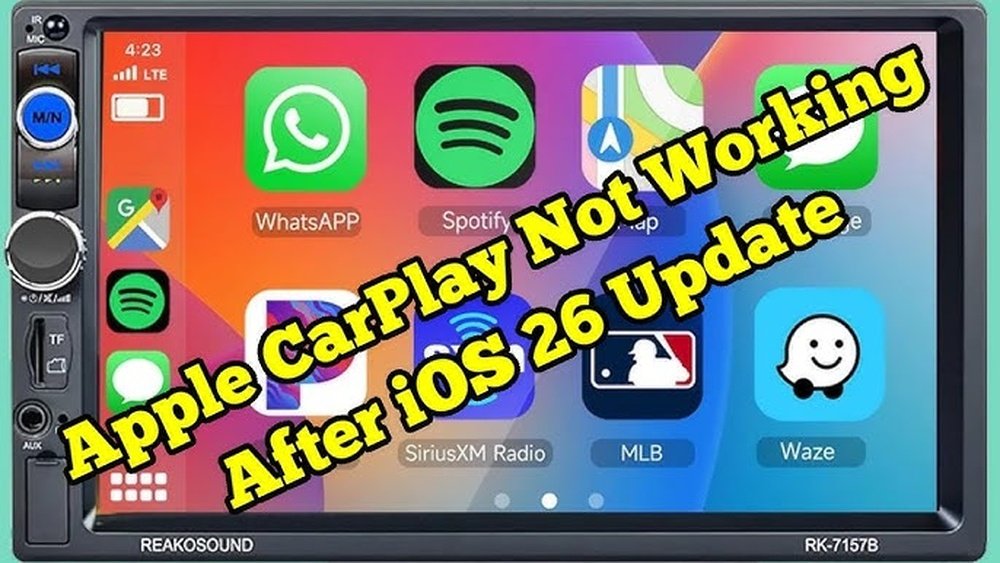
Have you ever updated your device, only to find that CarPlay suddenly stops working? It’s frustrating when something that made your drives easier and safer just won’t connect.
You rely on CarPlay to keep your music, maps, and calls right at your fingertips. So, when it doesn’t work after an update, it feels like everything’s thrown off balance. Don’t worry—you’re not alone, and there are simple reasons behind this problem.
Keep reading to discover why CarPlay might not be working after your update and how you can fix it quickly.
Common Causes Of Carplay Issues
CarPlay not working after an update is a common problem for many users. Several reasons can cause this issue. Knowing these causes helps to fix CarPlay faster. The problem often comes from compatibility, software, or connection errors. Understanding these points makes troubleshooting easier.
Compatibility Problems
CarPlay needs both your iPhone and car system to match well. Updates can change iOS or car firmware. Sometimes, the new version does not work with older car models. This mismatch stops CarPlay from running properly. Also, some apps may not support the latest update. Checking compatibility is the first step to solve the issue.
Software Glitches
Updates can bring bugs or errors in the system. These glitches affect CarPlay functions. A small software fault can stop CarPlay from connecting. Sometimes, the update process itself does not complete correctly. This causes parts of the system to freeze or crash. Restarting the phone or car system often fixes these glitches.
Connection Errors
CarPlay relies on a strong link between your phone and car. Problems with cables or Bluetooth can break this link. A faulty USB cable or dirty port may stop CarPlay from working. Wireless connections can also fail due to interference. Ensuring a good connection is key to using CarPlay smoothly.
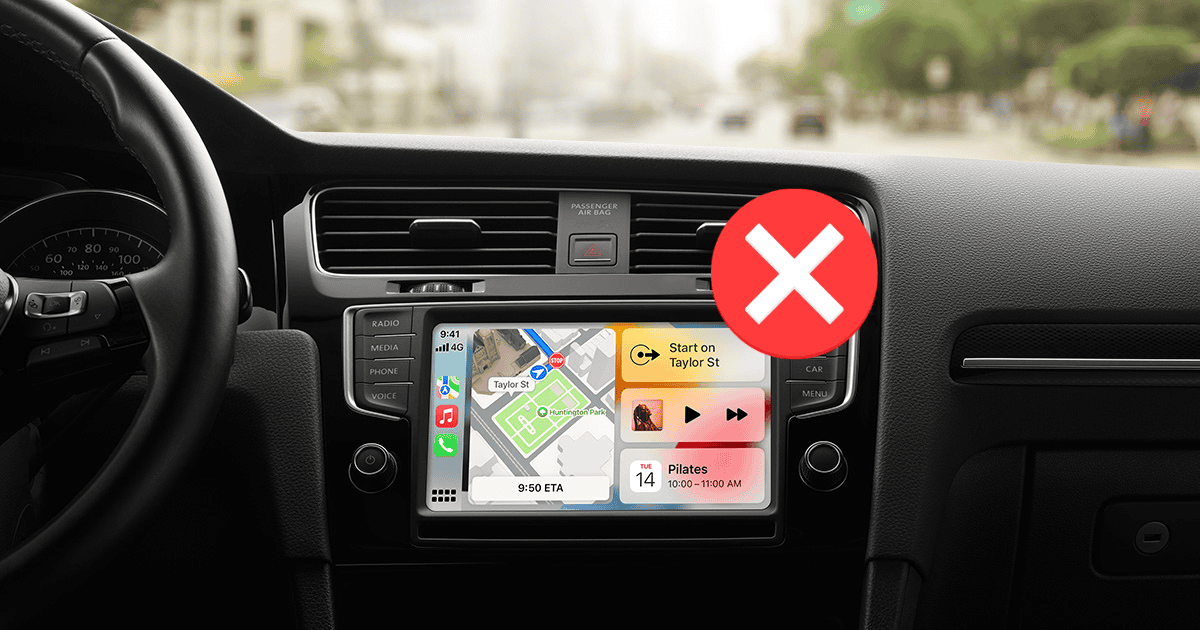
Check Your Iphone Settings
Sometimes CarPlay stops working right after an update. The problem often lies in your iPhone settings. Checking these settings can help fix the issue quickly. Small changes can make a big difference in how CarPlay works. Let’s explore key settings to check on your iPhone.
Enable Carplay
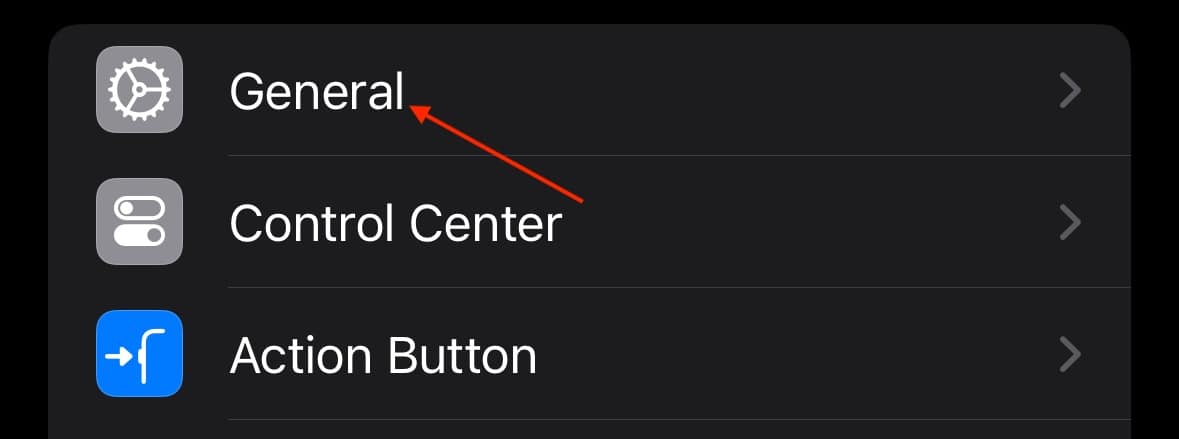
CarPlay must be turned on for your iPhone to connect to your car. Open the Settings app, then tap “General.” Find “CarPlay” and check if your car is listed. If not, tap “Available Cars” and select your vehicle. Make sure CarPlay is enabled for your car. This simple step often solves connection problems.
Reset Network Settings
Network settings affect how your iPhone connects to your car. Resetting these settings can clear errors. Go to Settings, tap “General,” then “Reset.” Choose “Reset Network Settings.” This deletes Wi-Fi passwords and Bluetooth connections. Don’t worry. You can re-enter passwords later. This reset often fixes CarPlay connection bugs.
Update Ios Version
Your iPhone needs the latest iOS version for smooth CarPlay use. Check for updates by opening Settings, then tap “General.” Select “Software Update” and see if a new version is available. Installing the latest update can fix bugs that block CarPlay. Keeping iOS updated improves overall performance too.
Inspect Your Vehicle’s System
After updating your device or CarPlay, issues may arise because of your vehicle’s system. Checking your car’s system helps find the problem fast. The car’s software, connection settings, or temporary glitches might cause CarPlay to stop working.
Some simple steps can fix these issues. Start by looking at the system software. Then, try restarting the entire car system. Finally, clear any old Bluetooth connections that might interfere.
Update Infotainment Software
Your car’s infotainment system needs regular updates. These updates fix bugs and improve compatibility. Check your car’s settings for any available software updates. Download and install them if needed. Updated software often restores CarPlay function after an update.
Restart The Car System
Restarting resets the system and clears minor glitches. Turn off your car completely. Wait a few minutes before turning it back on. This simple step can refresh the system and help CarPlay connect again.
Clear Bluetooth Connections
Old Bluetooth pairings can block CarPlay. Remove all saved Bluetooth devices from your car’s settings. Then, reconnect your iPhone fresh. This clears conflicts and lets CarPlay link properly with your phone.
Troubleshoot Connection Methods
Troubleshooting connection issues is a key step when CarPlay stops working after an update. Connection problems often cause CarPlay to fail. Checking cables, ports, and connection types can help find the problem quickly.
Simple fixes like switching cables or trying wireless mode often restore CarPlay function. Testing different hardware parts also helps narrow down the issue. These easy steps save time and avoid frustration.
Use A Different Usb Cable
Some USB cables may not work well after updates. Try another cable that supports data transfer, not just charging. A damaged or low-quality cable can block CarPlay from connecting. Using a certified cable usually improves reliability.
Switch Between Wired And Wireless
CarPlay works with both wired and wireless connections. Switch to wireless mode if wired fails. Try plugging the cable back in if wireless is unstable. Changing connection types can reset the link and fix glitches.
Test Usb Ports
USB ports can become faulty or dirty over time. Plug the cable into a different port in your car. Clean the ports gently to remove dust or debris. A clean, working port ensures a stable connection for CarPlay.
Reset And Restore Options
Reset and restore options can fix many issues with CarPlay after an update. These steps clear old data and refresh settings. They help your system work like new again.
Try resetting CarPlay settings first. It is quick and safe. If that does not work, a factory reset of the infotainment system may be needed. This resets the whole system to default.
Restoring your iPhone settings is another option. It fixes any iPhone-related problems affecting CarPlay. Each step is important for a smooth CarPlay experience.
Reset Carplay Settings
Go to your iPhone’s Settings, then General. Find CarPlay and select your car. Tap “Forget This Car” to remove old connections. Restart your phone and reconnect to CarPlay. This clears glitches and outdated settings.
Factory Reset Infotainment System
Check your car’s manual for reset instructions. Usually, it involves pressing buttons or using the touchscreen menu. A factory reset deletes all data and resets the system. Afterward, set up CarPlay again from scratch.
Restore Iphone Settings
Open Settings on your iPhone, then tap General. Scroll down and select Reset. Choose “Reset All Settings” to restore default preferences. Your data stays safe, but system settings reset. This can solve iPhone issues blocking CarPlay.
When To Seek Professional Help
Sometimes, fixing CarPlay issues after an update is tricky. Basic troubleshooting might not solve the problem. Knowing when to seek professional help can save time and frustration. Professionals have tools and knowledge to diagnose and fix complex problems quickly.
Contact Apple Support
Apple Support offers expert advice for CarPlay issues. They can guide through advanced steps. They check if the problem is related to software or account settings. Contacting them helps to confirm if the update caused the issue. Their help is free and available online or by phone.
Visit Car Dealership
Car dealerships have trained technicians for vehicle systems. They check the car’s software and hardware compatibility with CarPlay. Dealerships can update the car’s system if needed. They also test CarPlay connections inside the car. Visiting them ensures the vehicle side is working well.
Check For Hardware Damage
Hardware issues can stop CarPlay from working. Damage to USB cables, ports, or the car’s infotainment system might cause failures. Professionals can inspect and test these parts carefully. Repair or replacement of damaged hardware may be necessary. This step is important if software fixes fail.

Frequently Asked Questions
Why Is Carplay Not Working After Ios Update?
CarPlay may fail after an iOS update due to software bugs or compatibility issues. Restart your iPhone and car system. Check for additional updates and ensure your USB or Bluetooth connection is secure.
How To Fix Carplay Connection Problems After Update?
Try disconnecting and reconnecting your iPhone. Reset network settings and update your car’s infotainment system. Also, check your iPhone’s CarPlay settings under Screen Time restrictions.
Can Outdated Car Firmware Cause Carplay Issues?
Yes, outdated car firmware can cause CarPlay to malfunction. Always update your car’s infotainment system to the latest version for seamless compatibility with iOS updates.
Does Usb Cable Affect Carplay After Update?
A faulty or non-certified USB cable can disrupt CarPlay connections. Use an original or Apple-certified cable to ensure stable and consistent CarPlay functionality.
Conclusion
CarPlay issues after an update can feel frustrating. Small bugs or settings often cause the problem. Restart your phone and car system first. Check for any new updates or resets needed. Keep cables and connections clean and secure. Patience helps; many issues fix quickly.
If problems stay, contact support for help. Your CarPlay should work smoothly again soon.




