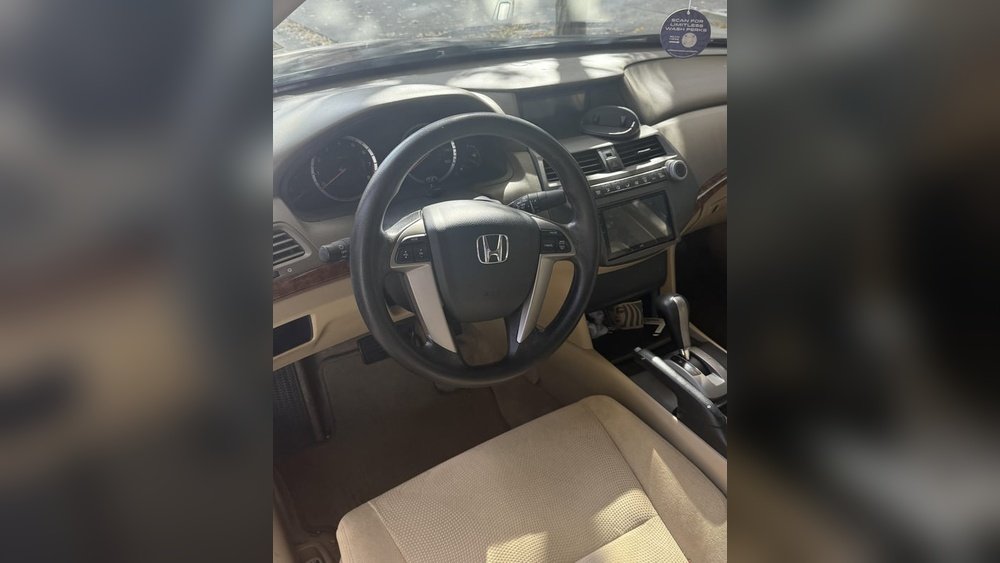
Have you ever tried using your CarPlay only to find the screen too dim to see clearly? It’s frustrating when your favorite apps and navigation look dull and hard to read while you’re driving.
You might wonder if it’s a problem with your car, your phone, or something else entirely. The good news is, you’re not alone—and there are simple reasons behind this issue. Keep reading to discover why your CarPlay screen is too dim and how you can fix it quickly, so your driving experience becomes safer and more enjoyable.
Common Causes Of Dim Carplay Screen
A dim CarPlay screen can make driving harder and less safe. Understanding the common causes helps fix the problem quickly. Several issues might cause the screen to look too dark. These range from simple settings to hardware troubles. Knowing each cause helps find the right solution fast.
Ambient Light Sensor Issues
The ambient light sensor adjusts screen brightness based on outside light. If this sensor is dirty or covered, the screen stays dim. Sometimes, the sensor itself can malfunction. This stops it from detecting light properly. Cleaning the sensor or checking for damage can solve the problem.
Display Settings Misconfiguration
Incorrect brightness or contrast settings often cause dim screens. CarPlay lets users control screen brightness manually. If set too low, the screen appears dark. Some cars have separate brightness controls for day and night. Checking and adjusting these settings can brighten the display quickly.
Software Glitches
Software bugs can affect how CarPlay displays brightness. Updates or bugs might cause the screen to dim unexpectedly. Restarting the car or the device can fix temporary glitches. Keeping the software updated reduces these issues. Sometimes, resetting CarPlay settings helps as well.
Hardware Problems
Hardware issues can also cause a dim CarPlay screen. Faulty cables or connectors may reduce power to the display. The screen itself might have damage or wear. In some cases, the car’s display unit needs repair or replacement. A professional check can identify and fix hardware faults.

Adjusting Brightness Settings
Adjusting the brightness settings on your CarPlay screen can solve the problem of a dim display. Brightness controls help you see the screen clearly in different lighting conditions. You can change these settings manually or let the system adjust automatically. Understanding these options helps you get the best display quality.
Manual Brightness Control
Manual brightness control lets you set the screen brightness yourself. You can increase or decrease the brightness using the CarPlay settings menu. This control is useful when you want a specific brightness level. For example, in bright sunlight, increasing the brightness helps you see the screen better.
To adjust manually, open the CarPlay settings, find the brightness option, and slide to change the level. This method gives you full control over the display brightness. It also helps save battery if you reduce brightness at night.
Auto-brightness Features
Auto-brightness uses sensors to adjust screen brightness automatically. The system detects the light around your car and changes the brightness for better visibility. This feature works well during day and night driving.
Auto-brightness helps avoid sudden changes in brightness that can distract you. It keeps the screen easy to read without manual adjustments. Most CarPlay setups have this feature turned on by default. You can turn it off if you prefer manual control.
Restarting And Updating Software
Restarting and updating software can fix many CarPlay screen issues. A dim screen might result from a software glitch or outdated system. Simple steps like restarting devices or updating software often restore brightness. These actions refresh the connection between your iPhone and car system. They help your devices run smoothly and display properly.
Restarting Your Iphone And Car System
Turn off your iPhone and car system completely. Wait about 30 seconds before turning them back on. Restarting clears temporary bugs that affect screen brightness. This simple step resets settings and improves CarPlay performance. After restarting, check if the screen looks brighter.
Checking For Ios And Car Firmware Updates
Outdated software can cause dim screen problems on CarPlay. Check your iPhone for the latest iOS updates in Settings. Go to General, then Software Update. Install any available updates to improve system functions. Also, check your car’s manual or settings for firmware updates. Updated firmware can fix bugs and improve display brightness. Keeping both devices updated ensures CarPlay works as intended.

Resetting Display And Network Settings
Resetting display and network settings can fix a dim CarPlay screen. These settings control how your screen looks and how your phone connects to CarPlay. Sometimes, wrong settings cause the screen to look too dark or not work well. Resetting them helps clear any small errors and restores normal brightness.
Resetting Display Preferences
Start by opening your iPhone’s Settings app. Find the Display & Brightness section. Check if the brightness slider is low. Move it up for more light. Turn off Auto-Brightness if it is on. Auto-Brightness can make the screen too dark in some cars.
Next, reset the display settings. This clears any custom changes causing dimness. Go to Settings > General > Reset. Choose Reset All Settings. This step does not erase your data, only resets system settings. After the reset, adjust brightness again to see improvement.
Resetting Network Settings For Better Connectivity
CarPlay uses a network connection between your phone and car. Poor connection can cause the screen to act strange or appear dim. Resetting network settings can fix connection issues. Go to Settings > General > Reset. Tap Reset Network Settings. This removes saved Wi-Fi passwords and Bluetooth devices.
After resetting, reconnect your phone to the car’s Bluetooth or USB. This refreshes the link and often improves screen brightness. A fresh connection helps CarPlay work smoothly without display problems.
Inspecting Hardware Connections
Inspecting hardware connections is a key step to fix a dim CarPlay screen. Loose or damaged parts can affect screen brightness. Checking these parts helps find the problem fast. Start with the cables and ports. Then move to the car’s display unit. Each part plays a role in the screen’s performance.
Checking Usb Cables And Ports
USB cables carry data and power to the CarPlay screen. A faulty cable can reduce screen brightness. Look for any visible damage like cuts or bends. Try using another cable to test the connection. Also, check the USB port for dirt or dust. Clean the port gently with a soft brush. Make sure the cable fits tightly into the port.
Examining The Car’s Display Unit
The display unit controls how bright the screen appears. Dust or damage inside can cause dimness. Check the unit for loose connections or cracks. Adjust the brightness settings on the display. Reset the display to factory settings if needed. If problems continue, a professional check may be required.
When To Seek Professional Help
Knowing when to seek professional help for a dim CarPlay screen can save time and money. Some problems are simple to fix at home. Others need expert attention. Recognizing the signs is important. It helps avoid further damage and ensures your CarPlay works well.
Identifying Persistent Issues
A screen that stays dim after adjusting brightness may have deeper issues. Flickering or sudden changes in brightness are warning signs. Problems that return after restarting the car need checking. If the screen is dim only in certain apps, it could be a software fault. Persistent issues suggest hardware or wiring problems. A professional can diagnose these accurately.
Choosing The Right Service Center
Select a service center with experience in CarPlay systems. Ask about their training and certifications. Check reviews from other car owners. A good center uses genuine parts for repairs. Clear communication is key. They should explain the problem and fix options. Avoid centers that rush or do not offer a warranty. Proper service ensures your CarPlay screen stays bright and reliable.
Frequently Asked Questions
Why Is My Carplay Screen Suddenly Too Dim?
Your CarPlay screen may be too dim due to low brightness settings or automatic dimming in dark environments. Check your car’s display settings and adjust brightness manually. Also, ensure no firmware updates are pending, as outdated software can affect screen performance.
How Can I Fix A Dim Carplay Screen Quickly?
To fix a dim CarPlay screen, increase the brightness in your car’s settings. Disable any night mode or automatic dimming features. Restart your iPhone and car system to reset display settings. If issues persist, check for software updates on both devices.
Does Carplay Brightness Adjust Automatically?
Yes, CarPlay brightness often adjusts automatically based on ambient light. This helps reduce glare during night driving. However, this feature can sometimes make the screen too dim. You can manually override this setting in your car’s display preferences to improve visibility.
Can A Software Update Improve Carplay Screen Brightness?
Yes, software updates can fix bugs affecting CarPlay screen brightness. Both your iPhone and car’s infotainment system may release updates that improve display performance. Regularly updating ensures optimal functionality and can resolve dim screen issues effectively.
Conclusion
A dim CarPlay screen can frustrate any driver. Checking brightness settings often solves the issue. Sunlight and glare may also affect screen visibility. Cleaning the screen can make a big difference. Software updates sometimes improve screen performance. Simple fixes usually restore clear and bright display.
Stay patient and try these easy steps first. Clear screen means safer and more enjoyable drives. Keep your CarPlay working well for every trip.




