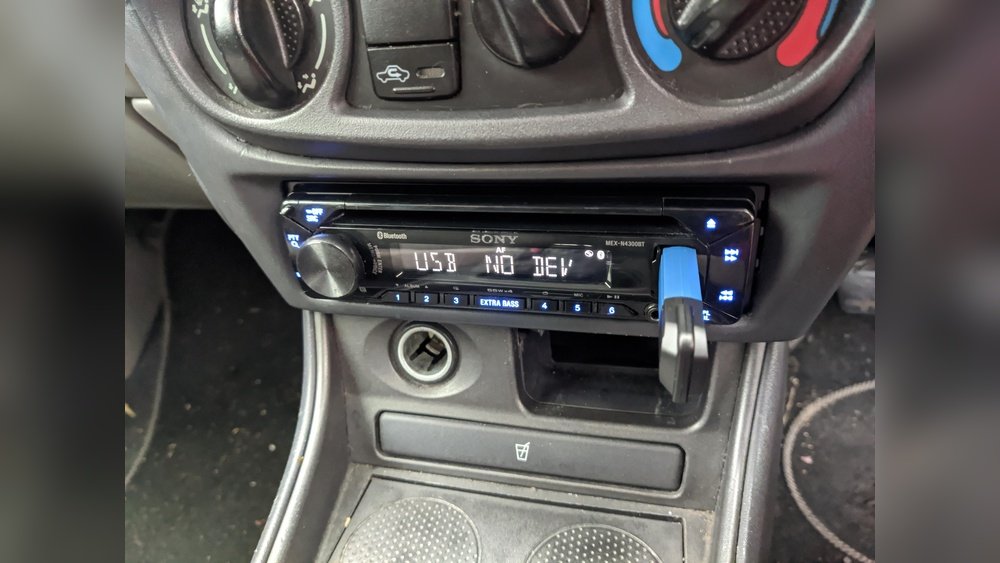
Is your car stereo refusing to read your USB drive? You’re not alone, and it can be really frustrating when you’re ready to enjoy your favorite music on the road but your device won’t cooperate.
Maybe you’ve tried different USB sticks or checked your files, but nothing seems to work. The good news is, this problem usually has simple solutions. You’ll discover the common reasons why your car stereo won’t read your USB and learn easy steps to fix it quickly.
Keep reading to get your music back on track without any hassle.
Common Usb Issues
Many car stereos fail to read USB drives due to common USB problems. These issues stop your music from playing. Understanding these problems helps you fix them fast. Here are the main USB issues that cause trouble.
Incompatible File Formats
Your car stereo can only read certain file types. Formats like MP3 and WMA usually work well. Other formats, like FLAC or AAC, may not play. If your files use the wrong format, the stereo ignores them. Convert your music to a supported format for smooth playback.
Faulty Usb Drive
USB drives can wear out or break over time. A damaged drive may not connect properly. Corrupted files or bad sectors stop the stereo from reading the device. Test the USB on another gadget to check if it works. Replace the drive if it shows errors.
Dirty Or Damaged Ports
Car USB ports gather dust and dirt easily. Dirt blocks the connection between the USB and stereo. Damaged or bent ports also cause connection problems. Clean the port carefully with a soft brush or compressed air. Fix or replace damaged ports to restore function.

Car Stereo Compatibility
Car stereo compatibility plays a big role in why your device may not read a USB. Each car stereo supports certain types of USB devices and formats. Knowing these details can help you avoid connection issues.
Understanding what your car stereo can read saves time and frustration. Not all USB drives work the same way with every stereo system. Some models accept only specific devices or file systems.
Supported Usb Devices
Car stereos usually support USB flash drives or external hard drives. Most work best with USB 2.0 or 3.0 drives under 64GB. Some older stereos may not recognize larger drives or newer USB versions.
File format matters too. Many stereos read FAT32 or exFAT formats only. NTFS or other formats often cause the stereo to ignore the USB. Check your stereo manual to see which types it supports.
Firmware Limitations
Firmware is the software inside your car stereo. It controls how the stereo reads USB devices. Older firmware versions might not support newer USB formats or file systems.
Updating the firmware can improve compatibility. Some models allow updates via USB or dealer service. Without updates, the stereo may fail to read certain drives or files.
Troubleshooting Steps
Car stereos sometimes fail to read USB drives. This issue can be frustrating. Simple troubleshooting can help fix the problem. Follow these steps to identify the cause and get your stereo working again.
Check Usb Format
Many car stereos only support specific USB formats. Common formats include FAT32 and exFAT. Other formats like NTFS may not work. Check your USB drive’s format on your computer. Change it to FAT32 if needed. This can solve compatibility problems quickly.
Test Different Usb Drives
Your USB drive might be damaged or corrupted. Try plugging in another USB drive to the stereo. If the second drive works, the first one is likely the problem. Use a different USB stick with your music files. This step helps isolate the issue.
Inspect And Clean Usb Ports
Dust and dirt can block USB ports. This stops the stereo from reading the drive. Look inside the USB port on the stereo. Use a soft brush or compressed air to clean it gently. Avoid using sharp objects. Clean ports improve connection and performance.
Software And Settings
Software and settings play a big role in your car stereo’s ability to read a USB drive. The stereo’s internal system controls how it interacts with USB devices. Sometimes, outdated software or incorrect settings stop the USB from working properly.
Checking and updating the firmware can fix bugs and improve USB compatibility. Resetting the stereo settings can clear errors caused by wrong configurations. Adjusting playback settings ensures the stereo recognizes the file formats on your USB.
Update Car Stereo Firmware
Firmware is the software inside your car stereo. It controls how the stereo reads USB devices. Old firmware may not support new USB formats or files.
Visit the car stereo manufacturer’s website to find updates. Download and install the latest firmware following the instructions. This can improve USB detection and playback.
Reset Stereo Settings
Resetting the stereo returns settings to factory defaults. This clears any wrong settings blocking USB recognition. Most stereos have a reset option in the menu or a small reset button.
After resetting, try plugging in the USB again. This simple step fixes many software-related USB problems.
Adjust Playback Settings
Some car stereos require specific playback settings for USB use. Check the menu for USB or media playback options. Make sure the stereo supports the file types on your USB.
Changing playback mode or file format settings may help the stereo read your USB correctly. Experiment with these settings until the USB works smoothly.
When To Seek Professional Help
Knowing when to seek professional help is important if your car stereo won’t read your USB. Some issues need expert attention. Trying to fix complex problems alone can cause more damage. Professionals have the right tools and skills to diagnose and repair your stereo quickly.
Persistent Hardware Problems
If your stereo still does not read the USB after basic checks, hardware might be the cause. Problems like a damaged USB port or internal connection issues need careful handling. A professional can test and fix these parts safely. Avoid forcing the USB or using sharp tools. Persistent hardware problems require expert repair to avoid costly damage.
Advanced Diagnostics
Some stereo issues need advanced diagnostics beyond simple troubleshooting. Professionals use special equipment to find hidden faults in the system. They can check software errors, firmware updates, or wiring problems. This detailed inspection helps fix the root cause. Without the right tools, it is hard to pinpoint these issues. Trusting a technician ensures accurate diagnosis and effective repair.

Frequently Asked Questions
Why Won’t My Car Stereo Detect My Usb Drive?
Your car stereo may not detect the USB due to incompatible file formats or unsupported USB capacity. Check if your USB is formatted as FAT32 or exFAT. Also, ensure the music files are in MP3 or another supported format for your stereo.
How Do I Fix A Car Stereo Not Reading Usb?
Try formatting your USB drive to FAT32 and reload music files. Also, check the USB port for dirt or damage. Restart your car stereo or update its firmware if available. These steps often resolve detection issues.
Can Usb Size Affect Car Stereo Compatibility?
Yes, many car stereos support USB drives only up to a certain size, often 32GB or 64GB. Larger drives may not be recognized. Check your stereo’s manual for the maximum supported USB capacity to ensure compatibility.
What File Formats Do Car Stereos Support On Usb?
Most car stereos support MP3, WMA, and sometimes AAC files. Unsupported formats like FLAC or WAV might not play. Converting your audio files to MP3 usually resolves playback issues on USB drives.
Conclusion
A car stereo not reading a USB can be frustrating. Check the USB format first. Make sure the files are supported by your stereo. Try using a different USB drive. Sometimes the port itself needs cleaning or repair. Keeping your stereo’s software updated helps too.
Small fixes often solve the problem quickly. Understanding these steps saves time and stress. Enjoy your music without interruptions. Simple checks make a big difference. Don’t give up on your tunes just yet.