When your car’s check engine light comes on, it’s easy to feel worried or confused. Most drivers want a quick answer: What’s wrong? Do I need to go to a mechanic right now? The Ancel AD310 is a small scan tool that helps you get these answers fast. But while many people know how to check for stored trouble codes, fewer understand how to use it to read live data — real-time information from your car’s sensors and systems.
Reading live data can help you see what’s happening in your engine while the car is running. It’s a powerful way to find hidden problems, confirm repairs, or even catch issues before they get worse. If you have an Ancel AD310, or you’re thinking about getting one, this guide will show you everything you need to know about reading live data.
Let’s break down how it works, why it matters, and how you can use it like a pro — even if you’re not a mechanic.
What Is Live Data And Why Is It Important?
Live data is different from stored trouble codes. OBD2 codes only tell you what problems the car’s computer has detected. Live data shows you what’s happening inside the engine and other systems right now — like engine RPM, coolant temperature, airflow, and more.
Why does this matter? Imagine you have a problem that only happens sometimes, or you want to check if a sensor is working. Live data lets you watch the numbers change as you drive or run the engine. This can help you:
- Spot problems before they trigger codes (like a weak oxygen sensor)
- Verify if repairs worked by watching sensors return to normal
- Find intermittent issues that don’t always set a code
Many beginners only use their scan tool to erase codes. Reading live data gives you a real-time view, helping you make smarter decisions about repairs.
Getting To Know The Ancel Ad310
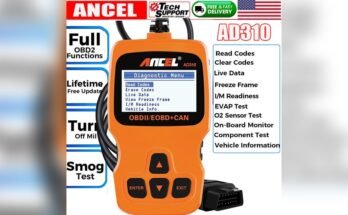
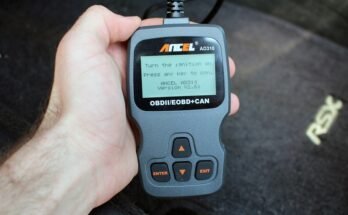
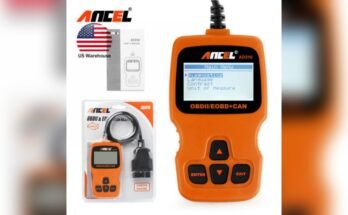
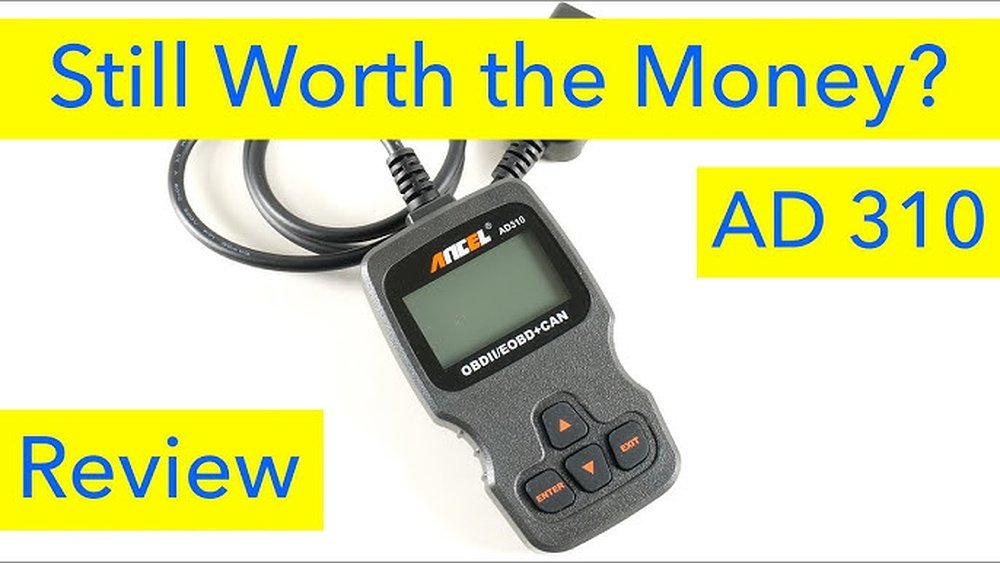
Before you dive into live data, it’s useful to understand your tool. The Ancel AD310 is a basic OBD2 scanner, popular for its simple design and affordable price. It plugs into your car’s OBD2 port (usually under the dashboard) and uses buttons and a small screen to show information.
Here’s what makes the Ancel AD310 stand out:
- No batteries needed — it powers up from your car
- Simple menu navigation with four buttons
- Works with most cars made after 1996 (US), 2001 (EU petrol), or 2004 (EU diesel)
- Shows both codes and live data
But the AD310 is a basic model. It won’t show as many data points as expensive tools, and you can’t graph or save data. Still, for most DIY users, it’s enough to troubleshoot many problems.
Quick Look: Main Features
| Feature | Ancel AD310 | High-End OBD2 Tool |
|---|---|---|
| Live Data | Basic (text only) | Advanced (graphs, logs) |
| Code Reading | Yes | Yes |
| Data Logging | No | Yes |
| Vehicle Coverage | OBD2 cars | OBD2 + some advanced systems |
For most owners, the AD310 gives you the essentials at a low cost.
Setting Up The Ancel Ad310 For Live Data
Getting live data starts with connecting your tool the right way. Many beginners make simple mistakes that can stop the scanner from working. Here’s how to set up your Ancel AD310 step by step:
- Locate the OBD2 port – It’s usually under the dashboard, near the steering wheel. If you can’t find it, check your owner’s manual.
- Turn the ignition to ON – You don’t need to start the engine yet, but the dashboard lights should come on.
- Plug in the AD310 – The scanner will power on automatically.
- Wait for the menu – The main menu appears after a few seconds.
- Start the engine – For live data, you’ll need the engine running to see real-time values.
Tip: If the scanner doesn’t turn on, your OBD2 port may not have power. Check your car’s fuse box — sometimes the cigarette lighter fuse also controls the OBD2 port.
Navigating The Ad310 Menu
The Ancel AD310 uses a simple four-button system: Enter, Exit, Up, and Down. Here’s how to find live data:
- Use the Up/Down buttons to scroll through the main menu.
- Look for “Live Data” or “View Data” (the wording may vary slightly).
- Press Enter to select.
- The scanner will connect to your car’s computer and show a list of available data points (called PIDs, or Parameter IDs).
You’ll see items like Engine RPM, Coolant Temp, Vehicle Speed, and more. Scroll through these using the Up/Down buttons.

Which Live Data Parameters Can You Read?
The Ancel AD310 shows a set of basic but useful live data points. The exact list depends on your car’s computer. Here are the most common ones you’ll see:
- Engine RPM (revolutions per minute)
- Vehicle Speed (MPH or KPH)
- Coolant Temperature
- Intake Air Temperature
- Mass Air Flow (MAF) Sensor
- Throttle Position
- Oxygen Sensor Outputs (O2)
- Short Term Fuel Trim (STFT)
- Long Term Fuel Trim (LTFT)
- Absolute Throttle Position
- Intake Manifold Pressure
- Timing Advance
- Calculated Load Value
- Fuel System Status
Each one gives you clues about your engine’s health. For example, if your coolant temp is too high, you may have overheating issues. If fuel trims are far from zero, the engine may be running rich or lean.
Here’s a quick comparison of a few common live data items:
| Data Item | Normal Range (Example) | What It Tells You |
|---|---|---|
| Engine RPM (Idle) | 650–900 | Idle speed health |
| Coolant Temp (Warm) | 85–105°C (185–221°F) | Engine temperature |
| O2 Sensor (V) | 0.1–0.9 (switching) | Fuel mixture status |
| STFT (%) | -10 to +10 | Short-term fuel adjustment |
Remember: Not all cars show every parameter, and some numbers change quickly.
How To Read Live Data Step By Step
Let’s go through a real-world example. Suppose your check engine light is on, but you want more information before visiting a mechanic.
- Connect and Enter Live Data Mode – Follow the steps above to plug in and select “Live Data.”
- Start the Engine – For the most useful data, the car should be running.
- Scroll Through Parameters – Use the Up/Down buttons to see the list.
- Pick a Parameter to Watch – For example, if you suspect a misfire, check Engine RPM and O2 sensors.
- Compare Values to Normal Ranges – Use your car’s manual or a trusted source to find normal values.
- Look for Outliers – Numbers way outside the normal range often point to problems.
- Test Under Different Conditions – Try pressing the gas, letting the car idle, or turning on the AC, and watch how values change.
For example, if your O2 sensor reading stays at 0.1V or 0.9V instead of switching, it may be faulty. If your fuel trims are always above +20%, you could have a vacuum leak.
Tip: Write Down Values
The AD310 doesn’t save data. For tricky problems, use paper and pen to write down values at different times (idle, revved, driving). Patterns over time can help you or your mechanic later.

Common Problems You Can Spot With Live Data
Many car issues don’t show a code right away. Here’s how live data can reveal hidden problems:
- Vacuum Leaks – Watch fuel trims. If STFT or LTFT is high and positive, the engine may be sucking in extra air.
- Bad O2 Sensors – Normal O2 sensors switch between high and low voltage. A stuck reading points to a bad sensor or wiring.
- Overheating – If coolant temp climbs above normal quickly, you may have thermostat or cooling fan issues.
- Weak MAF Sensor – If the MAF reading doesn’t increase when you rev the engine, airflow sensing may be off.
- Stuck Throttle – Throttle position should change smoothly as you press the gas. If it jumps or sticks, there may be a problem.
- Misfire or Idle Issues – Watch engine RPM and timing advance. Fluctuations may point to ignition or sensor problems.
These insights often help you fix small problems before they get big (and expensive).
Decoding Key Live Data Readings
For many drivers, the numbers on the screen can feel confusing. Here’s a breakdown of the most useful live data readings, with examples:
Engine Rpm
Shows how fast the engine is turning. At idle, most cars run between 650–900 RPM. If your idle is rough or jumping, something is wrong.
Coolant Temperature
A healthy engine warms up to about 90–100°C (195–212°F) and stays there. Too low? The thermostat may be stuck open. Too high? Cooling problems.
Short And Long Term Fuel Trim (stft, Ltft)
These show how much the computer is adjusting fuel. Numbers near zero are best. More than ±10% means the engine is correcting too much — often due to leaks, bad sensors, or fuel problems.
Oxygen Sensors (o2)
Should switch between low (about 0.1–0.3V) and high (0.7–0.9V) several times per second at idle. Stuck readings mean a sensor or wiring fault.
Mass Air Flow (maf) Sensor
Should increase as you rev the engine. If it stays low, the car may be starving for air.
Throttle Position
At idle, most cars show 10–20% (never 0%). Pressing the gas should smoothly increase the number.
Intake Air Temperature
Shows the temperature of air going into the engine. High numbers may mean heat soak, which can reduce power.

Practical Tips For Using Live Data
Reading live data is only part of the job. Here are some tips to get the best results:
- Always check values at idle and while revving. Some problems only show up under load.
- Compare both banks (Bank 1 and Bank 2) if your car has a V6 or V8. Big differences usually mean an issue.
- Don’t panic about small changes. Most values move a little as you drive.
- Use manufacturer specs if possible. Generic “normal” ranges are helpful, but each car is different.
- If you’re not sure, write down what you see and ask a professional.
Two non-obvious insights:
- Some cars show “N/A” or dashes for missing data. This does not always mean a problem — it may just be a sensor your car doesn’t have.
- Live data is often “slow” on basic tools like the AD310. If values lag or jump, it’s normal. For faster updates, you need a professional scanner.
Real-world Example: Diagnosing A Vacuum Leak
Let’s look at a common problem: rough idle and poor fuel economy. The check engine light is off, but something isn’t right.
- Connect the AD310 and enter Live Data mode.
- Watch STFT at idle. It reads +18% (much higher than normal).
- Spray a small amount of carb cleaner around the intake. STFT jumps to +28%.
- This tells you the engine is sucking in air (vacuum leak). The computer is adding fuel to make up for it.
With this info, you can find and fix a leak before it becomes a bigger problem.
When Live Data Isn’t Enough
The Ancel AD310 is a great starter tool, but it has limits. Here are situations where you might need more:
- Transmission problems — The AD310 usually won’t show transmission data.
- ABS or Airbag issues — Only engine data is available.
- Advanced diagnostics — To graph data or see more sensors, you’ll need a higher-end tool.
Still, for basic engine and emissions issues, the AD310 covers 80% of what most people need.
Limitations And Workarounds
No tool is perfect. Here are a few things to keep in mind:
- Live data refresh rate is slow — Don’t expect “real-time” like a professional tool.
- No graphing or saving — Write down key numbers by hand.
- Limited parameters — Some cars offer less data than others.
- Small screen — Only a few values show at once.
Workaround: For more complex issues, use the AD310 to get a starting point. If you need graphs or advanced data, consider using a phone-based OBD2 app with a Bluetooth adapter. These often show more info and let you save or email data.
Comparing Ancel Ad310 With Other Obd2 Scanners
Wondering how the AD310 stacks up against other tools? Here’s a quick side-by-side:
| Feature | Ancel AD310 | Bluetooth OBD2 Adapter | Professional Scanner |
|---|---|---|---|
| Price | Low | Low–Medium | High |
| Live Data | Basic | Graph & Save | Advanced |
| Ease of Use | Very Easy | Moderate | Harder |
| Coverage | Engine Only | Engine, Some Body | Most Systems |
For most home users, the AD310 is a good balance of price and features.
Safety Tips When Using The Ancel Ad310
Working with your car’s computer is safe, but always remember:
- Do not use the tool while driving. The screen is small and requires your attention.
- Keep the car in Park or Neutral when reading live data at idle.
- Avoid hot engine parts when checking sensors under the hood.
- Disconnect the tool before leaving the car — it’s easy to forget!
Common Beginner Mistakes (and How To Avoid Them)
Many new users make these errors:
- Not starting the engine — Live data only updates with the engine running.
- Expecting all values to be perfect — Small changes are normal.
- Misreading sensor names — Some abbreviations are confusing (e.g., “IAT” is Intake Air Temp).
- Ignoring “N/A” values — Not all cars show all data.
- Erasing codes before writing them down — Always note the codes first.
Take your time, read the menu options, and check your owner’s manual if you’re unsure.
Using Live Data For Preventive Maintenance
You don’t need to wait for a problem. Here’s how live data can help you keep your car healthy:
- Check fuel trims and O2 sensors every few months — catch minor leaks or sensor wear early.
- Monitor coolant temp — overheating is a top cause of engine damage.
- Watch idle RPM — changes can signal early ignition or vacuum issues.
A few minutes with your AD310 can save hundreds of dollars in repairs.
Advanced Tips: Getting More From Your Ad310
- Check live data with the AC on and off. Some faults only appear under load.
- Test after repairs. Confirm fuel trims and sensors return to normal.
- Compare cold vs. warm engine. Some problems only show up after warming up.
- Ask for help. If you see a value you don’t understand, share it on a trusted car forum or with a mechanic.
When To Seek Professional Help
The AD310 is a powerful DIY tool, but some problems are best left to experts:
- Serious performance issues that don’t show up in live data
- Strange noises, smoke, or smells
- Transmission, ABS, or airbag lights
If in doubt, use your AD310 to gather data, then share it with your mechanic. This can save time and money.
For more on OBD2 standards and how they work, check out this detailed Wikipedia guide.
Frequently Asked Questions
How Accurate Is The Live Data From The Ancel Ad310?
The AD310 gives accurate live data for basic engine parameters, as provided by your car’s computer. However, the refresh rate is slower than professional tools, and it doesn’t show advanced or body system data.
Can The Ancel Ad310 Show Live Data While Driving?
Technically, yes, but it’s not safe to watch the screen while driving. Instead, ask a passenger to monitor the tool, or check readings at idle and during brief stops.
What Should I Do If Some Live Data Shows “n/a” Or Dashes?
This usually means your car doesn’t support that sensor or parameter. It’s not an error. Each vehicle offers different data.
Can I Use Live Data To Reset The Check Engine Light?
No. Live data lets you watch sensors in real time, but you must use the “Erase Codes” function to turn off the check engine light.
Why Are Some Numbers On My Ad310 Changing Slowly Or Jumping?
The AD310 updates live data every 1–2 seconds. Fast changes may not be shown smoothly. For quicker updates or graphs, a higher-end tool is needed.
The Ancel AD310 is a simple but powerful tool for reading live data from your car. With a bit of practice, you can spot hidden problems, confirm repairs, and keep your engine running smoothly. Learning to use live data gives you more control and confidence over your car’s health — and may save you money in the long run.