Have you ever wanted to play your favorite songs directly from a USB drive through your car stereo but didn’t know where to start? Connecting a USB to your car stereo can seem tricky, but it’s actually easier than you think.
Imagine driving with all your best playlists right at your fingertips, without fumbling for CDs or relying on phone Bluetooth. In this guide, you’ll learn simple, step-by-step ways to make your music experience in the car smoother and more enjoyable.
Keep reading, and you’ll be rocking your road trips in no time!

Check Car Stereo Compatibility
Before connecting a USB to your car stereo, check if your stereo supports it. Compatibility matters to ensure smooth playback and charging. Some stereos have USB ports but may not support all devices or file types.
Knowing your stereo’s capabilities saves time and avoids frustration. Understanding USB port types, supported file formats, and power needs helps you use your device correctly.
Identify Usb Ports
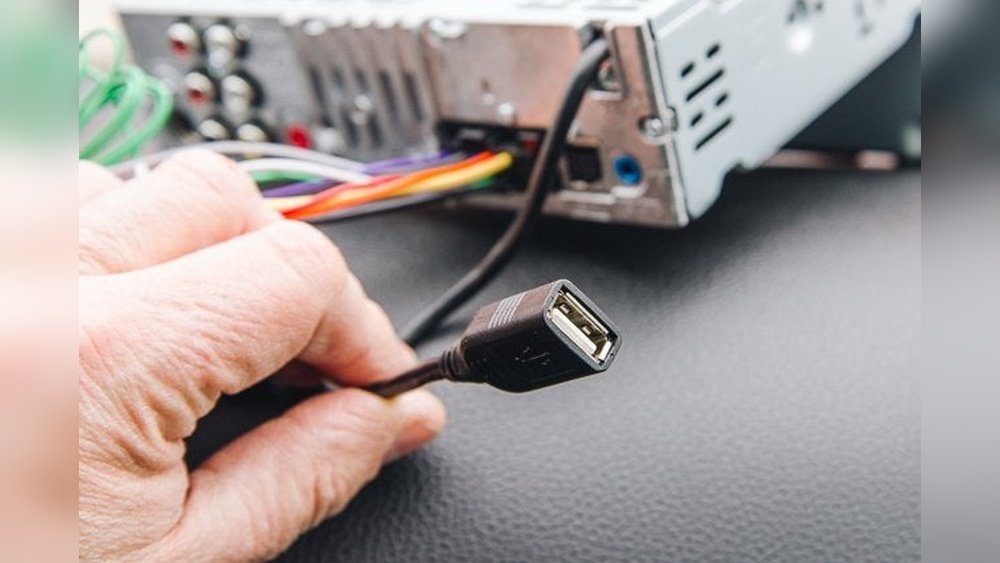
Look for USB ports on your car stereo. These are usually on the front or back panel. Some stereos have USB-A ports, the common rectangular shape. Others may have USB-C ports, smaller and oval. Check your stereo manual to confirm port types and locations.
Not all USB ports support data transfer. Some only provide charging. Identifying the right port ensures your music plays correctly.
Supported File Formats
Car stereos support specific music file types. Common formats include MP3, WMA, and AAC. Some stereos also play WAV or FLAC files. Check your stereo’s manual or website for supported formats.
Unsupported files will not play or may cause errors. Convert your music files to a compatible format before use.
Power Requirements
USB ports on car stereos supply limited power. They can charge small devices like phones but may not power larger gadgets. Check your stereo’s power output, usually listed in amps (A).
High power devices might need an external charger. Using the right power source keeps your devices safe and working well.
Prepare Your Usb Drive
Preparing your USB drive is the first step to enjoy music in your car. A well-prepared USB makes playing songs easy and smooth. Follow simple steps to get your USB ready for your car stereo.
Format Usb Correctly
Format your USB drive to a file system your car stereo supports. Most car stereos work well with FAT32 or exFAT formats. Formatting erases all data, so save important files first. Use your computer to format the drive quickly.
Organize Music Files
Place your music files in clear folders. Organize songs by artist, album, or genre. This helps your car stereo find songs faster. Avoid cluttering the root folder with too many files. Clean and neat folders improve navigation.
Create Playlists
Create playlists to group your favorite songs. Use simple playlist formats like M3U for compatibility. Playlists let you play music in your chosen order. Save playlists on your USB drive’s main folder for easy access.
Connect Usb To Car Stereo
Connecting a USB drive to your car stereo lets you play music easily. Most modern cars support USB connections. This feature helps you listen to your favorite songs while driving. It also allows quick access to your playlists without using Bluetooth or CDs.
The process is simple and takes just a few steps. Follow these instructions to connect your USB safely and enjoy your music on the road.
Locate Usb Port In Car
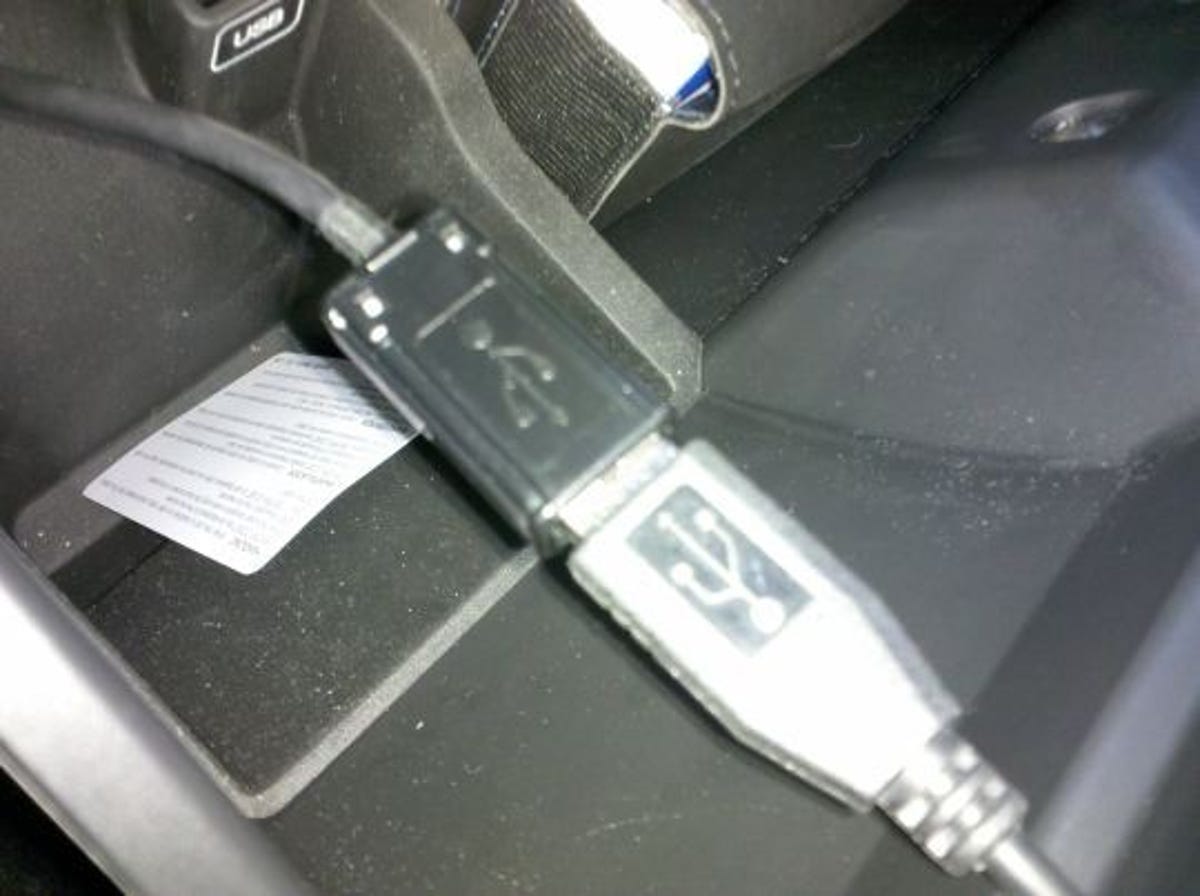
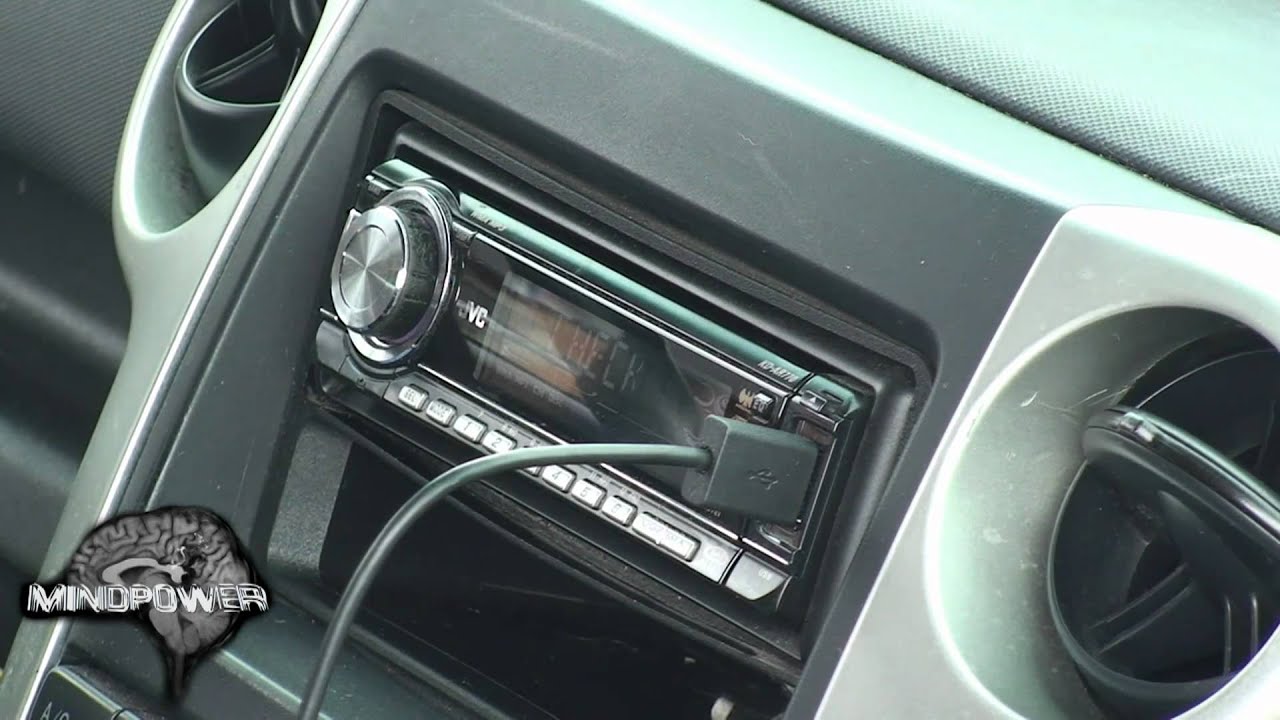
Look for the USB port on your car’s dashboard or center console. It is often near the radio or climate controls. Some cars have the port inside the glove box or armrest. The USB port looks like a small rectangular slot. Check your car manual if you cannot find it.
Plug In Usb Drive Safely
Insert your USB drive gently into the port. Do not force it to avoid damage. Make sure the USB is formatted correctly, usually in FAT32 or exFAT. The car stereo will detect the drive automatically. Use the stereo controls to browse and play your music files.
Operate Car Stereo Controls
Operating your car stereo controls is key to enjoying music from your USB device. Knowing how to use these controls helps you quickly find and play your favorite songs. It also lets you adjust settings for the best sound experience. Here is how to use your car stereo controls effectively with a USB connection.
Select Usb Input Mode
Start by turning on your car stereo. Press the “Source” or “Mode” button. Scroll through the options until you see “USB” or “USB Input.” Select this mode to connect your USB device. The stereo will recognize the device and display the available files. This step is simple but crucial to access your music.
Browse And Play Music
Use the stereo’s control knob or buttons to navigate your USB files. You can move through folders and song lists. Select a song by pressing the “Enter” or “Play” button. The stereo will start playing the chosen track. Browsing lets you find songs quickly without needing to remove the USB.
Adjust Playback Settings
Control volume with the dedicated knob or buttons. Use “Next” and “Previous” buttons to skip or replay songs. Some stereos offer shuffle and repeat modes. Adjust these to suit your listening preference. Fine-tuning playback makes your drive more enjoyable and relaxing.
Troubleshoot Common Issues
Troubleshooting common issues helps keep your USB connection smooth. Many users face simple problems that stop their music from playing. Fixing these issues often takes only a few steps. Below are some common problems and easy solutions.
Usb Not Recognized
Check if the USB port is clean and free of dust. Try unplugging and plugging the USB back in firmly. Use a different USB cable or port if available. Ensure the USB drive is formatted in a supported file system like FAT32. Restarting the car stereo can reset the connection. Some USB drives may not work if they have special encryption or large capacity.
Music Not Playing
Verify the music files are in a supported format like MP3 or WAV. Make sure files are not inside folders that the stereo cannot read. Check the volume on both the car stereo and your device. Avoid using USB drives with corrupted or damaged files. Try playing the music on another device to confirm the files work. The stereo may have a limit on the number of files it can read.
Audio Quality Problems
Use good quality USB drives and cables to avoid sound issues. Check the car stereo’s equalizer settings for unwanted effects. Clean the USB port to prevent loose connections. Avoid using low-bitrate or heavily compressed music files. Interference from other electronic devices can affect audio quality. If problems persist, test with another USB or music source.
Enhance Music Experience
Connecting a USB to your car stereo can improve your music experience greatly. It lets you play your favorite songs directly from a flash drive or phone. Simple steps can help you enjoy clearer sound and easier control over your music.
Small changes make a big difference in how your music sounds and plays. Using the right tools and settings helps you get the most from your car stereo system.
Use Usb Hubs And Extensions
USB hubs let you connect multiple devices to your car stereo. You can switch between drives or phones without unplugging. Extensions help if the USB port is hard to reach. They make connecting easier and more convenient.
Update Car Stereo Firmware
Firmware updates improve your stereo’s performance. They fix bugs and add new features. Check the car stereo’s website for updates. Keeping software fresh helps your USB connection work smoothly.
Integrate With Bluetooth
Bluetooth works well with USB connections. It lets you control music without touching your stereo. You can play songs stored on your phone and use voice commands. Combining Bluetooth and USB gives more ways to enjoy music.
Frequently Asked Questions
How Do I Connect A Usb To My Car Stereo?
Plug the USB drive into your car stereo’s USB port. Select the USB source on the stereo menu. Your music files will then be accessible and ready to play.
What File Formats Does Car Usb Stereo Support?
Most car stereos support MP3, WMA, and WAV audio formats. Check your stereo manual for specific file compatibility to ensure proper playback.
Why Is My Usb Not Recognized By The Car Stereo?
The USB drive might be incompatible or improperly formatted. Use FAT32 format and ensure files are supported to fix recognition issues.
Can I Control Usb Music From My Car Stereo?
Yes, most car stereos allow control over USB music playback. You can play, pause, skip tracks, and browse folders via stereo controls.
Conclusion
Connecting a USB to your car stereo is simple and quick. Just follow the steps carefully, and you will enjoy your music on the go. Make sure the USB is compatible with your stereo system. Keep your files organized for easy access.
This small effort improves your driving experience a lot. Now, you can listen to your favorite songs anytime. Try it today and enjoy the ride with better sound.