Have you ever wondered how to quickly check the videos your dash cam records? Whether you want to review a recent drive or find proof after an accident, knowing how to view dash cam footage is essential.
You’ll learn simple, step-by-step ways to access your recordings without any hassle. By the end, you’ll feel confident and ready to use your dash cam like a pro. Keep reading to unlock the full potential of your device and protect yourself on the road.
Accessing Dash Cam Files
Accessing dash cam files is the first step to review your driving footage. Most dash cams save videos automatically on internal memory or a memory card. Knowing how to access these files helps you check important moments quickly.
This section explains three common ways to view your dash cam footage. Each method is simple and does not require technical skills. Choose the option that fits your device and situation.
Using The Dash Cam Screen
Many dash cams have a small built-in screen. You can watch videos directly on this screen. Use the buttons or touchscreen to navigate the menu. Find the playback or video folder option. Select the video you want to watch. This method is fast and easy. No extra tools are needed.
Connecting To A Computer
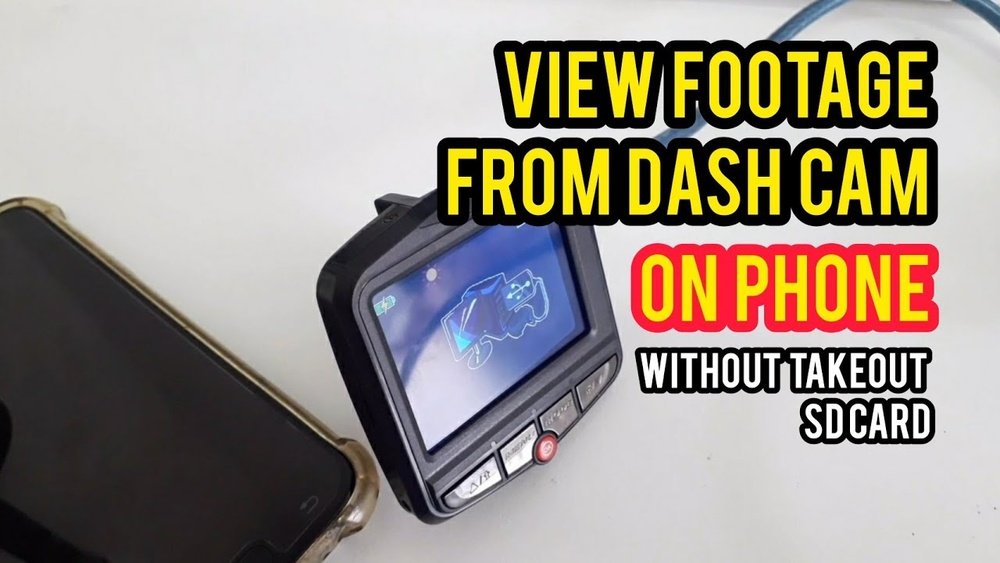
Connect your dash cam to a computer using a USB cable. The computer will recognize the dash cam as a storage device. Open the folder to find your videos. Copy files to your computer for easier viewing or backup. This method works well if your dash cam has no screen or if you want to save files.
Using A Memory Card Reader
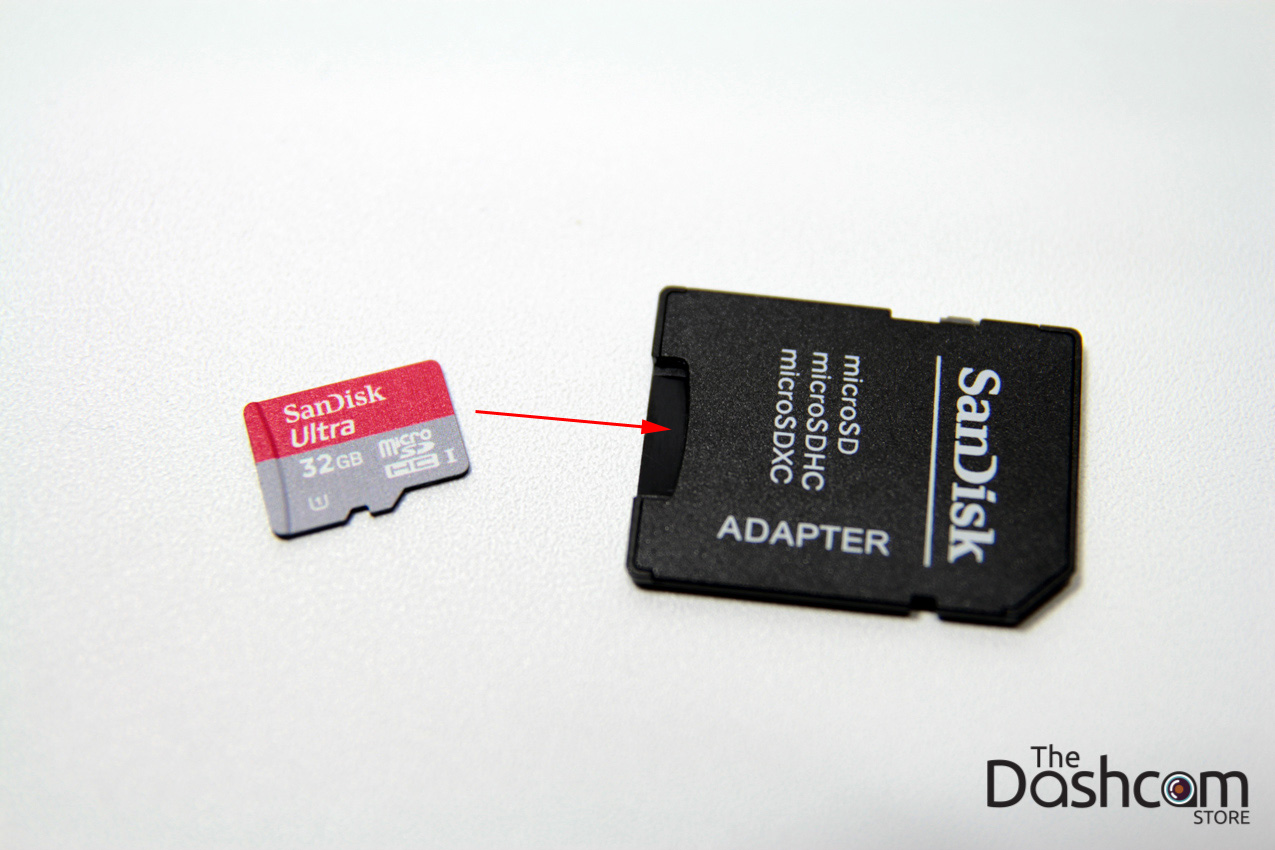
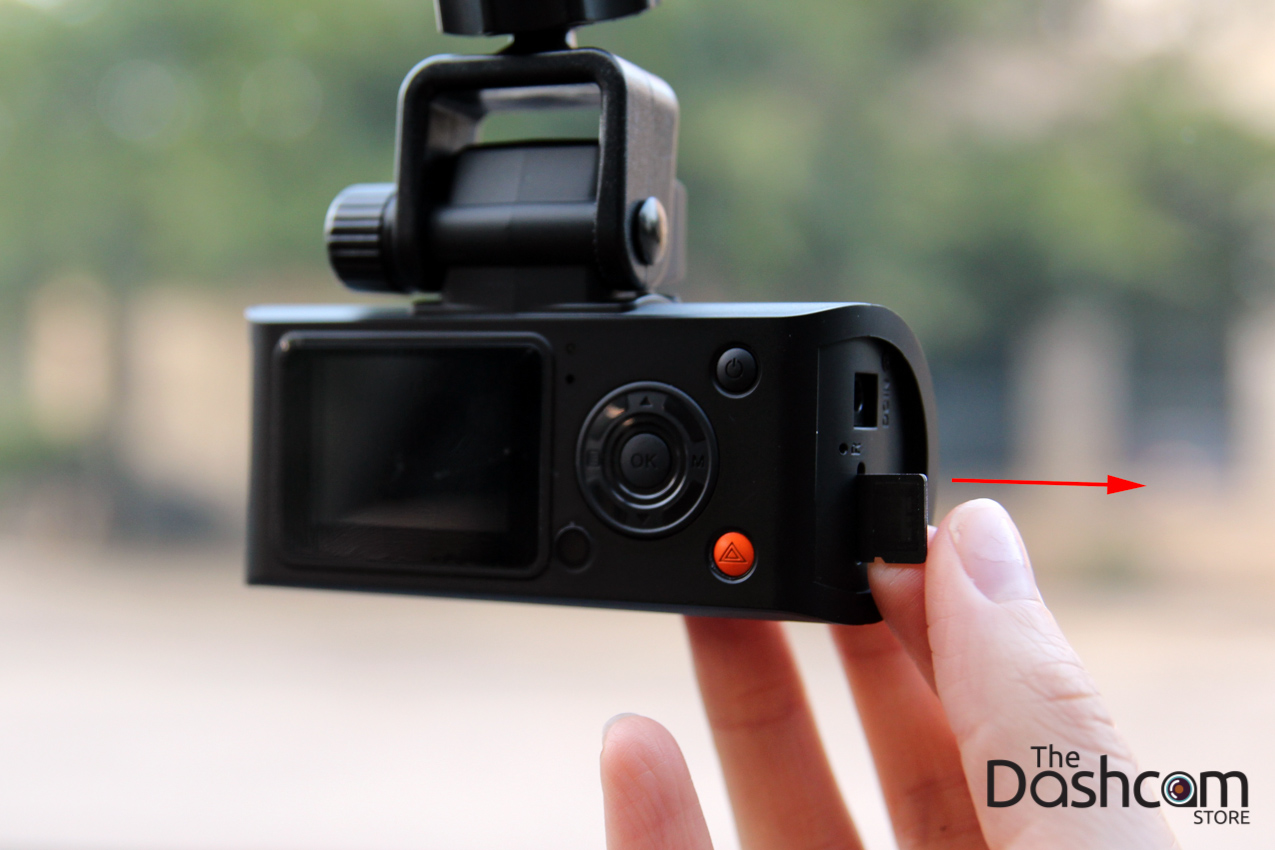
Most dash cams use a microSD card to store videos. Remove the card from the dash cam carefully. Insert it into a memory card reader. Connect the reader to your computer or laptop. Open the card folder to access all recorded videos. This method is fast and does not drain your dash cam battery.
Viewing Footage On Different Devices
Viewing dash cam footage on different devices is simple and convenient. Most dash cams save videos in common formats like MP4. This makes it easy to watch them on your computer or mobile device. Each device has its own way to access and play these videos. Learning how to view footage on various devices helps you check recordings quickly.
On Windows Pcs
Insert the dash cam memory card into your PC’s card reader. Open File Explorer and find the drive for the memory card. Look for folders named “DCIM” or “Video.” Double-click the video files to play them. Use a media player like Windows Media Player or VLC for smooth playback. Copy files to your PC for easier access later.
On Mac Computers
Connect the dash cam or memory card to your Mac using a card reader. The device will appear on the desktop or Finder sidebar. Open the folder containing the videos. Double-click video files to play using QuickTime Player. For better compatibility, use VLC Media Player. You can also copy videos to your Mac’s hard drive.
Using Smartphones And Tablets
Many dash cams support Wi-Fi or Bluetooth connections. Use the dash cam’s app to connect your phone or tablet. Open the app to browse and play videos directly. Some apps let you download videos to your device for offline viewing. For memory card access, use an adapter to connect the card to your mobile device. Play videos with your phone’s default video player or the dash cam app.
Recommended Software For Playback
Viewing dash cam footage requires the right software. Choosing the correct player ensures smooth playback and easy file access. Various apps and programs help you watch videos clearly. Some are designed by dash cam makers, while others come from third parties. Understanding these options makes it easier to review your recordings.
Dash Cam Manufacturer Apps
Many dash cams come with their own software. These apps often work best with their specific devices. They allow you to view videos, manage files, and update settings. The apps usually support multiple video formats from the dash cam.
These manufacturer apps may include extra features. Features like GPS tracking and speed data display enhance your viewing experience. They also help organize footage by date and time. Using the official app reduces compatibility issues.
Third-party Video Players
Third-party video players offer wider compatibility. These players support many file types and are easy to use. Popular options include VLC Media Player and PotPlayer. They provide smooth playback and control options like slow motion.
Some third-party players allow you to view multiple videos at once. They do not require special software from the dash cam maker. This flexibility is helpful if you have footage from different devices. These players often have basic editing tools as well.
Troubleshooting Common Issues
Viewing dash cam footage can sometimes be tricky. Various issues may stop the video from playing properly. Knowing how to fix common problems saves time and frustration. This section covers simple steps to solve usual dash cam footage troubles.
File Not Recognized
Sometimes the video file does not open. The device may not support the file format. Try using a different media player like VLC. Check if the file extension is correct. Rename the file with the right extension if needed. Update your video player to the latest version for better compatibility.
Corrupted Footage
Footage may become corrupted due to sudden power loss or memory issues. Use video repair software to fix damaged files. Avoid removing the memory card while recording. Always safely eject the card before removal. Regularly back up your files to prevent loss.
Playback Problems
Videos may lag or freeze during playback. Close other apps to free system resources. Lower the video quality for smoother play. Update your device’s video drivers for better performance. Try playing the footage on another device to check if the problem persists.
Tips For Organizing And Saving Footage
Organizing and saving dash cam footage helps keep important videos easy to find. It prevents loss of valuable clips and saves space on your device. Good habits make managing footage simple and stress-free. Follow these tips to keep your files safe and clear.
Backing Up Important Clips
Save key videos to more than one place. Use a computer, cloud storage, or an external drive. This protects files if the dash cam card gets damaged. Backups also let you access footage anytime. Regularly update backups to avoid missing new clips.
Labeling And Sorting Files
Name files with clear labels like date and event. Sort clips into folders based on trips or incidents. This helps find videos faster when needed. Keep names short but informative. Avoid confusing codes or random numbers. Organized files save time and reduce hassle.
Frequently Asked Questions
How Do I Access Dash Cam Footage?
To access dash cam footage, connect the dash cam to a computer via USB or remove the SD card. Use the dash cam’s app or a media player to view the videos. Some models also support viewing footage directly on the device’s screen.
What Devices Can Play Dash Cam Videos?
Dash cam videos can be played on computers, smartphones, and tablets. Most dash cams save videos in MP4 format, which is widely compatible. Use the dash cam’s app or any standard media player to watch the footage easily.
Can I View Dash Cam Footage On My Phone?
Yes, many dash cams offer Wi-Fi or Bluetooth connectivity to smartphones. Use the manufacturer’s app to connect and stream or download videos. This allows quick access and sharing of footage without needing to remove the SD card.
How Do I Transfer Dash Cam Footage To A Computer?
Remove the SD card and insert it into your computer’s card reader. Alternatively, connect the dash cam via USB cable. Copy files using file explorer or the dash cam’s software for easy viewing and backup.
Conclusion
Viewing dash cam footage is simple with the right steps. Connect your device or remove the memory card to start. Use common apps or your computer to watch the videos. Regularly check your dash cam to keep it working well.
This helps you stay safe and have proof if needed. Keep your footage organized for quick access. Following these tips makes viewing easy and stress-free. Stay prepared on the road with clear video evidence.