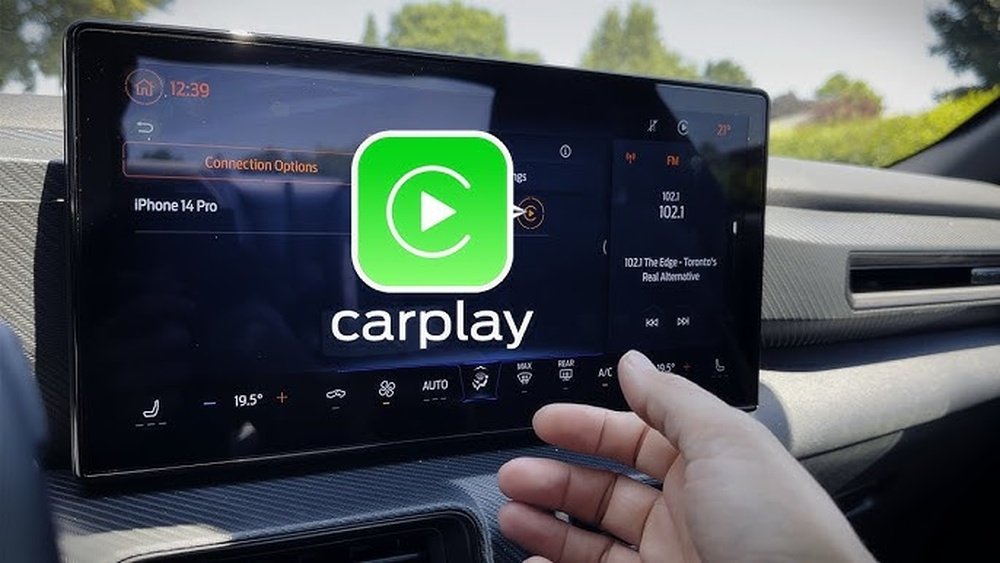
Is Apple CarPlay supposed to appear on your car’s screen, but it just doesn’t show up? You’re not alone—and it can be really frustrating.
You rely on CarPlay for hands-free calls, navigation, and music, so when it’s missing, your drive feels less connected and more complicated. The good news? Most of the time, the fix is simpler than you think. Keep reading, and you’ll discover the common reasons why Apple CarPlay isn’t showing on your car—and how you can get it working again quickly.
Common Reasons Apple Carplay Won’t Appear
Apple CarPlay may not show up on your car for several common reasons. Knowing these can help you fix the problem quickly. Most issues fall into four main areas: compatibility, connection, software, and settings.
Compatibility Issues
Not all cars support Apple CarPlay. Check if your car model is compatible. Older car models may not have the needed hardware. Also, your iPhone must run iOS 7.1 or later. Without these, CarPlay will not appear.
Connection Problems
CarPlay requires a good connection. Use an Apple-certified lightning cable for wired connections. Faulty or damaged cables cause issues. Wireless CarPlay needs Bluetooth and Wi-Fi enabled. Weak signals or interference can stop CarPlay from showing.
Software Glitches
Sometimes, CarPlay does not load due to software bugs. Restart your iPhone and your car’s infotainment system. Keep your iPhone’s iOS updated to the latest version. Updates often fix bugs that block CarPlay.
Settings Restrictions
Your iPhone settings can block CarPlay. Check if CarPlay is allowed on your device. Go to Settings > Screen Time > Content & Privacy Restrictions. Make sure CarPlay is not restricted. Also, ensure Siri is enabled, as CarPlay needs it to work.
Checking Your Car And Device Compatibility
Checking your car and device compatibility is the first step to fix Apple CarPlay issues. Not all cars or iPhones support CarPlay. Knowing what works helps you find the problem faster. This section explains how to check your car model, iPhone, and connection type.
Car Model Support
Not every car supports Apple CarPlay. Most models made after 2016 have CarPlay, but some older or basic models do not. Check your car manual or the manufacturer’s website for CarPlay availability. Some cars need a software update to enable CarPlay. Confirm your car’s system can connect with Apple devices.
Iphone Requirements
Apple CarPlay needs an iPhone 5 or newer. Your iPhone must run iOS 7.1 or later. Older iPhones or outdated software will not work. Make sure your phone’s software is updated. Check settings to allow CarPlay connection. Without these, CarPlay will not show up.
Cable And Wireless Connection Options
CarPlay can connect by cable or wirelessly. Some cars only support a USB cable connection. Use an Apple-certified Lightning cable for best results. Wireless CarPlay works with some newer models and requires Bluetooth and Wi-Fi. Check your car’s manual for supported connection types. A bad or loose cable can block CarPlay from showing.
Troubleshooting Connection Issues
Apple CarPlay may fail to show on your car due to connection problems. These issues often prevent your phone from communicating with the car’s system. Troubleshooting connection problems helps find and fix the cause quickly. Simple checks and resets often restore the connection.
Inspecting Usb Cable And Ports
Check the USB cable for any damage or wear. A broken or frayed cable can stop CarPlay from working. Try another cable that supports data transfer. Look at the USB ports in your car and phone. Clean any dust or debris gently. A loose or dirty port can block the connection.
Switching Between Wired And Wireless
CarPlay works wired or wireless depending on your car model. Switch between these modes to test the connection. Use a cable if wireless does not work. Turn off the cable and try wireless if wired fails. This helps identify if the problem is with the cable or the wireless signal.
Restarting Devices
Restart your iPhone and car system to fix glitches. Power off both devices, then turn them back on. This simple step can clear temporary bugs. Reconnect your phone to the car after restarting. Restarting refreshes the connection and often solves CarPlay issues.

Adjusting Iphone Settings For Carplay
Adjusting your iPhone settings can fix Apple CarPlay not showing in your car. Sometimes, the problem comes from simple settings on your phone. Checking these settings helps CarPlay work smoothly.
Start by making sure CarPlay is allowed on your iPhone. This stops any restrictions from blocking it. Next, allow CarPlay while your phone is locked. This makes the connection easier and faster. Finally, reset your network settings. This can clear any connection issues between your iPhone and car.
Enabling Carplay In Restrictions
Go to Settings on your iPhone. Tap Screen Time, then Content & Privacy Restrictions. Select Allowed Apps. Make sure CarPlay is turned on here. If it is off, CarPlay will not show in your car. Turning it on removes this block.
Allowing Carplay While Locked
Open Settings and tap General. Find CarPlay and select your car. Turn on Allow CarPlay While Locked. This lets your iPhone connect even when the screen is off. It helps CarPlay start without extra steps.
Resetting Network Settings
Sometimes, network settings cause connection problems. Open Settings and tap General. Scroll down to Reset, then choose Reset Network Settings. This clears saved Wi-Fi and Bluetooth data. Your iPhone will reconnect to your car fresh, often fixing CarPlay issues.
Updating Software And Firmware
Apple CarPlay may not show on your car if software or firmware is outdated. Both your iPhone and car system need updates to work well together. Updates fix bugs and add new features. Staying updated helps CarPlay run smoothly without errors.
Ios Updates
Your iPhone’s iOS must be current for CarPlay to function. Apple releases updates that improve CarPlay compatibility. Check your phone’s settings for any available updates. Install them to ensure your device supports the latest CarPlay version. Running an old iOS can cause connection problems and hide CarPlay.
Car Infotainment System Updates
Car makers also release firmware updates for infotainment systems. These updates improve system stability and CarPlay support. Visit the car manufacturer’s website or use their app to check for updates. Some updates require a USB drive or Wi-Fi connection in the car. Updating the car system often fixes CarPlay display issues.
Resetting Carplay Connections
Resetting CarPlay connections can fix many common problems. It clears errors that stop CarPlay from showing on your car’s screen. A fresh start helps your iPhone and car system work well together again.
This process involves removing the current connection and adding it back. Sometimes, a deeper reset of the car’s infotainment system is needed. Both steps are easy and often solve CarPlay issues fast.
Removing And Re-adding Carplay Device
Start by disconnecting your iPhone from the car. On your iPhone, go to Settings and tap General. Select CarPlay, then choose your car from the list. Tap Forget This Car to remove the connection.
Next, restart your iPhone. Reconnect it to your car using a USB cable or Bluetooth. Follow the prompts on both screens to set up CarPlay again. This refresh often restores the connection and visibility of CarPlay.
Factory Reset Of Infotainment System
Sometimes, the car’s system needs a full reset. Find the settings menu on your car’s display. Look for an option like “Factory Reset” or “Restore Defaults.”
This step erases saved settings and returns the system to original settings. After resetting, set up CarPlay from the beginning. This clears glitches causing CarPlay not to appear.
When To Seek Professional Help
Sometimes, fixing Apple CarPlay problems needs more than simple steps. When basic fixes do not work, professional help is the best choice. Experts can find hidden issues fast and save you time and stress.
Persistent Hardware Problems
Hardware issues can stop Apple CarPlay from showing on your car. Damaged USB ports, faulty cables, or broken connectors cause this. Professionals have the tools to test and fix these parts. They can replace damaged hardware safely. Trying to fix hardware alone may cause more damage.
Software Malfunctions Beyond Basic Fixes
Software bugs or system errors can block Apple CarPlay. Resetting or updating might not solve complex problems. Technicians use special software to diagnose and repair these errors. They can update your car’s system or restore factory settings. This ensures Apple CarPlay works smoothly again.
Frequently Asked Questions
Why Is Apple Carplay Not Appearing In My Car?
Apple CarPlay may not appear due to outdated iOS, incompatible car system, or faulty cable connection. Update your iPhone, check compatibility, and use an Apple-certified USB cable to fix this issue.
How Do I Enable Apple Carplay In My Car Settings?
To enable CarPlay, go to your car’s infotainment system settings. Look for Apple CarPlay or smartphone integration options and turn it on. Also, ensure your iPhone is unlocked and connected.
Can A Faulty Usb Cable Cause Carplay Not To Show?
Yes, a damaged or non-certified USB cable can prevent CarPlay from showing. Always use an Apple-certified cable and try swapping cables to identify if the issue is cable-related.
Is My Iphone Model Compatible With Apple Carplay?
Apple CarPlay supports iPhone 5 and later models running iOS 7. 1 or newer. If your iPhone is older or not updated, CarPlay may not work properly or appear.
Conclusion
Apple CarPlay not showing can be frustrating. Check your car’s compatibility first. Make sure your iPhone and cable work well. Restart both your phone and car system. Update your iPhone’s software for better results. Sometimes, settings need a simple tweak.
A quick reset often fixes connection problems. If issues persist, contact your car dealer or Apple support. Staying patient helps solve this common problem. Keep trying these steps to enjoy CarPlay soon.




