Want to enjoy your favorite music, podcasts, or calls through your car’s stereo without any hassle? Connecting your phone to your car stereo can make every drive more fun and convenient.
But if you’ve ever felt stuck or confused about how to do it, you’re not alone. This guide will walk you through simple steps to get your phone and car stereo talking in no time. By the end, you’ll know exactly how to set it up and enjoy hands-free entertainment on the road.

49% off Today's Exclusive Deals
Limited-time Exclusive Deals. Check current discount on Amazon.
Check Price on Amazon As an Amazon Associate I earn from qualifying purchases.Ready to upgrade your driving experience? Let’s dive in!

Choose Connection Method
Choosing the right connection method is the first step to link your phone to the car stereo. The method depends on your car stereo model and phone features. Some methods offer better sound quality. Others provide easier setup. Understanding each option helps you pick the best one for your needs.
Bluetooth Setup
Bluetooth is a wireless option for connecting your phone. Most modern car stereos support Bluetooth. It lets you play music and take calls hands-free. To connect, turn on Bluetooth on both devices. Select your car stereo from the phone’s Bluetooth list. Enter a pairing code if asked. The connection usually happens quickly.
49% off Today's Exclusive Deals
Limited-time Exclusive Deals. Check current discount on Amazon.
Check Price on Amazon As an Amazon Associate I earn from qualifying purchases.Auxiliary Cable Connection
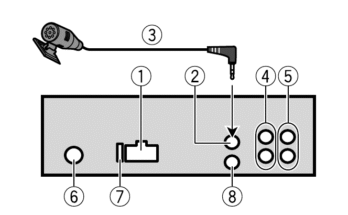
An auxiliary cable is a simple wired option. It uses a 3.5mm jack, like headphones. Plug one end into your phone’s headphone port. Connect the other end to the car stereo’s AUX input. This method works for most phones and stereos. It does not require Bluetooth or special setup. Sound quality depends on the cable and device.
Usb Cable Link
USB cables offer a direct connection to your car stereo. Plug your phone into the car’s USB port. The stereo may read music files from your phone. It can also charge your phone at the same time. Some cars allow control through the stereo screen. Use a compatible USB cable for your phone model.
Fm Transmitter Option
An FM transmitter sends your phone’s audio to an FM radio frequency. Plug the transmitter into your phone’s headphone jack or USB port. Tune your car stereo to the transmitter’s frequency. This method works for older car stereos without AUX or Bluetooth. Sound quality may vary due to radio interference.
Prepare Your Phone
Preparing your phone is the first step to connect it with your car stereo. Ensuring your device is ready helps the connection process go smoothly. Small settings on your phone can affect how well it links to your car system.
49% off Today's Exclusive Deals
Limited-time Exclusive Deals. Check current discount on Amazon.
Check Price on Amazon As an Amazon Associate I earn from qualifying purchases.Follow simple steps to make sure your phone is set up for the best audio experience. This will help you enjoy music, calls, and apps through your car speakers without trouble.
Enable Bluetooth Or Usb
Turn on Bluetooth from your phone’s settings menu. This lets your phone search and connect to your car stereo wirelessly.
If you prefer a wired connection, plug your phone into the car stereo using a USB cable. Check that the cable fits both devices correctly.
Adjust Volume Settings
Set your phone’s volume to a medium or high level. Low volume may cause poor sound quality in your car.
Also, check the car stereo volume before playing audio. Adjust both to avoid sudden loud sounds or no sound at all.
Install Required Apps
Some car stereos need specific apps to work well with your phone. Visit your phone’s app store to find these apps.
Download and install any recommended apps. Open the app and follow on-screen instructions to link it to your car stereo.
Prepare Your Car Stereo
Preparing your car stereo is the first step to connect it to your phone. This step makes sure your stereo and phone work well together. Follow simple actions to get your stereo ready. It saves time and avoids connection problems.
Access Stereo Settings
Turn on your car stereo. Find the settings menu on the display. Use buttons or touchscreen to open it. Look for options related to connectivity or audio. This area controls how your stereo connects to other devices.
Activate Bluetooth Or Aux Mode
Choose Bluetooth or Aux mode depending on your phone’s support. For Bluetooth, turn on the Bluetooth function in settings. For Aux, plug in the Aux cable into the stereo port. Activating the correct mode allows the stereo to receive signals from your phone.
Check Compatibility
Make sure your car stereo supports your phone’s connection type. Some older stereos may lack Bluetooth. Others may only support Aux input. Check your stereo’s manual or look online for compatibility details. This step avoids frustration during connection attempts.
Pair Phone And Stereo
Pairing your phone with your car stereo allows you to play music and take calls hands-free. This connection uses Bluetooth technology, which is wireless and easy to set up. Follow simple steps to connect your devices quickly.
Scan For Devices
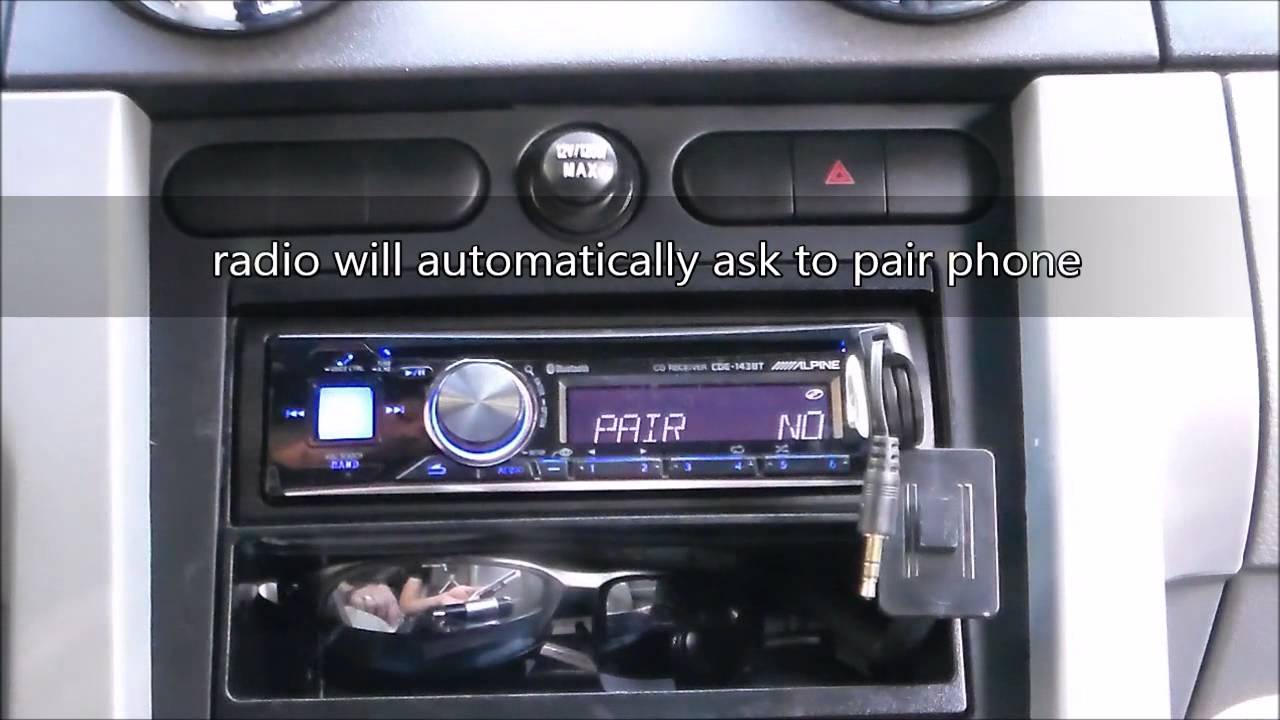
Turn on Bluetooth on your phone. Go to the Bluetooth settings menu and start scanning for devices. On your car stereo, access the Bluetooth or phone menu and select the option to make it discoverable. Your phone will show a list of available devices. Look for your car stereo’s name and select it.
Enter Pairing Code
Some car stereos ask for a pairing code to connect. This code is often “0000” or “1234,” but check your stereo’s manual if unsure. Enter the code on your phone when prompted. This step confirms that you want to connect your phone and stereo securely.
Confirm Connection
After entering the code, wait for the devices to finish pairing. Your phone may show a message that the connection is successful. Your car stereo might also display a confirmation. Test the connection by playing some music or making a call to ensure everything works smoothly.
Troubleshoot Connection Issues
Connecting your car stereo to your phone should be simple. Sometimes, the connection fails or drops. Troubleshooting helps fix these problems quickly. Follow clear steps to identify and solve the issue. This saves time and frustration.
Reset Devices
Start by turning off both your phone and car stereo. Wait a few seconds. Turn them back on. This resets the devices and clears minor glitches. Try connecting again after the reset.
Check Cables And Ports
Look closely at the cables and ports used for connection. Make sure cables are not damaged or loose. Clean the ports gently to remove dust. A good physical connection is essential for stable pairing.
Update Firmware
Old software can cause connection troubles. Check for updates on your car stereo and phone. Installing the latest firmware improves compatibility and fixes bugs. Keep devices updated to avoid common issues.

Enhance Audio Experience
Connecting your phone to a car stereo can improve how music sounds during drives. It lets you enjoy clearer sound and better control over audio. Enhancing the audio experience makes every trip more fun and relaxing.
Small changes in settings can bring big improvements. Use features built into your car stereo and phone to get the best sound quality. This section shows easy ways to improve your audio experience.
Adjust Equalizer Settings
The equalizer changes sound tones like bass and treble. Most car stereos have preset equalizer options. Choose one that fits your music style, such as rock or jazz. You can also create custom settings for a personal touch.
Adjusting the equalizer helps balance sound. It makes voices clear and music richer. Experiment with settings until the sound feels right. This simple step improves audio without extra equipment.
Use Hands-free Features
Hands-free features let you control music and calls safely. Use voice commands or steering wheel buttons to change songs. This keeps your focus on driving.
Many systems support voice assistants like Siri or Google Assistant. You can ask them to play music or call contacts. Hands-free use makes driving safer and audio control easier.
Manage Calls And Music
Switch smoothly between calls and music using your car stereo. When a call comes in, music pauses automatically. After the call, music resumes without you touching anything.
Use the stereo screen or phone to pick or end calls. Adjust volume separately for calls and music. Managing calls and music keeps your drive comfortable and distraction-free.
Frequently Asked Questions
How Do I Connect My Phone To A Car Stereo?
Use Bluetooth, USB cable, or auxiliary cable to connect your phone. Enable Bluetooth on both devices or plug in the cable. Follow the car stereo’s pairing instructions for seamless connection and audio playback.
Can I Use Bluetooth To Connect Any Phone To Car Stereo?
Yes, most modern car stereos support Bluetooth connections for both Android and iPhone devices. Ensure Bluetooth is enabled on your phone and stereo, then pair them for wireless audio streaming.
What If My Car Stereo Doesn’t Have Bluetooth?
Use an auxiliary cable or USB connection if Bluetooth isn’t available. Alternatively, use a Bluetooth adapter that plugs into the auxiliary port to enable wireless connectivity.
How To Play Music From Phone Through Car Stereo?
Once connected via Bluetooth, USB, or aux, select the car stereo’s input source. Open your phone’s music app, then play songs to stream audio through your car speakers.
Conclusion
Connecting your car stereo to your phone makes driving more fun and safe. It lets you play music and use apps hands-free. Follow simple steps to pair devices using Bluetooth or cables. Always check your car and phone compatibility before starting.
Enjoy clear sound and easy control on the road. Stay focused while driving and avoid distractions. This small setup improves your travel experience every time. Try it today and hear the difference yourself.