Struggling to connect your phone to your car stereo via Bluetooth? You’re not alone.
Getting your devices to sync smoothly can feel tricky, but it doesn’t have to be. Imagine driving with your favorite playlist or hands-free calls streaming effortlessly through your car speakers. Sounds great, right? In this guide, you’ll discover simple steps to connect Bluetooth on your car stereo quickly and without hassle.
Keep reading, and you’ll be enjoying seamless wireless audio in no time.
Prepare Your Devices
Preparing your devices is the first step to connect Bluetooth on your car stereo. This stage helps ensure a smooth and quick connection. It also reduces possible errors during pairing.
Focus on checking your car stereo and phone settings. Getting these ready saves time and avoids frustration.
Check Car Stereo Compatibility
Not all car stereos support Bluetooth. Check your car stereo manual or model online. Look for Bluetooth or wireless audio features. Some older models may not have Bluetooth built-in. In that case, consider using an adapter or cable for connection.
Enable Bluetooth On Your Phone
Turn on Bluetooth in your phone settings. On most phones, go to Settings, then Bluetooth. Switch the toggle to ON. Keep your phone visible to other devices. This helps your car stereo detect your phone easily.

Access Car Stereo Bluetooth Settings
Accessing the Bluetooth settings on your car stereo is the first step to connect your device. This allows your phone to communicate with the car’s audio system. You can then play music, take calls, and use other features wirelessly.
Each car stereo may have a different menu layout. Knowing how to find the Bluetooth settings saves time and avoids frustration. The process is simple once you understand the main steps.
Navigate To Bluetooth Menu
Start by turning on your car stereo. Look for the main menu button on the dashboard or screen. Use the dial or touch screen to scroll through the options. Find the “Settings” or “Setup” section. Inside, locate “Bluetooth” or “Phone” settings. Select this option to open the Bluetooth menu.
Some models show a Bluetooth icon directly on the home screen. This icon leads you straight to the Bluetooth menu. Use your car’s manual if you cannot find the option. It helps explain the exact steps for your model.
Activate Pairing Mode
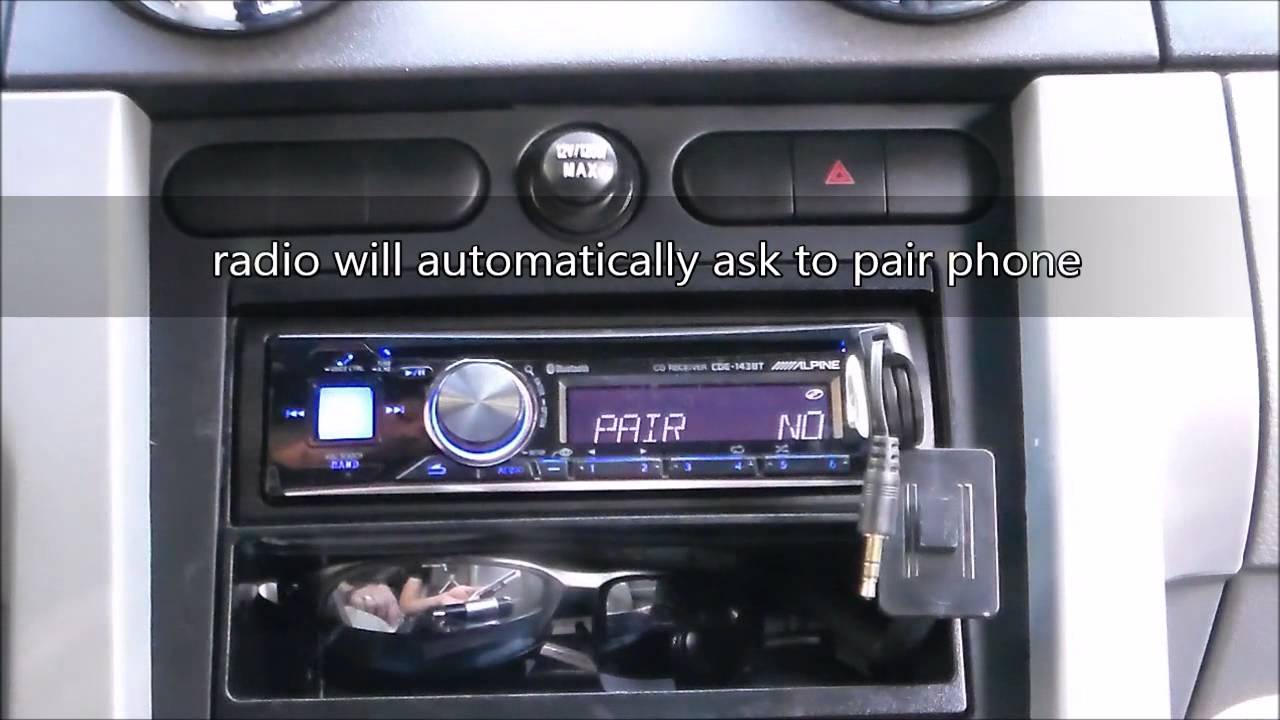
After entering the Bluetooth menu, look for “Pair Device” or “Add Device.” Select this to start pairing mode. Pairing mode makes your car stereo visible to your phone. It allows the devices to connect securely.
Your car stereo may show a message like “Searching” or “Waiting for Device.” This confirms pairing mode is active. Keep the car stereo in this mode while you connect your phone. Some models automatically exit pairing mode after a few minutes. Stay alert to avoid restarting the process.
Pair Your Phone With Car Stereo
Pairing your phone with your car stereo is the key to hands-free calls and music streaming. The process is simple and takes just a few steps. Once paired, your phone connects automatically every time you enter the car. This makes driving safer and more enjoyable.
Search For Devices On Phone
Start by opening the Bluetooth settings on your phone. Turn Bluetooth on if it is off. Your phone will begin searching for nearby devices. Stay close to your car stereo during this step. It helps your phone find the stereo faster.
Select Car Stereo From List
After the search, your phone shows a list of available devices. Look for your car stereo’s name on this list. Tap the name to choose it. This tells your phone to connect to the stereo.
Confirm Pairing Code
A code appears on both your phone and car stereo screens. Check if the codes match. Press “Pair” or “Confirm” on your phone. Also, accept the pairing request on your stereo if needed. This step secures the connection between devices.
Test The Bluetooth Connection
Testing the Bluetooth connection ensures your car stereo and phone work well together. It confirms the devices are paired and ready to play music or make calls. This step helps avoid issues before you start driving.
Play Audio From Phone
Start by opening your music app on the phone. Select a song or playlist you like. Press play and listen for sound through the car speakers. If you hear music, the connection is successful. No sound means you should check pairing or volume levels.
Adjust Volume And Settings
Use the car stereo controls to change the volume. Make sure the sound is clear and not too loud. Adjust bass or treble if your stereo supports it. On your phone, check the Bluetooth volume is also high. This keeps sound balanced and comfortable during the drive.
Troubleshoot Connection Issues
Bluetooth connection issues can disrupt your music and calls. Troubleshooting helps fix these problems quickly. Follow simple steps to restore your car stereo’s Bluetooth function. This ensures smooth and clear connections every time you drive.
Restart Devices
Turn off your car stereo and phone. Wait for a few seconds. Turn them back on. Restarting refreshes the Bluetooth system. It clears minor errors that block connection. Try pairing again after restart.
Clear Previous Pairings
Old pairings can cause conflicts. Delete all saved Bluetooth devices from your car stereo. Also, remove your car stereo from your phone’s Bluetooth list. Clearing old connections allows fresh pairing. This step often solves connection failures.
Update Firmware Or Software
Outdated software can create bugs. Check if your car stereo has a firmware update. Look for software updates on your phone too. Updating improves compatibility and fixes known issues. Keep both devices updated for best performance.
Manage Connected Devices
Managing connected devices on your car stereo makes Bluetooth use easier. It helps you control which devices connect and when. This way, you can enjoy music or calls without hassle.
Most modern car stereos let you pair more than one device. This feature is useful for families or carpool groups. You can switch between phones without disconnecting each time.
Add Multiple Devices
To add multiple devices, start by opening your car stereo’s Bluetooth menu. Select the option to pair a new device. On your phone, turn on Bluetooth and search for the car stereo. Tap the stereo name to connect. Repeat these steps with each device you want to add. Your stereo stores these devices for easy future use.
Switch Between Devices
Switching between devices is simple. Open the Bluetooth menu on your car stereo. Look for the list of paired devices. Choose the device you want to use. The stereo will connect to that device automatically. This lets you play music or take calls from different phones quickly.
Frequently Asked Questions
How Do I Pair My Phone With Car Bluetooth?
To pair, enable Bluetooth on both devices. Search for your car stereo name on your phone. Select it and confirm the pairing code if prompted.
Why Won’t My Car Stereo Connect Via Bluetooth?
Check if Bluetooth is enabled on both devices. Ensure they are close. Restart your phone and car stereo. Delete old connections and try pairing again.
Can I Connect Multiple Devices To Car Bluetooth?
Most car stereos support multiple devices but only one can play audio at a time. Check your car manual for specific limits.
How To Improve Bluetooth Connection Quality In My Car?
Keep your phone close to the stereo. Avoid obstructions and wireless interference. Update your phone and car stereo software regularly.
Conclusion
Connecting Bluetooth to your car stereo is simple and fast. Just follow the steps carefully. Pair your phone and stereo using the car’s Bluetooth menu. Play music or take calls without wires. No need for extra cables or complicated setups.
Enjoy hands-free driving and better sound quality. Stay safe by keeping your focus on the road. Practice a few times, and it will feel natural. Bluetooth makes your drive more fun and convenient. Give it a try today and experience the ease yourself.