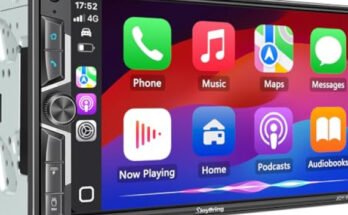
Sony XAV-AX3250 troubleshooting usually comes down to power, wiring, software, or phone connection issues.
If you own this head unit, you already know how much of your daily drive depends on it working the right way. I’ve spent enough time diagnosing car audio systems to know that Sony XAV-AX3250 troubleshooting is often less about a “bad stereo” and more about a small fix hiding in plain sight. In this guide, I’ll walk you through the most common problems, the real causes behind them, and the practical steps that usually solve them fast.

49% off Today's Exclusive Deals
Limited-time Exclusive Deals. Check current discount on Amazon.
Check Price on Amazon As an Amazon Associate I earn from qualifying purchases.
Common Sony XAV-AX3250 Problems and What They Usually Mean
The Sony XAV-AX3250 is a solid double-DIN receiver, but like any in-dash unit, it can act up for simple reasons. The most common complaints are no power, blank screen, Bluetooth pairing issues, CarPlay or Android Auto not connecting, no sound, and random restarts.
From experience, the biggest mistake people make is assuming the unit itself is defective right away. In many cases, the issue is a loose ground wire, a weak fuse, a bad USB cable, or a phone setting that needs a quick reset. Sony XAV-AX3250 troubleshooting works best when you check the basics first and move step by step.
49% off Today's Exclusive Deals
Limited-time Exclusive Deals. Check current discount on Amazon.
Check Price on Amazon As an Amazon Associate I earn from qualifying purchases.
Sony XAV-AX3250 Not Turning On
If the stereo will not power on, start with the power path. Check the vehicle fuse, the head unit fuse, the red accessory wire, the yellow constant power wire, and the black ground wire. A poor ground is one of the most common reasons a Sony XAV-AX3250 seems dead even when it is not.
Here is the order I usually follow:
- Make sure the car is in accessory or ignition mode.
- Check the fuse in the vehicle and the fuse on the harness.
- Confirm the wiring harness is seated firmly.
- Test the yellow and red wires with a multimeter.
- Inspect the ground connection for rust, paint, or looseness.
If the unit powers on only sometimes, the issue may be voltage drop. That can happen with weak battery connections, damaged wiring, or an unstable adapter harness. Good Sony XAV-AX3250 troubleshooting always begins with steady power.
49% off Today's Exclusive Deals
Limited-time Exclusive Deals. Check current discount on Amazon.
Check Price on Amazon As an Amazon Associate I earn from qualifying purchases.Blank Screen or No Display
A powered unit with no visible display can feel confusing, but it often has a simple cause. The screen brightness may be set too low, the display may be in sleep mode, or the unit may need a reset. In some cases, the parking brake wire or a wiring fault can affect screen behavior.
Try these checks:
- Increase display brightness in the settings.
- Press the physical home or volume controls to wake the unit.
- Perform a soft reset using the reset button.
- Inspect the harness for loose connectors.
- Check whether the unit is stuck on a source that is not responding.
I once saw a driver replace a display panel when the real issue was just brightness set nearly to zero after a settings change. That is why Sony XAV-AX3250 troubleshooting should always start with simple adjustments before deeper repairs.
Bluetooth Not Pairing or Disconnecting
Bluetooth problems are very common, especially if multiple phones have been paired before. If your phone will not connect, delete the car profile from your phone and remove the phone from the Sony unit’s memory. Then pair it again from scratch.
If the connection keeps dropping, look at these possible causes:
- Bluetooth cache issues on the phone
- Too many saved devices on the head unit
- Phone battery saver mode interfering with Bluetooth
- Old firmware on the Sony XAV-AX3250
- Interference from other wireless devices nearby
For best results, keep your phone close during pairing and make sure Bluetooth is turned on before starting the process. In my experience, clearing old pairings solves more Sony XAV-AX3250 troubleshooting cases than people expect.
Apple CarPlay or Android Auto Not Working
When CarPlay or Android Auto fails, the first thing to check is the USB cable. A charging-only cable will not pass data, and even some cheap data cables can work poorly. Sony XAV-AX3250 troubleshooting for smartphone integration often comes down to cable quality, phone permissions, or USB port problems.
Use this checklist:
- Use the original or a certified high-quality USB cable.
- Plug directly into the main USB port, not a hub.
- Unlock the phone before connecting it.
- Confirm CarPlay or Android Auto permissions are enabled.
- Restart both the phone and the head unit.
Sometimes the system connects but does not launch the app interface. That can happen after a phone update or a stored permission glitch. If that happens, remove the device and pair it again cleanly.
No Sound or Very Low Volume
A silent stereo is frustrating, but the issue is often in the audio settings rather than the amplifier itself. Check mute status, source volume, fader, balance, and speaker wiring. If the unit powers on and shows music playing but no sound comes out, the speaker path is the next place to inspect.
Common causes include:
- Mute enabled by accident
- Volume set too low on a connected phone
- Speaker wires crossed or loose
- External amplifier not waking up
- Incorrect audio settings in the menu
I’ve found that people often forget the phone has its own volume control. When using Bluetooth or USB audio, you may need to raise both the phone volume and the head unit volume. That small detail saves a lot of unnecessary Sony XAV-AX3250 troubleshooting time.
Touchscreen Not Responding Properly
If the screen lags, freezes, or misses touches, it may need a reset or a firmware update. Heat can also affect touch response, especially in hot weather or if the dash area gets direct sun for long periods. Dirt, screen film issues, or an unstable power supply can also make the panel act strange.
Try the following:
- Clean the screen with a soft microfiber cloth.
- Restart the unit.
- Check for firmware updates.
- Avoid using harsh cleaners on the display.
- Watch for signs of overheating in the dash area.
A touchscreen that works well in the morning but not after a long drive often points to heat, not failure. That is a useful clue in Sony XAV-AX3250 troubleshooting because it helps you avoid replacing parts you do not need.
Random Restarts or Freezing
If the Sony XAV-AX3250 restarts on its own, the root cause is often unstable voltage. Weak wiring, poor grounds, low battery health, or a faulty adapter can make the unit reboot when the car hits bumps or when other electronics turn on. Sometimes the unit freezes after a phone connects or after a source change, which points to software or memory issues.
Here is a simple process:
- Inspect the battery and charging system.
- Recheck the ground wire.
- Make sure no wires are pinched behind the dash.
- Reset the unit.
- Update the firmware if available.
From my own work, the most overlooked issue here is a loose harness connector hidden behind the dash. It may look fully seated at a glance, but one click short can cause endless Sony XAV-AX3250 troubleshooting headaches.
Steering Wheel Controls Not Working
If steering wheel controls stop responding, the problem is usually in the learning setup, adapter module, or wiring interface. Some vehicles need a separate interface box, and if that box loses power or programming, the buttons may stop working. The head unit may also need to be reconfigured after installation changes.
Check these points:
- Verify the steering wheel control adapter is compatible with your vehicle.
- Make sure the adapter has power and ground.
- Relearn the buttons if the system supports it.
- Confirm the correct wires are connected to the adapter.
- Update or reset the adapter if needed.
This is one of those problems where people blame the stereo, but the real issue lives in the interface module. Good Sony XAV-AX3250 troubleshooting means tracing the whole control chain, not just the screen.
How to Reset the Sony XAV-AX3250 Safely
A reset can fix minor software glitches, pairing bugs, and frozen screens. Before you reset, save any custom settings if possible, because a reset may clear presets and device memory. Use the physical reset button or the reset option in the menu if the unit still responds.
A safe reset process looks like this:
- Turn off the vehicle.
- Remove the faceplate if needed.
- Press the reset button carefully with a small pointed tool.
- Wait for the unit to reboot fully.
- Reconnect your phone and test again.
A reset is not a magic fix, but it often clears temporary issues that look worse than they are. In Sony XAV-AX3250 troubleshooting, a reset is usually the cleanest first repair after the basic wiring check.
Preventing Future Problems
The best repairs are the ones you do not have to repeat. A little care during installation and regular use can prevent many common issues. Clean wiring, quality cables, and updated firmware go a long way.
To reduce future trouble:
- Use a proper wiring harness and secure every connection.
- Keep USB cables short and high quality.
- Avoid cheap adapters for CarPlay and Android Auto.
- Update the firmware when Sony releases improvements.
- Keep the dashboard area cool when possible.
I always tell people to think of the head unit like a small computer in a moving box. Stable power, clean inputs, and good cables make it much happier. That mindset makes Sony XAV-AX3250 troubleshooting much easier later on.
When You Should Seek Professional Help
Some problems need more than basic checks. If the unit has burnt smell, visible damage, repeated fuse failure, or no output even after wiring verification, a professional installer or car audio technician should inspect it. The same goes for vehicle-specific interface issues that involve CAN bus adapters or factory amplifier systems.
Professional help is a smart move when:
- The unit fails after correct wiring tests
- Fuses keep blowing
- You suspect internal hardware damage
- The vehicle has a complex factory audio system
- You are unsure about safe electrical testing
There is no shame in handing off a tricky case. Sometimes the fastest and safest answer in Sony XAV-AX3250 troubleshooting is having someone with the right test tools look at it.
Frequently Asked Questions of Sony XAV-AX3250 Troubleshooting
Why does my Sony XAV-AX3250 keep disconnecting from Bluetooth?
Bluetooth disconnects usually come from phone settings, old pairings, or interference from other wireless devices. Delete the pairing on both the phone and the head unit, then reconnect from scratch.
Why is my Sony XAV-AX3250 screen black but the unit has power?
A black screen often means the display brightness is too low, the unit is in sleep mode, or the screen needs a reset. If that does not help, check the wiring and the head unit fuse.
Why won’t Apple CarPlay work on my Sony XAV-AX3250?
The most common cause is a bad USB cable or a cable that only supports charging. Also make sure the phone is unlocked, permissions are allowed, and the correct USB port is being used.
Why is there no sound from my Sony XAV-AX3250?
No sound is often caused by mute mode, low phone volume, bad speaker wiring, or an amplifier issue. Check the balance, fader, and source volume before assuming the unit has failed.
How do I reset my Sony XAV-AX3250?
You can usually reset it with the physical reset button or through the settings menu if the screen still works. A reset can clear temporary glitches, but it may also remove saved settings and pairings.
Conclusion
Sony XAV-AX3250 troubleshooting is much easier when you work step by step and do not skip the basics. Power, ground, wiring, cables, firmware, and phone settings solve most issues before they ever become major repairs.
If your unit is acting up, start with the simplest checks, then move to resets and software updates. That approach saves time, money, and frustration, and it usually gets your system back to normal faster than guesswork ever will. If this guide helped, keep it handy, share it with another driver, or explore more car audio tips to stay ahead of the next issue.