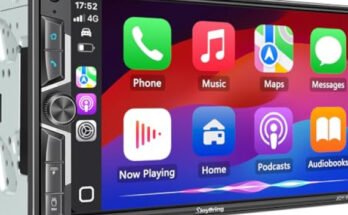
Sony XAV-AX5500 troubleshooting usually starts with power, wiring, settings, or firmware issues.
If you own this unit, you already know how much it can improve your drive. I have worked through plenty of Sony XAV-AX5500 troubleshooting cases, and the problems are usually simple once you know where to look. In this guide, I’ll walk you through the most common issues, the real causes behind them, and the fixes that actually work.

49% off Today's Exclusive Deals
Limited-time Exclusive Deals. Check current discount on Amazon.
Check Price on Amazon As an Amazon Associate I earn from qualifying purchases.

What Sony XAV-AX5500 troubleshooting usually involves
Sony XAV-AX5500 troubleshooting is the process of finding why the receiver is not turning on, connecting, playing sound, or responding the way it should. Most problems come from four places: power, ground, speakers, or software settings. That is good news, because it means many fixes are simple and do not require replacing the unit.
In my experience, the biggest mistake people make is jumping straight to the radio itself. The truth is that many “head unit problems” are really installation problems. A loose harness, weak ground, or wrong setting can make the Sony XAV-AX5500 seem broken when it is not.
49% off Today's Exclusive Deals
Limited-time Exclusive Deals. Check current discount on Amazon.
Check Price on Amazon As an Amazon Associate I earn from qualifying purchases.Common areas to check first
When I start Sony XAV-AX5500 troubleshooting, I look at these basics first:
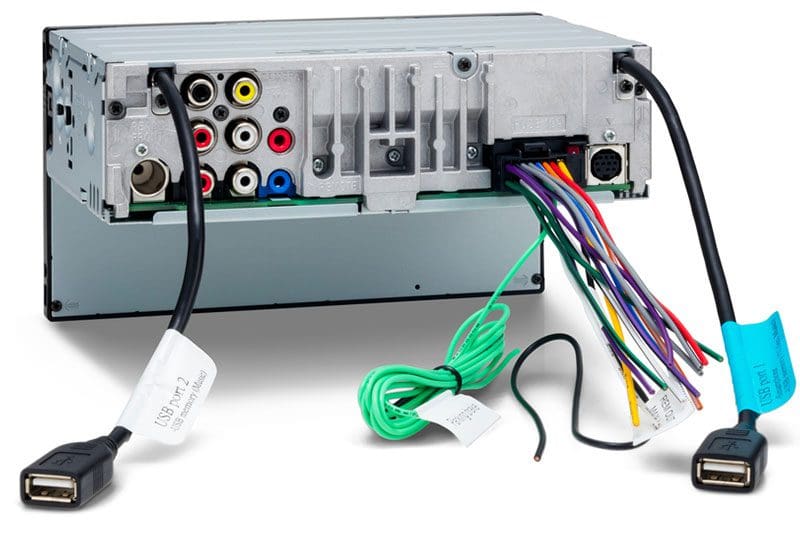
• Power wire connection: Make sure the yellow constant power wire and red accessory wire are both connected properly.
• Ground wire: A poor ground can cause random shutdowns, no power, or distorted sound.
• Fuse condition: Check both the vehicle fuse and the unit fuse.
• Speaker wiring: A shorted speaker wire can trigger protect mode.
• Settings and firmware: Some issues are caused by software or feature settings, not hardware failure.
These checks solve a large share of problems without needing advanced tools.
49% off Today's Exclusive Deals
Limited-time Exclusive Deals. Check current discount on Amazon.
Check Price on Amazon As an Amazon Associate I earn from qualifying purchases.Sony XAV-AX5500 not turning on
When the Sony XAV-AX5500 does not power up, the problem is usually electrical. The most common cause is that the unit is not getting both constant and switched power. I have seen this happen after clean-looking installs where one wire was still loose behind the dash.
Start with the basics and work in order:
- Check the car fuse box and the stereo fuse.
- Confirm the yellow wire has constant 12V.
- Confirm the red wire gets 12V when the ignition is on.
- Make sure the black ground wire is tied to bare metal.
- Inspect the harness for loose pins or damaged insulation.
If the unit still stays dead, test the voltage with a multimeter instead of guessing. A lot of people swap parts too early, but voltage testing gives you the truth fast. That saves time and avoids unnecessary returns.
Sony XAV-AX5500 sound problems
Sound issues are one of the most common Sony XAV-AX5500 troubleshooting complaints. The unit may power on but produce no sound, weak sound, one-sided sound, or distorted audio. The root cause is often wiring, speaker impedance, or a setting inside the receiver.
Here is how I usually break it down:
• No sound at all: Check speaker wiring, RCA connections, mute status, and balance/fader settings.
• One speaker not working: Look for a loose wire or short at that speaker run.
• Distorted sound: Turn down the volume and check for a shorted speaker wire or damaged speaker.
• Low output: Confirm the volume limit, EQ, and external amp settings.
If you are using an external amplifier, confirm the remote turn-on wire is connected. I once spent nearly an hour chasing a “dead unit” that was really just an amp not waking up. The Sony XAV-AX5500 was fine; the amp was the missing piece.
Helpful sound checks
• Reset balance and fader to the center.
• Turn off loudness or extreme EQ settings for testing.
• Disconnect aftermarket amps temporarily to isolate the problem.
• Test each speaker one at a time if possible.
This kind of step-by-step testing keeps Sony XAV-AX5500 troubleshooting simple and accurate.
Sony XAV-AX5500 Bluetooth problems
Bluetooth issues can feel random, but they usually come from pairing errors, phone conflicts, or saved device clutter. If the Sony XAV-AX5500 will not pair, drops calls, or has choppy audio, the fix is often on the phone side or in the saved device list.
Try these steps:
- Delete the Sony unit from your phone’s Bluetooth list.
- Delete your phone from the Sony XAV-AX5500 memory.
- Restart both devices.
- Pair again from scratch.
- Keep the phone close during pairing.
If calls cut out or sound robotic, check whether another Bluetooth device is connected at the same time. Phones often try to share audio across multiple devices, and that can create a mess. I have seen this more than once with drivers who had a smartwatch, wireless earbuds, and the car unit all fighting for control.
Bluetooth tips that help
• Keep firmware updated on both the head unit and your phone.
• Remove old phones you no longer use.
• Avoid pairing in a crowded RF area if possible.
• Test with a second phone to see if the issue follows the device or the car.
Sony XAV-AX5500 Apple CarPlay and Android Auto issues
Another frequent part of Sony XAV-AX5500 troubleshooting is smartphone integration. If Apple CarPlay or Android Auto does not launch, freezes, or disconnects, the issue may be with the cable, phone settings, or USB port. This is one area where a good cable makes a huge difference.
Use this process:
• Try a different high-quality USB cable.
• Make sure the cable supports data, not just charging.
• Check that the phone is unlocked during connection.
• Confirm CarPlay or Android Auto is enabled on the phone.
• Clean the USB port on the phone and the receiver.
Wireless behavior can also be affected by interference or outdated software. If the connection keeps failing, test the phone in another vehicle or on another compatible device. That helps you figure out whether the issue is with the Sony XAV-AX5500 or the phone itself.
A simple truth from experience: half of “CarPlay problems” are really bad cables. I learned that the hard way after replacing settings that were not the real issue at all.
Sony XAV-AX5500 frozen screen or slow response
A frozen touchscreen can look serious, but it is often caused by a temporary software glitch. The Sony XAV-AX5500 may lag, stop responding, or take too long to switch screens after startup. These symptoms can show up after a power interruption or a bad app connection.
Try these fixes:
- Turn the vehicle off and restart it fully.
- Perform a soft reset if the unit supports it.
- Disconnect the phone and external devices.
- Check for firmware updates.
- Restore settings if the problem continues.
If the screen freezes often, I would also inspect the power supply. Unstable voltage during engine start can confuse electronics and make them act buggy. That is why a solid install matters just as much as the features on paper.
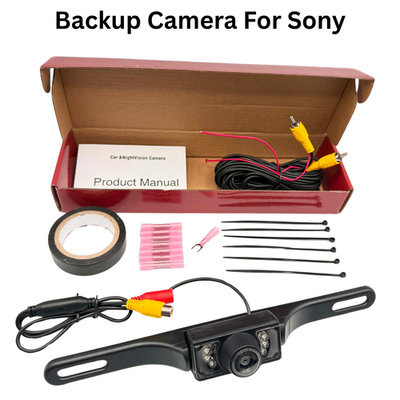
Sony XAV-AX5500 no backup camera display
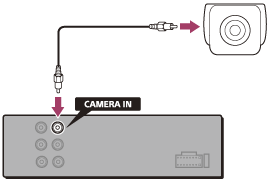
If the Sony XAV-AX5500 does not show the rear camera image, the issue is usually wiring, trigger signal, or camera compatibility. Many people assume the camera is bad, but the reverse signal wire is often the real culprit. Without that trigger, the head unit may never switch to the camera view.
Check these points:
• Make sure the reverse gear trigger wire is connected correctly.
• Confirm the camera has power.
• Test the camera on another display if possible.
• Inspect video cable connections for damage.
• Review camera input settings in the menu.
If the image appears but looks upside down, blurry, or unstable, the camera itself may need adjustment. Sometimes the simplest fix is cleaning the lens and securing the mount. I have seen a “bad camera” turn out to be nothing more than a dirty lens and a loose bracket.
Sony XAV-AX5500 settings that can cause confusion
A lot of Sony XAV-AX5500 troubleshooting comes down to settings that were changed by accident. The receiver has audio, display, camera, Bluetooth, and smartphone options that can make it seem faulty when it is just configured poorly. That is why a quick settings review is worth doing before deeper repairs.
Check these settings first:
• Dimmer and brightness: A screen can seem off if the brightness is too low.
• Mute and volume limits: These can make audio seem missing.
• Demo mode: This can interfere with normal use in some cases.
• Input source: The unit may be on the wrong source.
• Camera settings: Wrong camera selection can hide the reverse image.
When I help someone with Sony XAV-AX5500 troubleshooting, I often ask them to show me the last settings change they made. That simple question saves a lot of time. Most modern head units are not failing randomly; they are reacting to a change the user did not expect.
Firmware updates and factory reset
Firmware updates are important because they can fix bugs, improve stability, and help with phone compatibility. Sony often uses updates to address small issues that show up over time. If your unit acts strange after months of perfect use, updating software is one of the smartest things to try.
A factory reset is useful when settings become messy or corrupted. It can clear odd behavior, but it also wipes saved settings. I always suggest writing down your audio and device preferences before resetting, so you do not have to rebuild everything from memory.
When to update or reset
• Update firmware if Bluetooth, CarPlay, or screen behavior seems unstable.
• Reset the unit if strange issues continue after basic checks.
• Avoid resetting first unless you already ruled out wiring and power.
• Recheck all connections after any reset, especially in a recent install.
This approach keeps Sony XAV-AX5500 troubleshooting practical. You do not want to erase settings just to discover a loose wire was the true problem.

Preventing future Sony XAV-AX5500 problems
The best troubleshooting is prevention. A clean install and good habits reduce the chance of recurring issues. In the field, I have noticed that systems installed carefully almost always give fewer headaches later.
Here are a few habits that help:
• Use proper wiring connectors and secure every splice.
• Keep the ground short and attached to bare metal.
• Use quality USB cables for smartphone connections.
• Avoid overloading speaker outputs with the wrong impedance.
• Update firmware when recommended by the manufacturer.
It also helps to test the system before reinstalling all trim panels. That way, if something goes wrong, you can reach the wiring fast. It is like checking a recipe before serving dinner. A small check now saves a big mess later.
Frequently Asked Questions of Sony XAV-AX5500 Troubleshooting
Why does my Sony XAV-AX5500 keep restarting?
This usually points to unstable power or a weak ground. Check the wiring first, then test the vehicle voltage during startup to see if it drops too low.
Why is there no sound from my Sony XAV-AX5500?
No sound is often caused by speaker wiring, mute settings, or an amplifier issue. Start by checking the balance, fader, and all speaker connections before replacing any parts.
Why won’t my Sony XAV-AX5500 connect to Bluetooth?
Bluetooth pairing issues often happen when old pairings are still saved on the phone or receiver. Delete the saved devices on both sides and pair them again from scratch.
Why does Apple CarPlay not work on my Sony XAV-AX5500?
A bad cable is one of the most common causes. Use a high-quality data cable, unlock the phone, and confirm CarPlay is enabled in the phone settings.
How do I reset my Sony XAV-AX5500?
A reset is usually done through the unit’s settings or a physical reset process, depending on the issue. Back up your settings first, because a reset can clear saved preferences and connected devices.
Why does my backup camera not show on the Sony XAV-AX5500?
The reverse trigger wire, camera power, or video cable may be the problem. Also check that the camera input is selected correctly in the system settings.
Conclusion
Sony XAV-AX5500 troubleshooting becomes much easier when you work from the basics outward. Start with power, ground, fuses, and wiring, then move to Bluetooth, CarPlay, camera input, and firmware if needed. That simple order prevents wasted time and helps you find the real cause faster.
If your unit is acting up, do not assume the worst right away. A careful check often fixes the problem in minutes, not hours. Try the steps in this guide, keep notes on what changes, and you will have a much better shot at getting your Sony XAV-AX5500 back to normal.